

In the previous version this type was called Numeric.
- Parcel weight in KG or G.
- Quantity of items collected.
- Meter reading on an inspection.
Properties
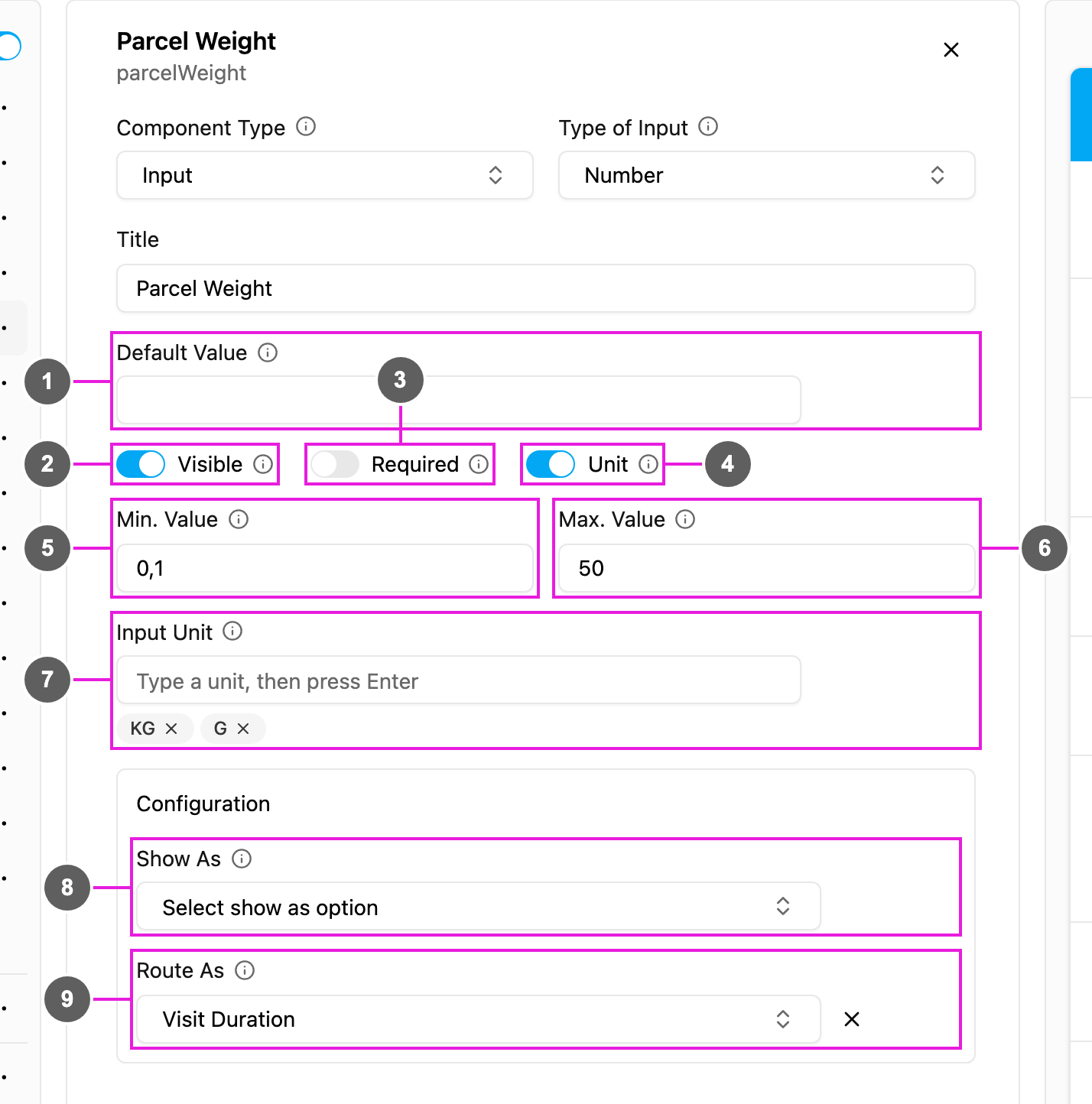
- Default Value: a number filled in for every new task.
- Visible: when off, the field is hidden on the web and the field app; its value is still kept and exported.
- Required: the task cannot be saved or finished until a number is entered.
- Unit: when on, the user picks a unit next to the number. Turning it on fills in KG, G, M3 and CBM.
- Min. Value: the lowest number allowed. Leave it empty for no limit.
- Max. Value: the highest number allowed, at least 0.1. Leave it empty for no limit. The minimum cannot be above the maximum.
- Input Unit: the units the user can pick. Type a unit and press Enter to add it; click × to remove one. At least one unit is needed while Unit is on.
- Show As: show the number in the task list as the task’s Title, Content or Label.
- Route As (Initial page only): pass the number to route planning as the visit’s Visit Duration or Visit Group Priority, or as one of your organization’s capacity constraints, such as weight or volume. See Capacity constraints.
How to set it up
1
Add the component
Click Add component, choose Input, and set Type of Input to Number.
2
Set the range (optional)
Fill in Min. Value and Max. Value.
3
Add units (optional)
Turn on Unit and edit the Input Unit list.
4
Show it or route it (optional)
Set Show As, and on the Initial page Route As.