

dd/mm/yyyy format.
Use cases
- Delivery date: when the customer expects the order.
- Expiry date: the expiry printed on a product.
- Inspection date: when an asset was last checked.
Properties
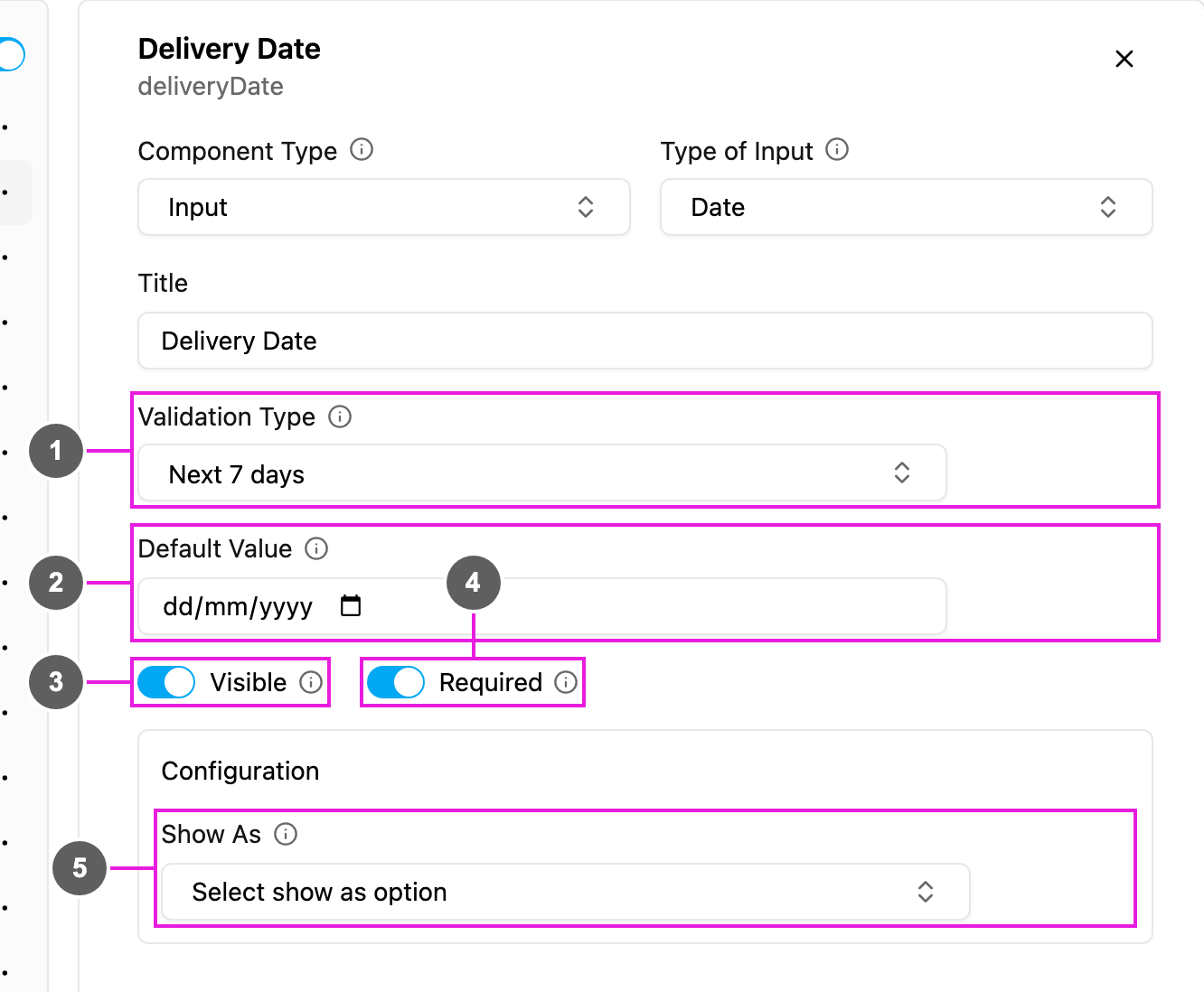
- Validation Type: which dates can be picked:
- No validation: any date.
- Next 7 days, Next 30 days, Next 90 days: from today up to that many days ahead.
- Custom date range: between a Min Date and a Max Date you set. Both are required, and the latest date must be after the earliest.
- Default Value: a date filled in for every new task. It must fall inside the Validation Type’s range.
- Visible: when off, the field is hidden on the web and the field app; its value is still kept and exported.
- Required: the task cannot be saved or finished until a date is picked.
- Show As: show the date in the task list as the task’s Title, Content or Label.
How to set it up
1
Add the component
Click Add component, choose Input, and set Type of Input to Date.
2
Limit the dates (optional)
Pick a Validation Type. For Custom date range, set the Min Date and Max Date.
3
Set the basics
Write the Title, set Required and Visible, and add a Default Value if you need one.
On the field app
The field opens a date picker indd/mm/yyyy. Dates outside the Validation Type’s range cannot be picked. The field can already be filled from task creation or from the Default Value, and the worker can change it before finishing the page.