Required permission:
- Export task
- View custom export template
- Create custom export template, to build a set
- Edit custom export template, to rename or edit a set
- Delete custom export template, to delete a set
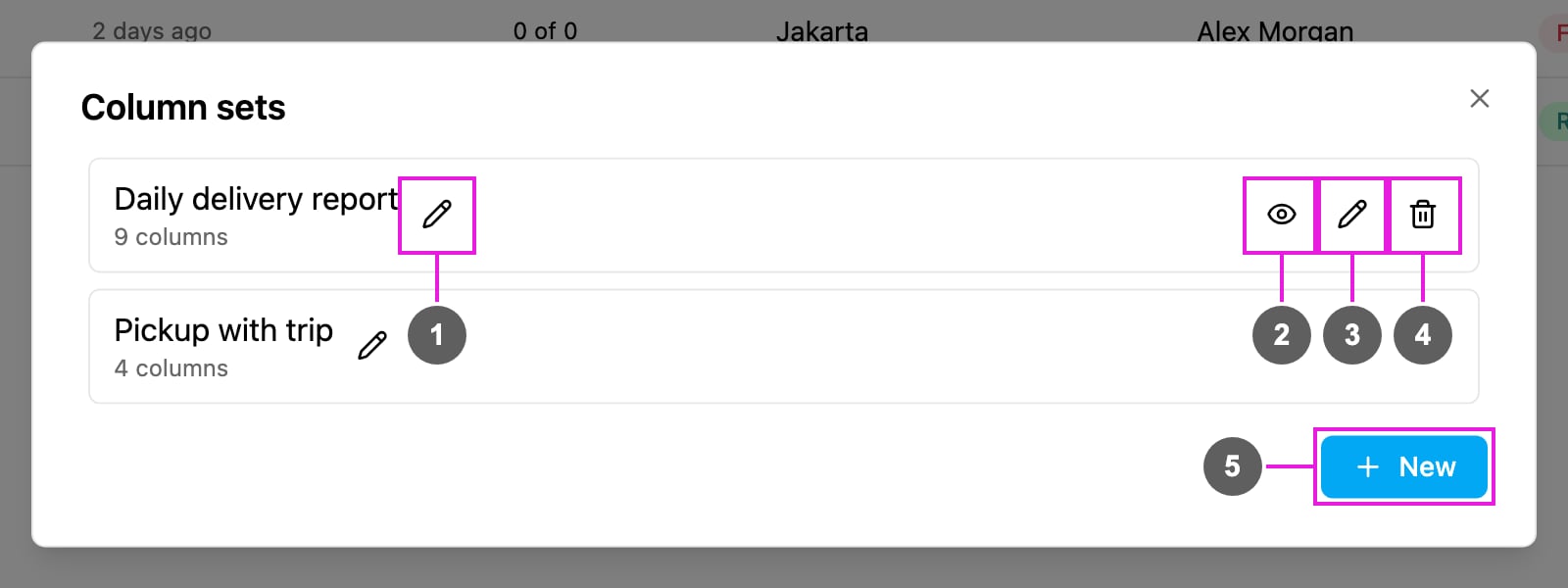
- Rename: change the name in place. Press Enter to save it, or Cancel rename.
- View: see the set’s task types and columns, in file order.
- Edit: change the name, task types or columns.
- Delete: remove the set.
- New: build a new set.
Build a column set
Click New, or Add a column set in the New export dialog.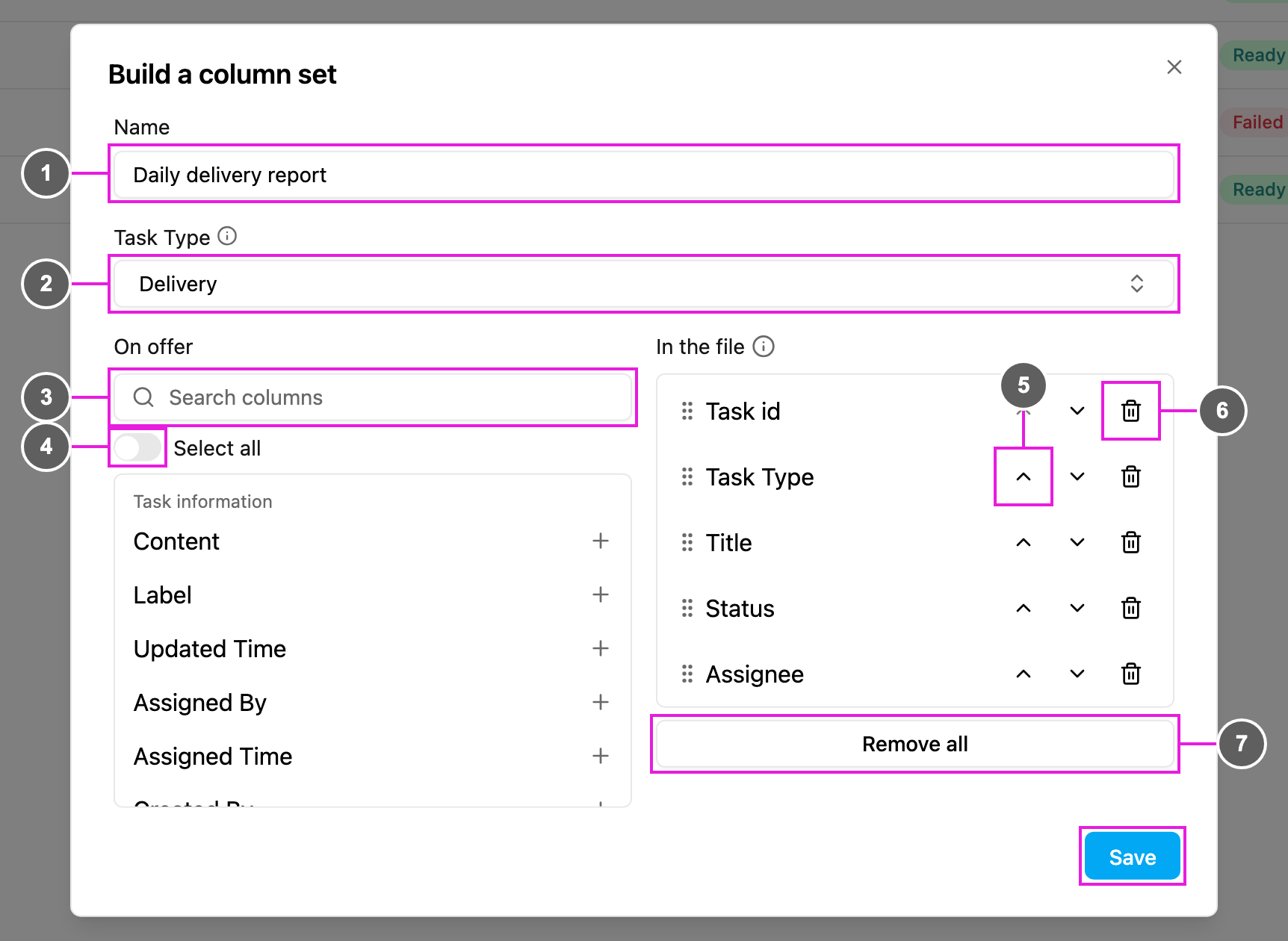
- Name: a unique name, using only letters, numbers and spaces. Two sets cannot have the same name.
- Task Type: the task types whose columns are on offer. The columns of every chosen task type are merged into one list. Besides your task types, you can pick Trip Activity, which adds Username, Start Trip, Start Trip Coordinate, End Trip, End Trip Coordinate, Total Distance (km) and Total Duration (minutes).
- Search columns: find a column under On offer. The columns are grouped under Task information, Routing, Other, Media, Field and Trip activity. Click + to add one to the file.
- Select all: add or remove every column currently shown.
- Move up and Move down: change a column’s place. You can also drag a column by its handle. Top to bottom under In the file is left to right in the file.
- Remove: take one column out of the file.
- Remove all: take every column out of the file.
The number of column sets depends on your plan. When the limit is reached, a message offers Upgrade now; otherwise delete a set you no longer need.
View a column set
Click View on a row to check the order of the columns before you export.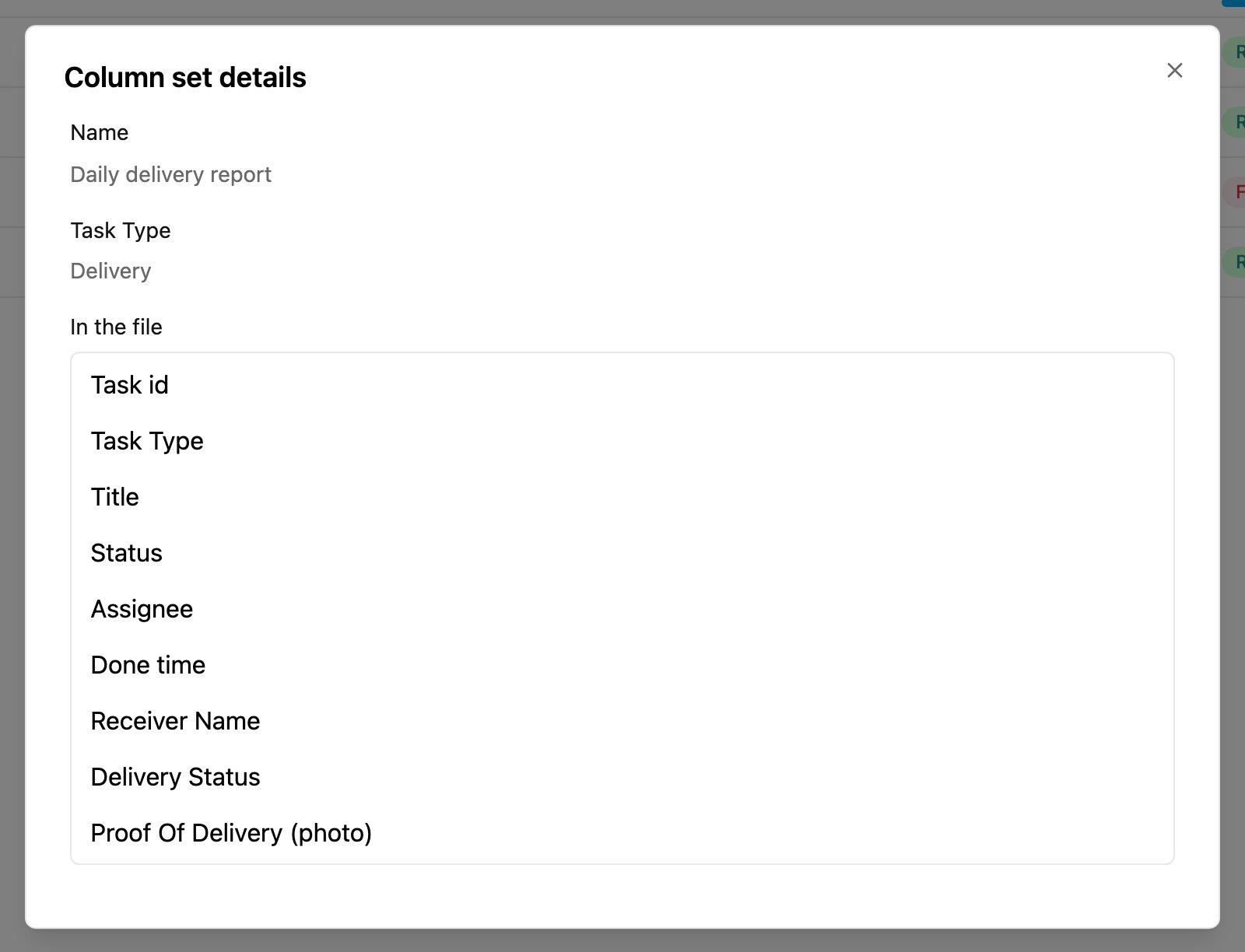
Edit a column set
Click Edit on a row. The same form as Build a column set opens with the set’s name, task types and columns. Change them and click Save. If you close the form with unsaved changes, you are asked whether to Discard them or Keep editing.Delete a column set
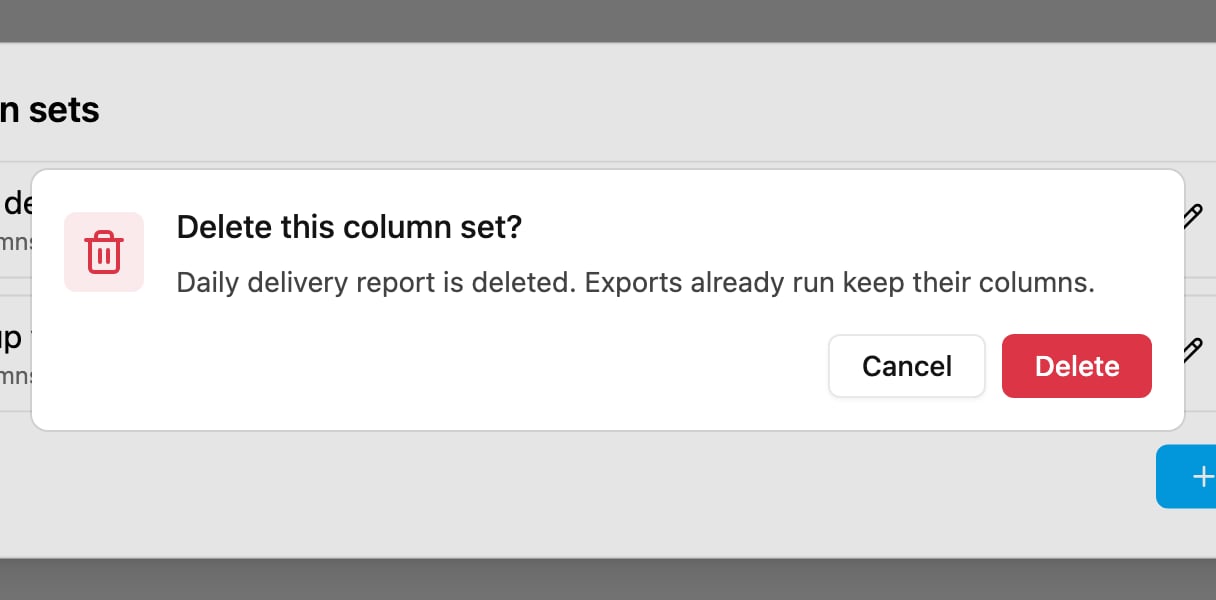
Click Delete on a row, then Delete to confirm.