

Required permission:
- Edit dashboard
Edit mode
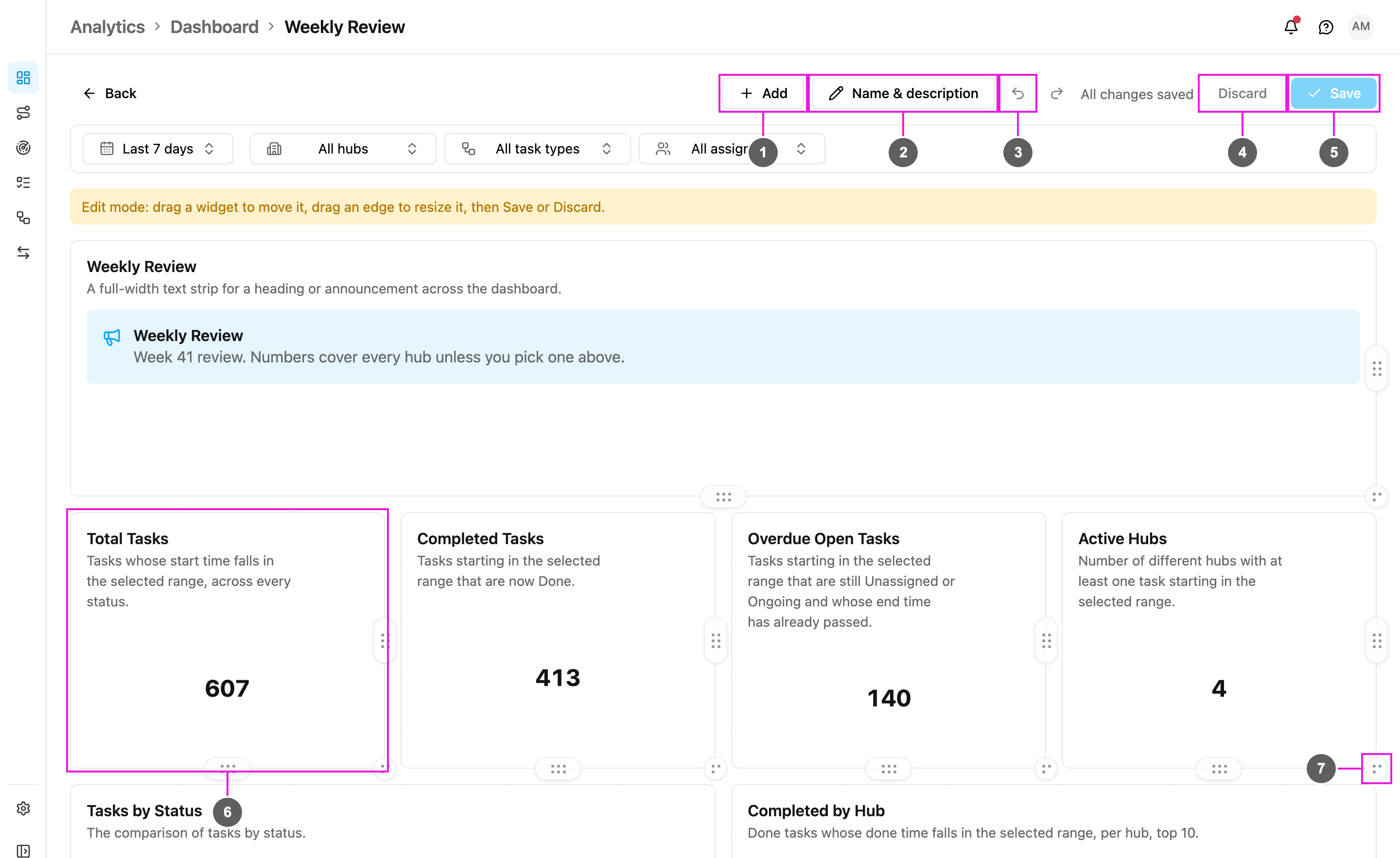
- Add: add a widget from the catalog.
- Name & description: change the dashboard’s name and its description (shown in the dashboard list).
- Undo / Redo: step back or forward through your changes. Beside them the page says Unsaved changes or All changes saved.
- Discard: throw away every change since you clicked Edit. The app asks first.
- Save: save the dashboard.
- Move: drag a widget anywhere on the dashboard. The others make room.
- Resize: drag a widget’s right edge to change its width, the bottom edge to change its height, or the corner for both. The dashboard is 12 columns wide.
Using the keyboard
Click a widget so it is selected, then:- Arrow keys: move it.
- Shift + left or right arrow: make it narrower or wider.
- Shift + up or down arrow: make it shorter or taller.
Add a widget
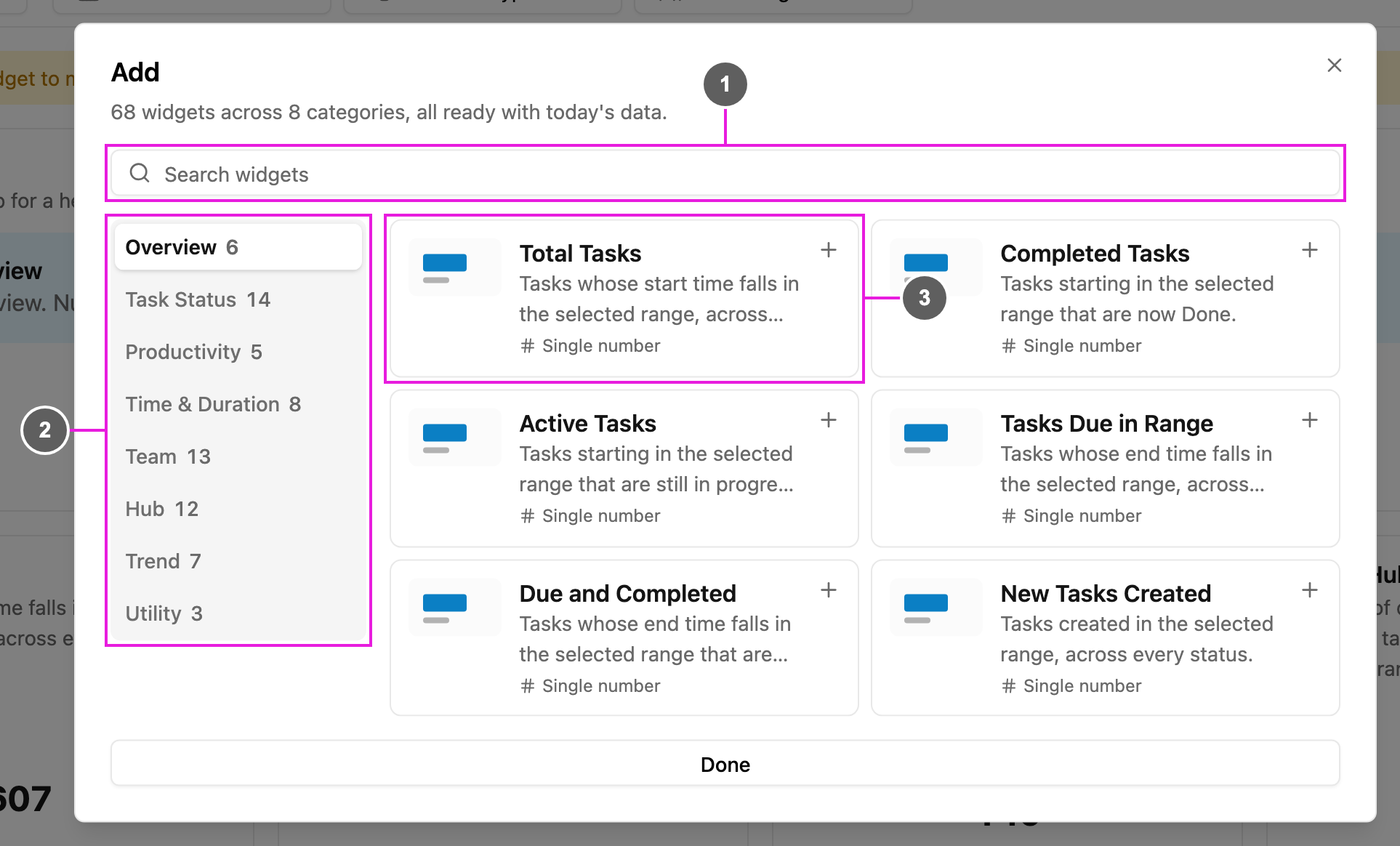
- Search widgets: find a widget by name.
- Categories: Overview, Task Status, Productivity, Time & Duration, Team, Hub, Trend and Utility, with how many widgets each has.
- Widget: its name, what it counts and its visual. Click it to add it to the dashboard.
Change a widget
In edit mode, click a widget’s ⋯:- Edit: rename the widget, change its description and, for text and banner widgets, write its text.
- Duplicate widget: add a copy next to it, named Copy of ….
- Remove: take it off this dashboard.
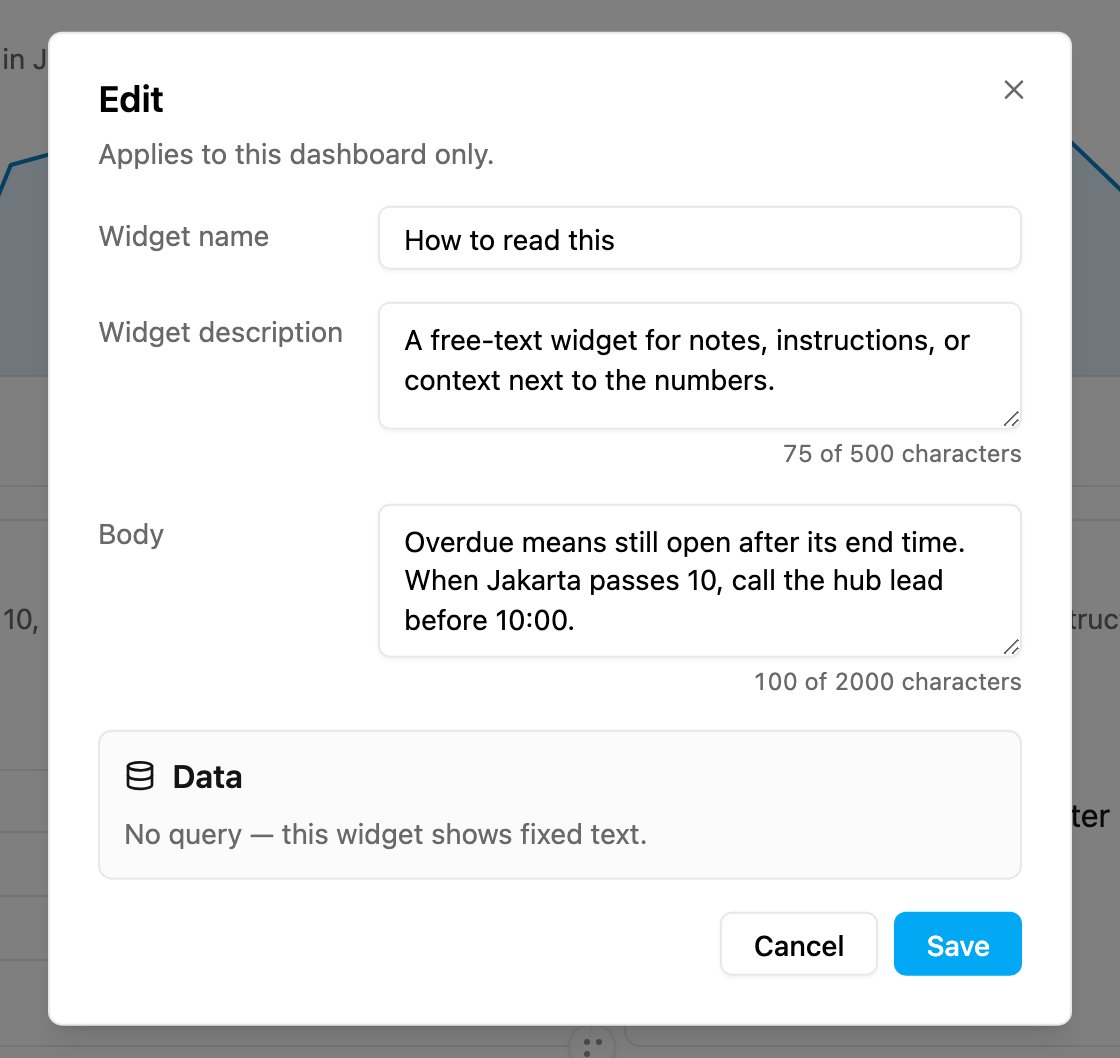
- Widget name: the title on the widget. Required.
- Widget description: the line under the title, up to 500 characters. Optional.
- Body: the text of a Free text or Banner widget, up to 2,000 characters.
- Data: what the widget counts, grouped by what, and with which filters. A text widget says No query — this widget shows fixed text.
Save
Click Save. The app says Dashboard saved.When someone else saved first
If another person saved the same dashboard while you were editing, saving stops and the app shows This dashboard changed while you were editing, with who saved and when. Choose:- Reload their version: show their version and throw away your changes.
- Keep editing: keep your changes on top of their version. Your next Save replaces what they did, so check their changes first.