

- Several packages on one delivery, each with a code, a weight and a photo.
- Several recipients, each with a name, a phone number and a signature.
- Item inspection: condition, photos and notes for each item.
- Inspection points: a reading and a photo at each checkpoint.
Components inside a subpage
A subpage can hold:
A subpage cannot hold another Subpage, a Timer, a Voice, a Capture, a Video or a Subflow.
Properties
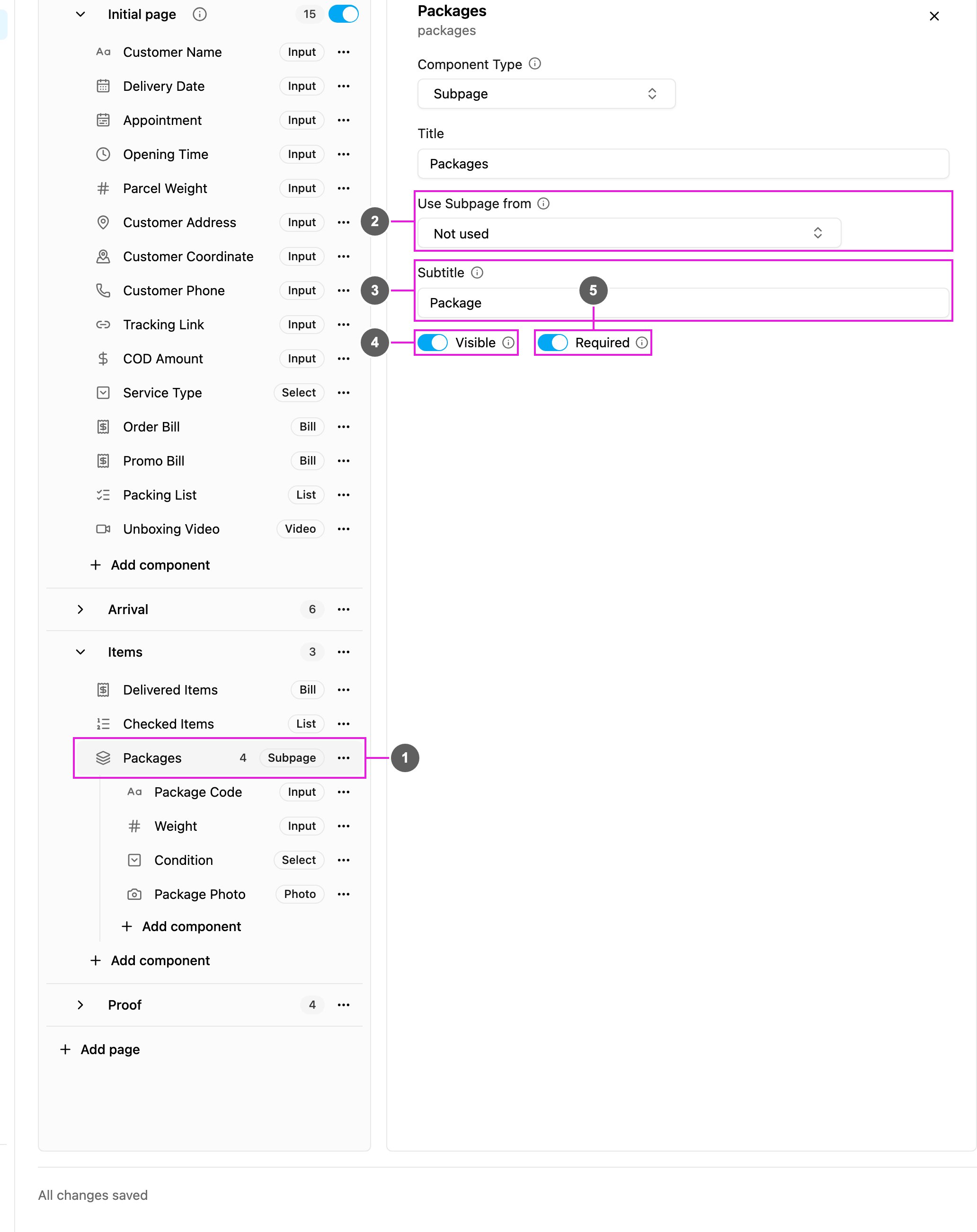
- The subpage in the page tree: its components are listed under it, with their own Add component. Drag a component by its handle to reorder it.
- Use Subpage from (field app pages): show the entries of another subpage here.
- Subtitle: the word shown before each entry number, for example Package gives Package 1, Package 2. Leave it empty to use Entry. (Internal accounts.)
- Visible: when off, the subpage is hidden on the web and the field app.
- Required: at least one entry must be added before the task can be saved or finished.
Components inside: Show As
Click a component inside the subpage to set it up like any other component.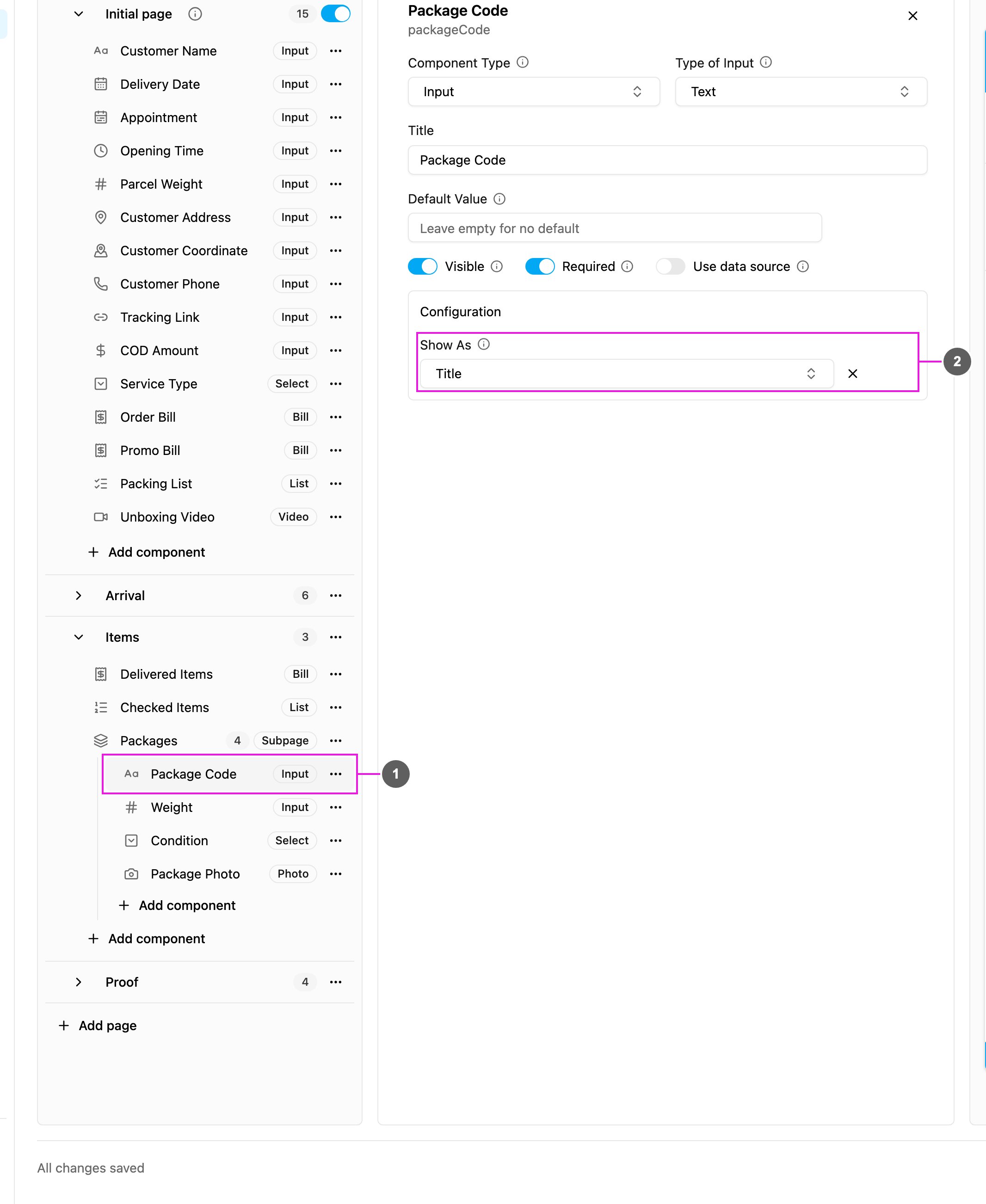
- Package Code, a Text input inside Packages.
- Show As: how the value appears on the entry’s card in the list of entries:
- Title: in bold, as the card heading.
- Content: as a line of text under the title.
- Label: as chips, one chip per chosen option of a multi-select.
Rules
- Every component in a subpage needs a Title. Its ID is made from the title and must be unique within the subpage.
- An ID cannot be one of the task’s reserved field names (the builder tells you if it is), and is at most 47 characters.
- A subpage must hold at least one component.
On the field app
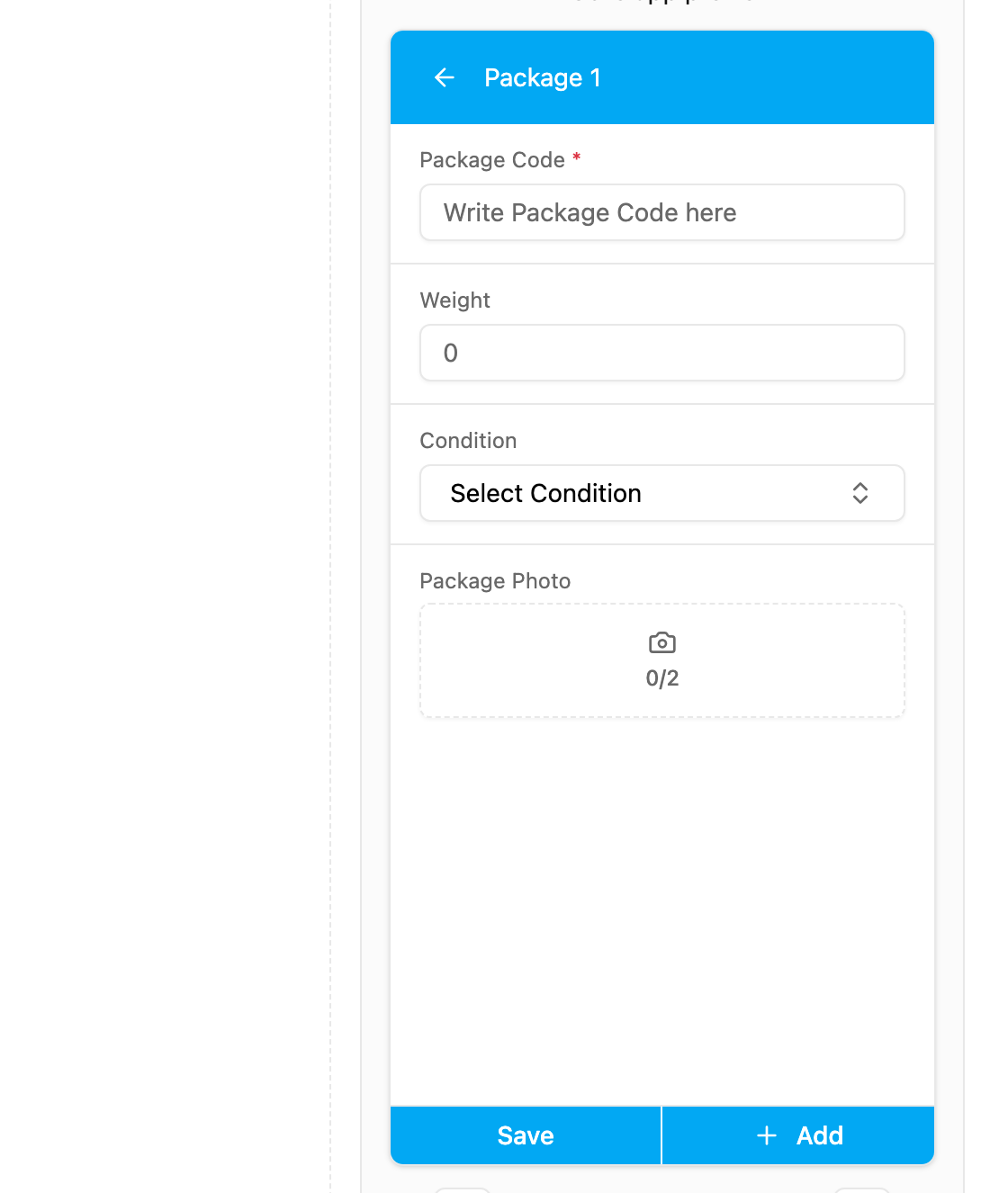
Package 1 of the Packages subpage: Package Code (required), Weight, Condition and Package Photo.
- The page shows a card for the subpage with how many entries it has, or No entries yet. Tap to add.
- Tapping it opens the list of entries, each card showing its Title, Content and Label values.
- Add opens a new entry form, named with the Subtitle and a number, such as Package 1.
- The worker fills in the fields and taps Save, or Add to save and start the next entry.
- Tapping an entry opens it to edit; an entry can also be deleted.