

Switch to another organization
Click your initials in the top right corner, then Change Organization. The Switch Organization dialog opens.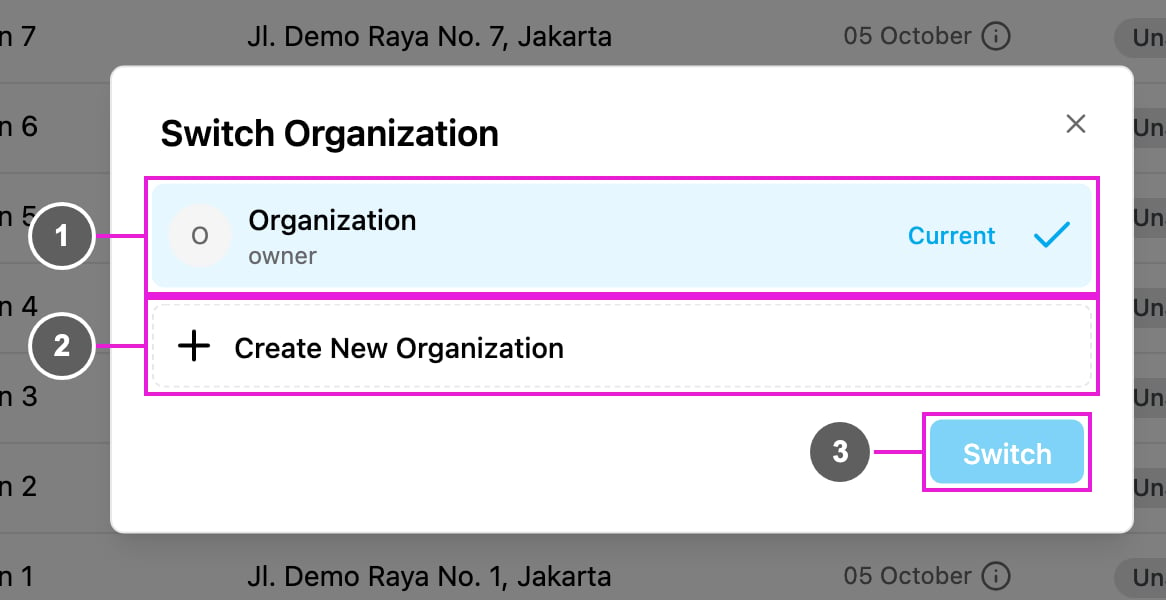
- Organization list: every organization you belong to, with your role in each one (for example owner or field user). The organization you are in now is marked Current. Click the one you want to move to.
- Create New Organization: start a new organization of your own. See below.
- Switch: move to the selected organization.
Extra sign-in step
If the role you have in the other organization requires multi-factor authentication, you are asked for the second step before the switch finishes:- Authenticator app: enter the 6-digit code from your authenticator app.
- One-time code: enter the code sent to you by email, WhatsApp or SMS.
Create a new organization
In the Switch Organization dialog, click Create New Organization.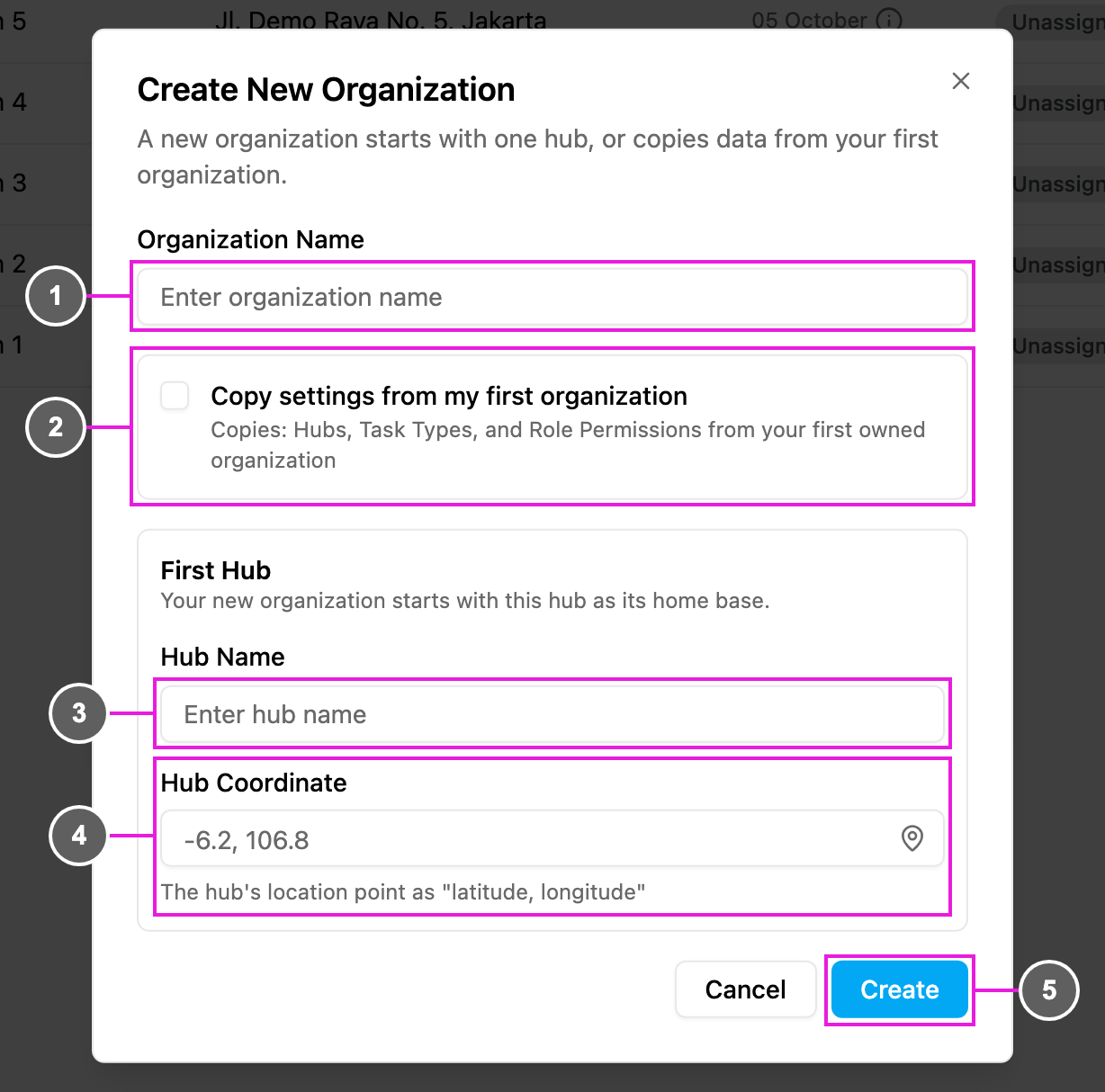
- Organization Name: the name of the new organization. Required.
- Copy settings from my first organization: tick it to start with the hubs, task types and role permissions of the first organization you own. You then don’t need to set up a first hub. This option shows only if you are the owner of at least one organization.
- Hub Name: the name of the first hub, for example Gudang Utama. Required when you don’t copy settings.
- Hub Coordinate: the hub’s location as latitude, longitude, for example -6.2, 106.8. Type it, or click the pin icon to pick the point on a map. Required when you don’t copy settings.
- Create: create the organization. You become its owner.
What is copied
When you tick Copy settings from my first organization:
Tasks, users, vehicles and other records are never copied. Invite your team to the new organization from Settings › User. See Inviting Users.
Passwords across organizations
- You have one password for all your organizations. Changing it in one changes it everywhere.
- An admin can reset your password only in the organization where you first signed up. If someone was invited from another organization, admins in your organization can’t reset their password.
Related
- Organization: the details of the organization you are in.
- Deleting Your Organization
- Permission: roles and what they allow.