Chat lets you exchange messages with your field workers from the web app, while they reply from the field app. Messages arrive in real time, and a field worker whose app is closed gets a push notification so the conversation can carry on as soon as they open it. Open Monitoring › Chat. A badge on the menu shows how many messages you have not read. You can also chat from the Tracking page.
Required permission:
  • View Chat on Web

Permissions

Chat has two permissions, one for each side of the conversation. Set them per role on Settings › Permission, in the Chat group. Give each role one of the two. A field worker with the web permission could read every conversation, which is why the two are kept apart. A role with neither has no chat: the menu does not appear in the web app, and the chat screen is not available in the field app.

The Chat page
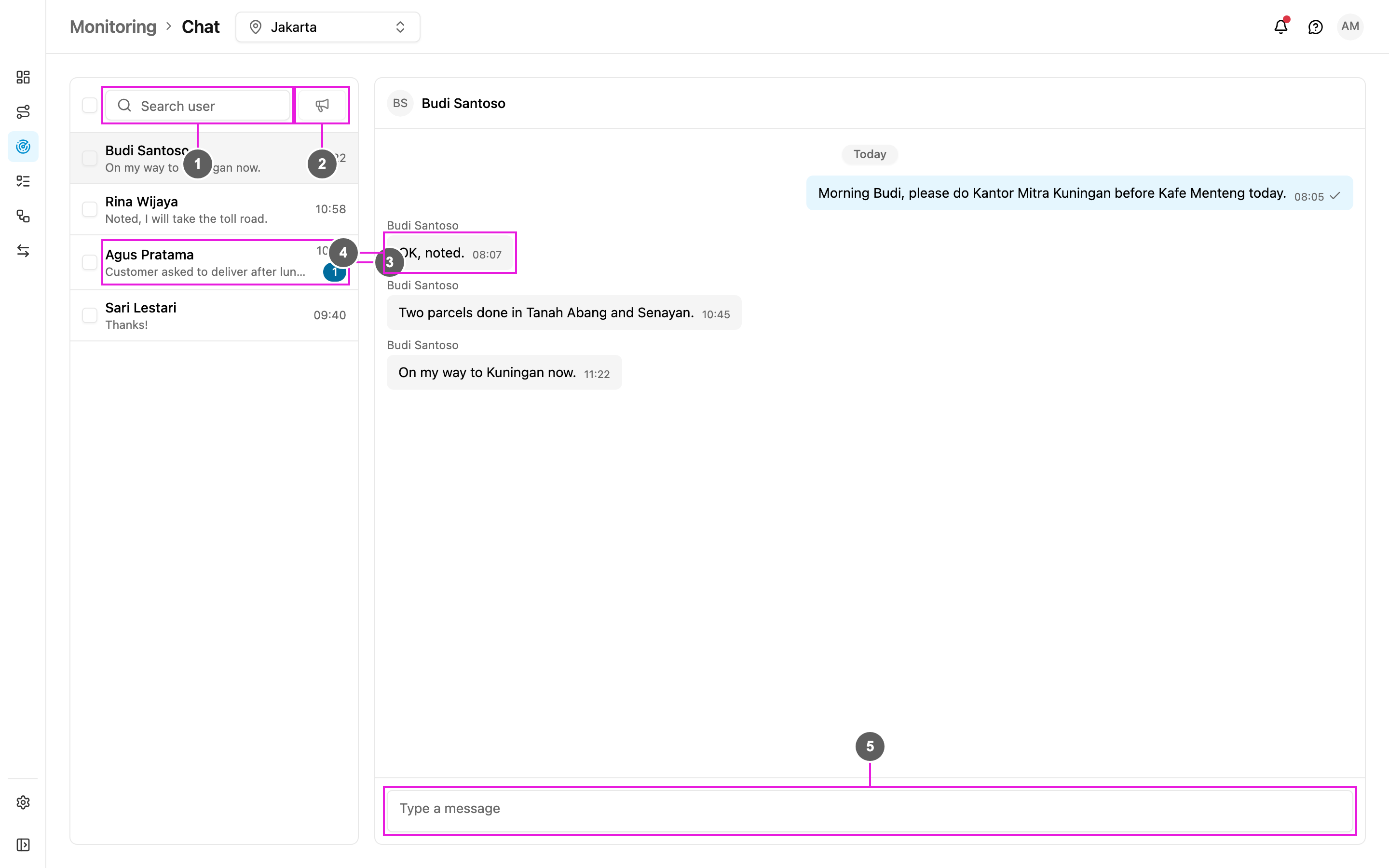
Chat page
  1. Search user: find a field worker by name or email address.
  2. Broadcast: send one message to the field workers you ticked. See Broadcast.
  3. Conversation list: every field worker you can talk to, newest conversation first. Each row shows the last message, when it arrived, and a badge with the number of messages you have not read. Field workers you have never messaged are in the list too, so you can start a conversation with anyone.
  4. Messages: the open conversation. The field worker’s messages are on the left with their name, yours are on the right.
  5. Type a message: write your message and press Enter to send it. Press Shift + Enter for a new line.
The list follows the hub selected in the top bar. Changing the hub shows that hub’s field workers. Only active accounts are listed: someone who has been invited but has not verified their account yet cannot receive messages. If the list is empty, the page says No conversations yet.

Reading and replying

Click a row to open the conversation. It opens at the newest message. Scroll up to load older ones. Messages are grouped by day (Today, Yesterday, then the date). Each message you send shows a delivery mark: one tick when it is sent, two ticks when the field worker has read it. Messages from the field worker are marked as read as soon as the conversation is open on your screen. If a message cannot be sent, it shows Message not sent with a Retry button.

Notifications

When a field worker sends a message while you are on another page, a notification appears in the corner of the screen with their name and the message, so you do not need to keep the Chat page open. No notification appears for the conversation you already have open, because the message is already on screen.

On a phone

The Chat page also works on a phone. The conversation list fills the screen. Opening a conversation replaces it with the messages, and the arrow at the top left goes back to the list.