Signature lets someone sign on the phone with a finger or a stylus. The signature is saved as an image on the task. Use cases
  • Proof of delivery: the recipient signs for the parcel.
  • Service acceptance: the customer signs after a job.
  • Document handover: confirm a form or contract changed hands.
  • Presence check: the field worker signs at a checkpoint.

Properties
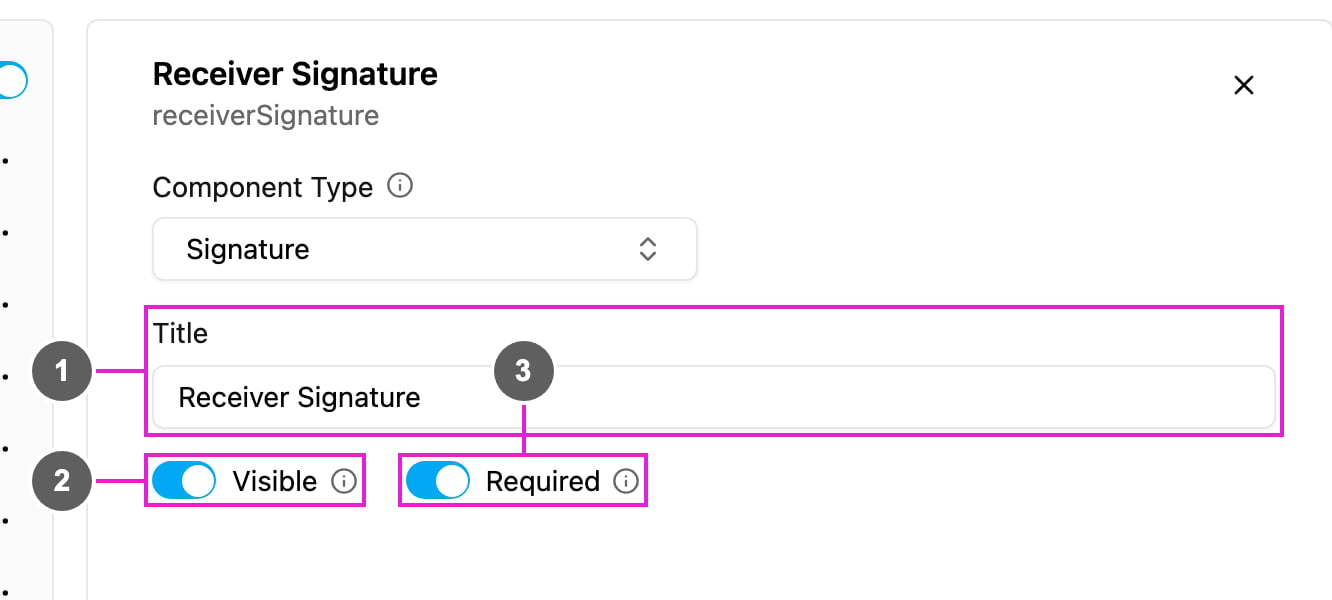
Signature properties
  1. Title: the label above the signature pad, such as Receiver Signature.
  2. Visible: when off, the component is hidden on the web and the field app; the signature is still kept and exported.
  3. Required: the task cannot be finished until a signature is drawn.

How to set it up

Click Add component, choose Signature, write the Title, and set Required and Visible.

On the field app

The signature block shows the title and Sign here. The worker taps it, draws the signature and saves it; to sign again they clear the pad. The signature image is attached to the task, shown in the task detail and in reports. See the preview on the Photo page.