

Required permission:
- View Data Export
- Export task, to export tasks
- Export Data Source, to export data source records
- View custom export template, to pick a saved column set
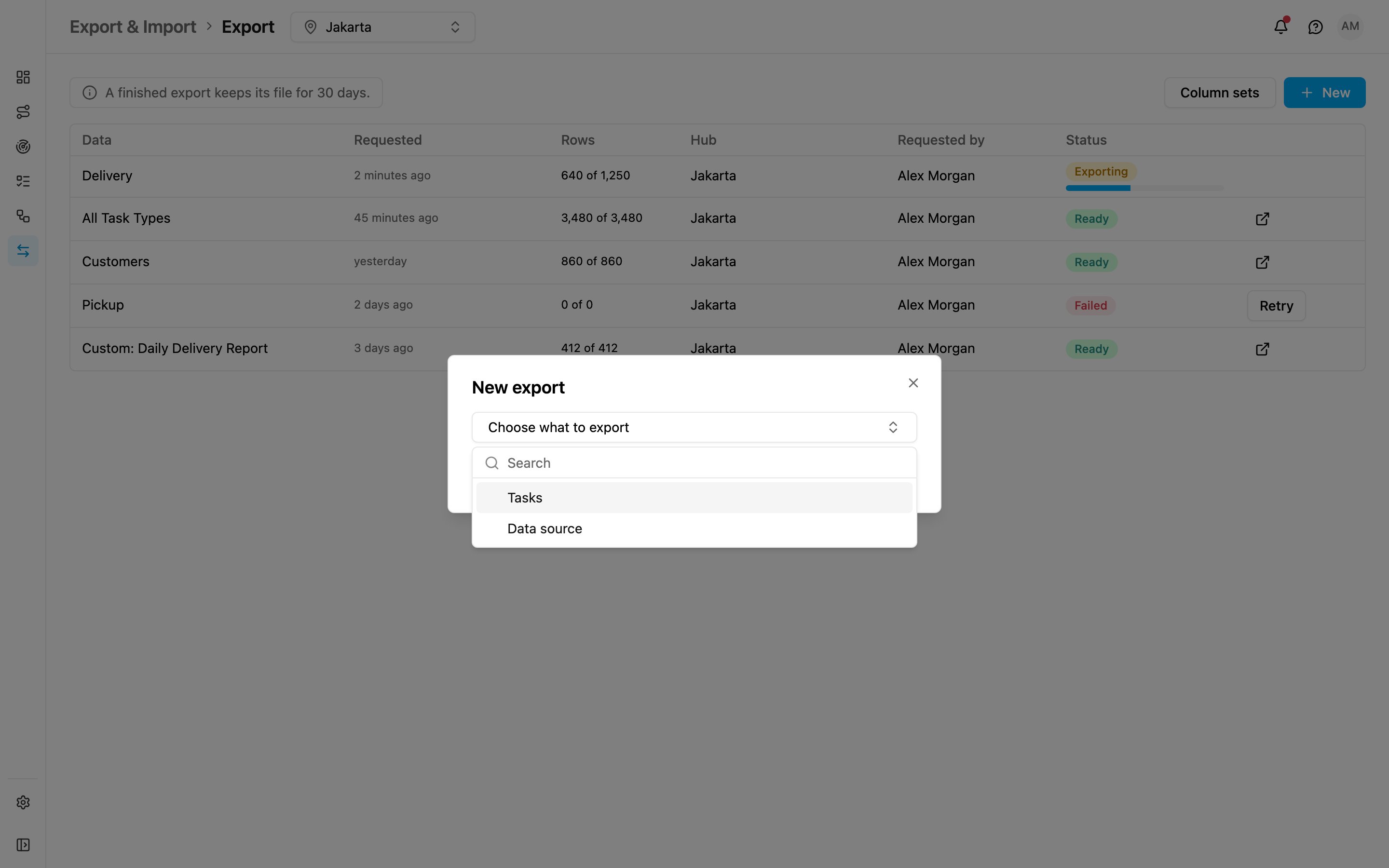
Export tasks
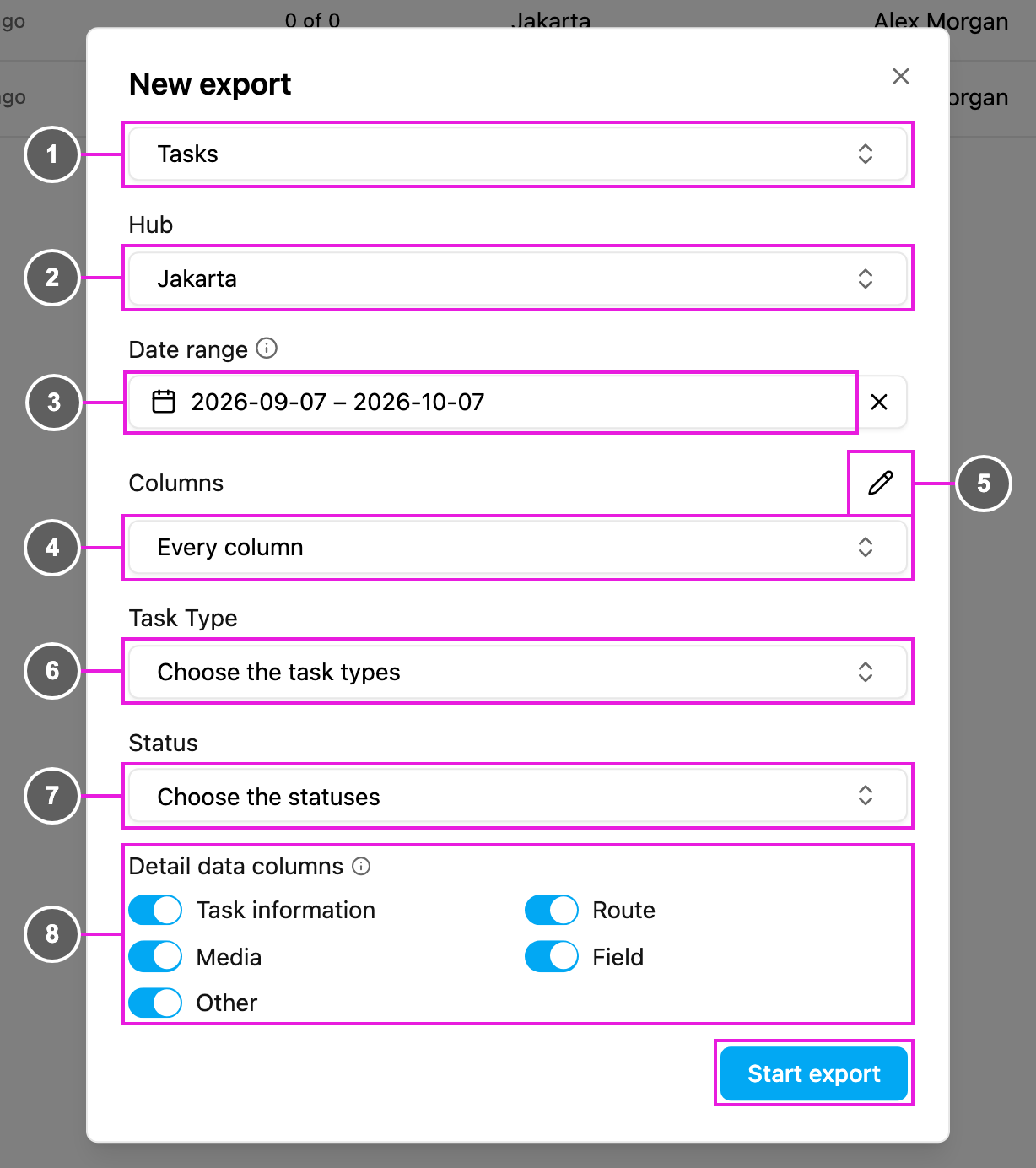
- Tasks: what is exported.
- Hub: the hubs to export from. Pick at least one, or use Select all hubs. The rest of the dialog appears once a hub is chosen.
- Date range: tasks within this range are exported. Both a start and an end date are required; it starts at the last 30 days.
- Columns: how the columns are chosen:
- Every column: every column of the chosen task types, narrowed by the switches under Detail data columns.
- A saved column set: the columns, and their order, from a column set.
- Manage column sets (pencil): opens the Column sets dialog without leaving the export.
- Task Type: the task types to export, or Select all task types. Besides your task types, the list offers Trip Activity.
- Status: the task statuses to include: Unassigned, Ongoing and Done.
- Detail data columns: each switch adds or removes one group of columns from the file. Keep at least one on. Your choice is remembered for the next export.
- Task information: title, content, label, task type, status, assignee, who created, assigned, updated and finished the task, and when.
- Route: ETA, ETD, planned route order, waiting time, distance, distance from hub, split details, assigned vehicle and visit group.
- Media: photo, signature, video and other file columns.
- Field: the answers your field team entered in the task type’s components.
- Other: task id, hub, task type id, coordinates, durations, geo lock settings, reference id and other system columns.
Trip Activity
Trip Activity is offered as a source next to your task types. Its columns are Username, Start Trip, Start Trip Coordinate, End Trip, End Trip Coordinate, Total Distance (km) and Total Duration (minutes), and they appear on their own sheet in the file.- Select all task types also selects Trip Activity.
- If you choose specific task types without Trip Activity, only those task types are exported.
Export with a saved column set
Choose A saved column set under Columns, then pick the set.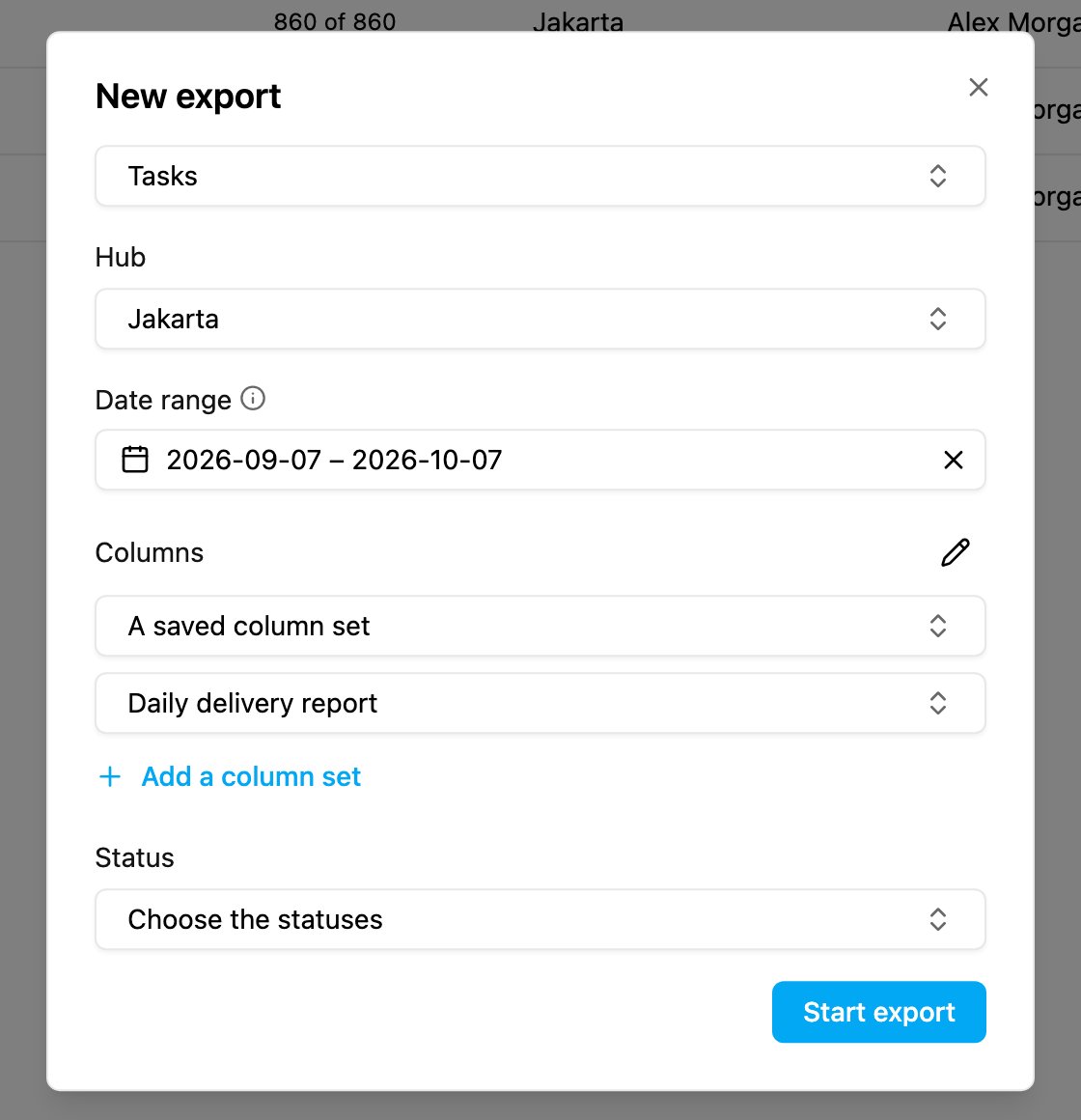
Export data source records
Pick Data source under Choose what to export.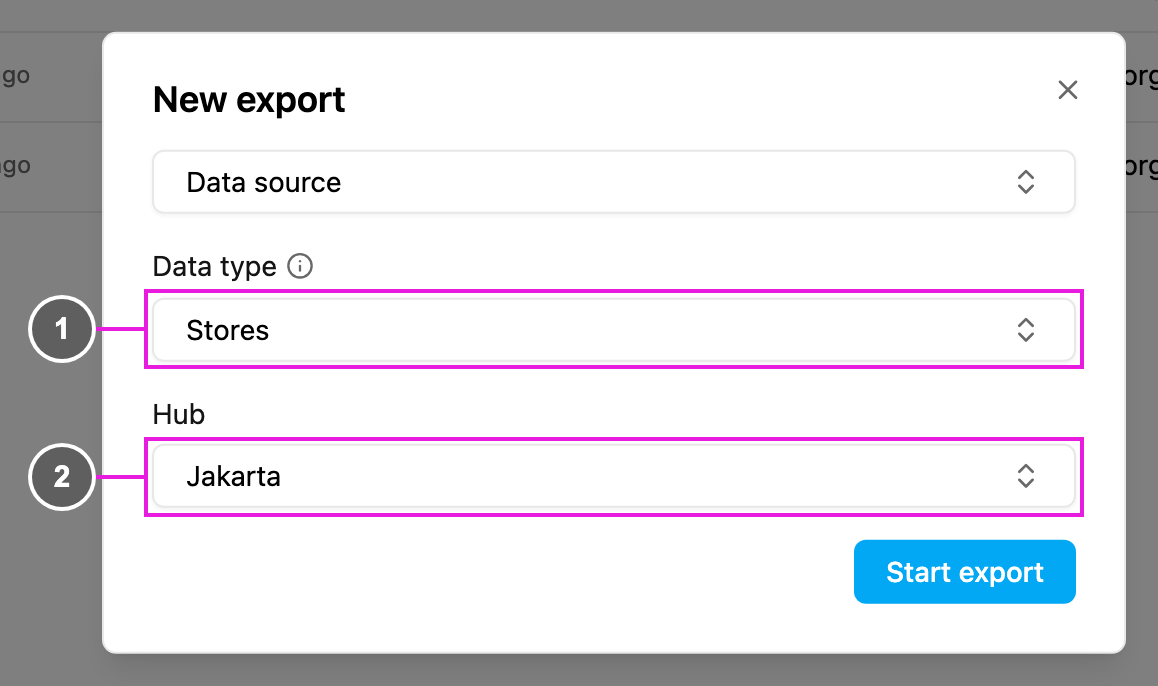
- Data type: the data type to export. Every column of this data type is exported. Types marked Common are shared by every hub.
- Hub: the hubs whose records are exported. It only appears for a data type that is not Common.