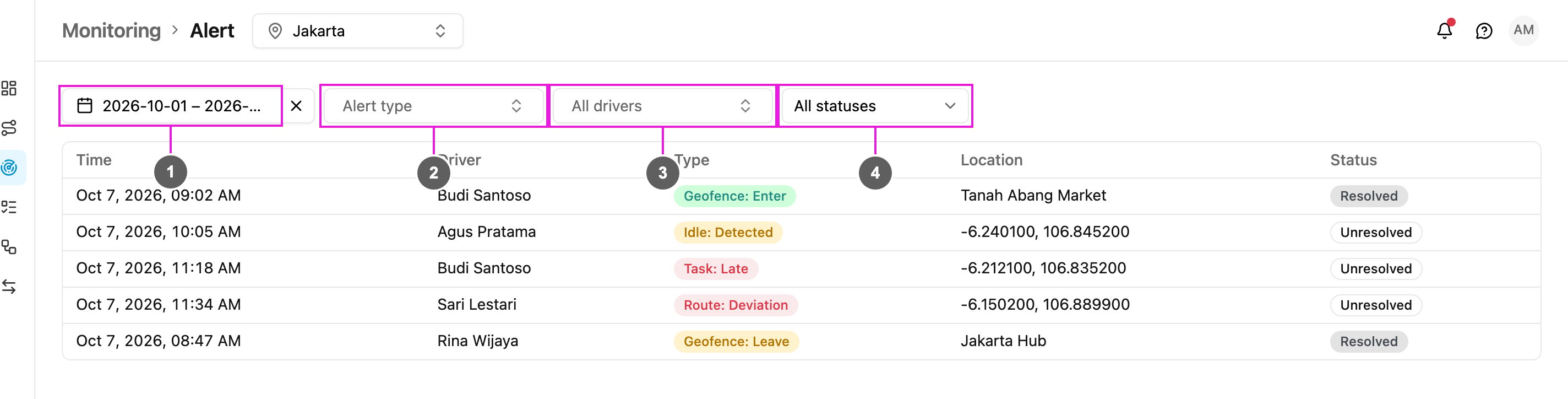
Monitoring › Alert lists every alert raised for your field workers: geofence entries and exits, idle stops, route deviations, predicted lateness and panic button presses. Use it to review a period, follow up the alerts nobody has handled yet, and record what was done.
Required permission:
  • View alert
  • Resolve alert (to mark an alert as resolved)
  • View tracking (for the View in Tracking button)
Choose which alerts are raised, and whether they also send a notification, in Alert Setting.

The alert list

Alert list
  1. Date range: the period to show. The last 7 days are shown by default. The X beside it resets the range.
  2. Alert type: show only some types. You can pick more than one.
  3. All drivers: show only one field worker’s alerts.
  4. All statuses: show every alert, or only Unresolved or Resolved ones.
On a phone the filters are behind a Filter button, with a Reset that clears them all. The table shows 20 alerts per page: If nothing matches, the page says No alert in this period and suggests a wider date range or fewer filters.

Alert types

Alert detail

Click a row to open the alert.
Alert detail
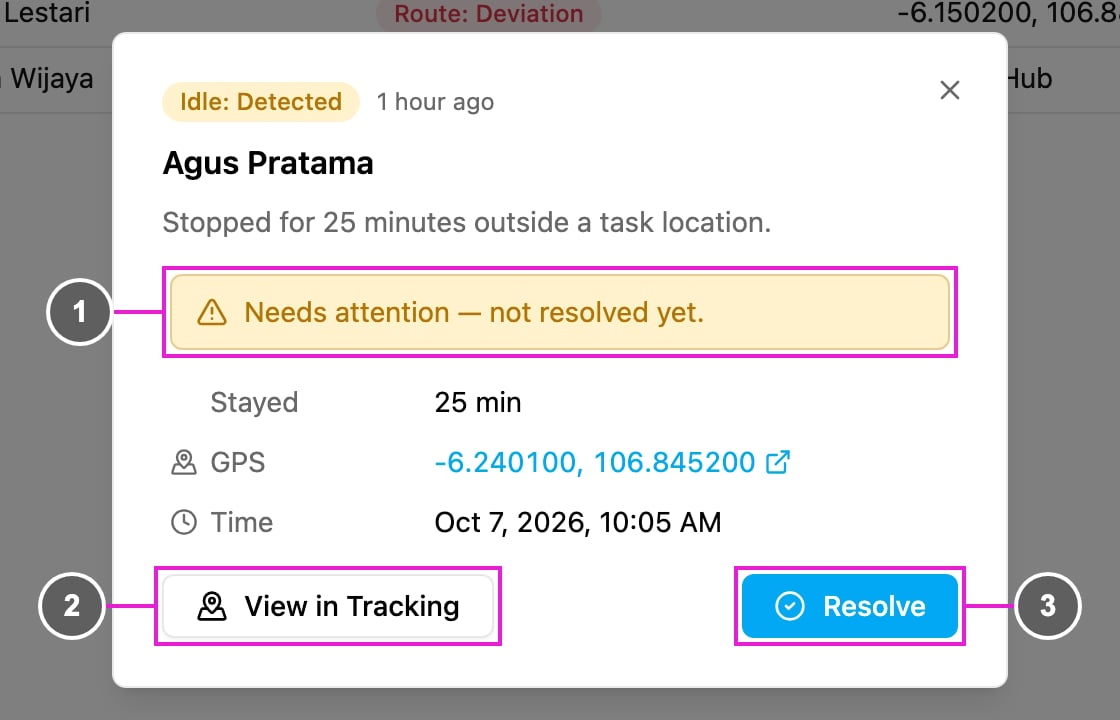
The top shows the alert type, how long ago it was raised, the field worker and the alert’s message, for example Stopped for 25 minutes outside a task location. Below it are the details that apply to the alert type, such as Location, Group (the geofence group), Stayed (how long the field worker stopped), GPS and Time. Click the GPS coordinates to open the place in Google Maps.
  1. Needs attention — not resolved yet.: the alert has not been handled.
  2. View in Tracking: open the Tracking page on this field worker and day, with the alert selected. See User Details.
  3. Resolve: record that the alert was handled.

Resolve an alert

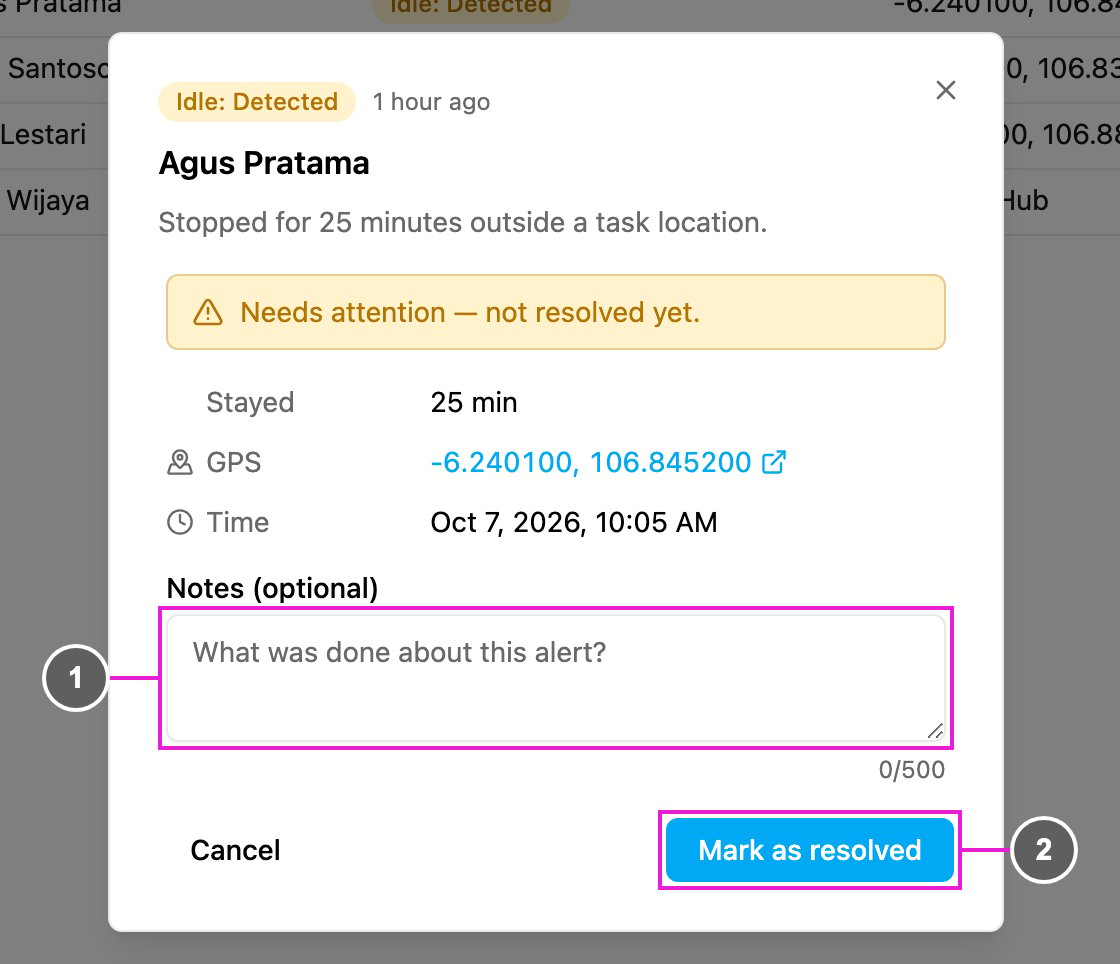
Click Resolve in the alert detail.
Resolve an alert
  1. Notes (optional): what was done about the alert, up to 500 characters.
  2. Mark as resolved: save. The app says Alert resolved. and the row’s status changes to Resolved. Click Cancel to go back without resolving.
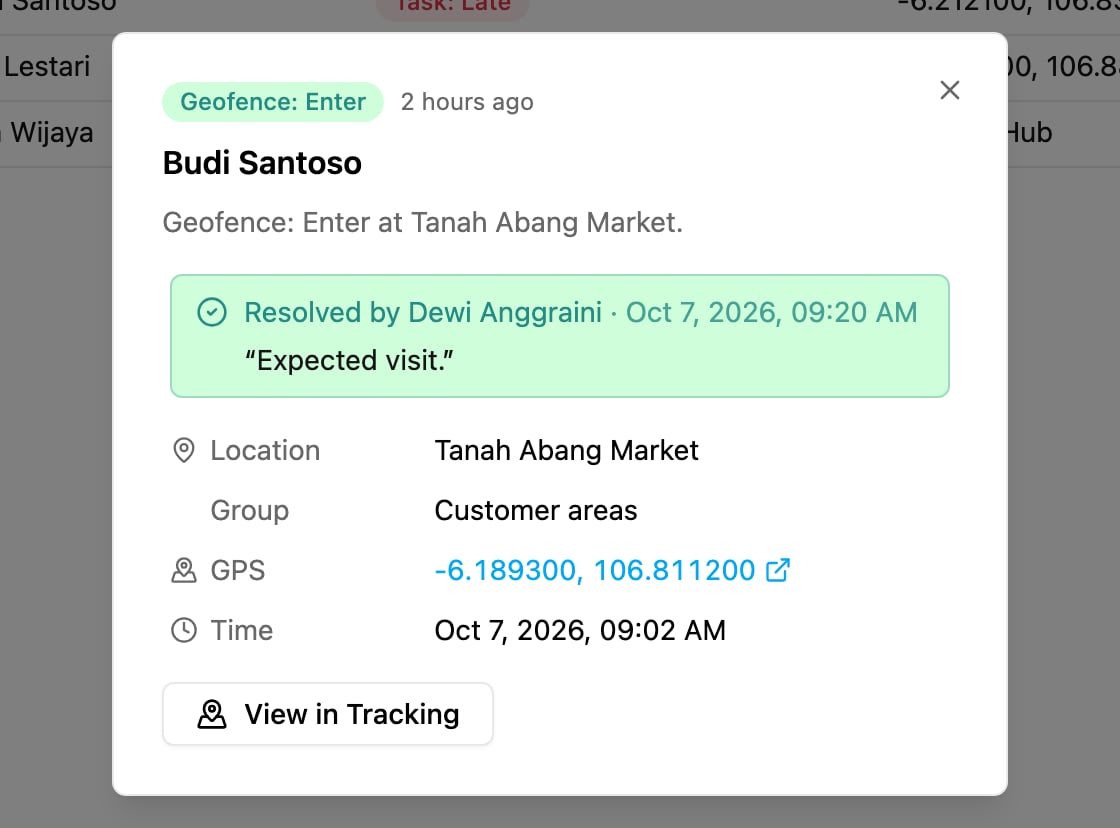
A resolved alert shows who resolved it, when, and their notes:
A resolved alert
Resolving is for everyone: the alert shows as resolved for every user, here and in the Alert tab on the Tracking page. You can also resolve alerts from that tab.