

Required permission:
- View flow
- Create flow
Generate a task type
- Click Build with AI.
- Fill in the dialog and click Generate.
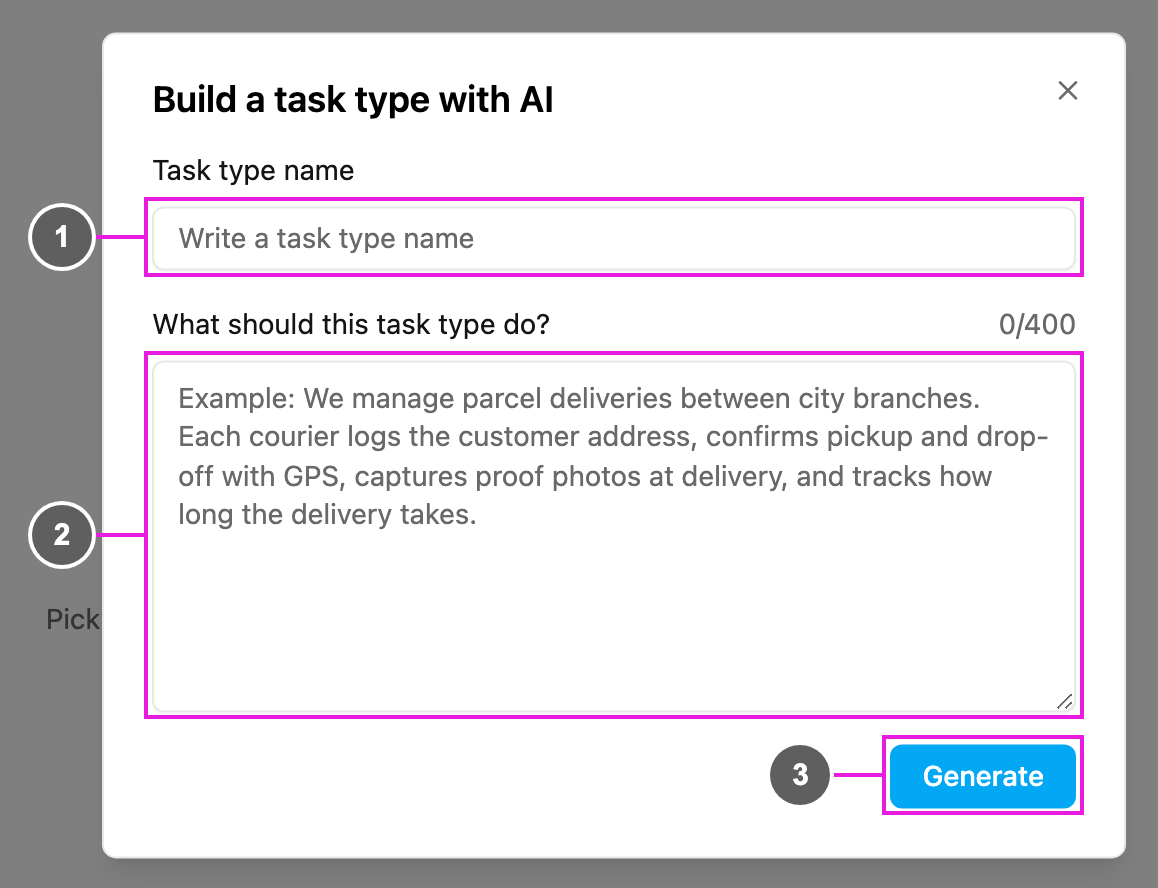
- Task type name: the name of the new task type. It cannot be empty, can only use letters, numbers and spaces, and must not already be used by another task type in your organization.
- What should this task type do?: describe your process. The AI reads this to decide the pages and components. It needs at least 20 characters and takes up to 400; the counter on the right shows how many you have used.
- Generate: start building. Close the dialog with × to cancel instead.
- Describe each step of the work, in order.
- Say what information needs to be captured at each step: addresses, photos, signatures, payments, times.
We manage parcel deliveries between city branches. Each courier logs the customer address, confirms pickup and drop-off with GPS, captures proof photos at delivery, and tracks how long the delivery takes.
After it is generated
- The message Task type generated successfully! appears and the dialog closes.
- The new task type opens in the builder.
- Check every page in the mobile app preview, change the components you need, set the configuration and click Save.