

- Delivery address shown on the task and in the task list.
- Source for a coordinate: import tasks with only an address and let the coordinate be found for you.
- Manual address: record a location in words when GPS is not needed.
Properties
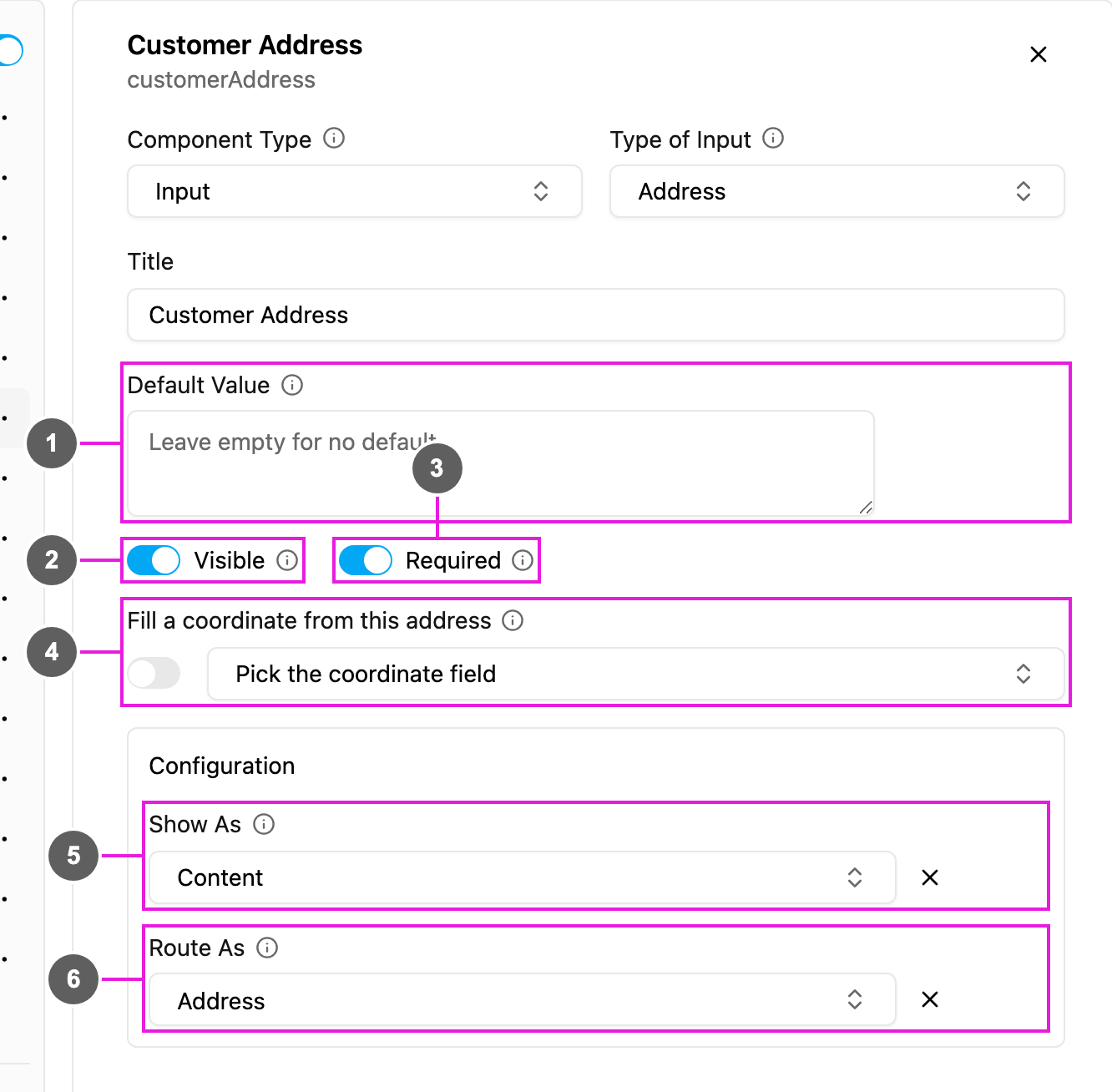
- Default Value: an address filled in for every new task. It can span several lines.
- Visible: when off, the field is hidden on the web and the field app; its value is still kept and exported.
- Required: the task cannot be saved or finished until an address is entered.
- Fill a coordinate from this address: pick the Coordinate component this address writes into. The same link can also be set from the Coordinate’s Geocode switch.
- Show As: show the address in the task list as the task’s Title, Content or Label. Content is the usual choice.
- Route As (Initial page only): pass the address to route planning as the visit’s Address.