

How a bill is set up
A bill usually appears twice in a task type:- On the Initial page: where the bill is filled when the task is created, on the web, in an import or through the API. This is also where you define the master items and add-ons.
- On a field app page: where the field worker works with the bill. This bill reads its data from the Initial page bill with Use Bill from, so the field worker starts from what was ordered.
Properties on the Initial page
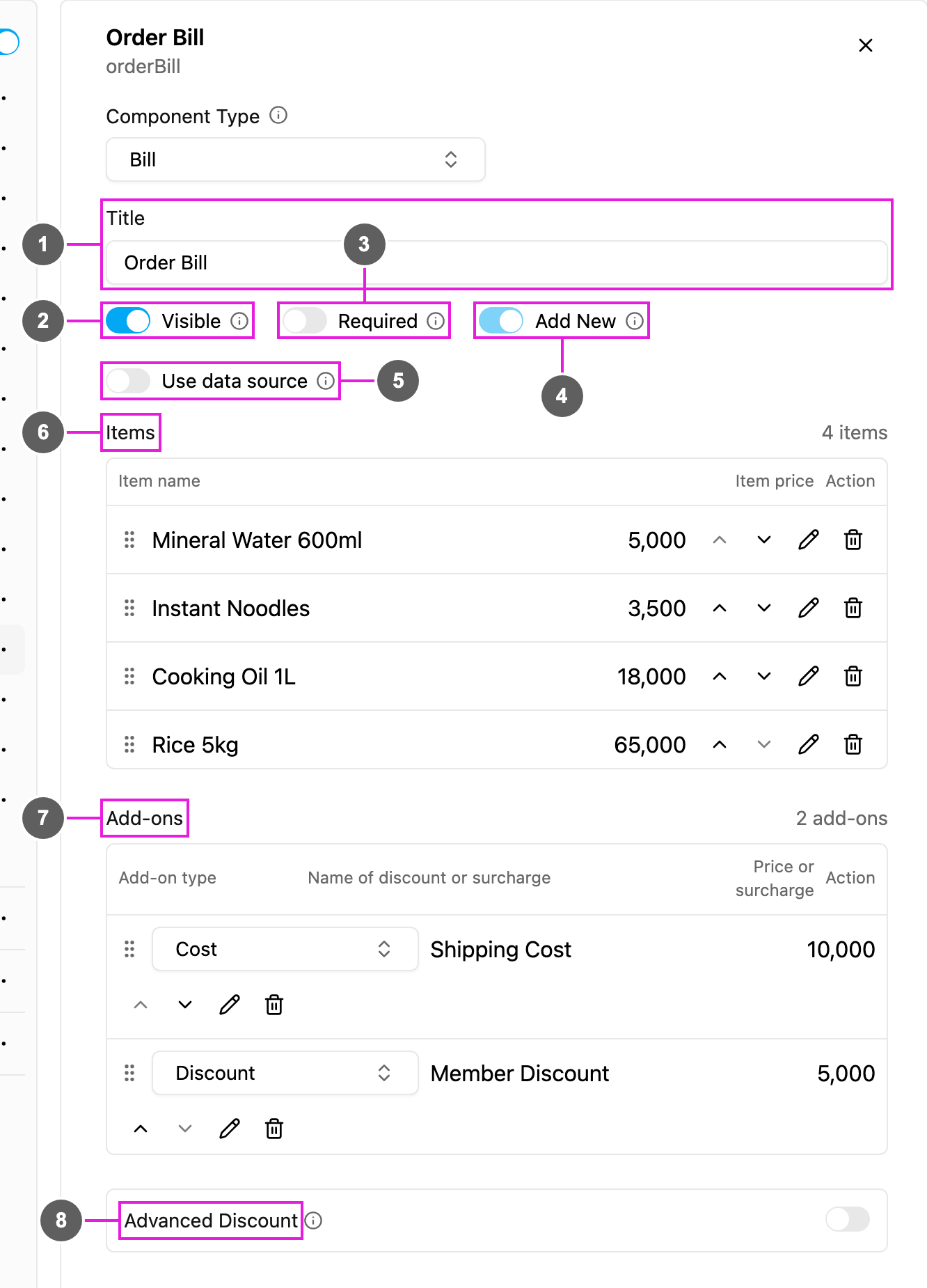
- Title: name the bill clearly, for example Order Bill. The field app page bill points to it by this name.
- Visible: when off, the bill is hidden on the web and the field app; its data is still kept and exported.
- Required: the task cannot be saved or finished until at least one item is added.
- Add New: on the Initial page this is always on.
- Use data source: take the item list from a data source instead of typing it here. You map which data fields hold the item quantity, name and price; all three are needed.
- Items: the master items. The table lists each Item name and Item price, with the number of items in the header. In the last row type a name and a price and click + (or press Enter) to add one. Each row can be moved up or down, edited with the pencil, or removed with the bin.
- Add-ons: the master costs and discounts. For each one choose the Add-on type, write the Name of discount or surcharge and the Price or surcharge:
- Cost adds to the total, for example Shipping Cost.
- Discount takes away from the total, for example Member Discount.
- Advanced Discount: replace the simple Discount add-on with discount rules. See Advanced Discount.
Properties on a field app page
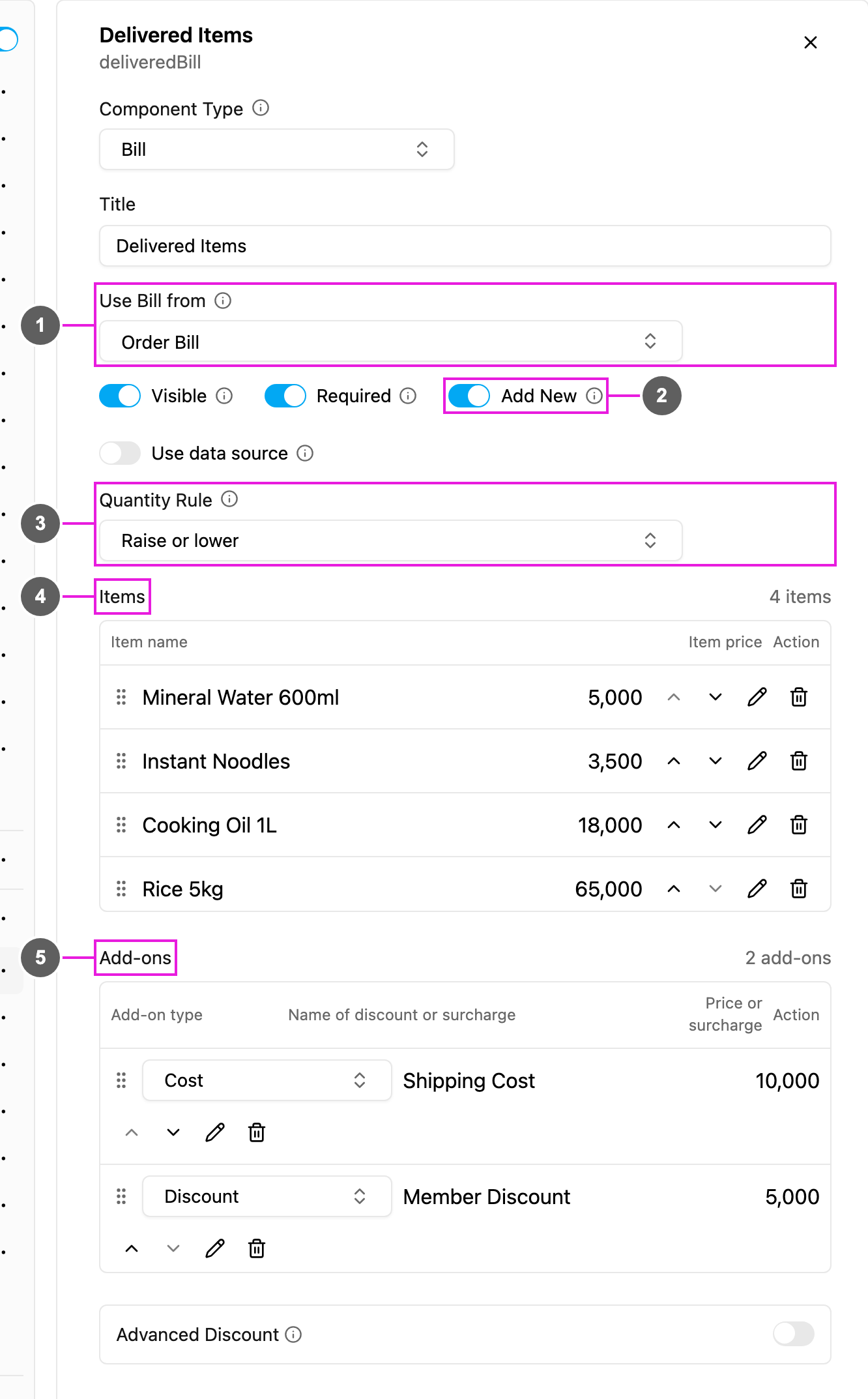
- Use Bill from: the bill this one reads its items, add-ons and values from, usually the Initial page bill.
- Add New: when on, the field worker can add more items from the master list; when off, they can only work with the items already on the bill.
- Quantity Rule: what the field worker can do with quantities:
- Raise or lower: change them either way.
- Only raise: increase quantities only.
- Only lower: decrease quantities only, for example to record items the customer refused.
- Items: the master items, taken from the bill picked in Use Bill from. You can still add, edit or remove rows here.
- Add-ons: the master costs and discounts, taken the same way.
On the field app
Tap Open on the bill to work with it. The bill has three tabs.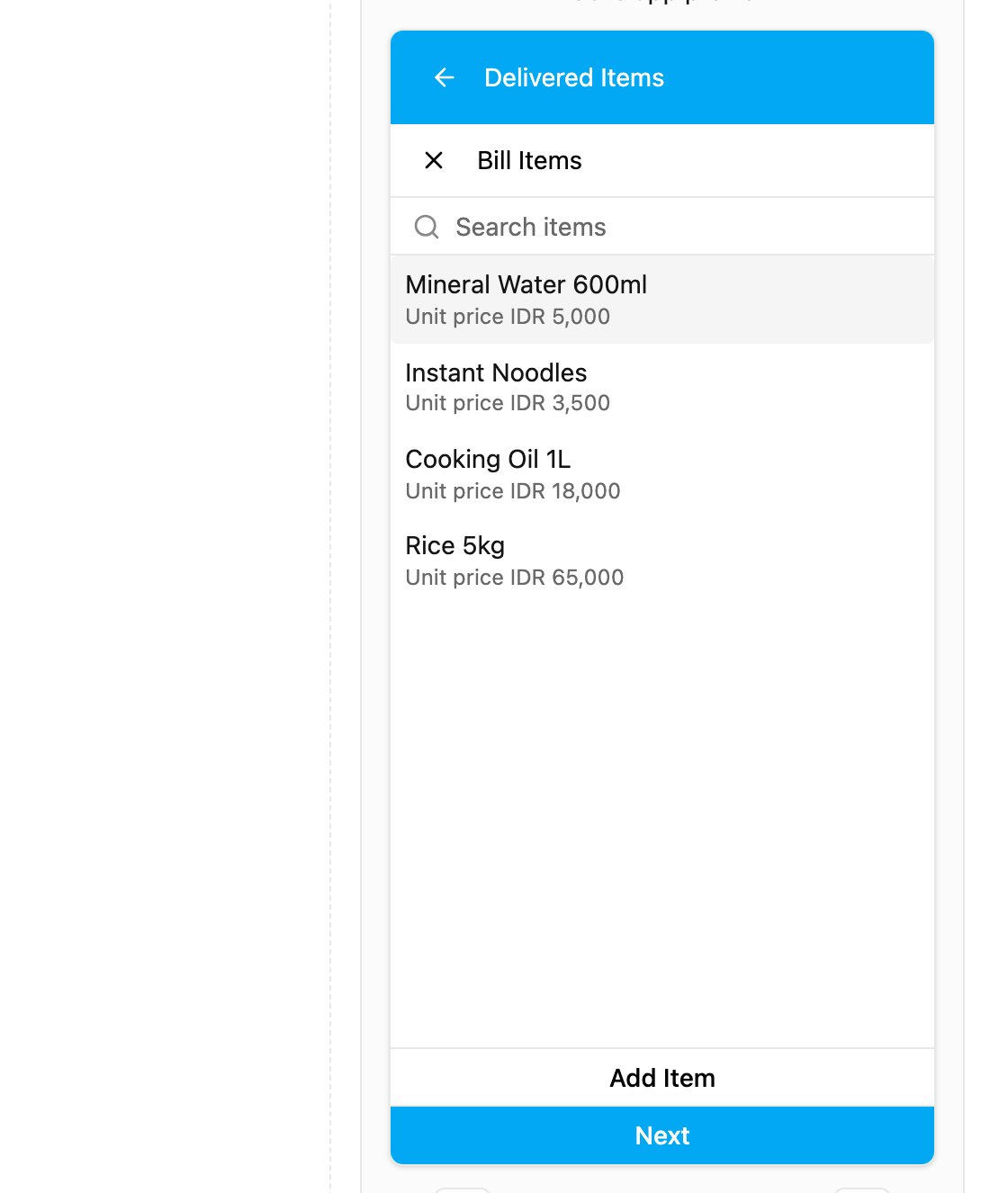
Add Item opens the master items with their unit prices. Search, then tap an item to add it.
Item: the items on the bill, each with its unit price and a quantity box. Tap the bin to remove an item.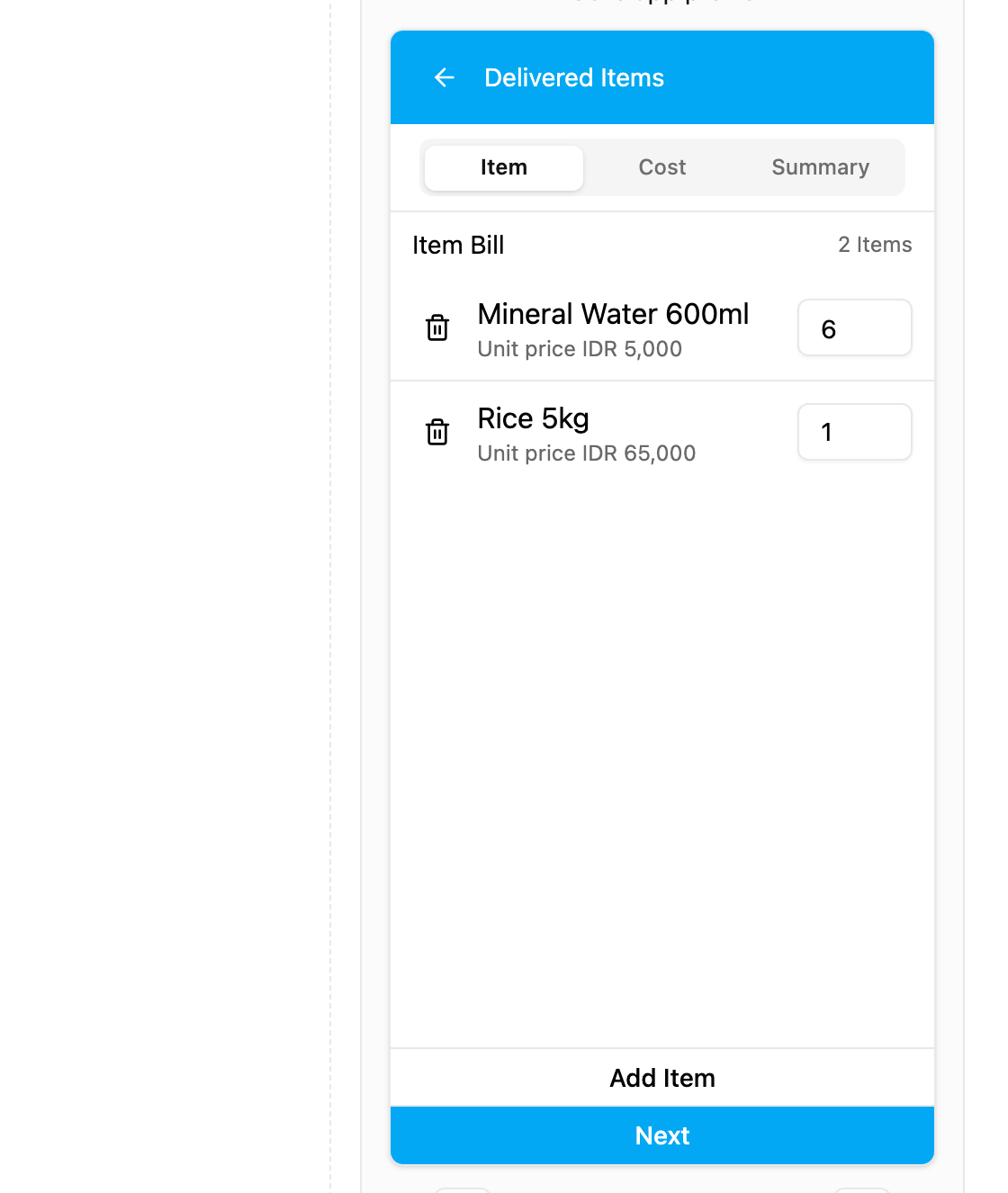
Two items: 6 × Mineral Water 600ml at 5,000 and 1 × Rice 5kg at 65,000.
Cost: the costs and discounts applied. Tap Add-on to add one from the master add-ons. This tab appears only when the bill has add-ons.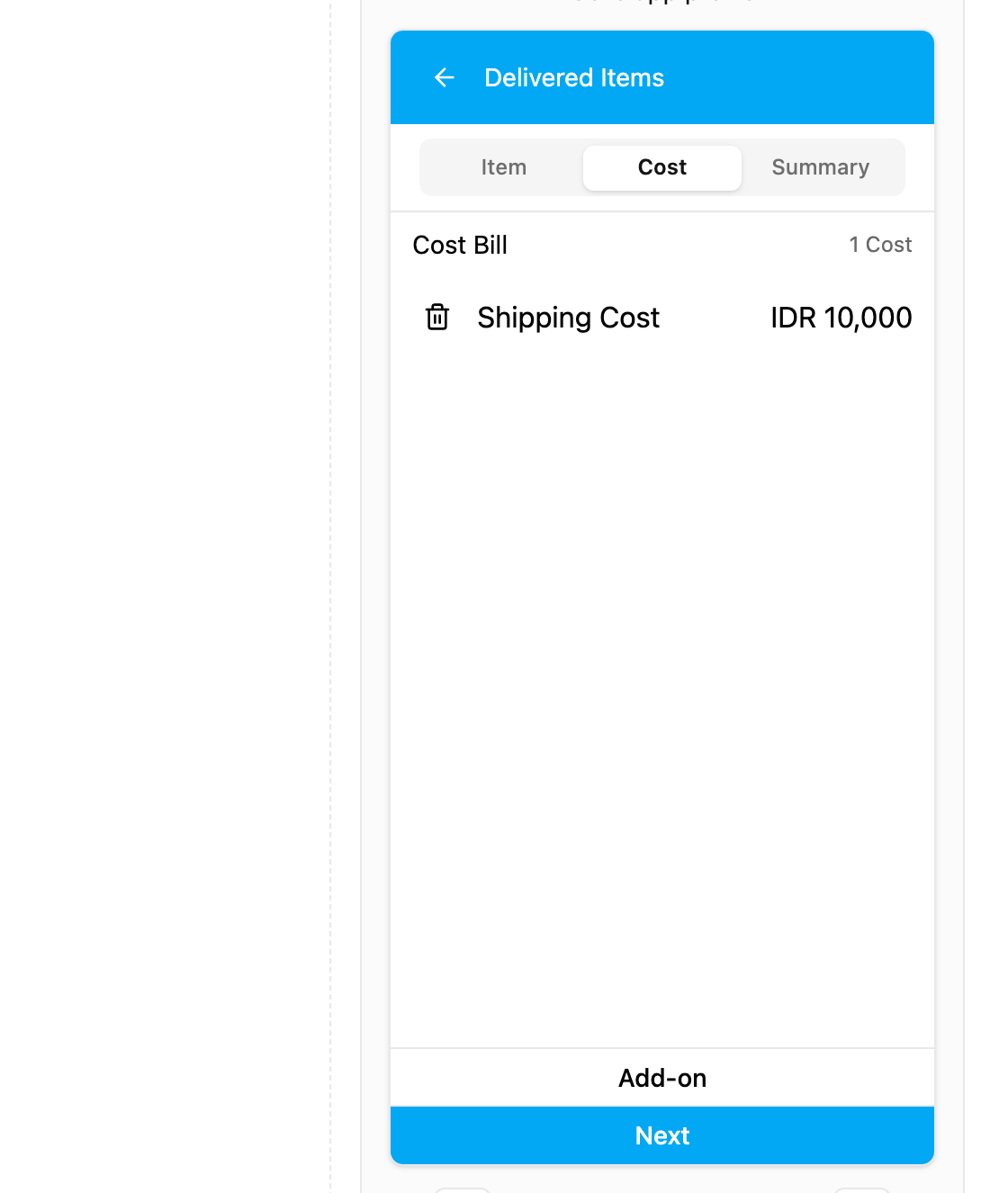
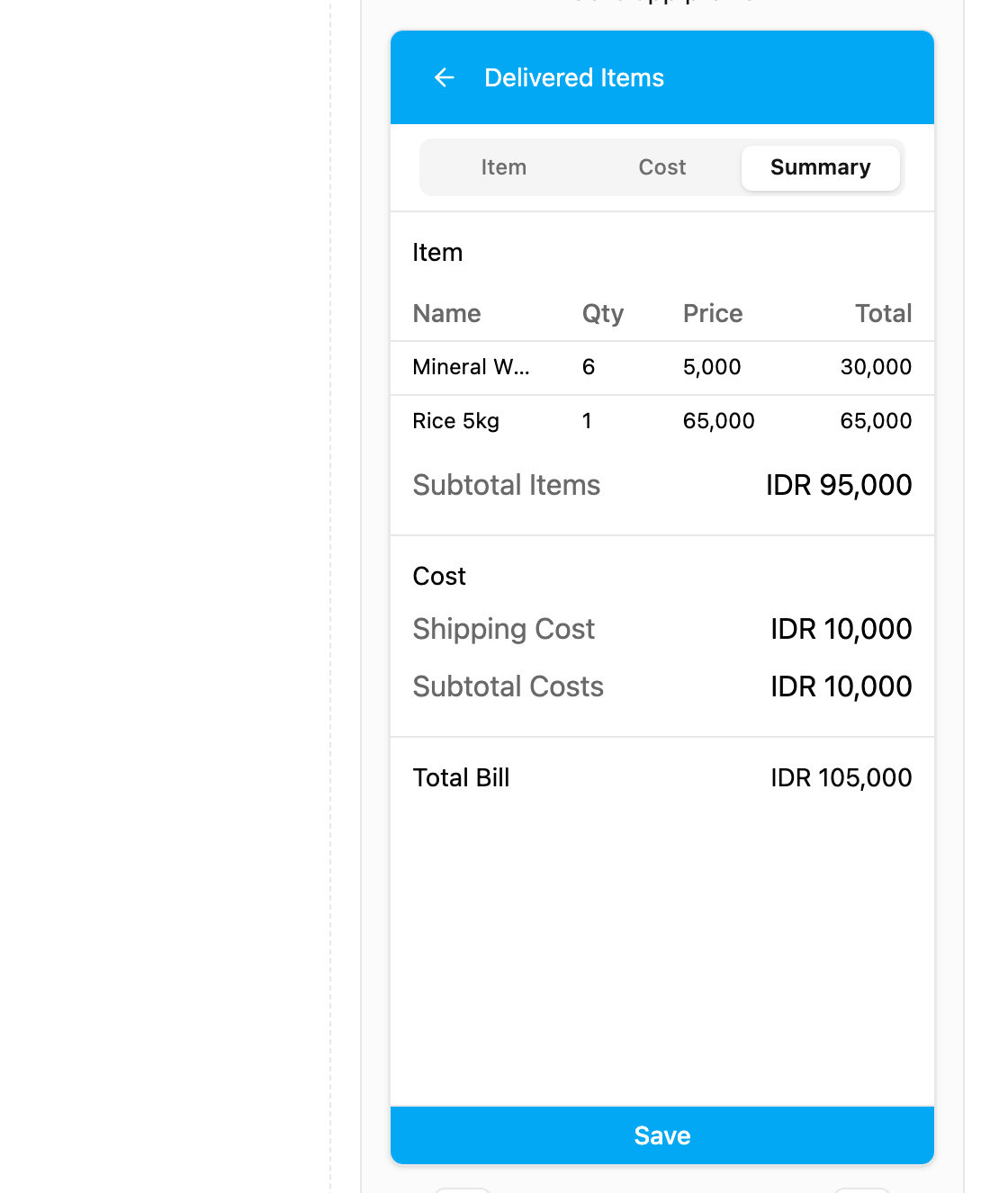
In the example: 30,000 + 65,000 = 95,000 for items, plus 10,000 shipping, gives a Total Bill of 105,000.
Next
- Creating a Bill: set up a bill and create tasks with it from a spreadsheet.
- Advanced Discount