

- Every selected vehicle has at least one trip.
- The work is spread more evenly across the fleet.
- Useful when you want to use your whole fleet.
Required permission:
- View configuration
- Edit configuration
Turning it on
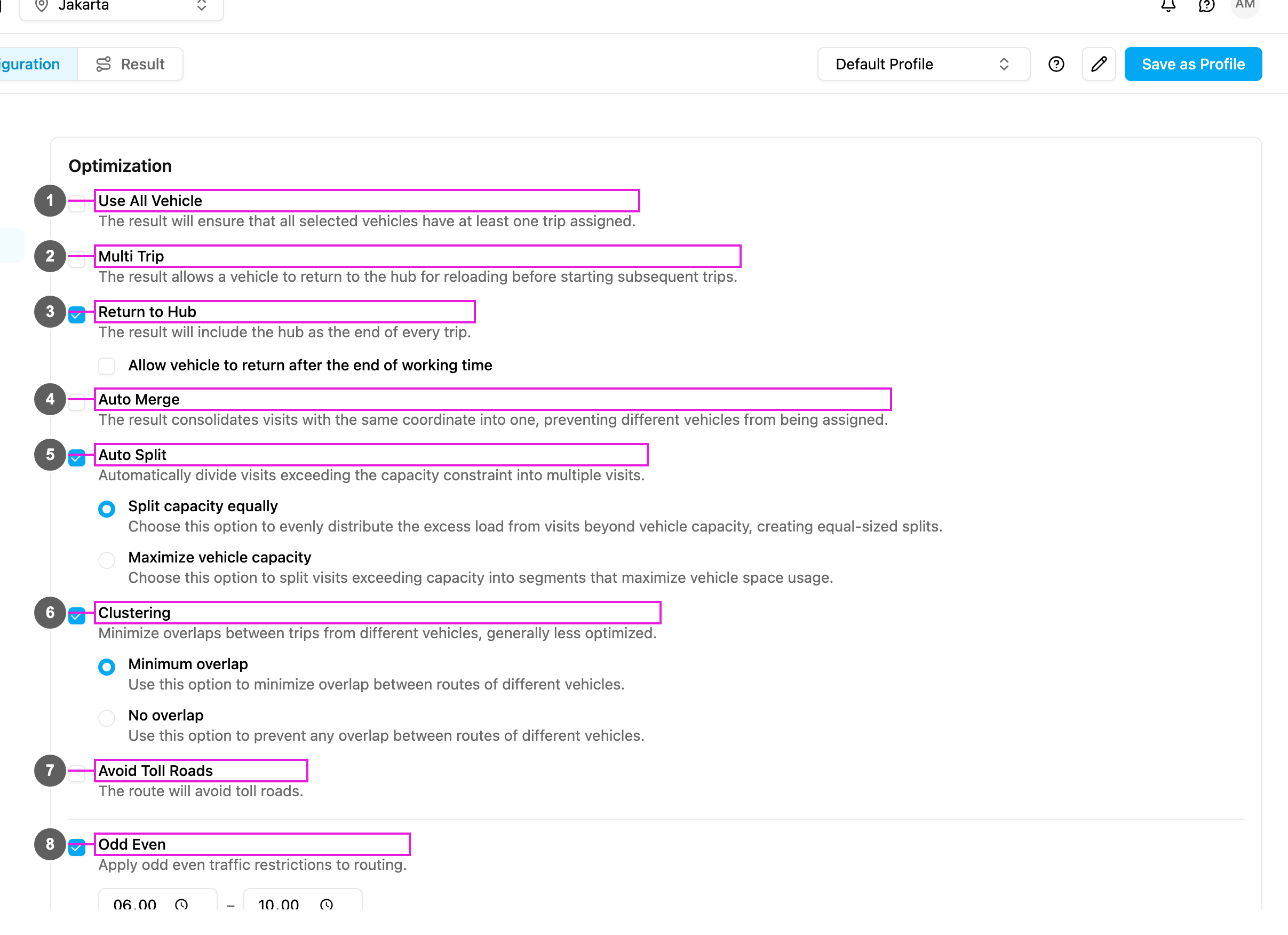
- Open Planning › Routing › Configuration and go to Optimization.
- Tick Use All Vehicle (item 1 in the picture).
How it works
Use cases
Fixed fleet: 10 drivers report for work every day and each one should get deliveries. Turn on Use All Vehicle and select the 10 vehicles: every driver gets a route and nobody is idle. Fair workload: a distribution center wants to spread deliveries fairly between drivers. Turn on Use All Vehicle, and Multi Trip if needed for balance: work is spread over all drivers instead of a few. Rented vehicles: company policy says every rented vehicle must be used each day. Turn on Use All Vehicle, with Return to Hub for a clear end point: every rented vehicle gets a route. Training new drivers: several trainees need on-the-job practice. With Use All Vehicle each driver, trainees included, gets a route, and routes are naturally shorter.When to use it
Use it when:- all drivers and vehicles are available and should work,
- a fair workload matters for the team,
- company policy requires the full fleet,
- your vehicle costs are fixed (rentals, salaries),
- trainees need routes,
- you need coverage across different areas.
- keeping costs low is the main goal,
- you have more vehicles than you need,
- some vehicles are on standby,
- fewer vehicles can serve the visits well,
- you want to keep vehicles free for urgent requests.