

Open Workflow › Automation to see the list.
Required permission:
- View automation
- Create automation, Edit automation, Delete automation
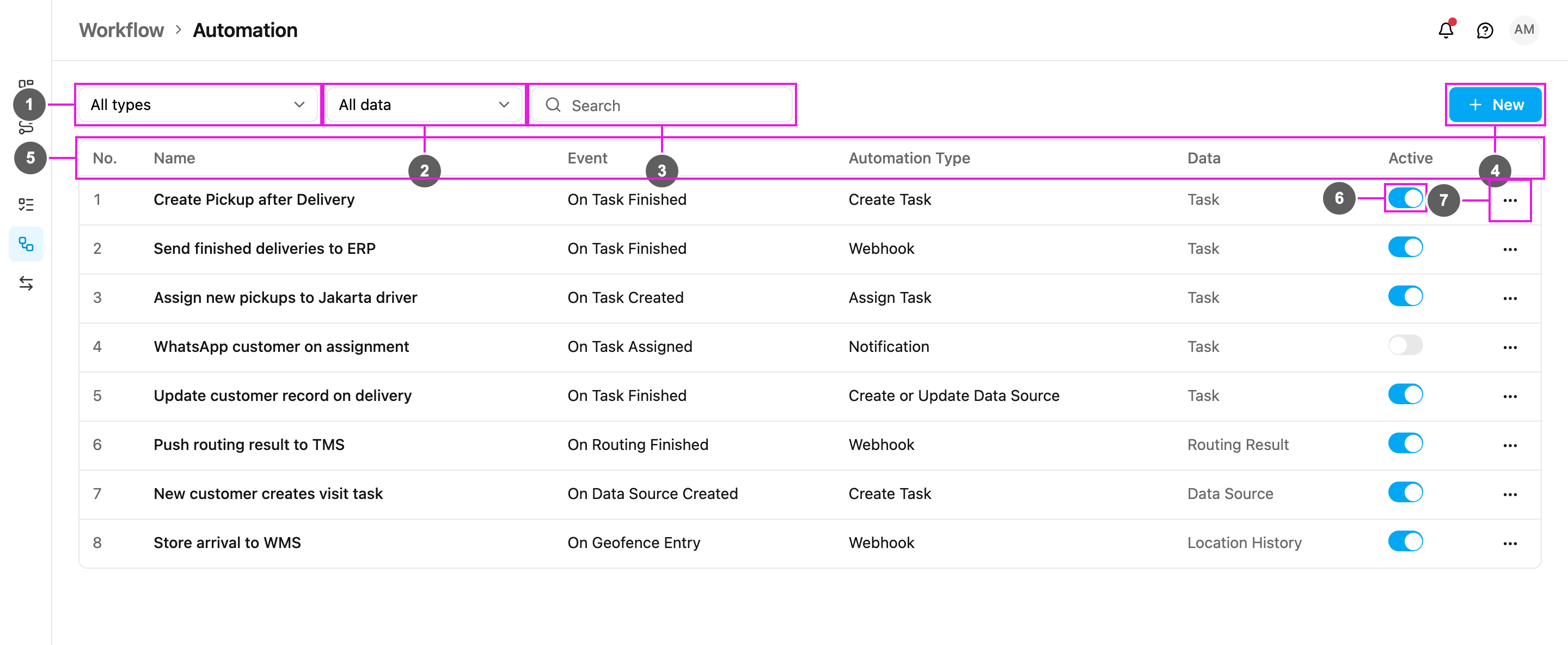
- All types: show only automations with one automation type (Create Task, Webhook, Notification and so on).
- All data: show only automations whose event belongs to one data group: Task, Data Source, Routing Result or Location History.
- Search: find an automation by name.
- New: create an automation. See Creating an automation.
- The table columns:
- No.: the row number.
- Name: the automation’s name.
- Event: what starts it, for example On Task Finished.
- Automation Type: what it does, for example Create Task.
- Data: which data group the event belongs to (Task, Data Source, Routing Result or Location History).
- Active: whether the automation runs.
- Active switch: blue means the automation runs, grey means it is switched off and is never triggered.
- ⋯ menu: Edit, Log and Delete. See Managing automations.
- Switch an automation on after you set it up. Only active automations run.
- When several automations are active, it can take a moment for all of them to finish.
- Check the automation log to see whether a run succeeded or failed.
- If a change made by an automation does not show on the Task page yet, reload the page.
Events and actions at a glance
Ten events are available, in four groups. Each event allows only some automation types:
The actions:
Common uses
- Chain tasks: On Task Finished › Create Task creates the pickup after a delivery, or the inspection after an installation.
- Distribute work: On Task Created › Assign Task sends new tasks straight to the right driver.
- Integrate: any event › Webhook pushes data to an ERP, WMS, CRM or TMS in real time.
- Keep customers informed: On Task Assigned › Notification sends a WhatsApp message with the tracking link.
- Keep master data current: On Task Finished › Create or Update Data Source writes the latest customer details back to a data source.