

Required permission:
- View automation
- Create automation
Automation detail
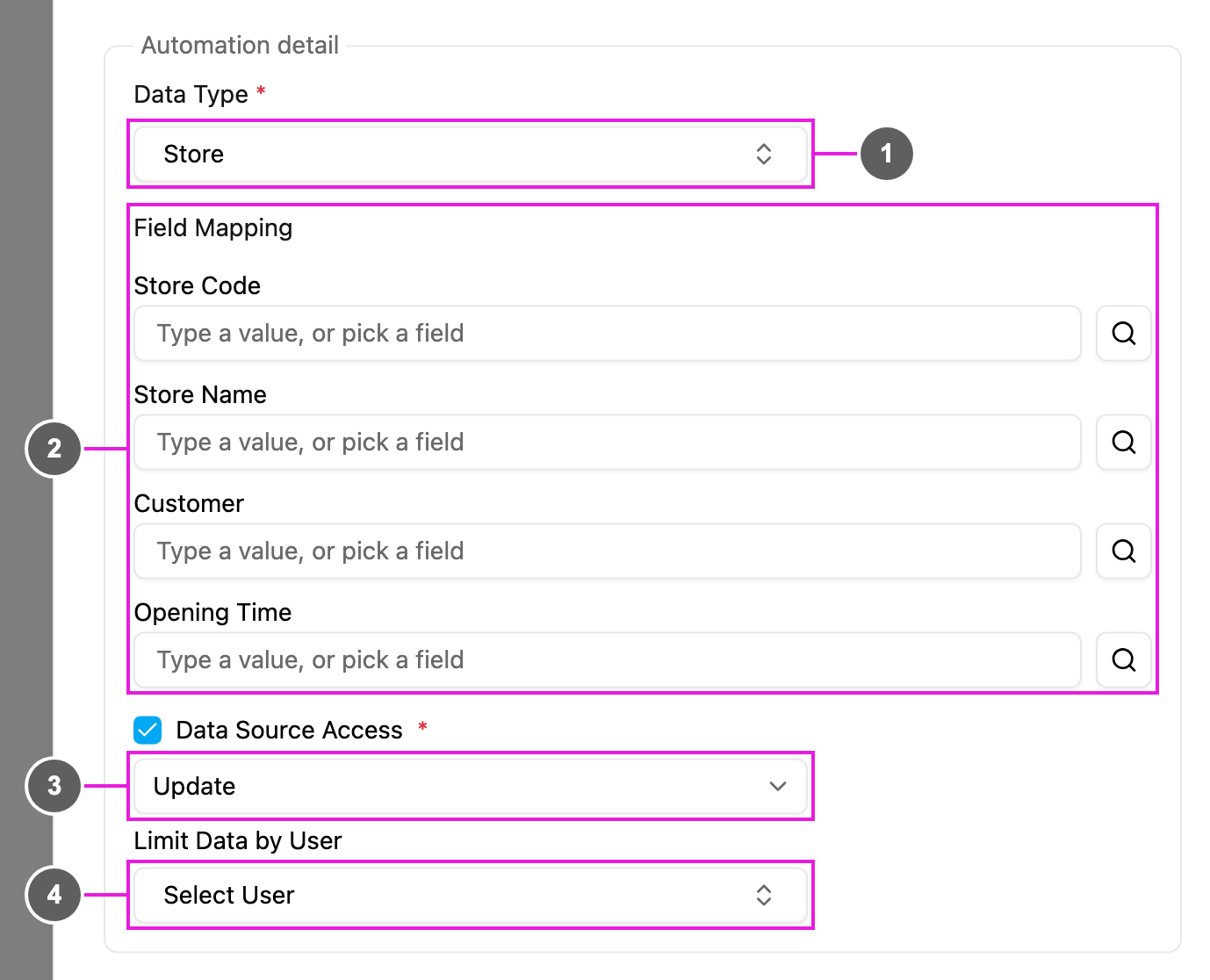
- Data Type: required. The data type whose records are created or updated, for example Store.
- Field Mapping: every field of that data type. For each one, type a fixed value or click the search icon to copy a field of the finished task, exactly as in Create Task. The data type’s primary key field is marked (primary key).
-
Data Source Access: shown only for data types whose records can be limited to certain users. Tick it to control who can see the records this automation writes, then choose how:
- Update: add the chosen users to the record’s existing access list.
- Replace: replace the record’s access list with the chosen users.
-
Limit Data by User: who gets access. Either one option from Auto limit data based on, which takes the person from the task when it runs:
- Same assignee: the user assigned to the task.
- Assigned by: the user who assigned it.
- Done by: the user who finished it.
How it works
- A task of the automation’s task type is finished, and the rules, if any, are checked.
- The value mapped to the primary key is looked up in the data type.
- A record with that key exists: it is updated with the mapped values. Fields that aren’t mapped keep their values.
- No record has that key: a new record is created with the mapped values.
- Map a value to the primary key field. Without it, records can’t be matched.
- The primary key is matched exactly, including upper and lower case.
- Required fields of the data type must get a value, fixed or copied.
- The data type’s field validation applies.
Examples
Customer database after delivery
Inventory after a stock check
Service history
Sales leads from canvassing
Good practice
- Choose a primary key that really is unique, such as a customer ID or order number.
- Prefer copied values over typed ones, and map only fields that matter.
- Use rules to write only when it makes sense, for example only successful deliveries.
- Test with a sample task, then check the record on the Data Source page and the run in the log.
Troubleshooting
No record is created or updated.- Check that the automation is Active, the task type matches, and the rules don’t exclude the task.
- Check that the field mapped to the primary key had a value in the task.
- Check that every required field of the data type has a value.