

Required permission:
- View automation
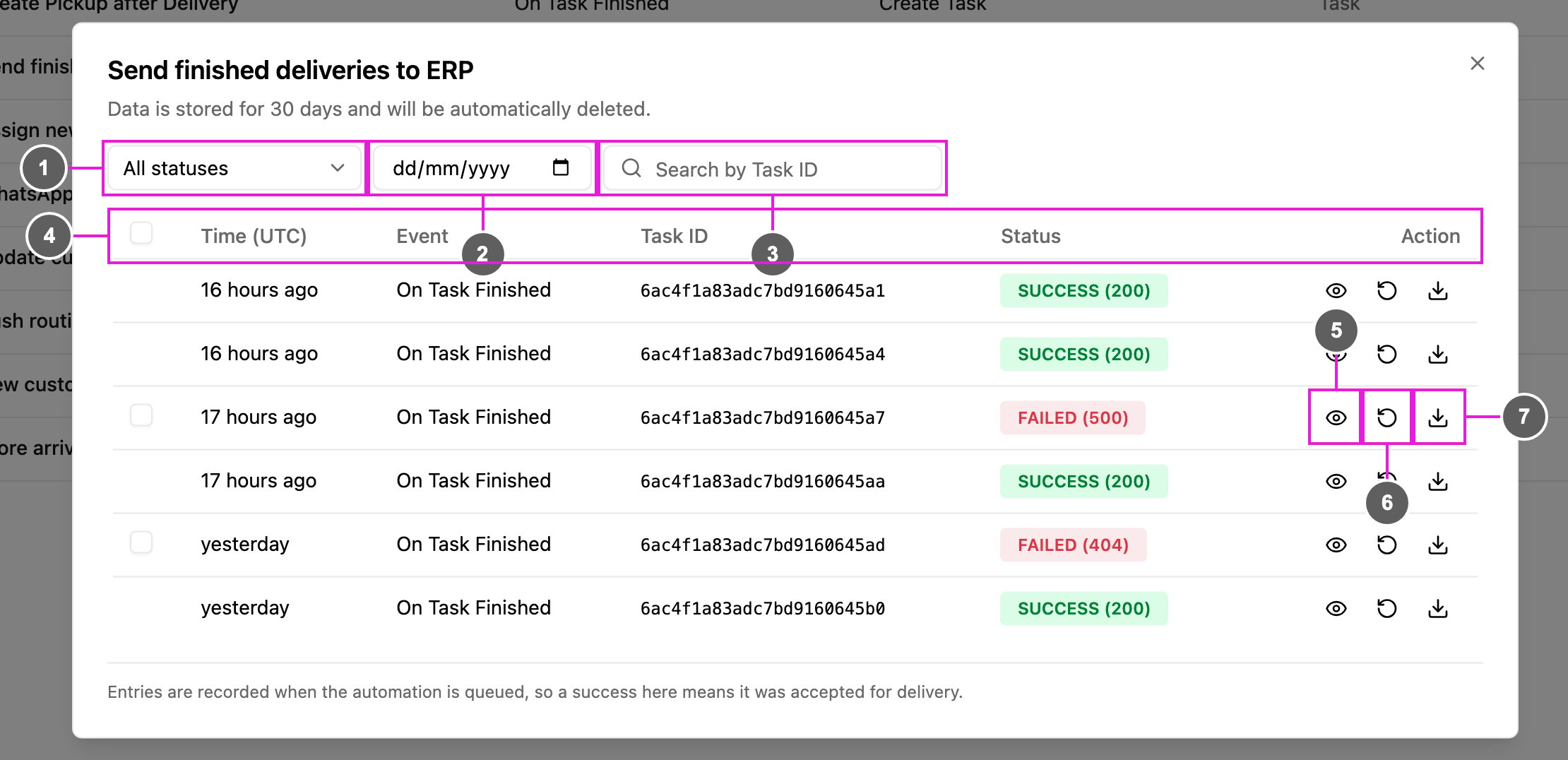
- All statuses: show only Success or only Failed runs.
- Search by date: show the runs of one day. Only one date can be picked at a time.
- Search by Task ID (or Search by Data ID for automations whose event isn’t a task event): find the runs for one record, for example
6ac4f1a83adc7bd9160645a1. - The table columns:
- Time (UTC): when the run happened, shown relative to now (for example “15 hours ago”). All times in the log are in UTC.
- Event: the event that started the run.
- Task ID (or Data ID): the record that started the run: a task, data source record, routing result or location record, depending on the event.
- Status: SUCCESS or FAILED. For webhooks, the HTTP status code your endpoint answered with is shown too, for example FAILED (500) or SUCCESS (200).
- Action: the three buttons below.
- View response (eye icon): see the full request and response of the run.
- Retry (circular arrow): send this run again.
- Download (arrow icon): download the run as a
.jsonfile.
Runs are recorded when the automation is queued. For a webhook, SUCCESS means the request was accepted for delivery.
Reading a run
Click the eye icon: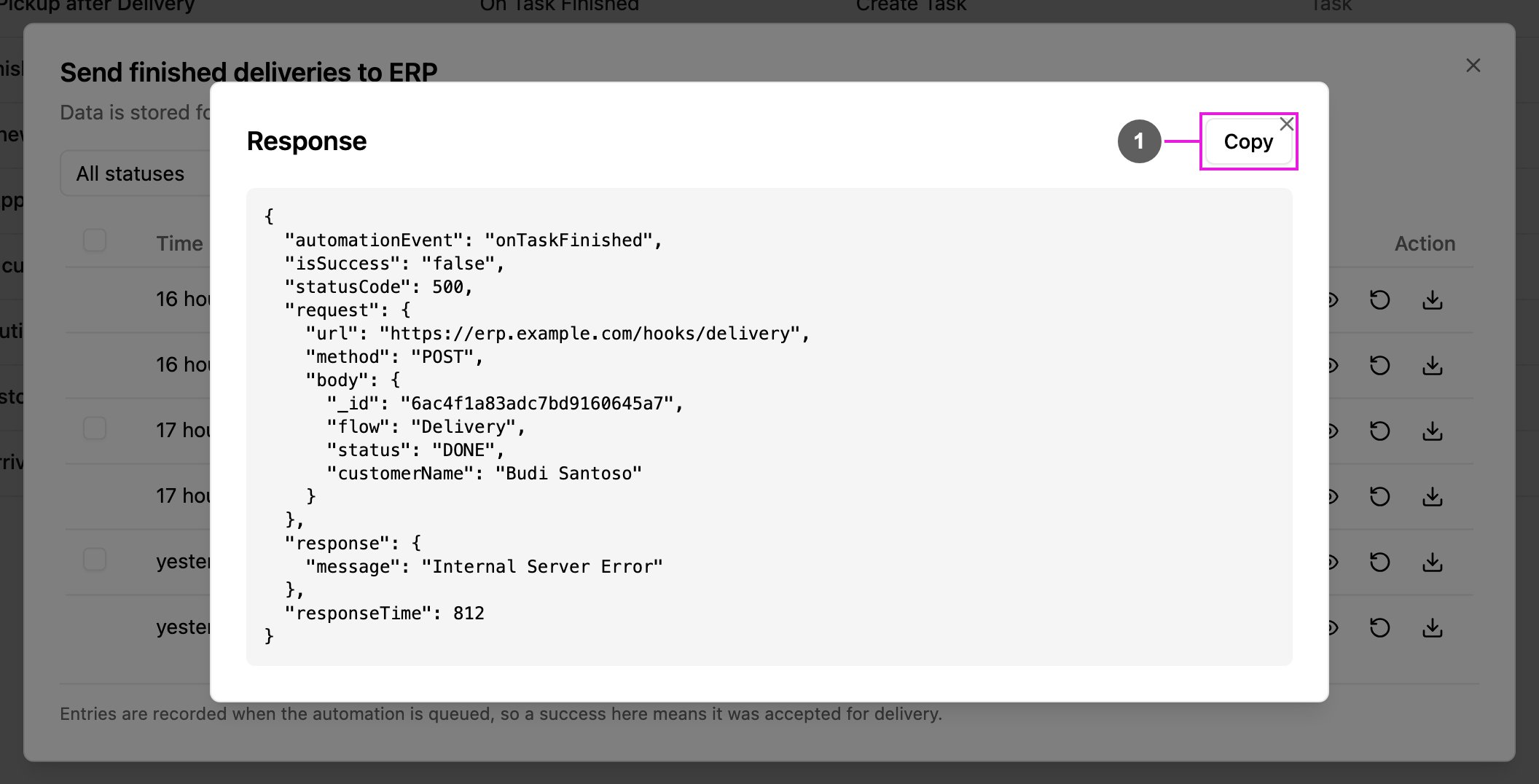
- Copy: copy the JSON, for example to share with whoever runs the receiving system, or to paste as the Sample payload of a webhook’s Custom JSON body.
Retrying one run
Click the circular arrow on a row: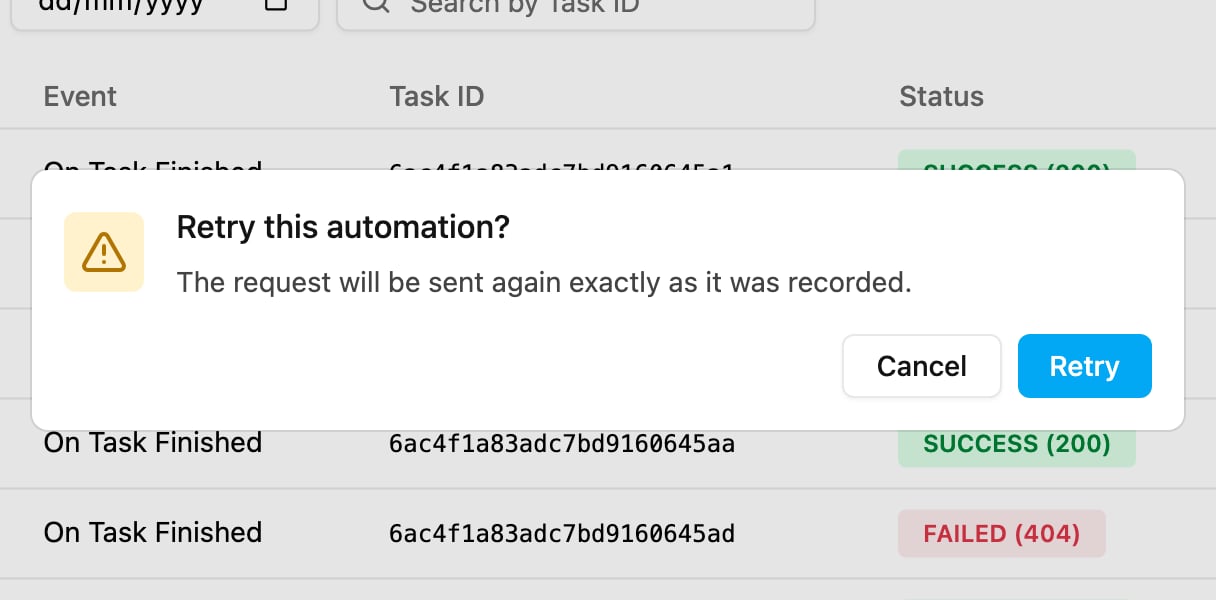
Repushing several webhook runs
Webhook automations have a checkbox on each failed run, so you can send many at once: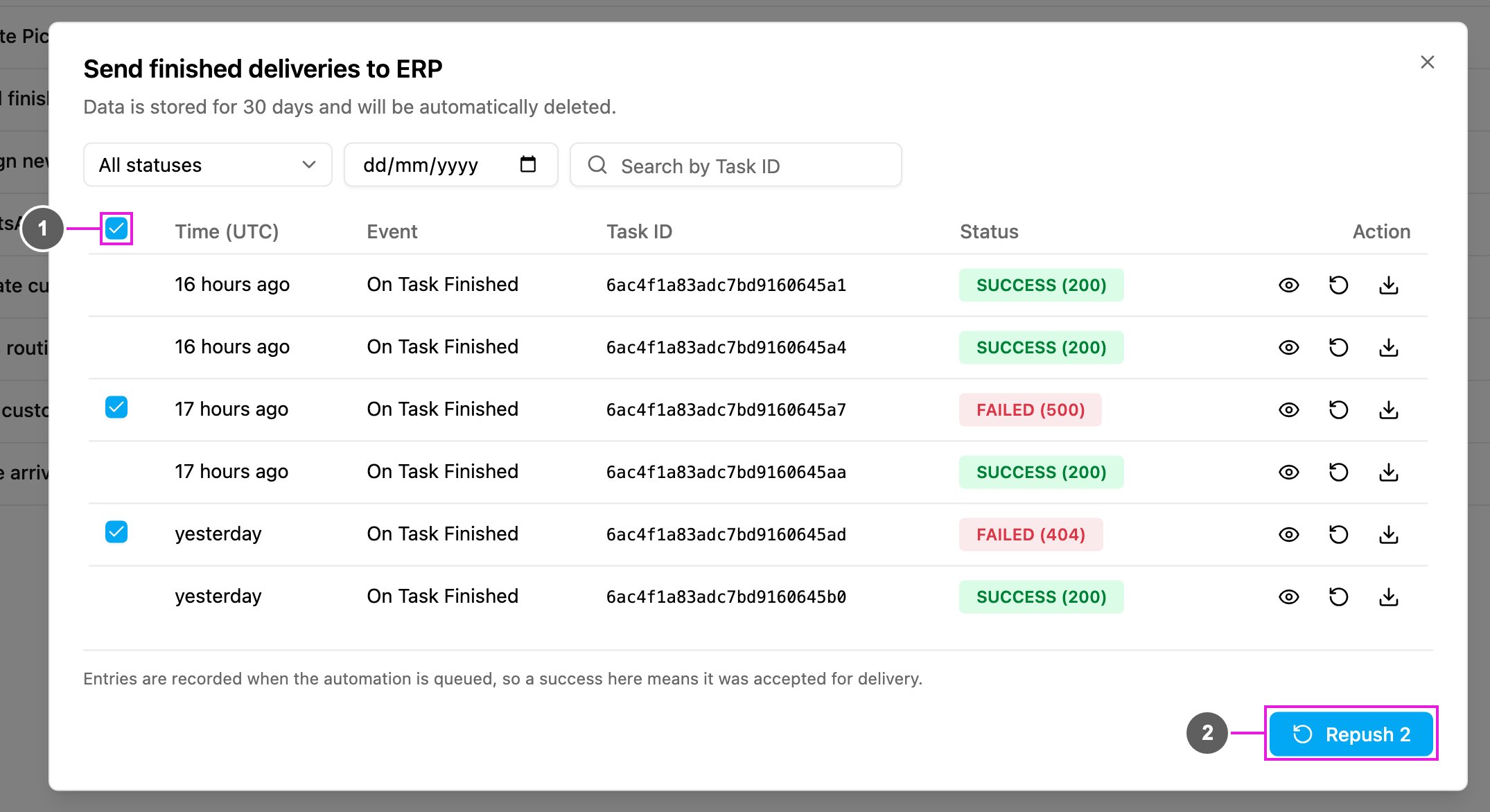
- Tick the failed runs to send again, or tick the header checkbox (Select all failed logs) to select every failed run on the page. Webhook logs show 100 runs per page; other logs show 20.
- Repush: send all selected runs again. The button shows how many are selected. A message tells you how many were repushed, or how many could not be.