

Required permission:
- View automation
- Create automation
Automation detail
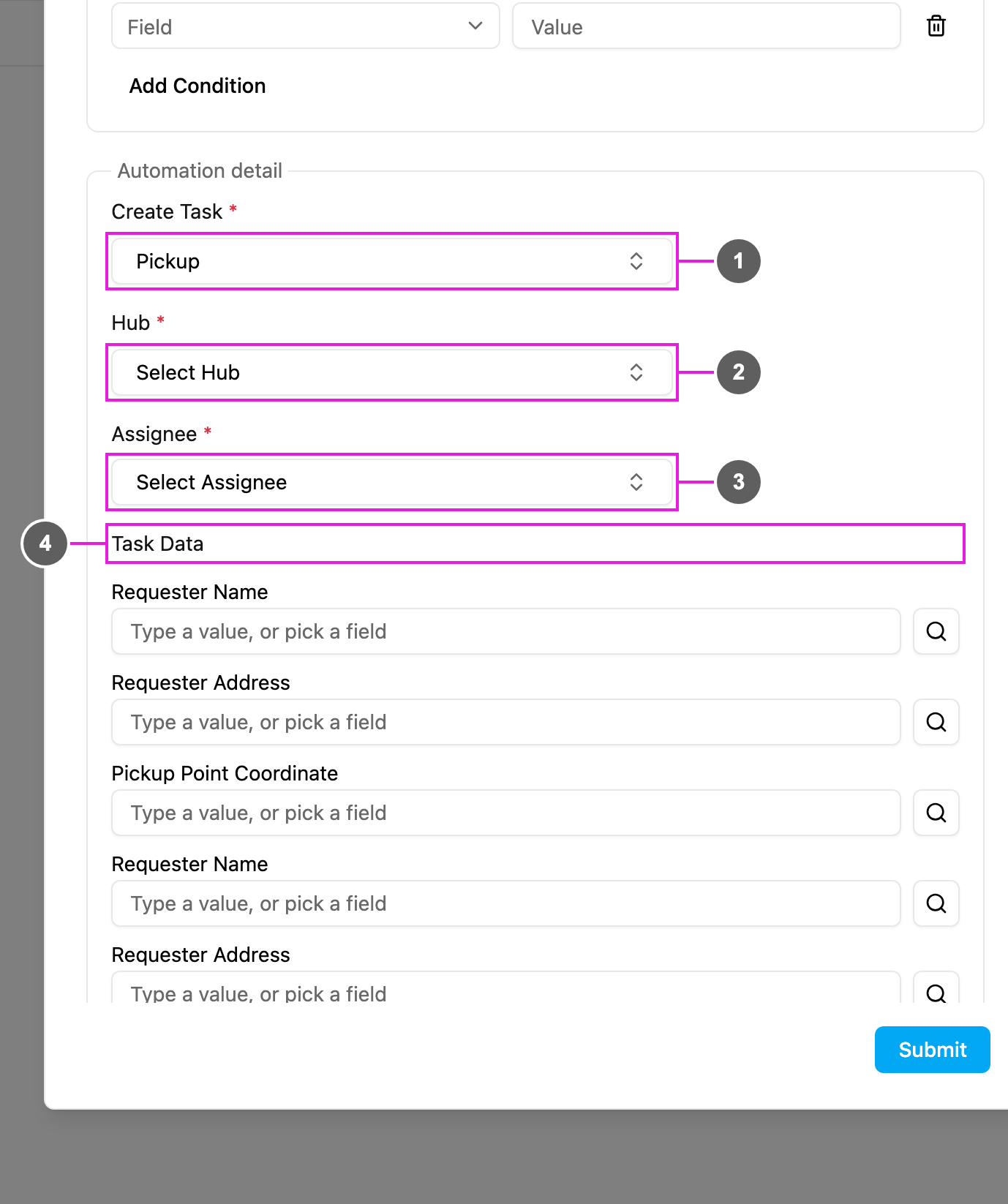
- Create Task: required. The task type of the new task. The trigger’s own task type is not offered.
- Hub: required. The hub the new task is created in. See Hub options.
- Assignee: required. Who the new task is assigned to. See Assignee options.
- Task Data: the fields of the new task. Type a fixed value, or click the search icon to copy a field of the trigger, or leave an optional field empty. It works exactly as in Create Task.
Hub options
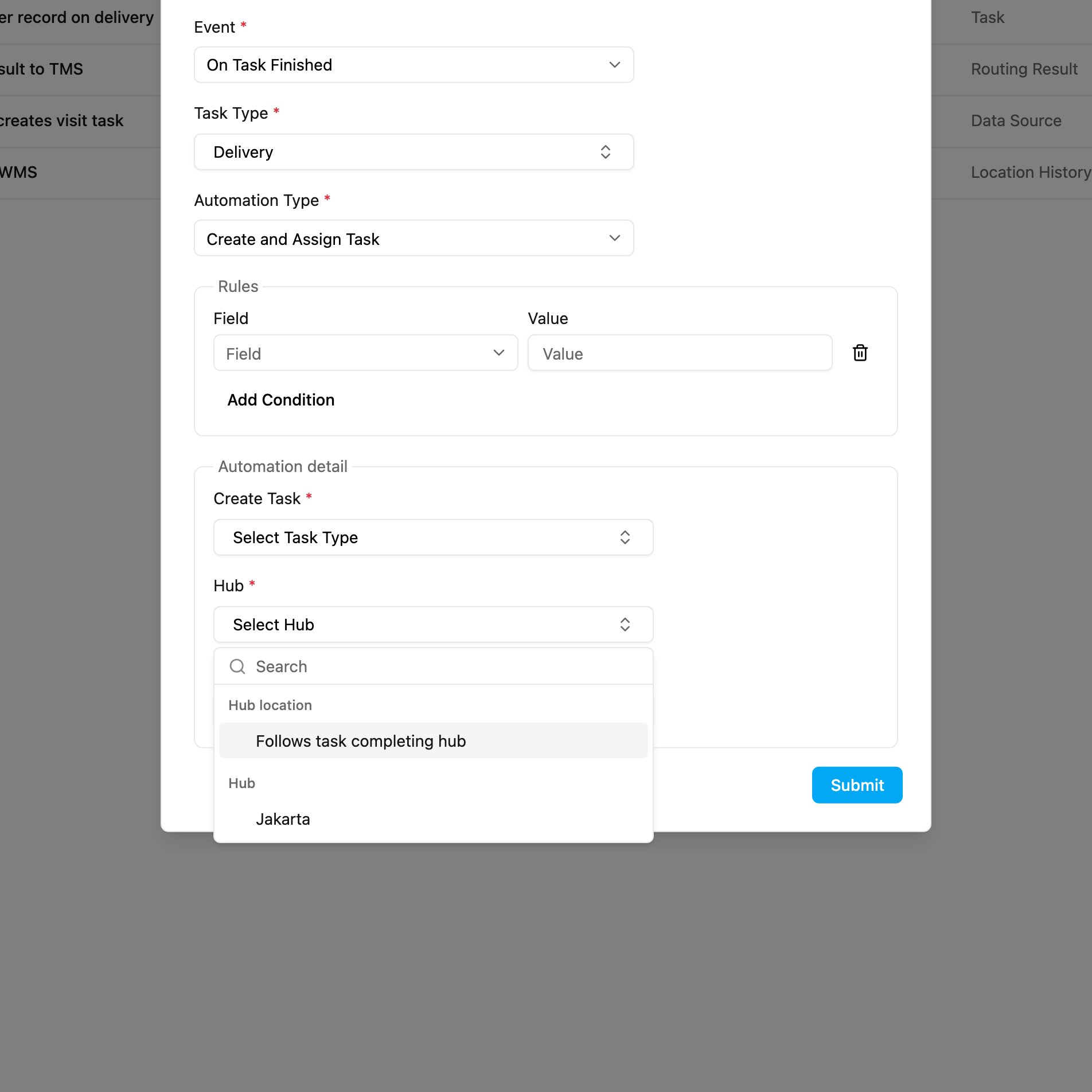
- Hub location: a hub taken from the trigger task when the automation runs.
- Follows task creator’s hub (On Task Created): the hub where the trigger task was created.
- Follows task completing hub (On Task Finished): the hub where the trigger task was finished.
- Hub: a fixed hub of your organization, for example Jakarta. Every new task goes there.
Assignee options
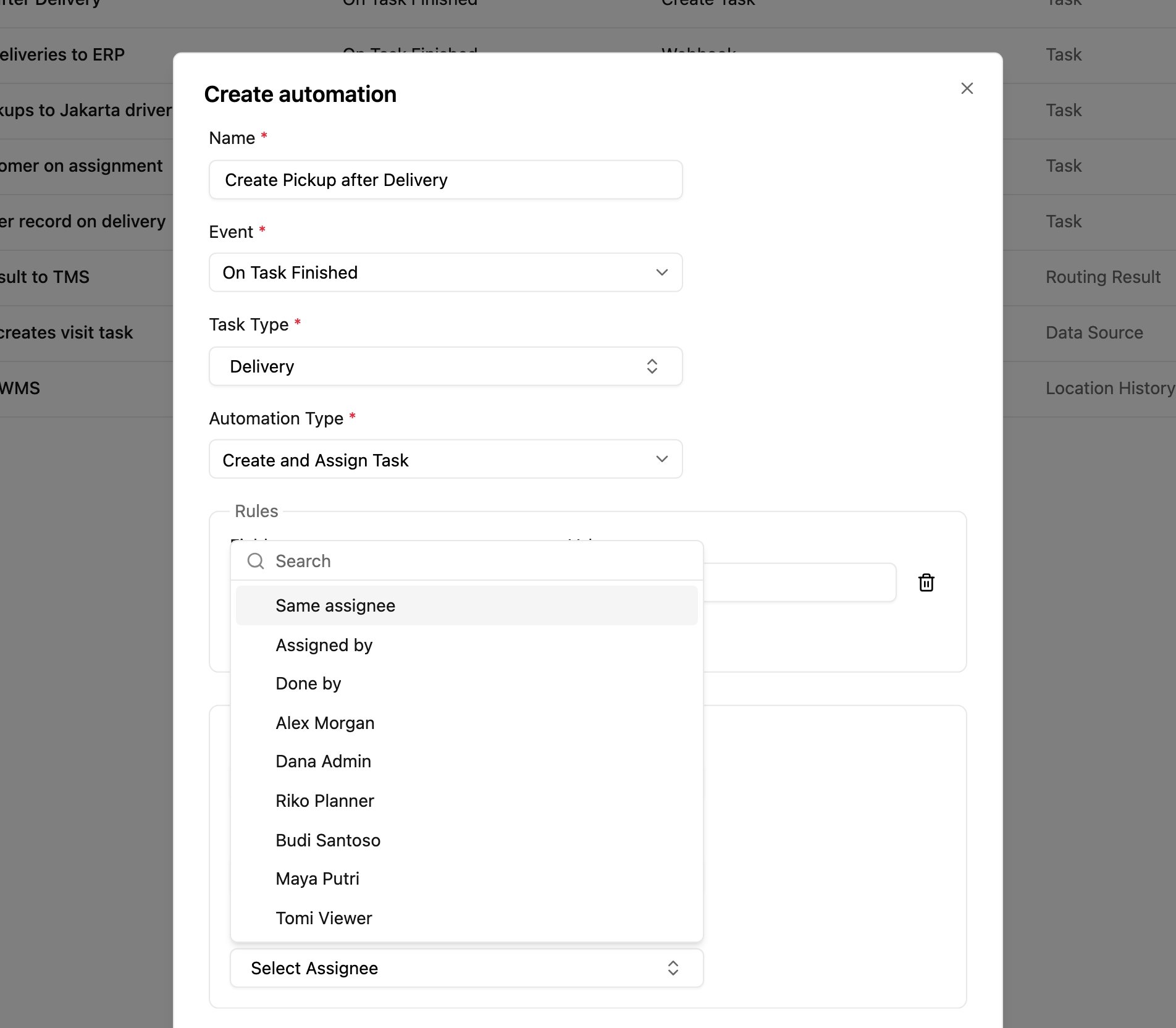
Below them is the list of users. Picking a user means every new task always goes to that person.
How it works
- The event happens and the rules, if any, are checked.
- A new task of the Create Task task type is created in the chosen hub.
- Its fields are filled with the fixed and copied values.
- It is assigned to the chosen user straight away and appears in their task list in the field app.
- The assigned user must have access to the hub and permission to work on tasks of that task type.
- With Same assignee, Assigned by or Done by, the trigger task must have that person, otherwise the new task can’t be assigned.
- The new task is separate from the trigger task. The assignee may get a notification, depending on their settings.
Examples
Same driver picks up after delivering
Inspection for the QA lead
Hot leads for the sales manager
Documentation for a new customer
Troubleshooting
No task is created or assigned.- Check that the automation is Active, the event and task type match, and the rules don’t exclude the trigger.
- Make sure every required field of the new task type has a value.
- Check that the assigned user still exists and is active.
- With Same assignee, Assigned by or Done by, check that the trigger task had that person.
- Give the user access to the chosen hub and the task type.