

Required permission:
- View result
- Edit result (rename)
- Delete result
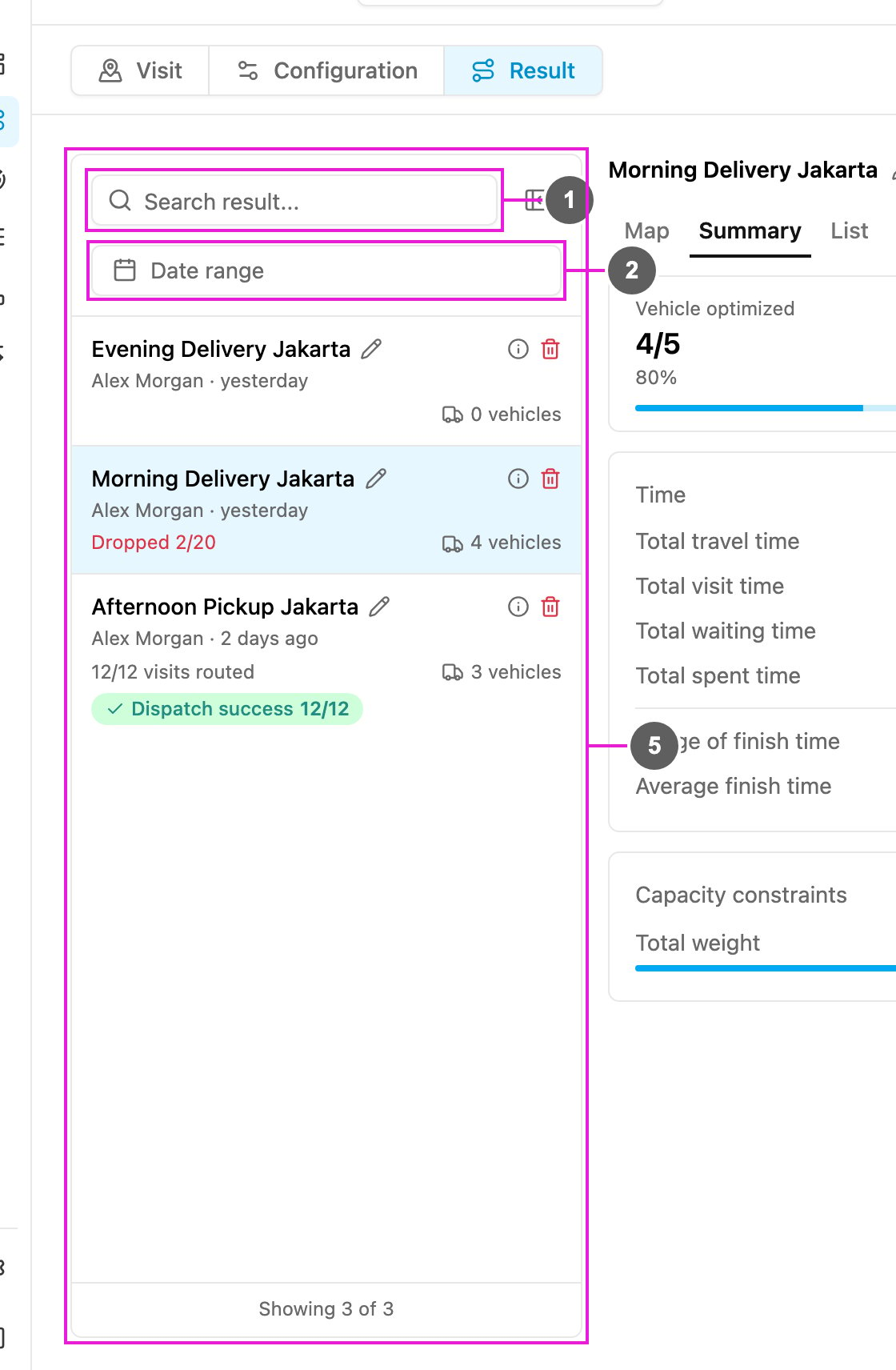
- Search result…: find a result by name. The icon next to it collapses the list to give the result more room.
- Date range: show only results created between two dates. Clear date removes the filter.
- Result card: the name (click the pencil to rename it), who created it and when, and the number of vehicles. Hover the info icon to see the Configuration used. The trash icon deletes the result.
- Selected result: the open result is highlighted. Dropped 2/20 means 2 of 20 visits could not be routed.
- Status: 12/12 visits routed when every visit is routed, Ongoing while the optimization is still running, Failed when it failed, and after dispatching Dispatch processing…, Dispatch success 12/12 or Dispatch failed.