Required permission:
- View result
- Edit result
Moving a visit
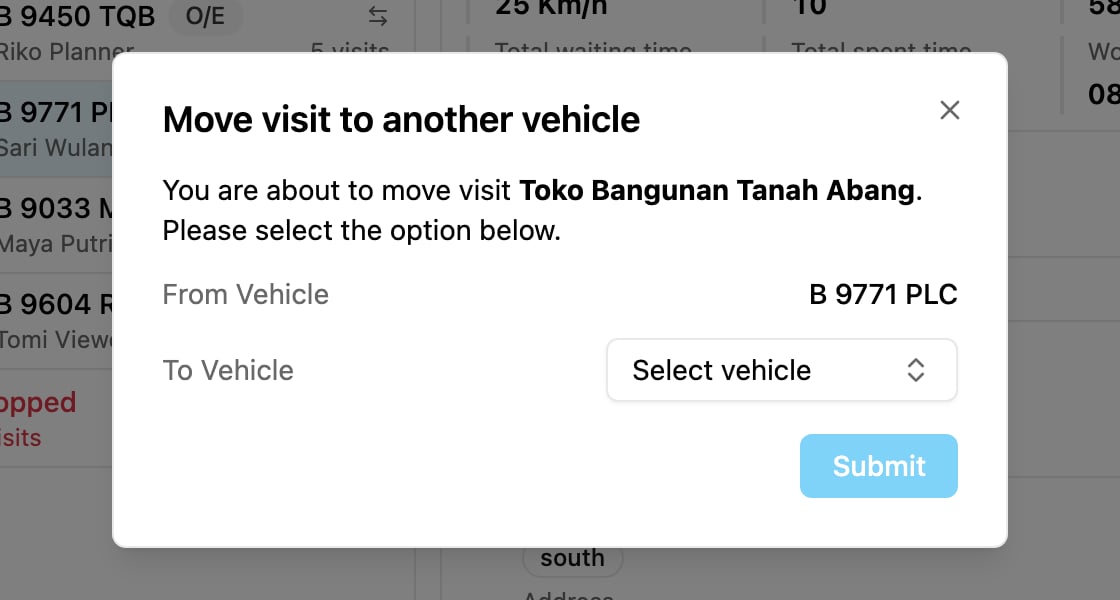
Use this to put a dropped visit on a vehicle, or to move a visit from one vehicle to another in the same result.- In the List view, click Move visit (the arrows icon) on the visit.
- In Move visit to another vehicle, check the From Vehicle and pick the To Vehicle. Pick Drop to move the visit to the dropped visits instead.
- Click Submit.
Moving several visits
- In the list: tick the visits (Select visit), then click Move selected. The count shows how many are selected.
- On the map: hold Shift and drag the mouse to draw a box around the visits.
Changing the order
In the List view, drag a visit by its handle (Drag to reorder) to a new position. In the Gantt view, drag a block to another place or another vehicle. The times are recalculated after each move.Editing a visit
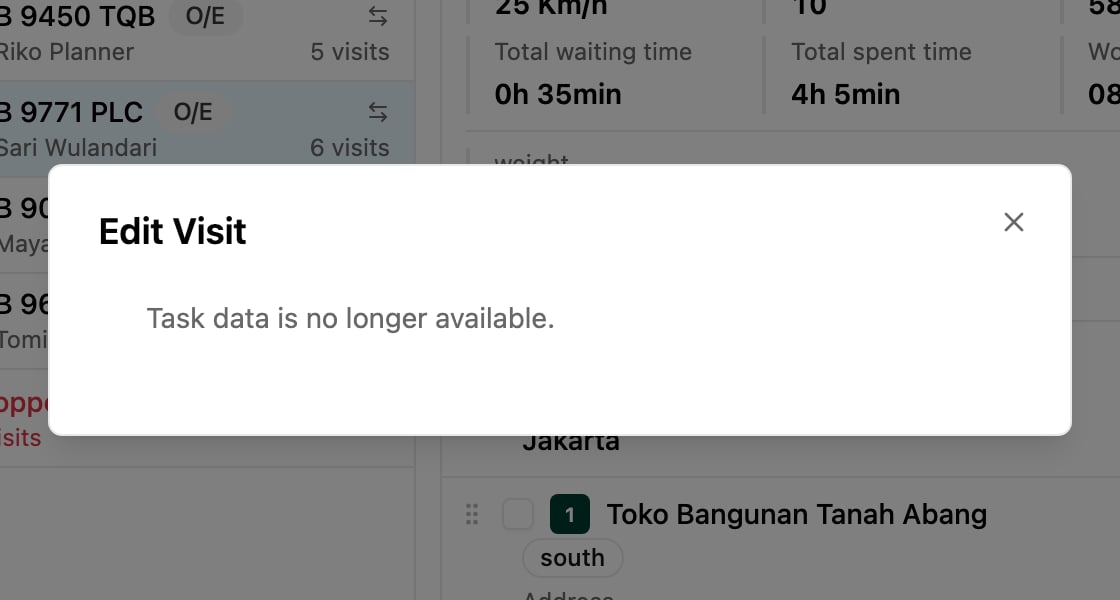
Click Edit visit (the pencil) on a visit. Edit Visit shows the same fields as the Visit page: Name, Address, Coordinate, Open Time (with Add Open Time), Visit Time, Visit Tags (up to 10), Grouped Visit and Priority. Change them and click Submit. Updating the visit data will not change this routing result. The task is updated, but the result is not recalculated or optimized again. You cannot edit a visit when its task is done (Task is completed. Data cannot be edited.), deleted (Task has been deleted. Data cannot be edited.) or no longer available (Task data is no longer available.).