

Required permission:
- View Schedule (Routing Schedule)
- Create Schedule (Routing Schedule)
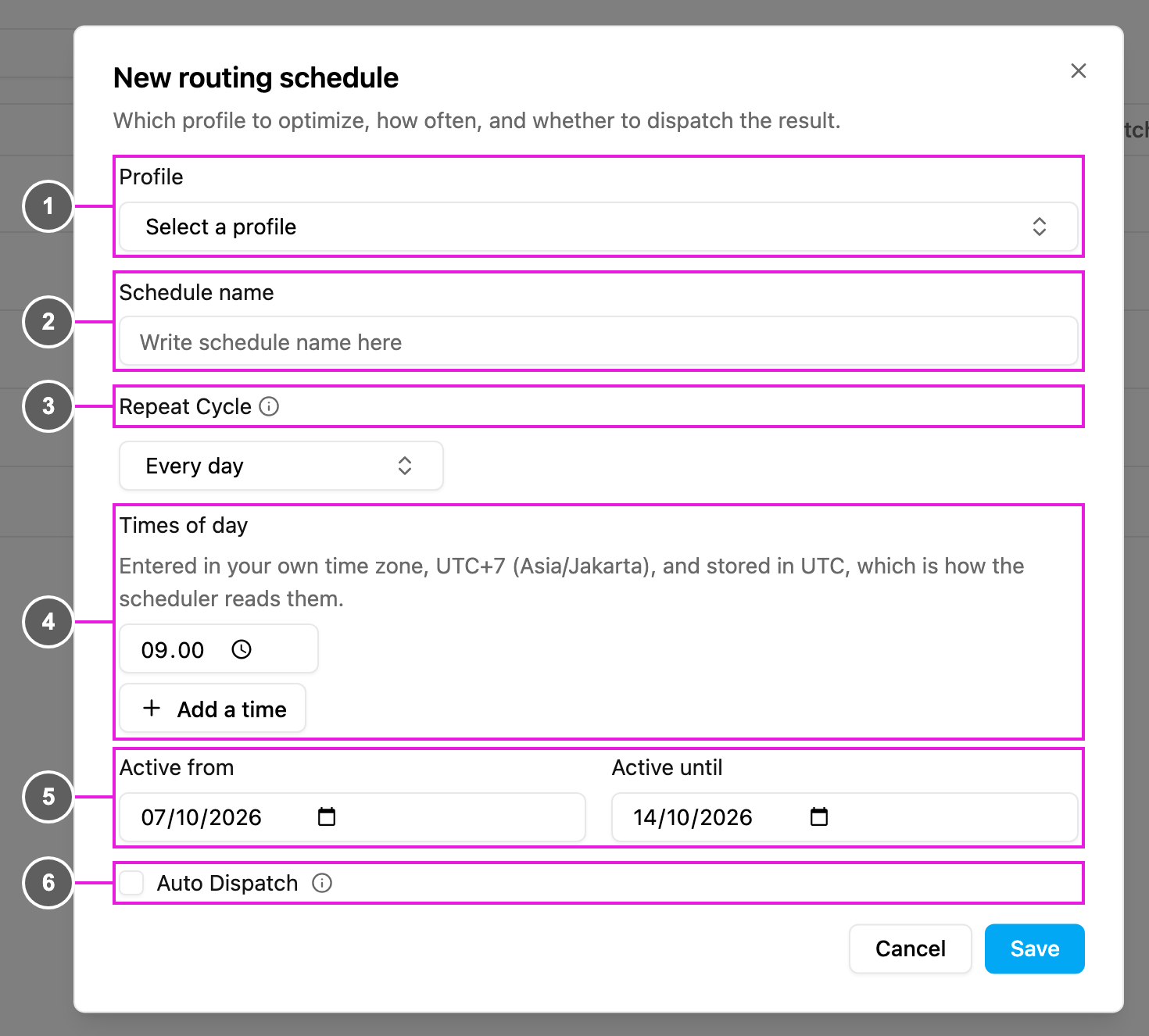
- Profile: the configuration profile every run uses. This one choice decides the hub and the vehicles of each run, and all the routing settings such as capacity, clustering and multi-trip. Required: without it the form says Select a profile.
- Schedule name: a name that tells this schedule apart from the others. It is also used to name the results the schedule produces, so a run is easy to recognise in Result. Required: without it the form says Enter a schedule name.
- Repeat Cycle: how often the optimization runs. See Choosing a repeat cycle below.
- Times of day: when it runs. Click Add a time to run more than once a day. Times are entered in your own time zone (shown in the form, for example UTC+7) and stored in UTC, which is how the scheduler reads them.
- Active from / Active until: the period the schedule runs in. Outside it, nothing runs.
- Auto Dispatch: when ticked, every vehicle on the result is dispatched to its field worker as soon as the optimization finishes, with no second step and no visit to the Result page. When left empty, the result waits in Result for you to review and dispatch it.
There is no vehicle, visit or hub field in this form, on purpose. Vehicles come from the configuration profile, so there is only one place to maintain them: edit the profile and the next run picks up the change.
Choosing a repeat cycle
The repeat cycles work exactly as they do for task schedules:
Two rules carry over from task schedules:
- Outside the active period, nothing runs. A schedule whose Active from date hasn’t come yet, or whose Active until date has passed, is not triggered. On fixed dates is the exception: those dates are absolute, and the detail shows Runs on its own fixed dates.
- Times are stored in UTC. The form shows your time zone next to the times, so you can check what a time means locally.
What each run includes
- Visits: every active visit at the profile’s hub, both those still waiting to be assigned and those already in progress. You can’t narrow the set from this form.
- Vehicles: exactly the vehicles selected on the configuration profile at the moment the run starts.