

The schedule list
Required permission:
- View schedule
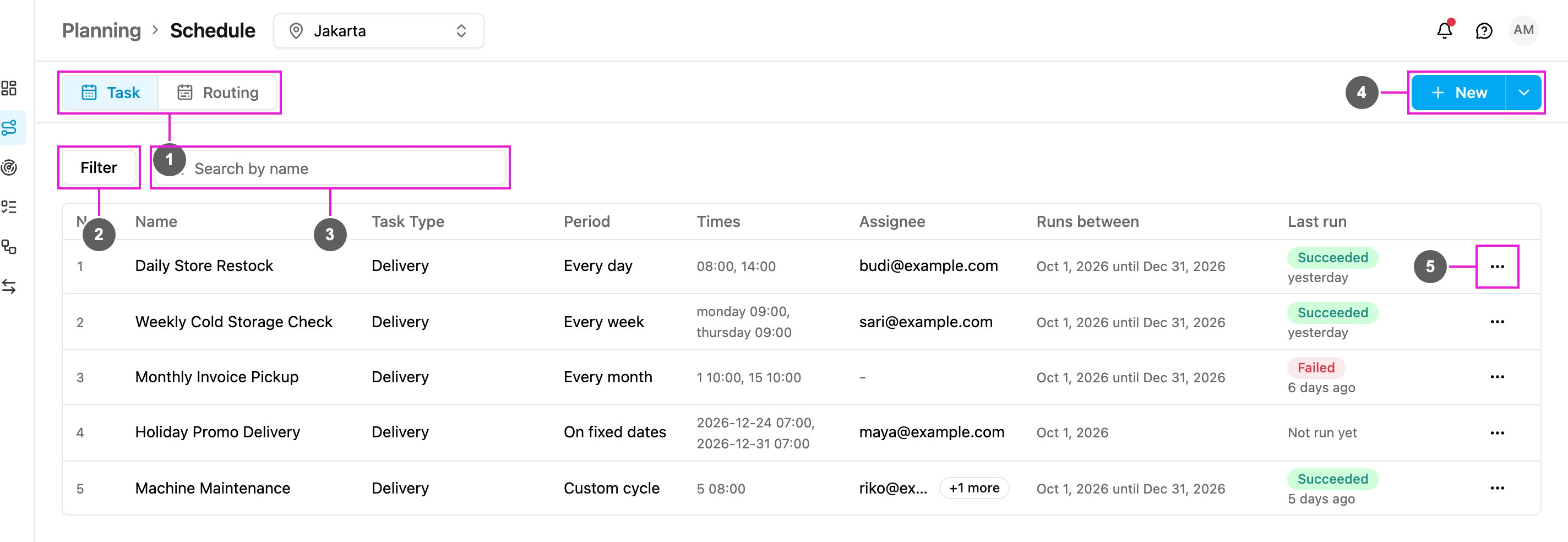
The list shows 50 schedules per page; use the page buttons at the bottom when there are more. The count above the pager tells you how many schedules there are, or how many match your filters.
Last run
The Last run column shows a badge for the most recent run:
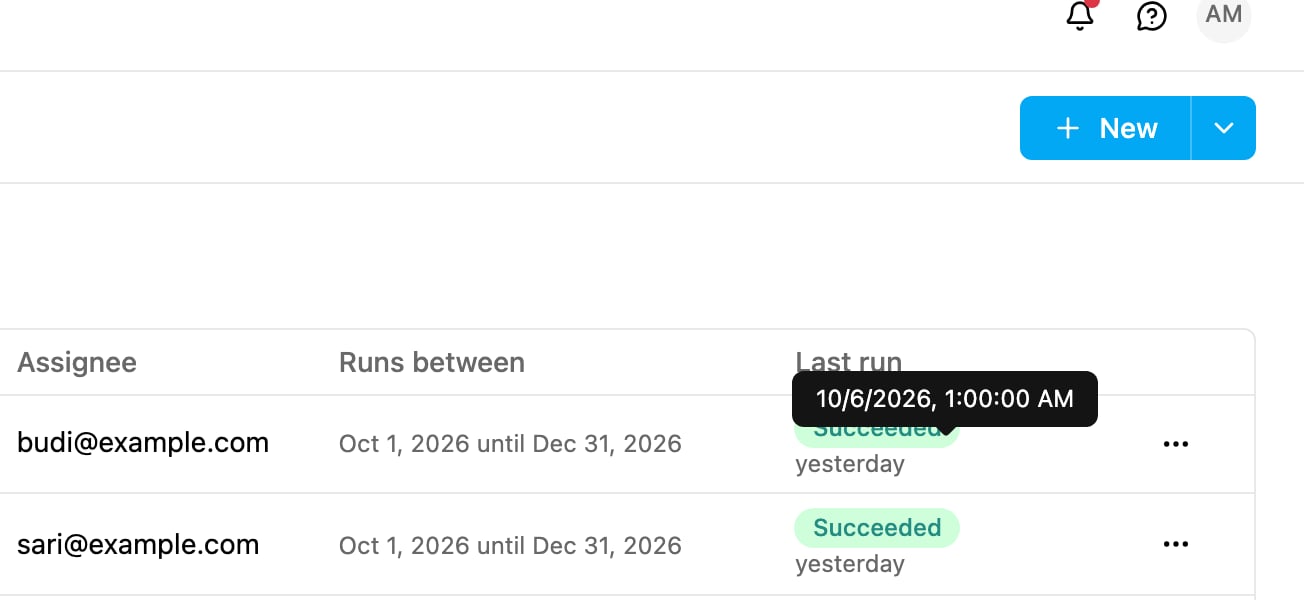
Hover over the time under the badge, for example “yesterday”, to see the exact date and time of the run.
Filter and search
Click Filter to narrow the list.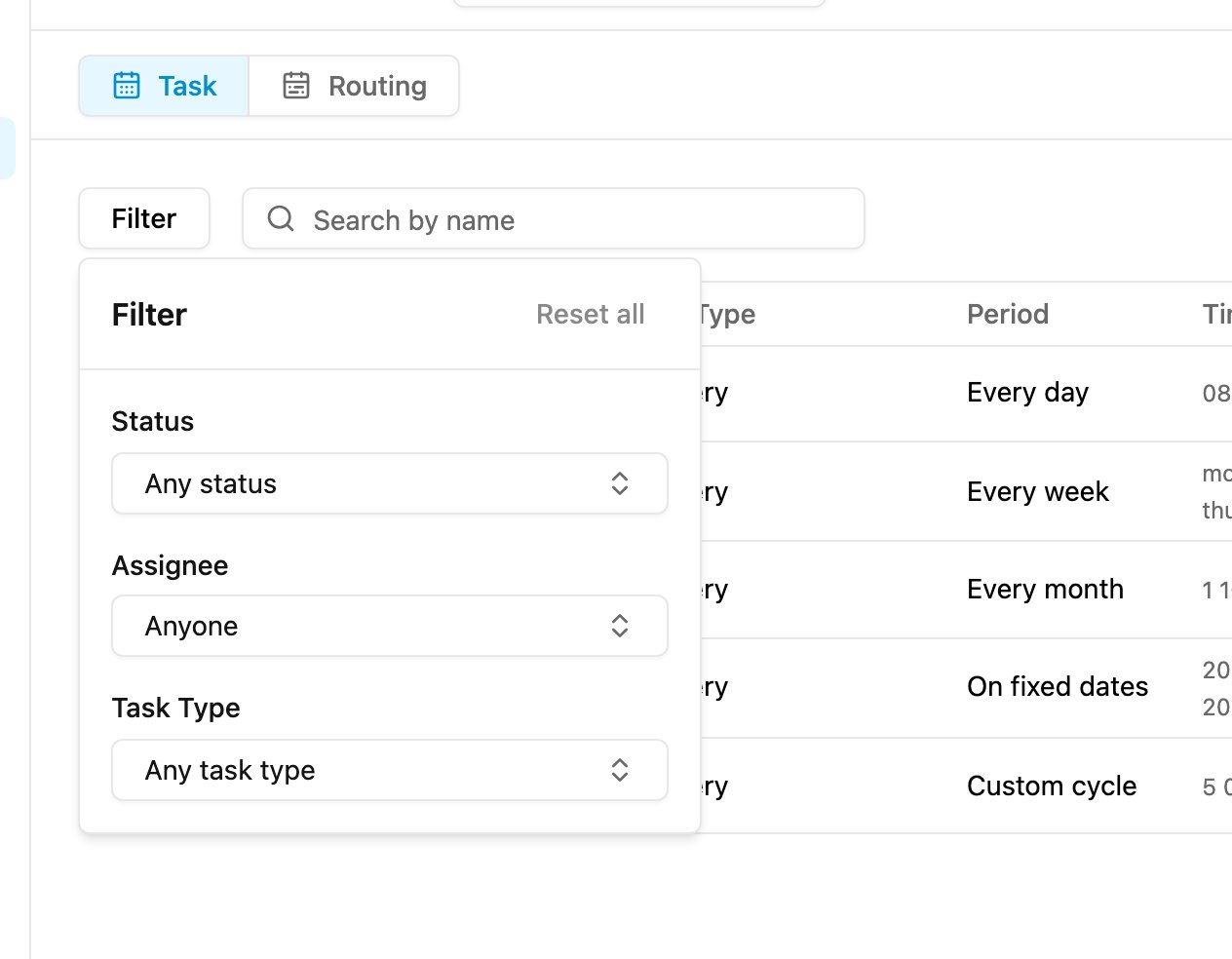
- Status: the last run status: Succeeded, Failed or Scheduled.
- Assignee: schedules assigned to a person.
- Task Type: schedules of one task type.
View
Click ⋯ on a schedule and choose View.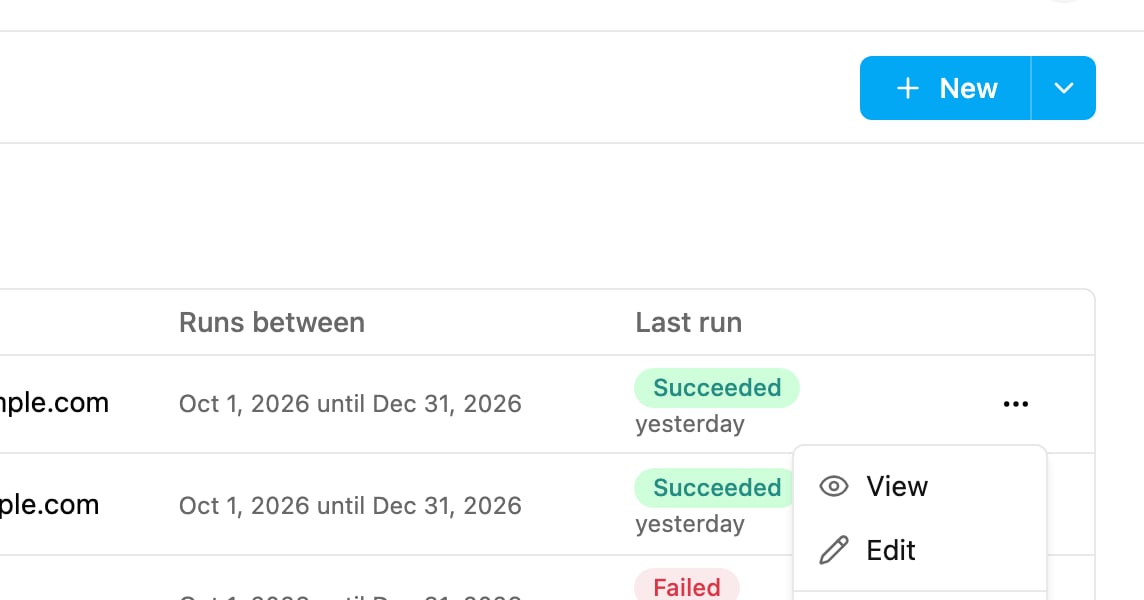
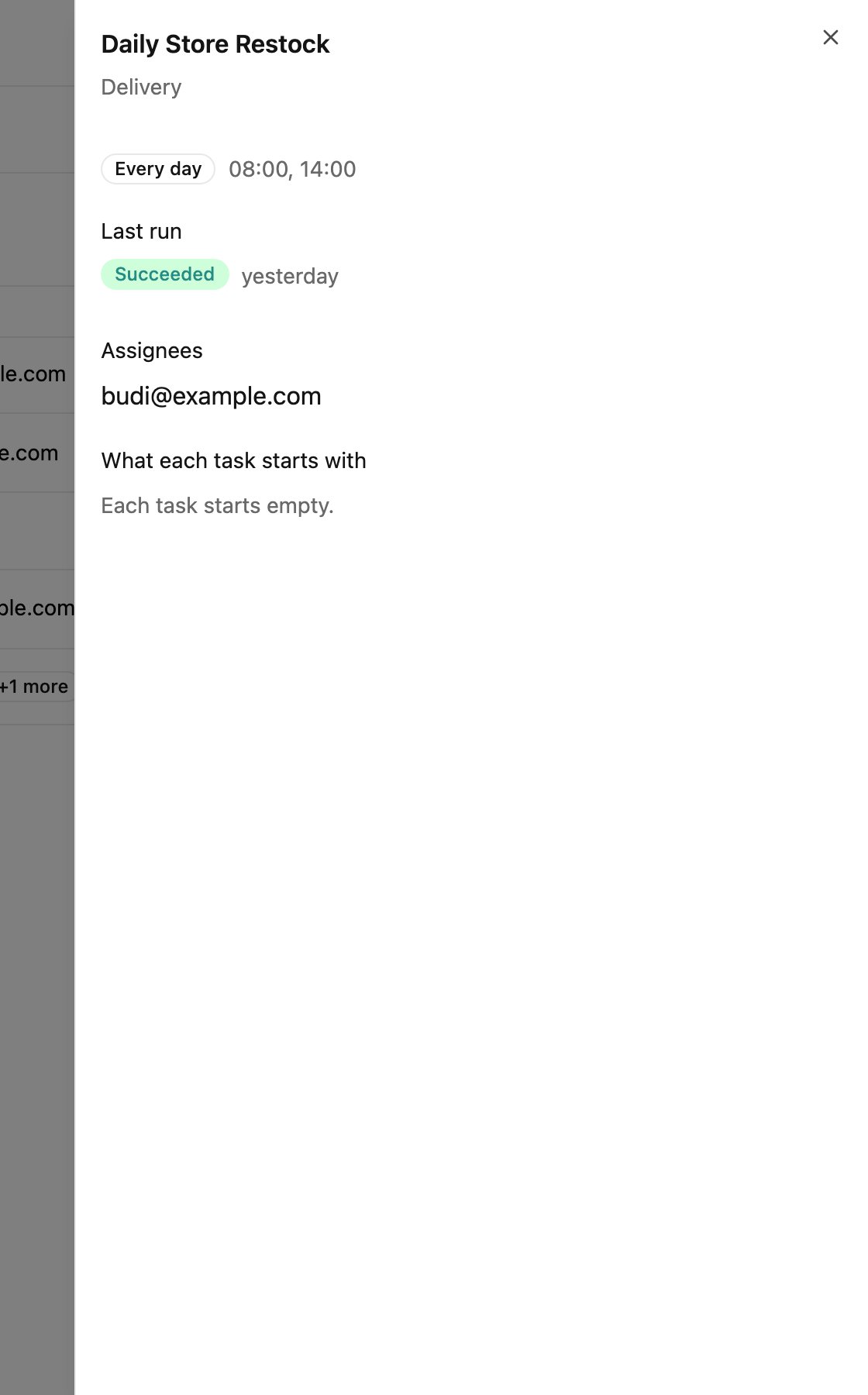
- The name and task type of the schedule.
- The repeat cycle and its times.
- Last run: the last run status and when it ran.
- Assignees: who each task is assigned to, or that tasks arrive unassigned.
- What each task starts with: the values copied into every task, or “Each task starts empty.”
Edit
Required permission:
- View schedule
- Edit schedule
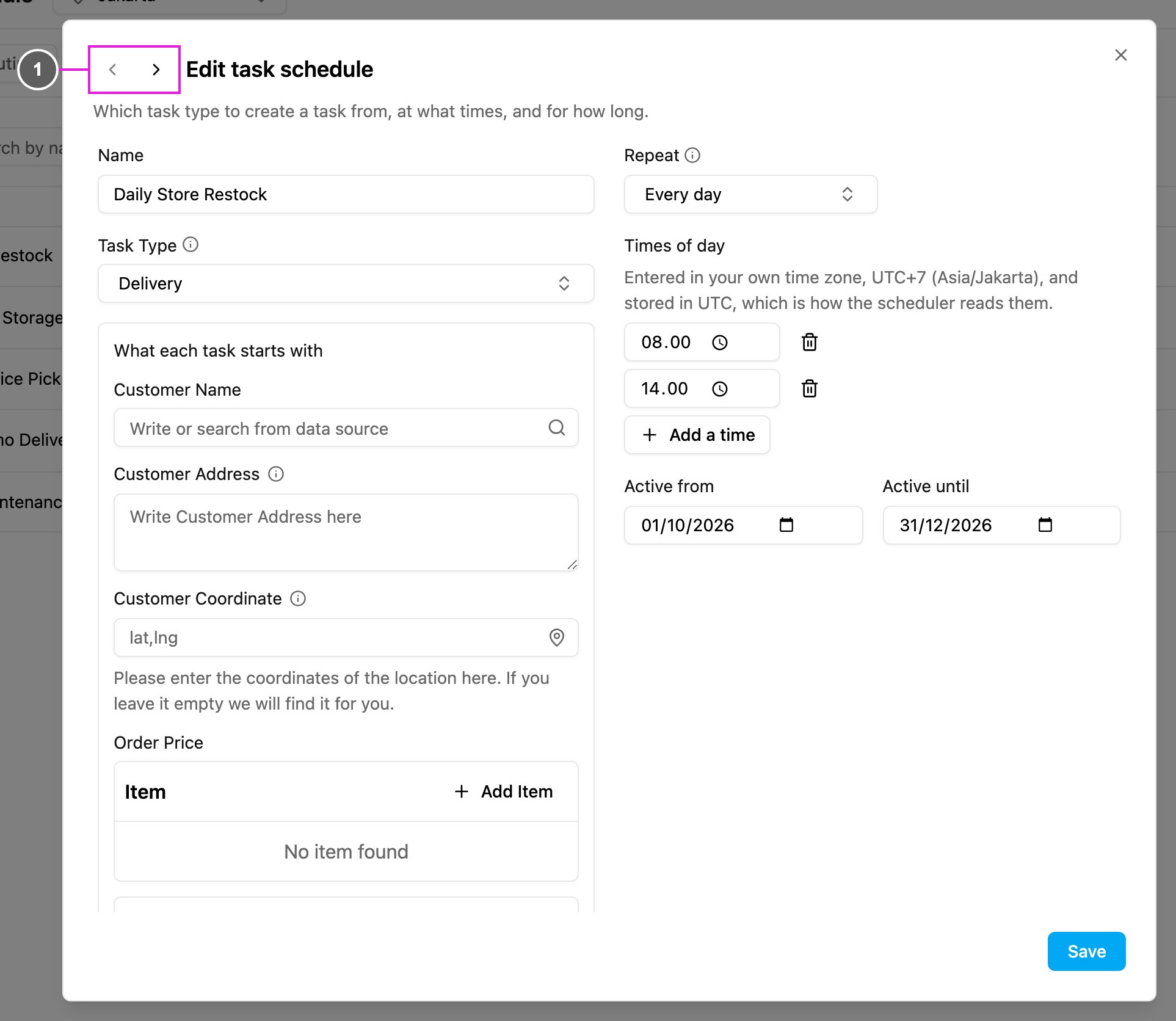
- Previous schedule / Next schedule: move to the schedule before or after this one in the list without closing the form.
Delete
Required permission:
- View schedule
- Delete schedule
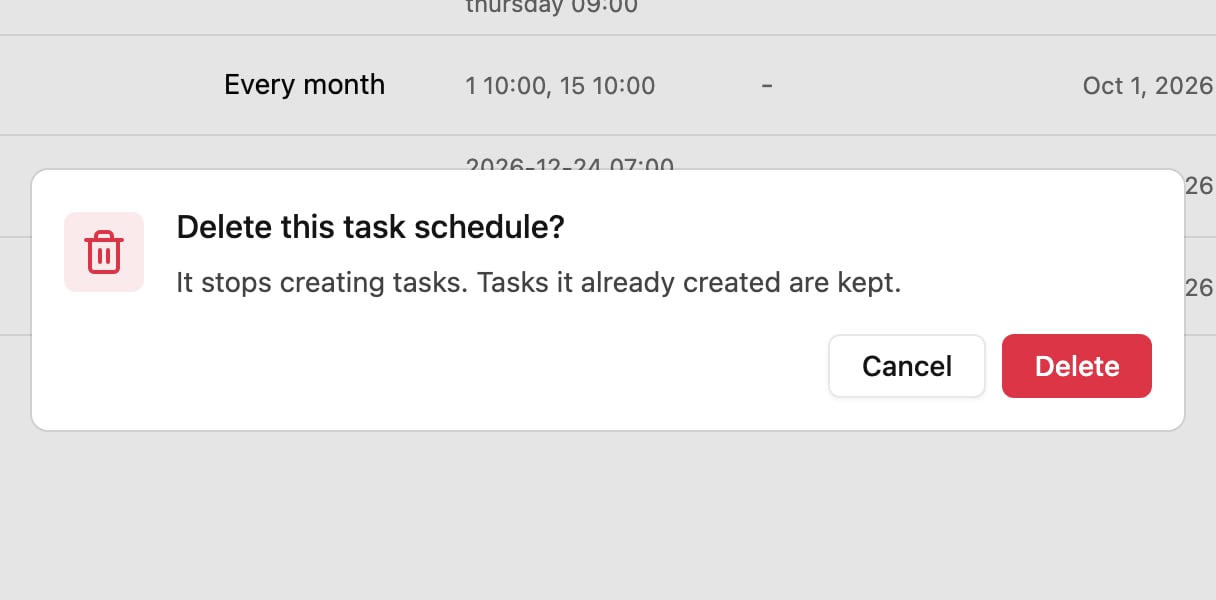
There is no pause switch. To stop a schedule for a while, edit its Active until date, or delete it.