

Required permission:
- View schedule
- Create schedule
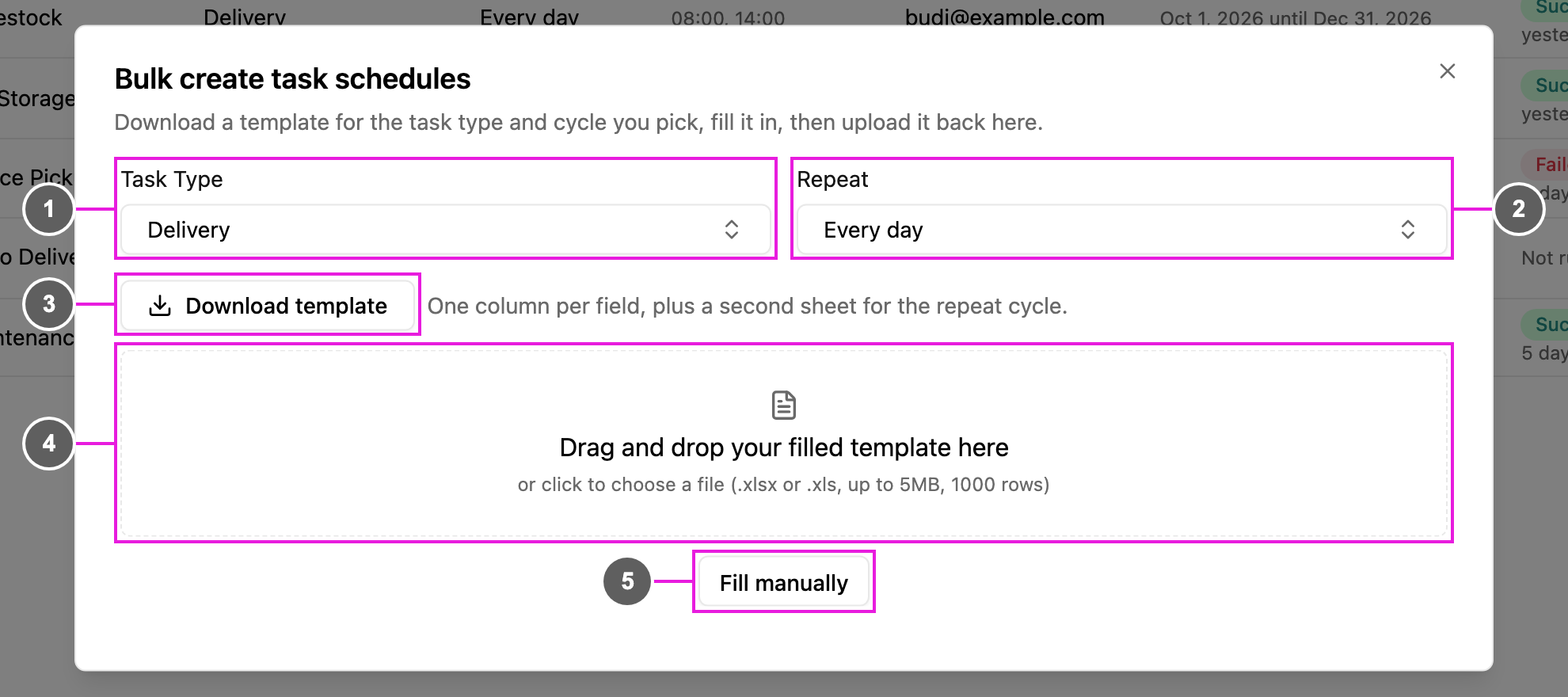
- Task Type: the task type every schedule in the file creates tasks from.
- Repeat: the repeat cycle every schedule in the file uses: Every day, Every week, Every month, On fixed dates or Custom cycle. See Repeat cycles.
- Download template: a spreadsheet made for the task type and repeat cycle you picked. It has two sheets:
- Sheet 1 holds the schedules, one per row, with one column per field of the task type (for example customer name, address and coordinate). Required columns are marked with an asterisk (*). The sheet is named after the task type.
- Sheet 2 holds the repeat cycle details for each schedule, such as the times of day, weekdays or dates. The sheet is named after the repeat cycle.
- Upload area: drop your filled template here, or click to choose it. The file must be .xlsx or .xls, up to 5 MB and 1,000 rows.
- Fill manually: type the schedules into a table instead of uploading a file.
While the file is read
After you upload, the app reads the file, looks up coordinates for any addresses, and fills in data linked from your data sources. If some linked data isn’t found, it says Some data(s) are not found, but you could still continue the bulk task input process. The file is refused, with the reason, when:Review and create
The schedules from your file, or the empty rows from Fill manually, open as a list you can check and edit before anything is created.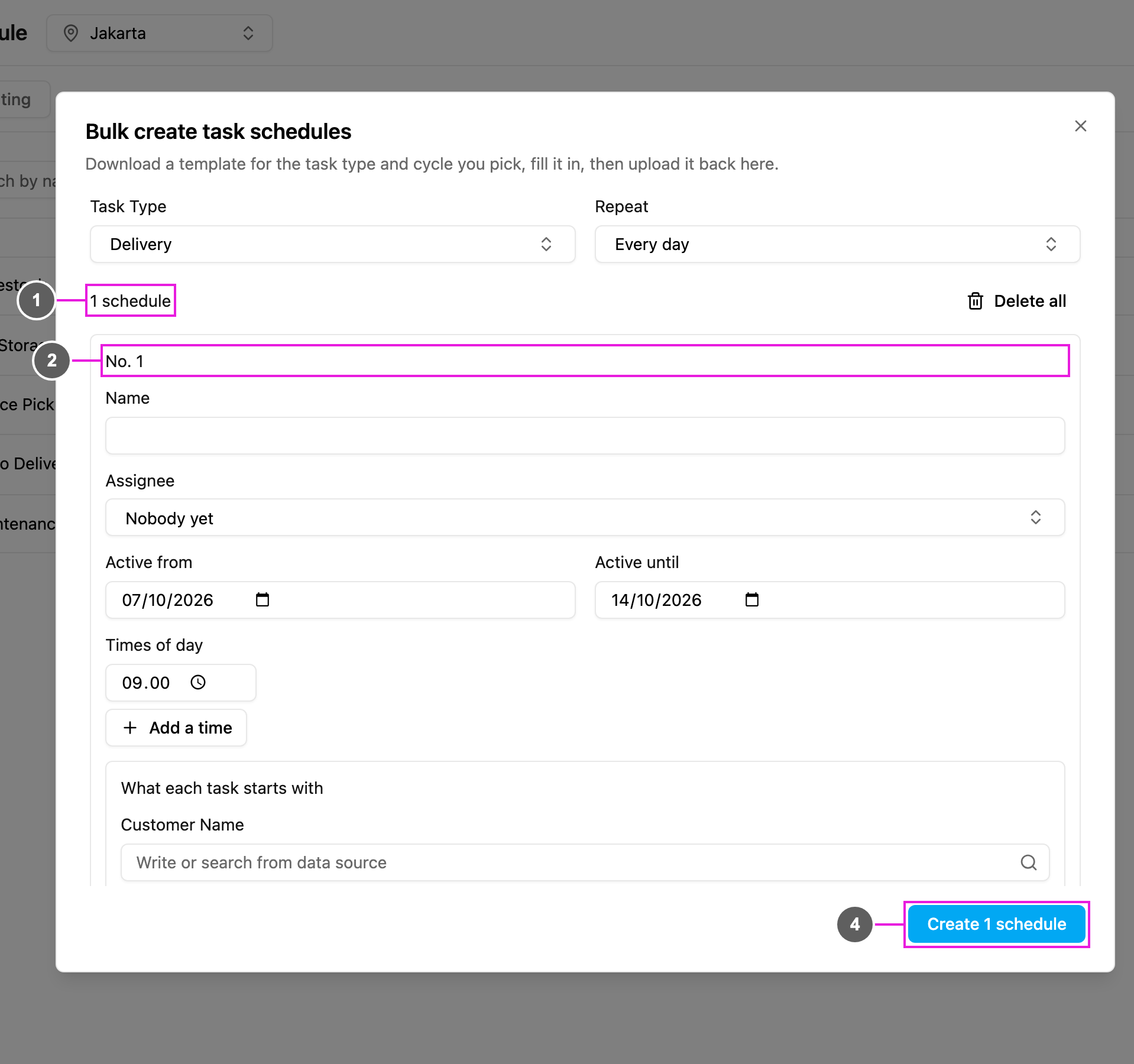
- Count: how many schedules will be created. Delete all clears every row and goes back to the upload step.
- One block per schedule, numbered: its Name, Assignee, Active from and Active until, Times of day (click Add a time for more), and What each task starts with: the fields of the task type, filled in for every task this schedule creates. Use Remove this row to drop a schedule, or Add a row to add one.
- Long lists are shown page by page (Showing 1 - 10 of 25).
- Create N schedules: creates every schedule in the list.