

- You assign a task to a field worker. Once assigned, it appears in their field app and they work on it there.
- A task that has an address and a time window can be planned with Routing, and the field worker then visits the stops in the planned order.
- Tasks can create other tasks through Automation, or be created on a repeating plan with a Task Schedule.
- Each task belongs to a task type. The task type decides what is filled in when the task is created and what the field worker fills in on the field app.
Required permission:
- View task
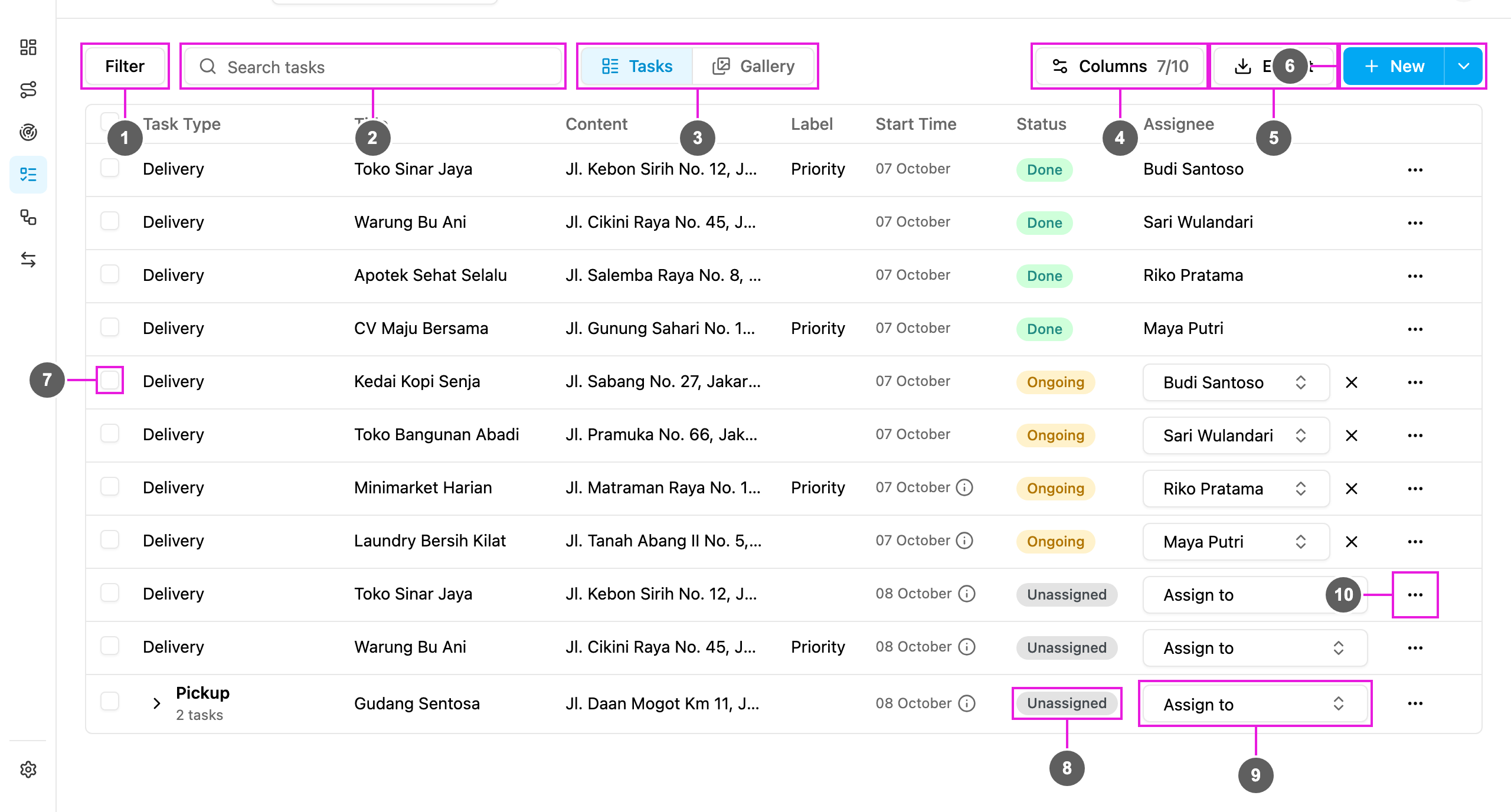
- Filter: narrow the list by status, assignee, task type and date range. See Filtering and Searching Tasks.
- Search tasks: find a task by any text it contains.
- Tasks / Gallery: switch between the task list and the Gallery of photos taken on done tasks.
- Columns: choose which columns the list shows. See Task Columns.
- Export: download the tasks in the list as a spreadsheet. See Export.
- New: create a task. The arrow beside it (More create options) opens Bulk, to create many tasks at once. See Creating a Task and Creating Tasks in Bulk.
- Select this task: tick one or more rows to act on them together (assign, unassign, move, edit time, delete).
- Status: Unassigned, Ongoing or Done for each task.
- Assignee: who does the task. Pick people right in the row. See Assigning Tasks.
- Task actions: View, Edit, Delete, and Do task when the task is yours to do on the web.