

Required permission:
- View data type
- Create data type
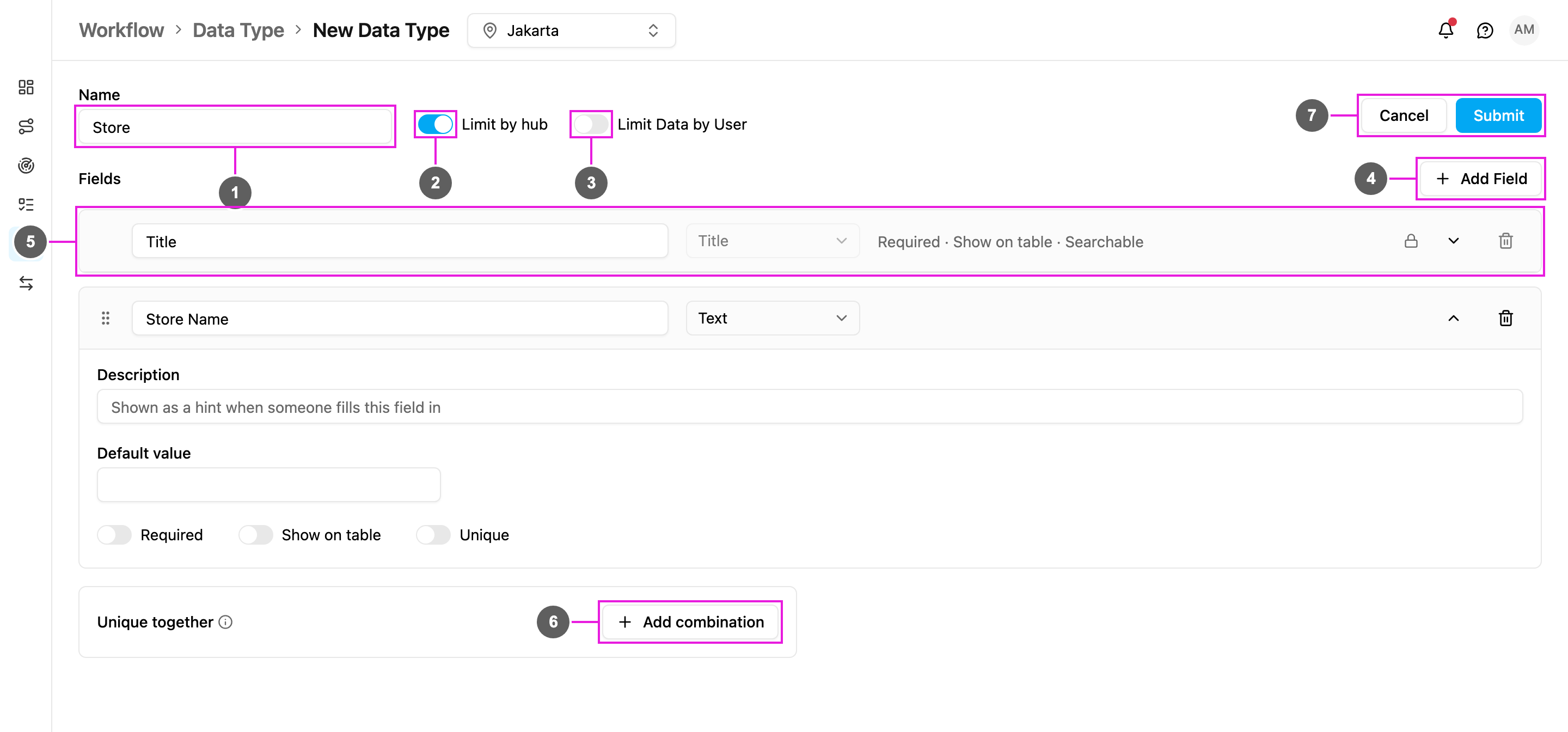
- Name: the name of the data type, for example Store. Use letters, numbers, dashes and underscores only, no spaces.
- Limit by hub: on, each record belongs to one or more hubs and people see only the records of the hub they are working in. Off, the records are shared by every hub. This can only be set when you create the data type.
- Limit Data by User: on, each record can be limited to chosen users or teams, and only they see it. See Limit records by user.
- Add Field: add a field. A new field opens ready to fill in.
- Title: the field that identifies each record, such as a store code or a customer code. Every data type has exactly one Title. It is always first, and it is always required, unique and shown on the table, so you can’t change those settings or remove it. Only its label can be changed.
- Add combination: make a combination of fields unique together (see below).
- Cancel or Submit. When you submit, the data type is created and opens for editing.
Set up a field
Each field is a row. Click the arrow on the right of a row to expand it.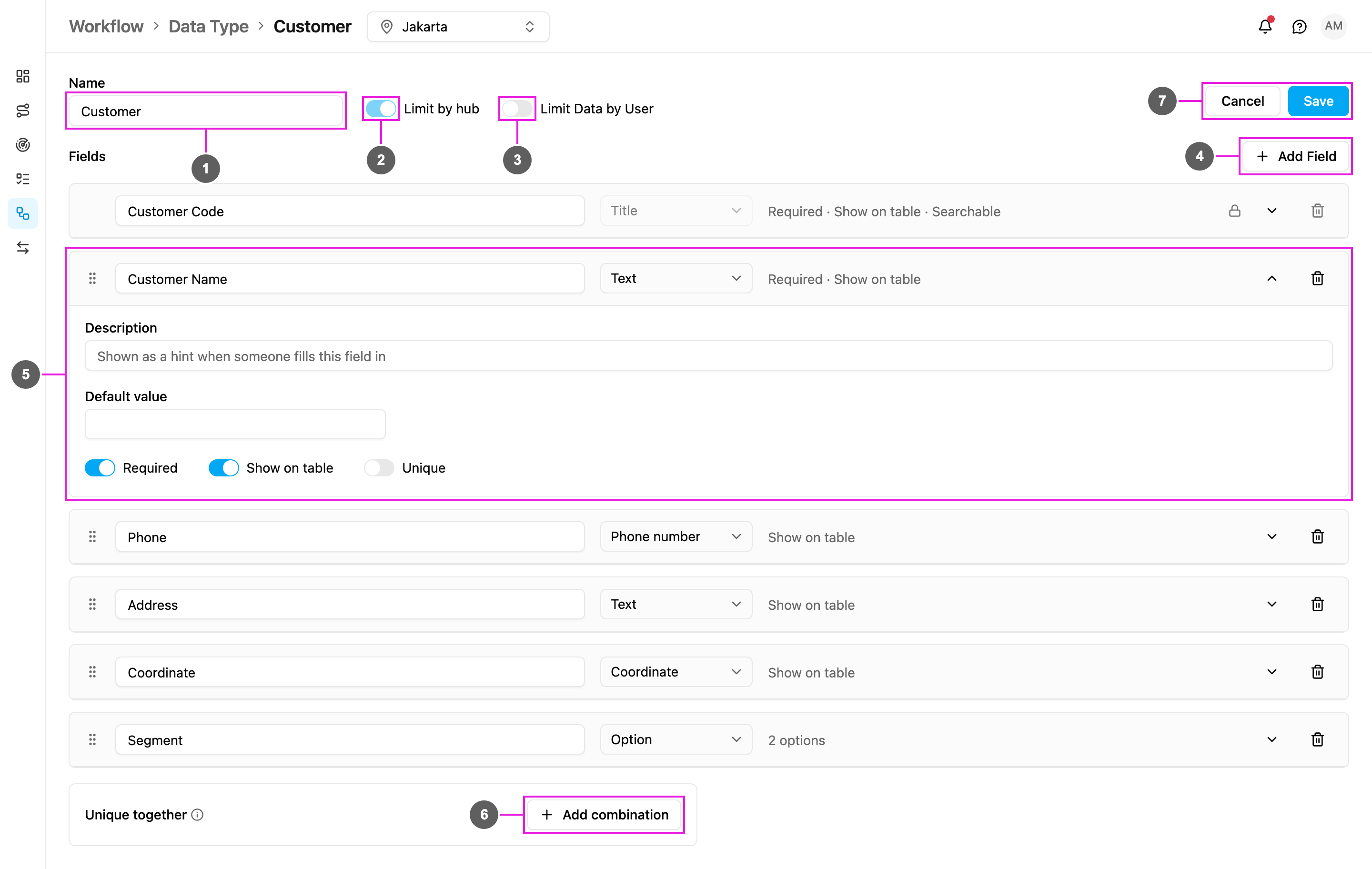
- Name: the data type’s name.
- Limit by hub.
- Limit Data by User.
- Add Field.
-
An expanded field:
- Label: the field’s name, as people see it on the record form and the table.
- Type: what kind of value it holds. See Field types.
- Description: a hint shown next to the field when someone fills it in.
- Rules, depending on the type: Default value, Minimum, Maximum, Decimal places, or the list of Options.
- Required: the field must be filled in.
- Show on table: show the field as a column on the Data Source table. At most 5 fields can be shown, including the Title.
- Searchable (Relation fields only): the Data Source search also matches the title of the linked record, so searching Toko Maju Jaya finds every store linked to that customer. At most 5 Relation fields can be searchable. Other fields don’t need it: the Data Source search already matches the value of every field.
- Unique: no two records can have the same value in this field.
- Add combination.
- Cancel and Save (shown when you edit a data type).
Unique together
Unique together stops two records from repeating the same combination of values. For example, a combination of Store Name and City lets two cities each have a store called Pasar Baru, but not two in the same city. Click Add combination and choose at least two fields. You can add several combinations. If a combination has fewer than two fields when you save, the message Each unique combination needs at least 2 fields. shows under that combination. The Title can’t be part of a combination, because it’s already unique on its own.Link to another data type
A Relation field links a record to a record of another data type, or to a user, hub, vehicle, role or task type. See Relation and Linked records.After you submit
The data type is ready to use right away:- Add its records in Data Source.
- Fill task fields from its records: Task type Configuration › Data source.
- Create or update its records from an automation: Create or update data source.