

Required permission:
- View data source
- Create data, Edit data source (to set a link)
Choose a linked record
When a data type has a relation field, its record form shows a picker for it.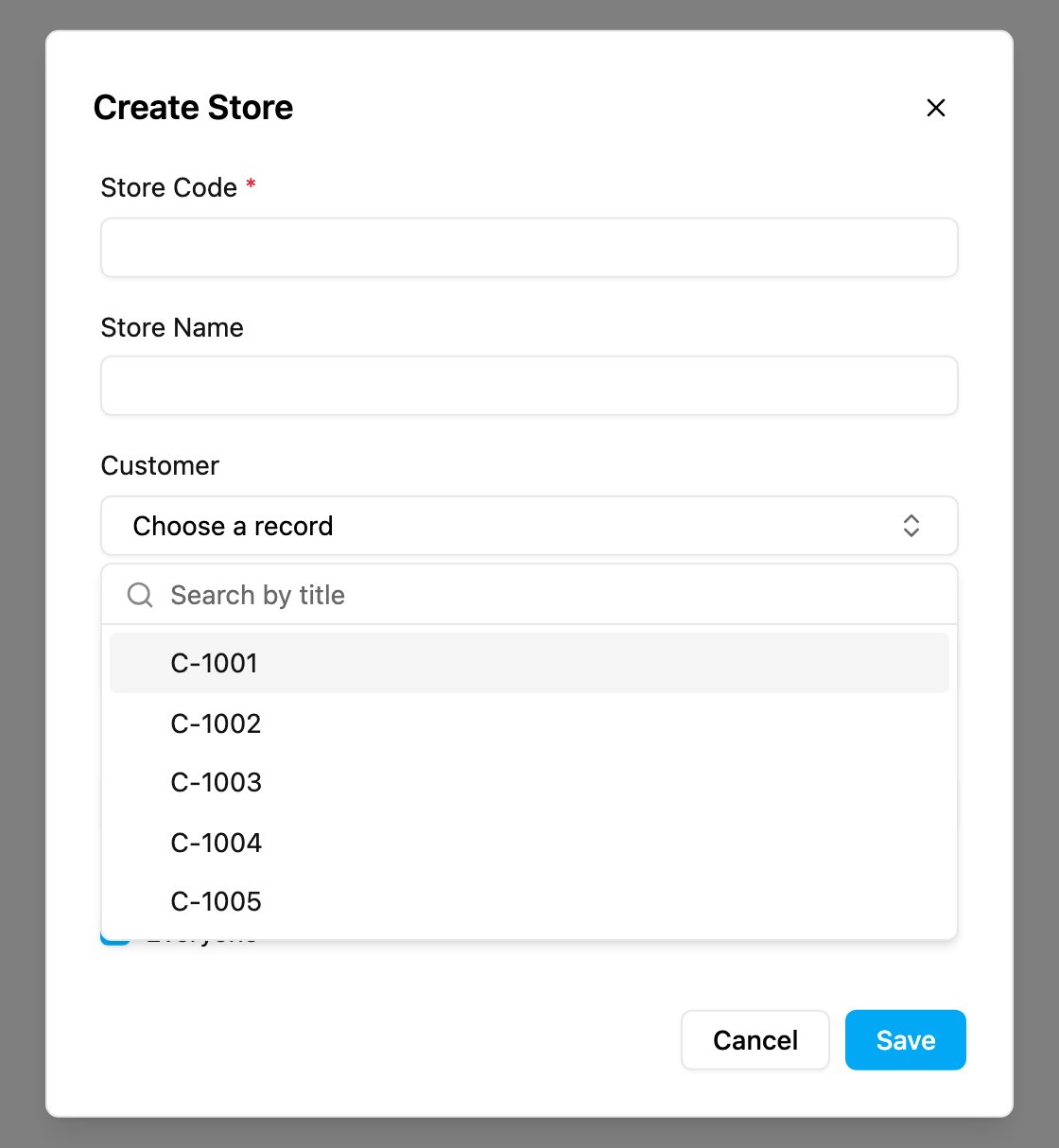
- Click Choose a record to open the list of records of the linked data type.
- Type in Search by title to find a record. The list searches as you type and shows the results page by page, so it works for data types with many records.
- A relation set to One holds a single record. A relation set to Many lets you tick several.
- Click Clear selection to remove the link.
- If the list can’t be loaded, the picker says Could not load the list to choose from. Close the form and try again.
The other side of a link
A link is stored only on the record that holds the relation field. The linked record shows it as a read-only list:- The Customer record lists every Store that points to it.
- You can’t change that list from the Customer. Edit the Store to change or remove its link.
- If nothing points to the record yet, the list shows None.
Extra information on built-in data
The built-in data types User, Hub, Role, Vehicle and Task Type can carry extra fields that you define, such as an employee number for a user or a region for a hub.- Open Workflow › Data Type and edit the built-in data type. Add the fields you need. Until you do, the data source shows No custom columns yet. Add fields to this Master Data in Data Types.
- Open Workflow › Data Source and pick that data type. Each row is the extra information for one user, hub, role, vehicle or task type.
- Click New, then Choose an entity to pick which user, hub, role, vehicle or task type the information belongs to. Type part of a name to search, for example part of a vehicle’s plate number. Fill in the fields and click Save.