

Required permission:
- View integration
- Create integration (to connect a service)
- Edit integration (to change a connected service)
- Delete integration (to disconnect a service)
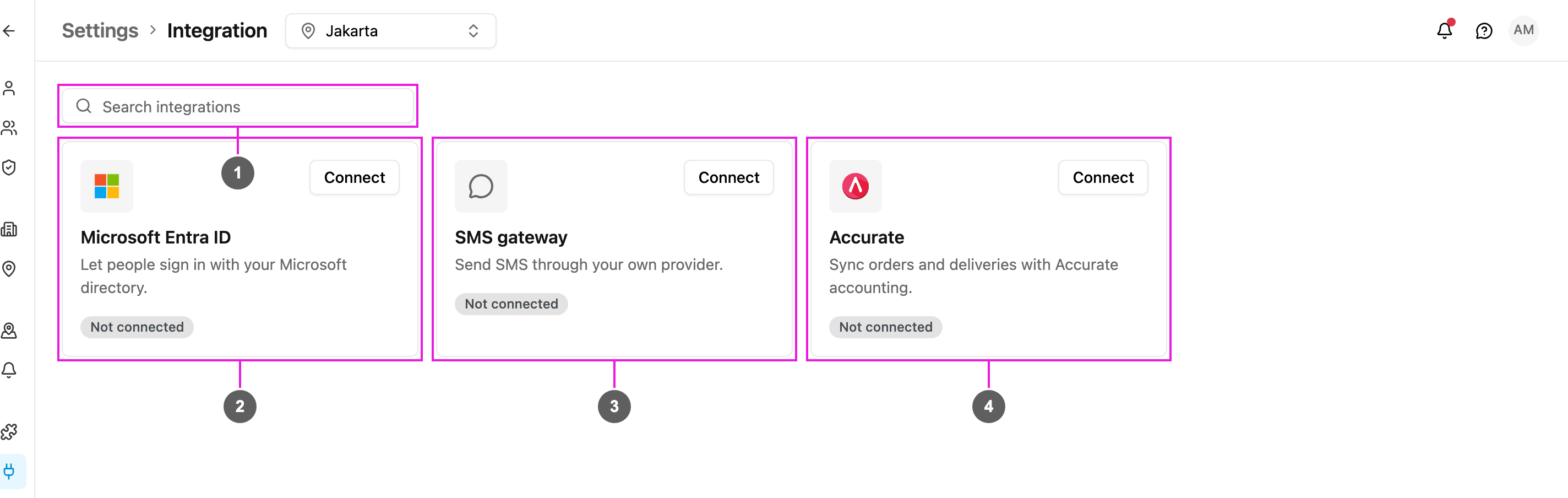
- Search integrations: type part of a name or description to narrow the cards. If nothing matches you see Nothing matches that; clear the search to bring every card back.
- Microsoft Entra ID: people sign in with your Microsoft directory. See Microsoft Entra ID SSO.
- SMS gateway: the app sends SMS through your own provider instead of the built-in one. See SMS Gateway.
- Accurate: Sales Orders in Accurate become tasks, and finished tasks push Delivery Orders back. See Accurate.
Reading a card
Each card shows the service, a one-line description, a status badge and its buttons.
Without Create integration you don’t see Connect on a service that isn’t set up yet. Without Edit integration the cards are read-only: you can see what’s connected but not change it.
SMS gateway and Accurate are offered to selected accounts only. If you don’t see their cards and need one of them, contact support.
Disconnect a service
Required permission:
- View integration
- Delete integration
- Microsoft Entra ID: people can no longer sign in with Microsoft. Their accounts and passwords stay.
- SMS gateway: SMS goes back to the built-in provider, and automation SMS uses credit again.
- Accurate: your sync rules are kept and paused. See Disconnect.