

Every custom module gets its own permission, so you decide which roles see it. See Permission for each module.
Required permission:
- View custom module
- Create custom module (to add)
- Edit custom module (to change)
- Delete custom module (to delete)
The custom module list
Open Settings › Custom Module.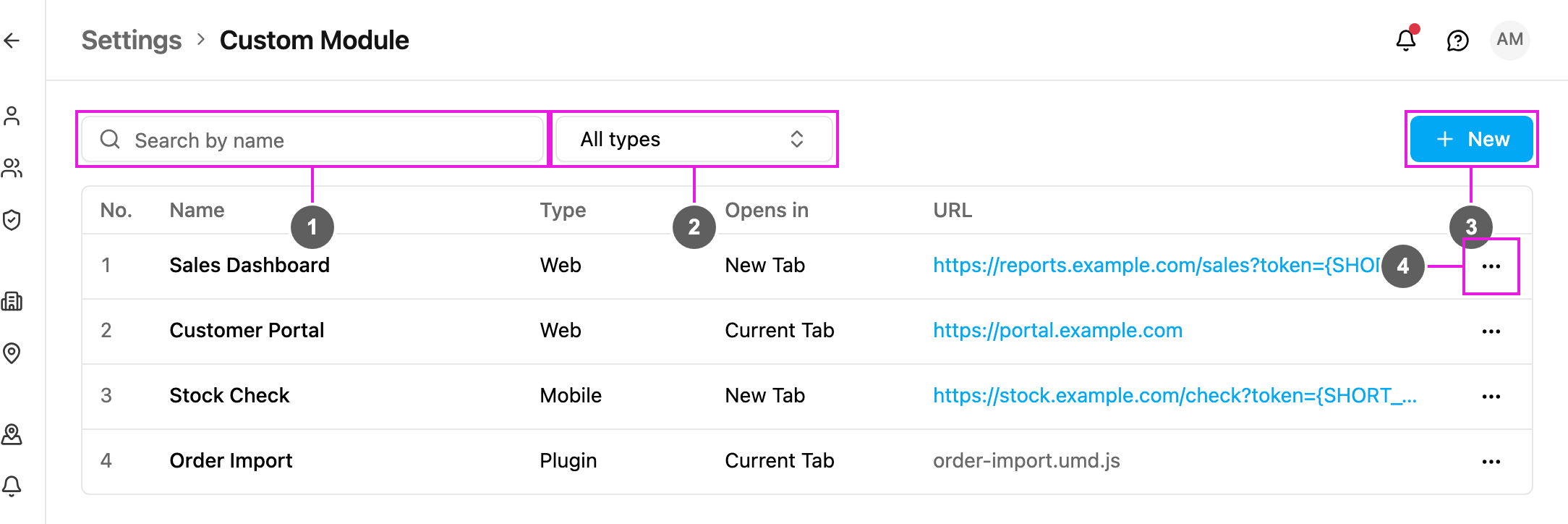
- Search by name: narrows the list to modules whose name contains what you type.
- All types: shows only Web, Mobile or Plugin modules. Pick more than one to combine them.
- New: adds a module. See Add a custom module.
- … (More actions): Edit or Delete the module.
With no modules yet the page reads No custom modules yet. If your search and type filter match nothing, it reads No module matches those filters.
Add a custom module
Click New. The fields change with the Type you choose.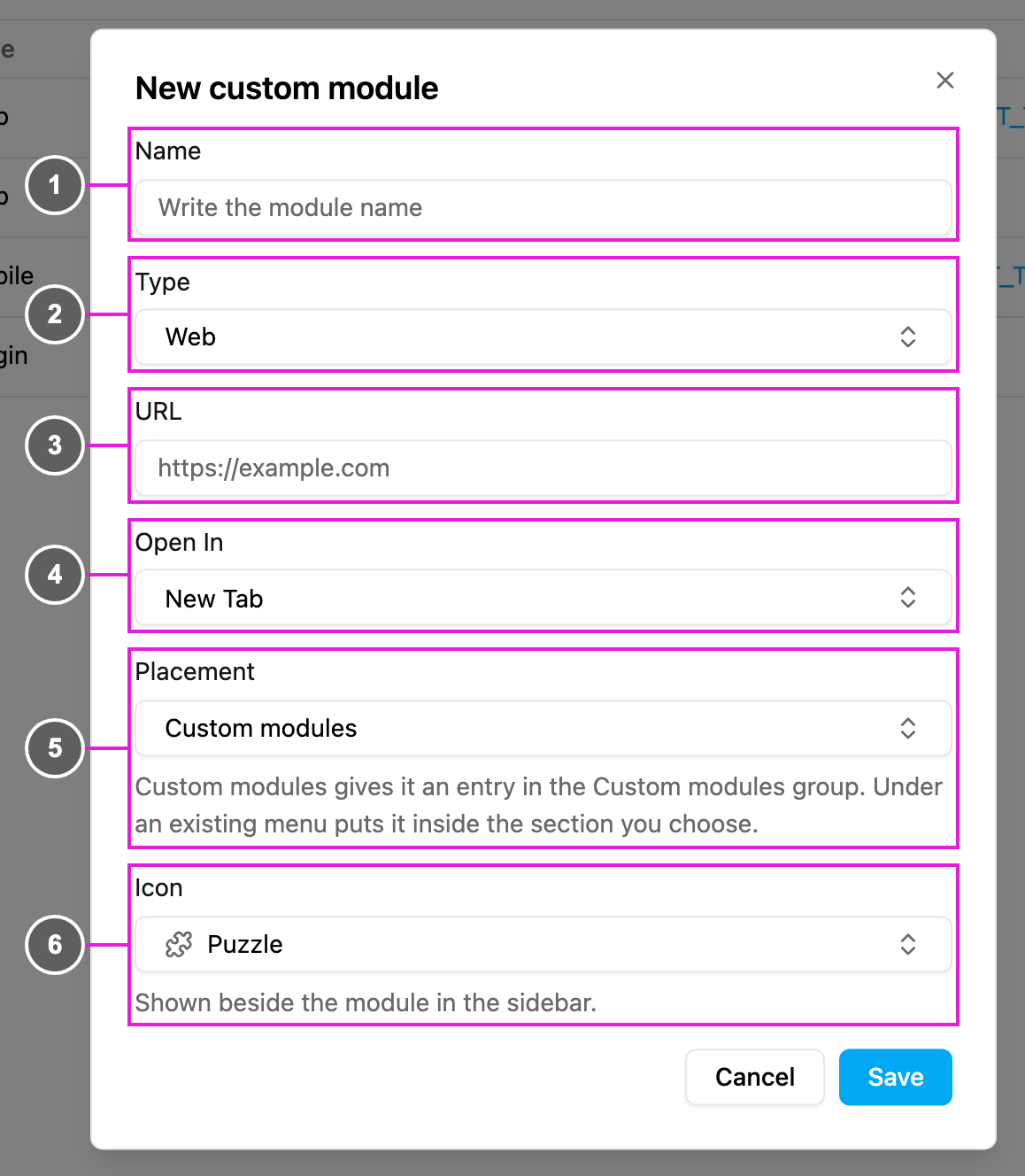
- Name: the name shown in the menu, and the name of the module’s permission. Required. Avoid a name already used by a menu in the app. It can’t be changed after the module is created.
- Type: Web, Mobile or Plugin. See the table above.
- URL: the full address the module opens, starting with
http://orhttps://, for examplehttps://reports.example.com/sales. You can add{SHORT_TOKEN}to it: see Sign in to your service with SHORT_TOKEN. Web and Mobile only. - Open In: New Tab (the default) or Current Tab. Web only.
- Placement: where the module appears in the sidebar. Web and Plugin only.
- Custom modules: its own entry in the Custom modules group of the sidebar.
- Under an existing menu: inside a section you choose in Sits under, for example under your task pages. It shows as a text entry without an icon. Sits under is required with this placement.
- Icon: the icon shown beside the module in the sidebar, for example Puzzle. Only with Custom modules placement.
Plugin fields
A Plugin runs a JavaScript bundle inside the web app instead of opening an address. It is offered to selected accounts only; other accounts don’t see the Plugin type and can’t edit or delete existing plugins.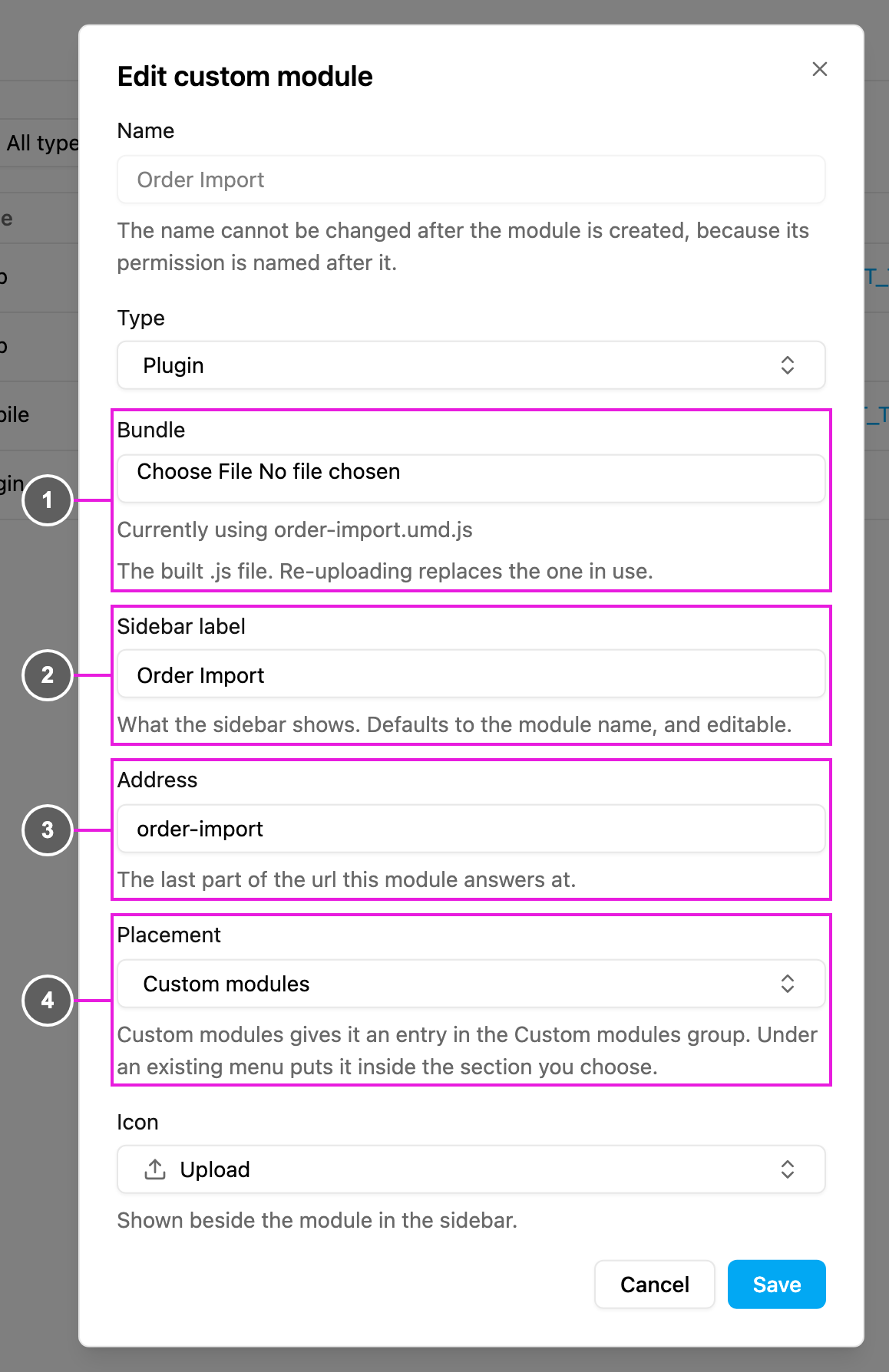
- Bundle: the built
.jsfile to upload. Required for a new plugin. When editing, Currently using … names the file in use; choose a new file only to replace it. - Sidebar label: what the sidebar shows. It is filled in from the bundle, defaults to the module name, and you can change it, unlike Name.
- Address: the last part of the web address the plugin opens at, for example
order-import. It is filled in from the bundle, and lowercase letters, numbers and hyphens are kept. If another module already uses it, you see Another module already answers at this address. - Placement: Custom modules or Under an existing menu, as for a Web module, with Icon or Sits under below it.
Sign in to your service with SHORT_TOKEN
When a module’s URL points at your own service and that service needs to know who opened it, put the placeholder{SHORT_TOKEN} in the URL where the service expects a credential:
{SHORT_TOKEN} before opening the address. The person’s own sign-in token never appears in the address, so it can’t leak into your service’s logs, the browser history or anything in between.
Why use it. A sign-in token in an address stays valid for hours, and anyone who sees the address can use it. A short token expires after 5 minutes and is only good for one exchange.
What your service does with it. If your service only needs to show something, it can ignore the token. If it needs to act for the person in the app, for example to update a task, it exchanges the short token straight away for that person’s access token, user and organization through the API’s short-token resolve endpoint, then uses that access token for its calls. An expired, unknown or malformed short token is refused: treat it as not signed in and don’t retry. See the API reference.
Rules for your service:
- Exchange it at once. It expires after 5 minutes; don’t queue it.
- Treat it like a password. Don’t log it, store it or put it in error reports.
- HTTPS only.
A URL without
{SHORT_TOKEN} is opened with the person’s sign-in token added as a token parameter. Use {SHORT_TOKEN} for any address outside your organization’s control.Edit a custom module
Required permission:
- View custom module
- Edit custom module
Delete a custom module
Required permission:
- View custom module
- Delete custom module