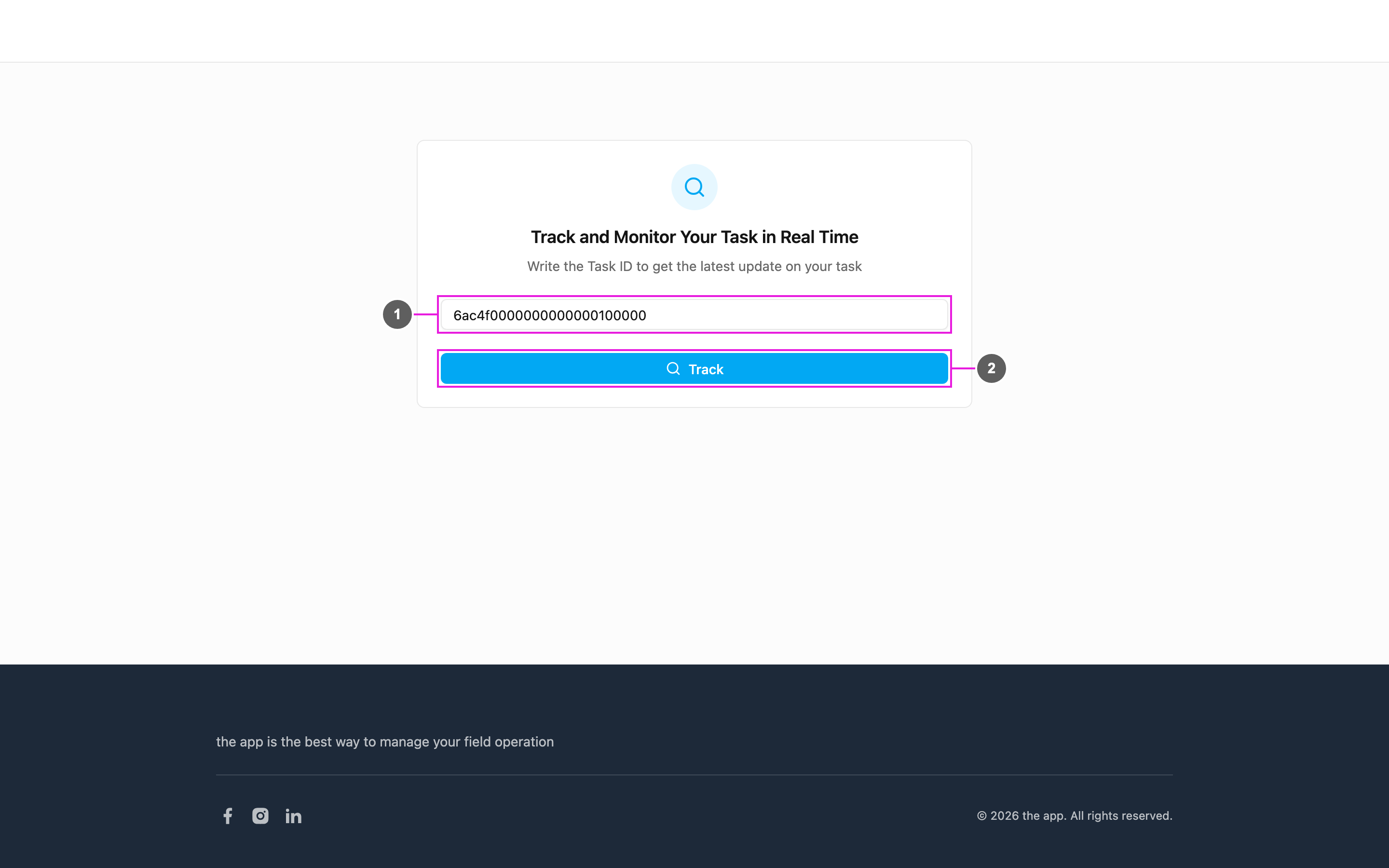
This page explains what the public tracking page shows and how people outside your organization can read it.
Open the tracking page
Recipients open the page in one of two ways:
- The link: the tracking link you shared, which ends in
/tracking/ and the task ID.
- The portal: the
/tracking page, where they type the task ID and click Track.
The portal checks the task ID before it opens the task: an empty ID, an ID with spaces or an ID that matches no task shows a message under the field.
The task page
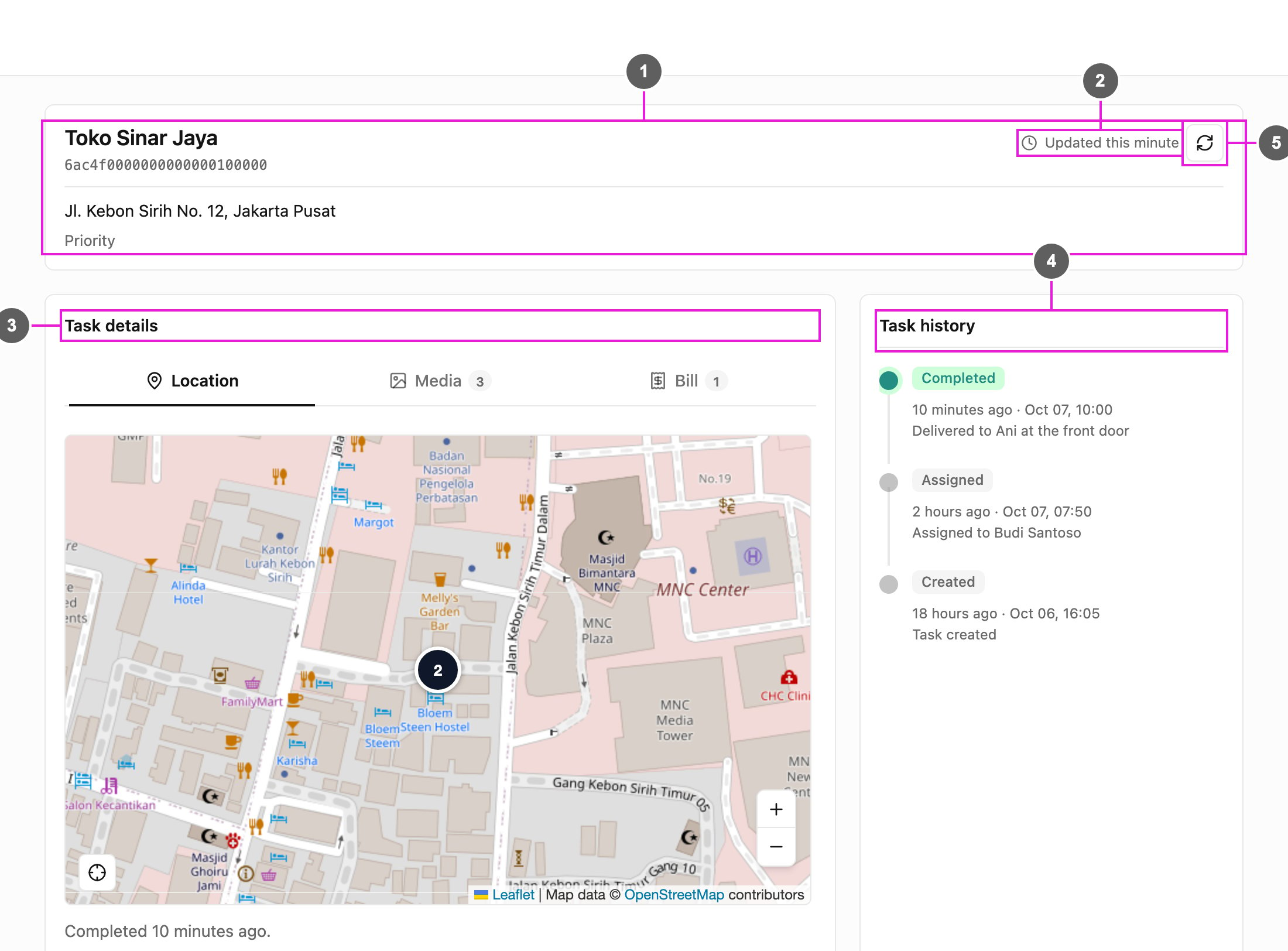
- Task information: the task’s title and task ID, its content (often the address) and its label.
- Updated: how long ago the page last loaded the task’s information.
- Task details: tabs for Location, and Media, Bill and List when the task has them. Each tab shows how many items it holds.
- Task history: every step of the task, newest first.
- Refresh: load the latest information now. The page also refreshes itself every few minutes while it is open.
Your organization’s logo and colors are shown on the page when they are set.
Task history
Each step shows:
- Status: what happened, such as Created, Assigned or Completed.
- Time: how long ago, then the date and time, for example 1 hour ago · Oct 07, 07:50.
- Note: more about the step, such as who it was assigned to, or a note from the field worker.
The newest step is marked in color and older steps in grey, joined by a line. Long histories show the latest steps first; Show all updates opens the rest.
Location
- Task location: where the task is to be done.
- Courier: the field worker’s last known location, with their name, phone number and when it was last updated. When several people are assigned, Select a courier switches between them.
- Completed: for a done task, the point where the task was completed and the time.
- Recentre the map: bring the markers back into view.
When the task is not assigned yet, or no location has been shared, the tab says so instead of showing a courier.
The photos and signatures taken on the task, grouped by the field they belong to. Click a photo to open it full size, move with Previous photo and Next photo, zoom in and out, or Copy photo link.
Bill
For a task type with a bill:
- Bill Items: each item with its quantity, price and total, and the quantity processed when there is one.
- Cost Item: extra costs such as shipping, and discounts.
- Subtotal Items, Subtotal Cost and Total Bill.
List
For a task type with a list. The list shows its List Type and List Items:
- Text: the item names only.
- Checkbox: each item marked Checked or Not checked.
- Quantity: each item’s Qty and Quantity Processed, with the Total Qty and Total Quantity Processed.
Status
The most recent step is at the top of the history, marked in color.
What is and isn’t shown
The tracking page shows only:
- the task’s title, content and label,
- its history,
- its location and the courier’s last location,
- the media, bill and list of the task.
The other fields of the task and your organization’s internal details are not shown.
Keeping up to date
- New steps appear in the history as they happen, the next time the page refreshes.
- The courier’s location follows your organization’s tracking interval.
- When the page cannot reach the service, it keeps showing the last information it had and says it is reconnecting.
On a phone
The tracking page works on computers, tablets and phones. On a phone, the sections stack one under another.
Live location links
A separate kind of link, ending in /user/tracking/ and a token, shows one field worker’s live location for a day instead of a task. Such a link expires after a week: an expired or invalid link says so and asks the recipient to request a new one.