

Required permission:
- View task
Find the task ID
Every task has a unique task ID that works as the access key for public tracking.- Open Activities › Task.
- Click a task, or choose View from its Task actions, to open its details.
- Click Share.
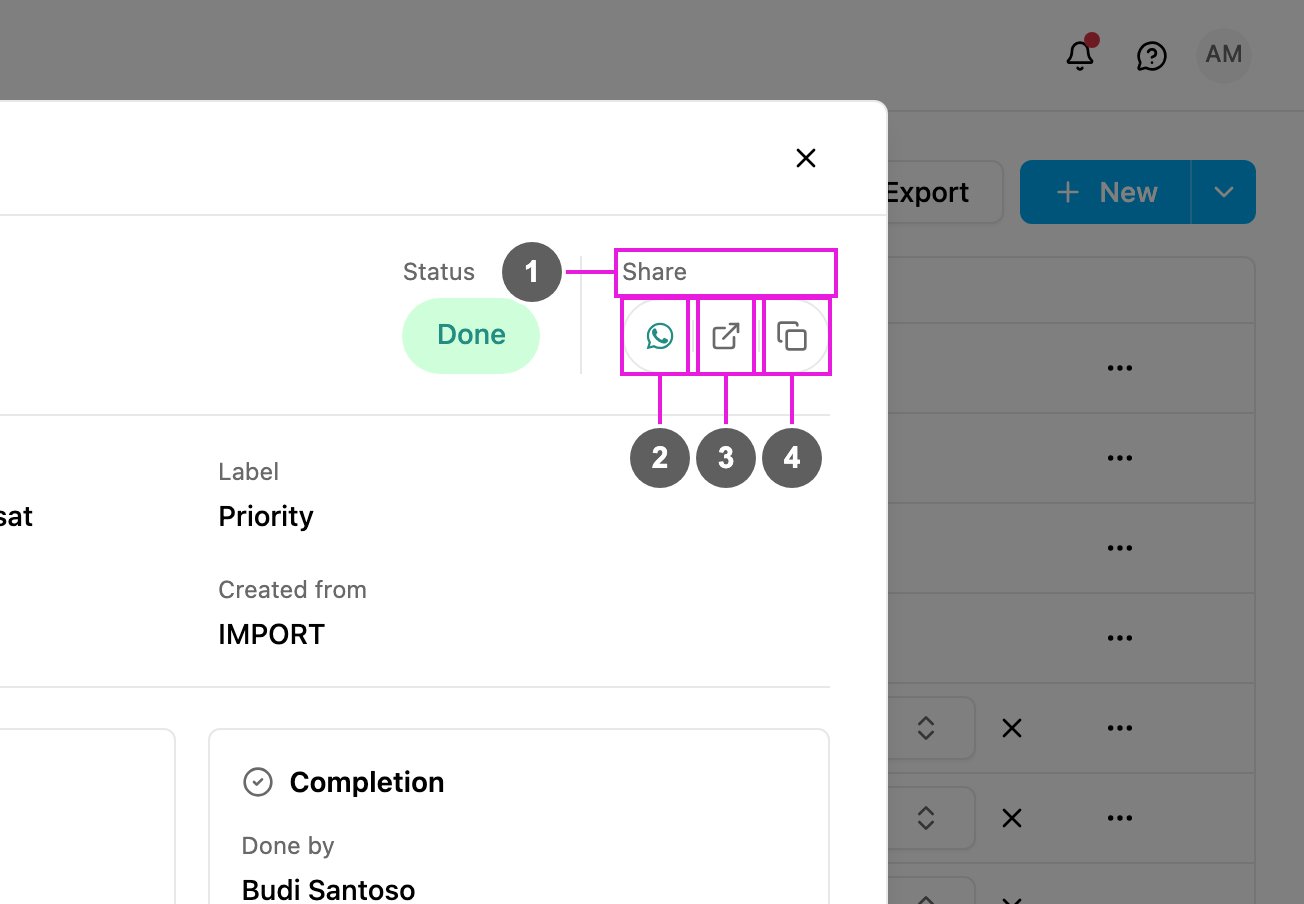
- Share: opens the share options.
- Share by WhatsApp: opens WhatsApp with a message and the tracking link. When the task has a phone number on its initial page, the chat opens to that number.
- Copy link: copies the full tracking link.
- Copy task ID: copies the task ID on its own.
Ways to share
Option 1: the tracking link (recommended)
Send the full link: the web app’s address, then/tracking/, then the task ID. For example:
- One click opens the task for the recipient.
- Nothing needs to be typed.
- Easy to send by email, chat or text message.
Option 2: the portal and the task ID
Send the portal address (/tracking) and the task ID separately. The recipient:
- Opens the portal.
- Types or pastes the task ID.
- Clicks Track.
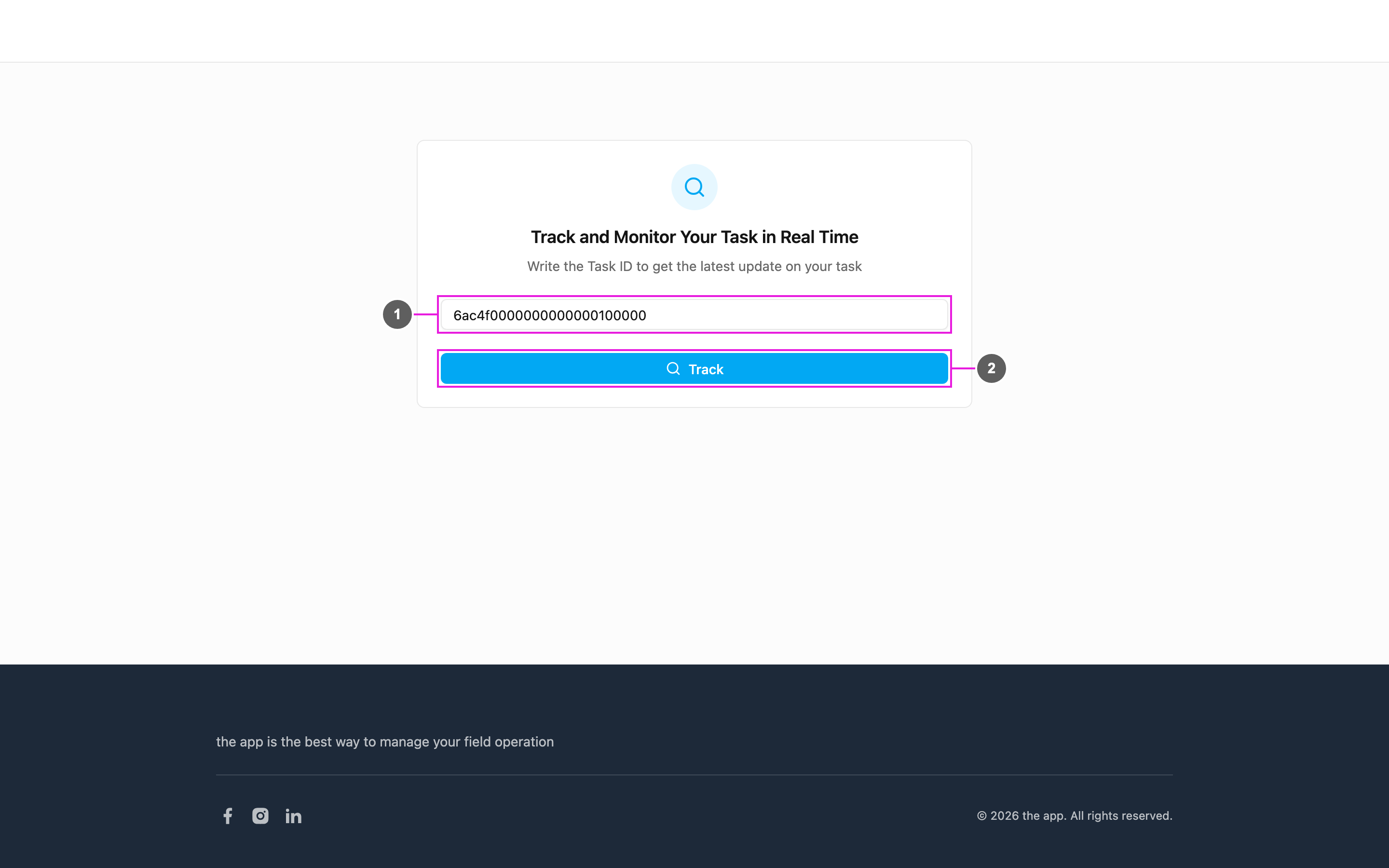
- Task ID: where the recipient enters the task ID.
- Track: open the task’s tracking page.
Option 3: Share in the task detail (easiest)
Open the task and click Share, then pick Share by WhatsApp, Copy link or Copy task ID. The link is built for you, and WhatsApp sends it in one step.In automatic emails
An email notification can include the tracking link as a variable, so the recipient gets it as soon as the task is created or updated.Best practices
- Share right after the task is created, so the recipient can follow it from the start.
- Add a short explanation of what the recipient will see on the page.
- Set expectations: when the task will be updated, what information appears, and how often the location updates.
- Share task IDs only with the intended recipients. Anyone with the ID can see the task.
- Open the link yourself first to check it shows what you expect.
What recipients see
- Task information: title, content and label.
- Task history: every status change with its time and note.
- Location: where the task is, and the courier’s location while it is ongoing.
- Media, Bill and List, when the task type has them.
Troubleshooting
“No task matches that ID” or “We could not find that task”- The task ID is wrong or incomplete, or has a typo.
- A task ID contains no spaces: check what was pasted.
- The task has been deleted.
- The recipient’s connection dropped, or the service is briefly unavailable.