

Required permission:
- View permission
- Edit permission (to make changes)
The Permission page
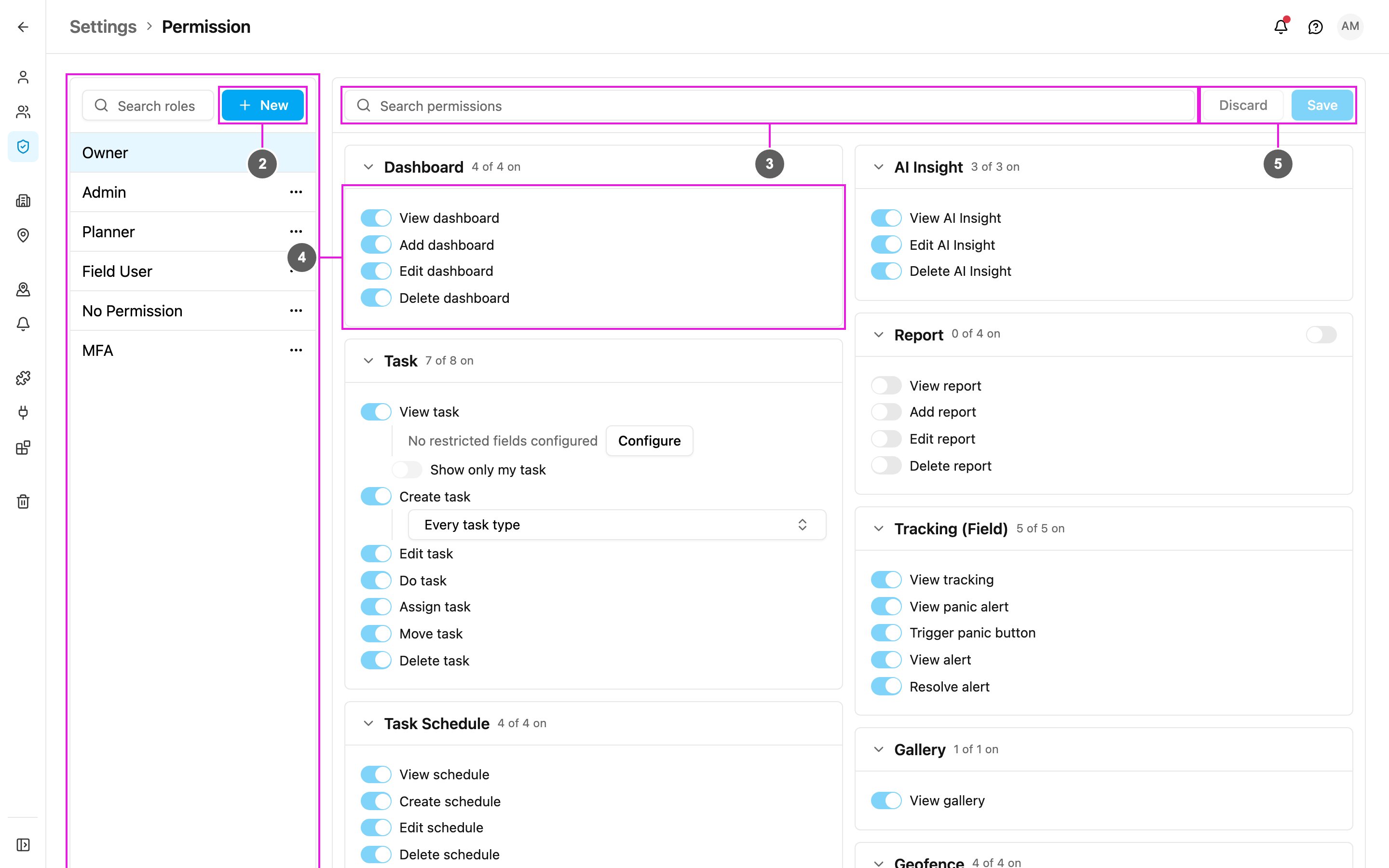
- Roles: every role in your organization. Click one to load its permissions. Use Search roles to find a role.
- New: create a role. See Managing Roles.
- Search permissions: find a permission by name. The page shows only the groups that match.
- Permission groups: the permissions of the selected role, grouped by area (Dashboard, Task, Task Schedule and so on). Each group shows how many of its permissions are on, for example 4 of 4 on. The switch in a group’s header turns the whole group on or off. Click the arrow to fold a group.
- Discard / Save: changes take effect only when you click Save. Discard throws them away. If you pick another role with unsaved changes, the app asks whether to discard them.
Built-in roles
Every organization starts with built-in roles that fit the most common jobs. You can change their permissions and add your own roles beside them.What only an owner can do
- Invite someone as an owner, or change someone’s role to Owner.
- Change another owner’s role, name, phone number, hubs or teams.
- Reset another owner’s password.
- Delete an owner (by transferring ownership first).
Permissions with extra settings
Some permissions have settings of their own that appear when the permission is on:- View task › Restricted fields › Configure: hide chosen fields of a task type from this role. See Restricted Fields.
- View task › Show only my task: people with this role see only the tasks assigned to them. When off, they see every task in their hubs.
- Create task › Every task type: limit which task types this role can create tasks of. Leave it on Every task type to allow all.
- View data source › Restricted fields: hide chosen fields of a data type from this role.
- Location Tracking: how the field app tracks location, and how far from the hub a trip may start and end. See Access and Sign-in.
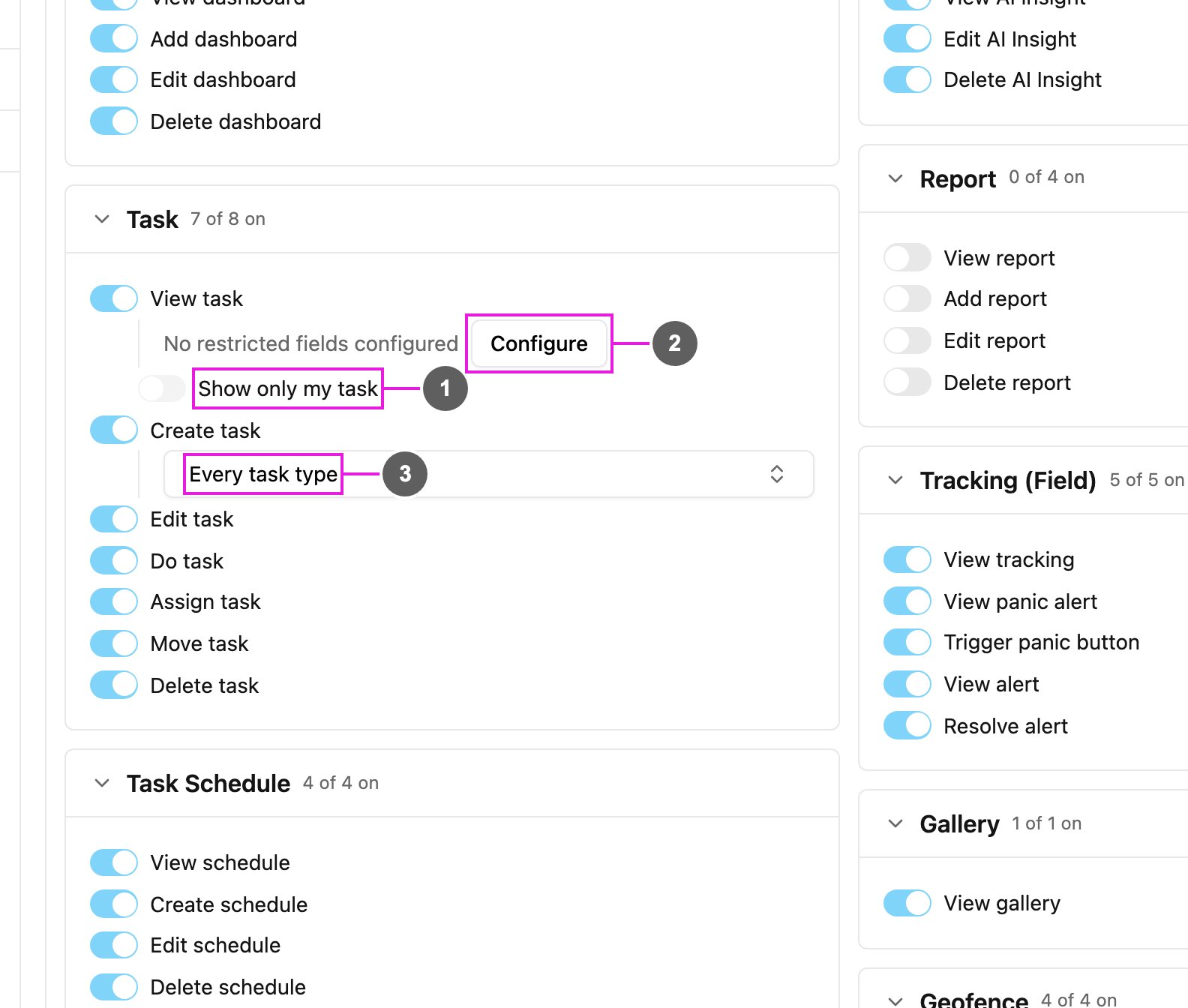
- Show only my task: limits the list to the user’s own tasks.
- Configure: opens the restricted fields editor for task types.
- Every task type: the task types this role may create tasks of.
When a permission is missing
When someone opens a page or clicks an action their role doesn’t allow, the app blocks it and shows a message such as You don’t have permission to access this page. Contact your admin to go further. Note what you were trying to do and ask an owner or admin to turn on the matching permission.In this section
- Managing Roles
- Permission Reference: every permission and what it allows.
- Restricted Fields
- Access and Sign-in: multi-factor authentication, single login, mobile-only access and location tracking.