

Required permission:
- View user
- Invite user
- View role
Invite users
Open Settings › User and click Invite.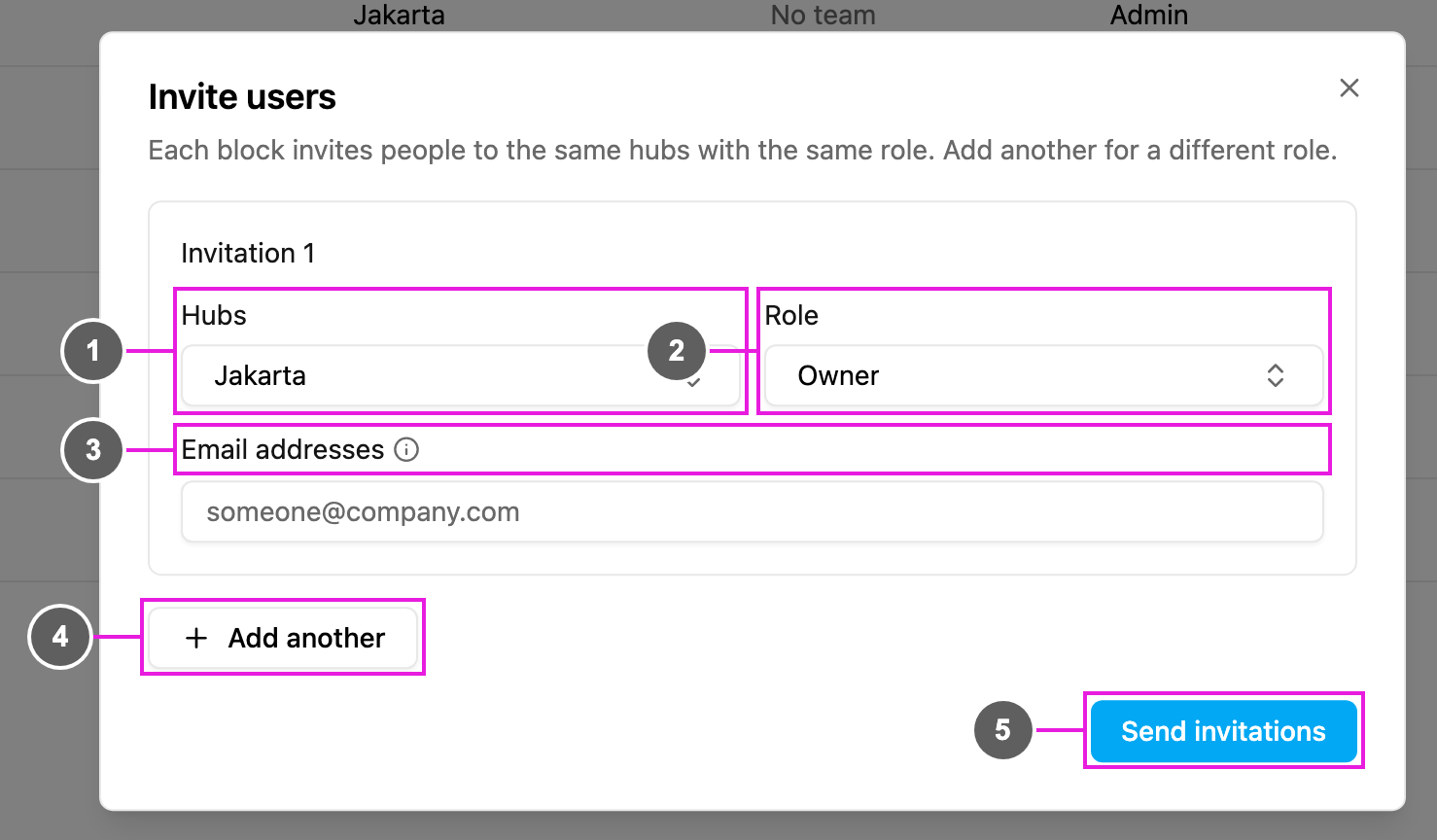
- Hubs: the hubs these people will work in. Choose at least one, or All hubs.
- Role: the role they get, which decides what they can see and do. See Permission.
- Email addresses: type one or more addresses. Press Enter, a comma or a semicolon after each one. Click the cross on an address to remove it.
- Add another: add a second invitation block, for people who need a different role or different hubs. Use Remove this invitation to drop a block.
What the invited person does
Each person receives an email with an activation link. To join, they:- Open the invitation email and click the activation link.
- Set their name and password on the page that opens.
- Continue to sign in.