

- Delivery address shown on the task and in the task list.
- Source for a coordinate: import tasks with only an address and let the coordinate be found for you.
- Filled from a coordinate: drop a pin or type a coordinate, and let the street address be written for you.
- Manual address: record a location in words when GPS is not needed.
Properties
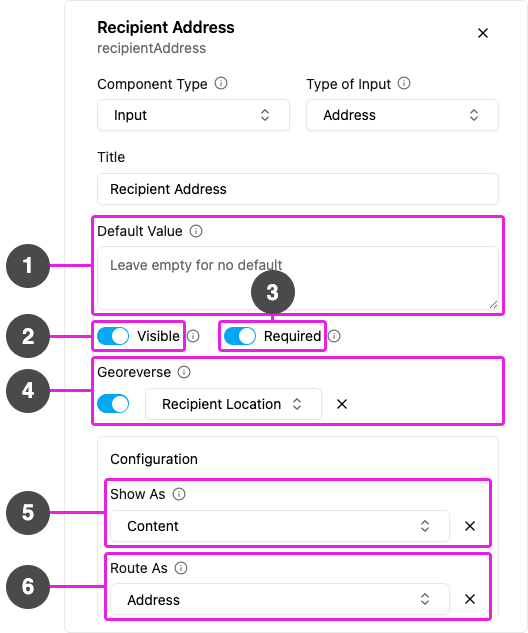
- Default Value: an address filled in for every new task. It can span several lines.
- Visible: when off, the field is hidden on the web and the field app; its value is still kept and exported.
- Required: the task cannot be saved or finished until an address is entered.
- Georeverse: when on, pick the Coordinate component the address is filled from. Only Coordinate components are listed, and one must be picked while the switch is on. Click the clear button beside the picked field to unset it.
- Show As: show the address in the task list as the task’s Title, Content or Label. Content is the usual choice.
- Route As (Initial page only): pass the address to route planning as the visit’s Address.
Address and coordinate
An address and a coordinate can be linked in either direction. The link lives on the component that gets filled.Georeverse
With Georeverse on, the address fills itself whenever the linked coordinate is set:- Creating or editing a task, and task schedules: typing a coordinate and leaving the field, or picking a point on the map, fills the address. A new coordinate replaces the address already there.
- Bulk create: a coordinate entered on a row fills that row’s address.
- Bulk import from a file: the address is filled only where the file left it empty. An address written in the file is kept.
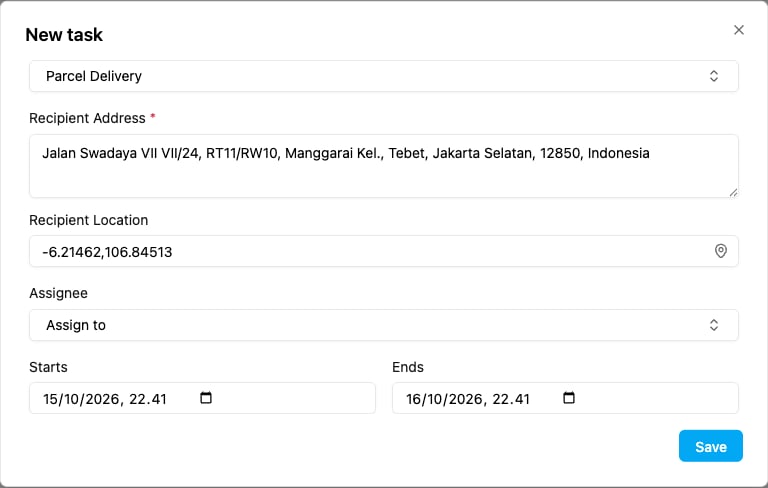
The address is filled from the coordinate typed below it.
If no address is found for the coordinate, for example a point at sea, the address is left as it was.