

Required permission:
- View flow
- Create flow
- Edit flow
- Delete flow
Open a flow
Click the flow picker at the top left and pick a flow. Type in Search flows to find one by name. The list follows the order set in the Flow manager.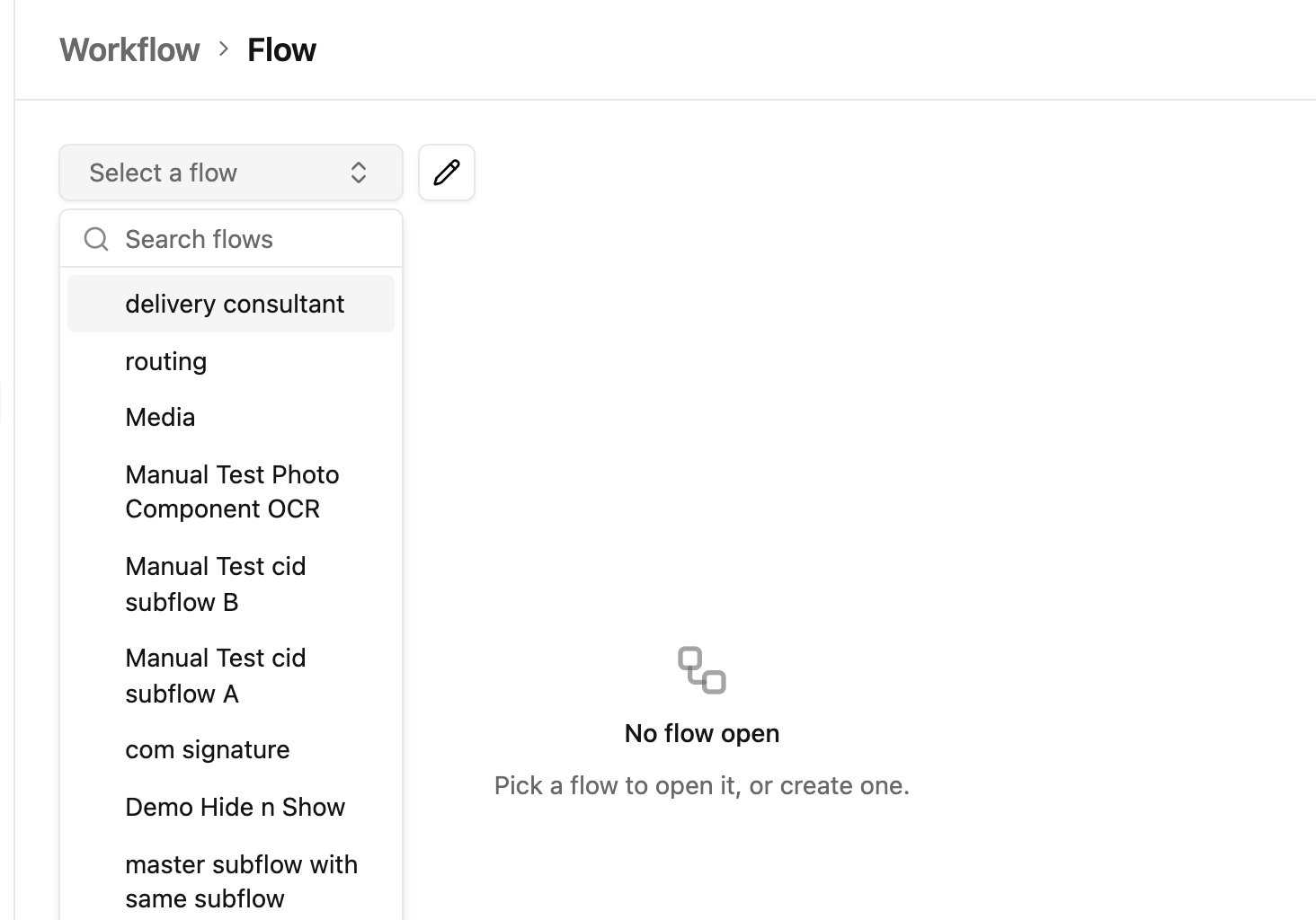
Create a flow
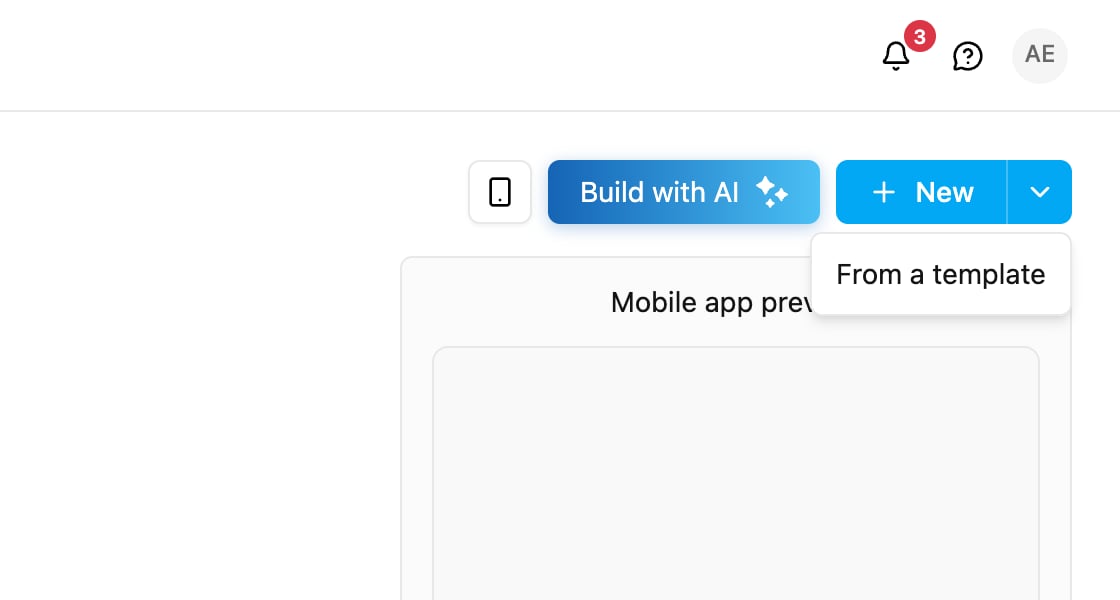
There are three ways to create a flow:- New: an empty flow, described below.
- From a template: a ready-made flow you can change. See Templates.
- Build with AI: a flow generated from your description. See Build with AI.
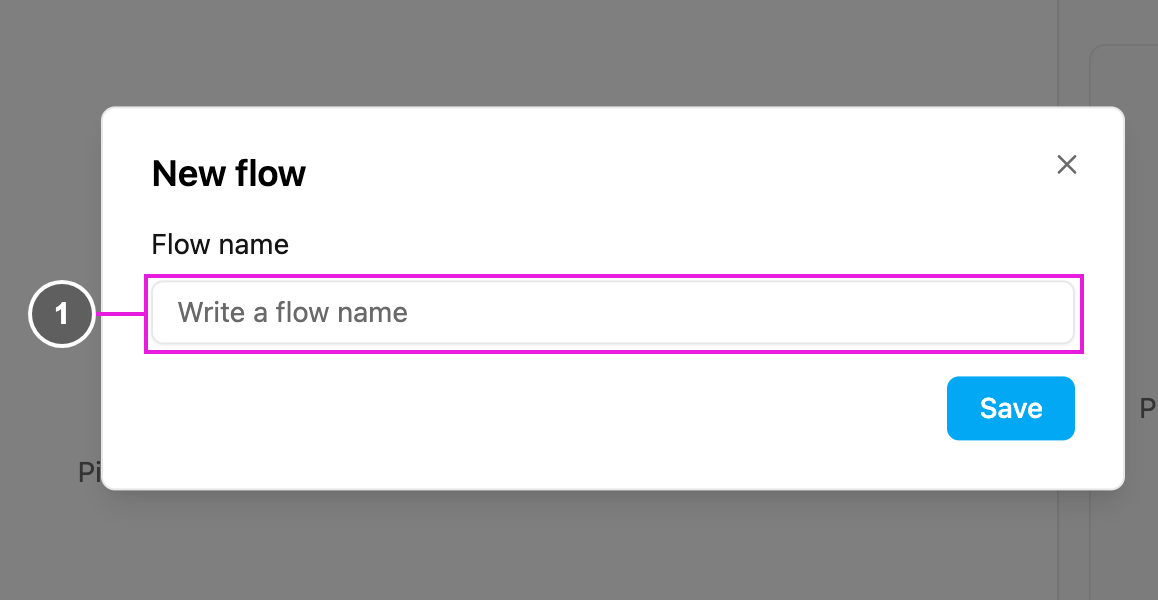
- Flow name: the name of the new flow.
- The name cannot be empty.
- Use letters, numbers and spaces only. Special characters are not allowed.
- The name must be unique in your organization. Upper and lower case count as the same name.
- Handover, Activity and ActivityWorkflow are reserved words and cannot be used as a name.
Flow manager
Click the pencil button next to the flow picker to open the Flow manager.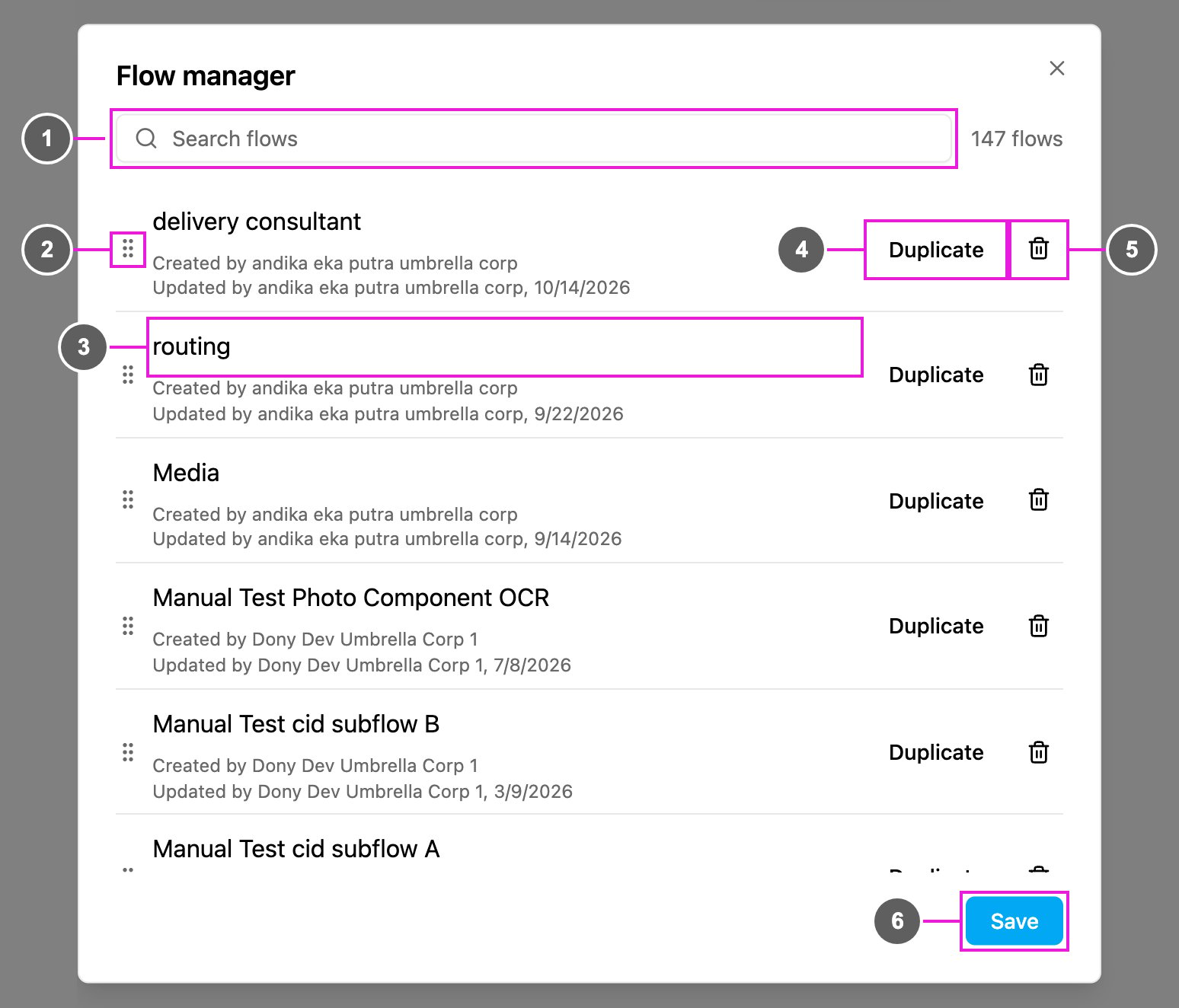
- Search flows: filter the list by name. The count beside it shows how many flows match.
- Drag handle: drag a flow up or down to change its order. You can also focus the handle and use the arrow keys. This order is used in the flow picker and wherever a flow is picked, such as when creating a task.
- Flow name: who created it and who last updated it, and when. Flows that came with the account show System. Click the pencil that appears on the name to rename it.
- Duplicate: add a copy of the flow, named ”… copy”. The copy is created when you save.
- Delete: remove the flow. It is deleted when you save.
- Save: apply every change made in the dialog at once. Close the dialog without saving to discard them.
- Click the pencil button to open the Flow manager.
- Click Delete on the flow you want to remove, then confirm.
- Click Save.