

Required permission:
- View flow
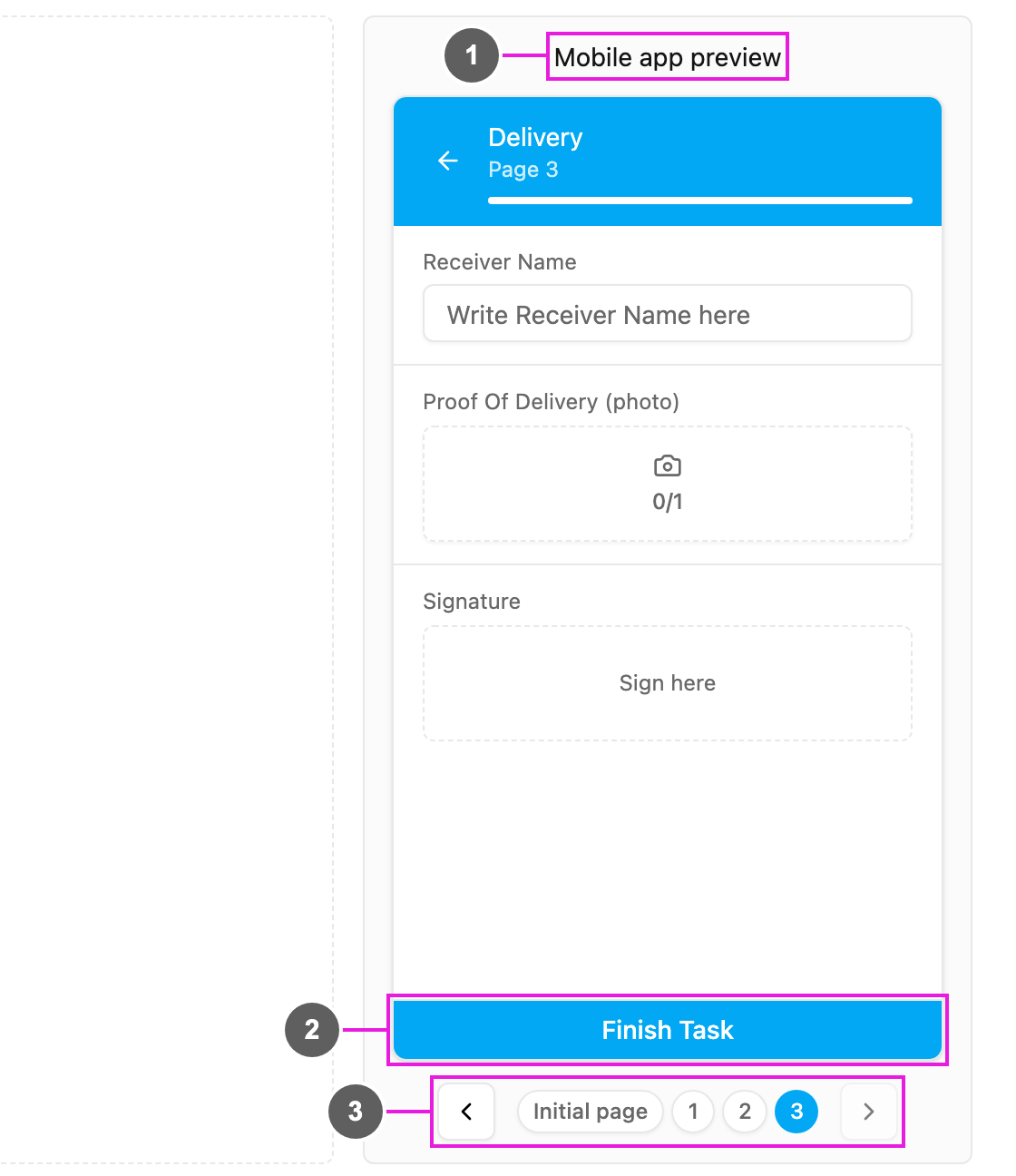
- Mobile app preview: the preview area. The phone shows the flow name and the page name at the top, and the page’s components below, in the same order as in the page list.
- Main button: changes with the page, as on the field app. The Initial page shows Save task (the task is created), a middle page shows Next, and the last page shows Finish Task.
- Page navigation: Initial page and the page numbers jump to a page, and the arrows go to the previous or next page. The page you are on is highlighted. Clicking a page in the page list also opens it here.
- Each component as it looks on the field app: text fields with their placeholder (Write Receiver Name here), photo boxes with a camera icon and a counter, signature pads with Sign here, and so on.
- You can try the components: type into fields, pick options, open a Bill or a List and add items, or open a Subpage entry. Nothing you enter is saved.
- Required fields and validation rules show their error messages, so you can check them before field workers do.
- A page with no components says so.