

Subflow can only go on field app pages, not on the Initial page.
- Hand-off to another team: a return pickup or an approval done by someone else.
- Quality control: a separate, trackable inspection step.
- Separate records: keep related information in its own task.
Properties
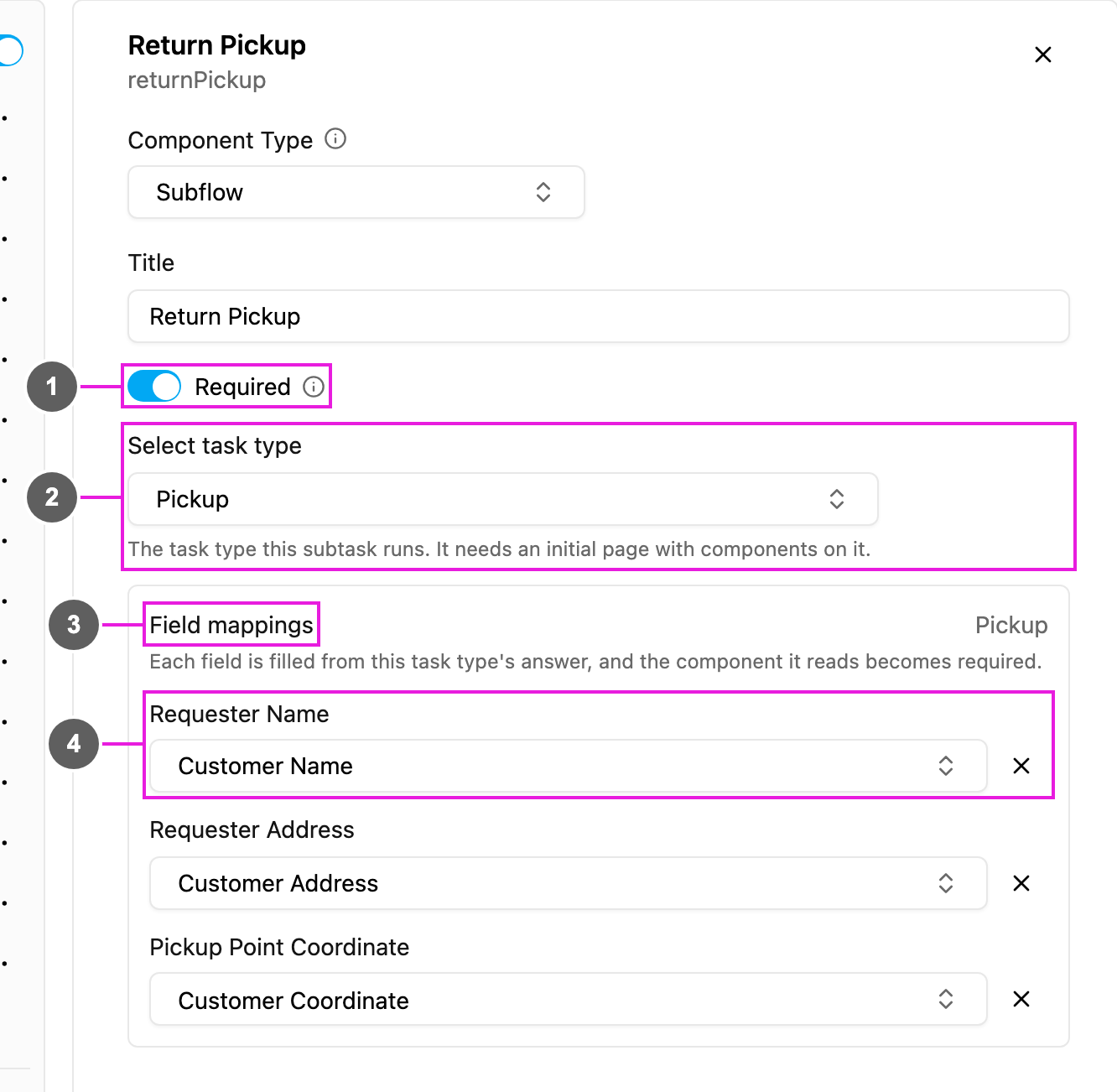
- Required: when on, the main task cannot be finished until the subtask is done.
- Select flow: the flow the subtask uses. It needs an Initial page with components on it.
- Field mappings: one row per component on the chosen flow’s Initial page.
- Select component: for each row, the component of this flow whose answer fills it. Every row must be filled before you can save.
Choosing the flow
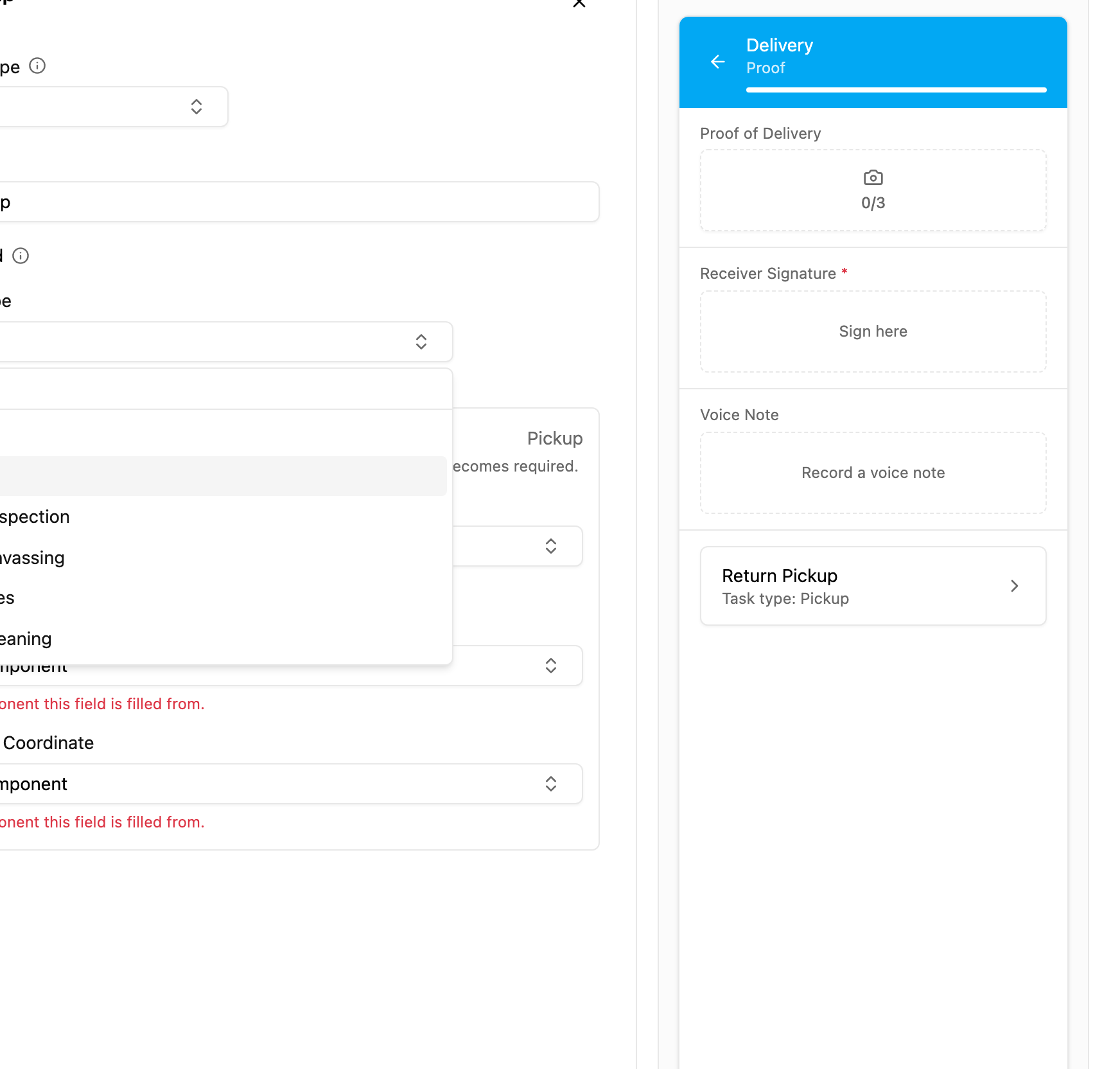
- Current flow: a flow cannot point to itself.
- Contains nested subflows (not supported): a flow that has a Subflow of its own.
Field mappings
Only components on the main flow’s Initial page can be mapped, and View components are not listed. A component used in a mapping is made Required automatically, because the subtask cannot be created without it. Each row only offers components of a compatible type:How to set it up
1
Add it to a field app page
Open a field app page, click Add component and choose Subflow. Write a Title, such as Return Pickup.
2
Pick the flow
Open Select flow and pick the one the subtask uses.
3
Map every field
In Field mappings, pick a component for each row.
4
Decide if it must be done
Turn on Required if the main task must wait for the subtask.
On the field app
The page shows a card with the subflow’s title and Flow: . Tapping it opens the subtask, a real separate task, with the mapped fields already filled. With Required on, the main task cannot be finished until the subtask is done. See the preview on the Photo page.Rules
- A Subflow cannot be added to, or moved to, the Initial page.
- A flow that contains a Subflow cannot be picked as a subtask.
- A flow cannot point to itself.
- Every listed field must be mapped before saving.
- Mappings only offer compatible types.