

Required permission:
- View flow
- Edit flow
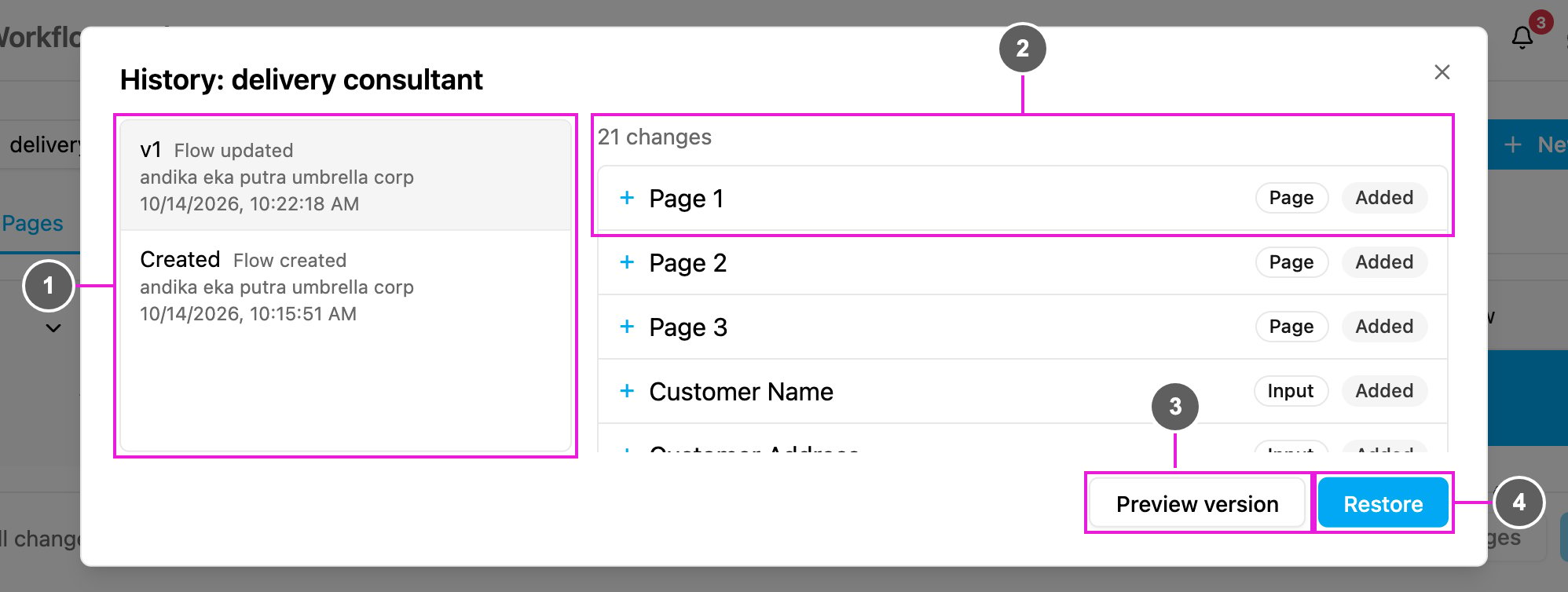
- Version list: every version, newest first. Each row shows the version number (v3, v2, …, with Created for the first one), what happened (Flow created, Flow updated, Flow restored or Flow reordered), who did it and when. Click a version to see what changed in it.
- Changes: what this version changed compared with the one before it, such as 1 change. Each line names the page, component or configuration setting and whether it was Added, Changed or Removed, or that it moved from one position to another. A version with no differences says Nothing changed in this version.
- Preview version: show the version in the mobile app preview.
- Restore: bring the flow back to this version. The first (Created) version and the version that is already current have no Restore.
Preview a version
Preview version shows the selected version on the simulated phone, page by page.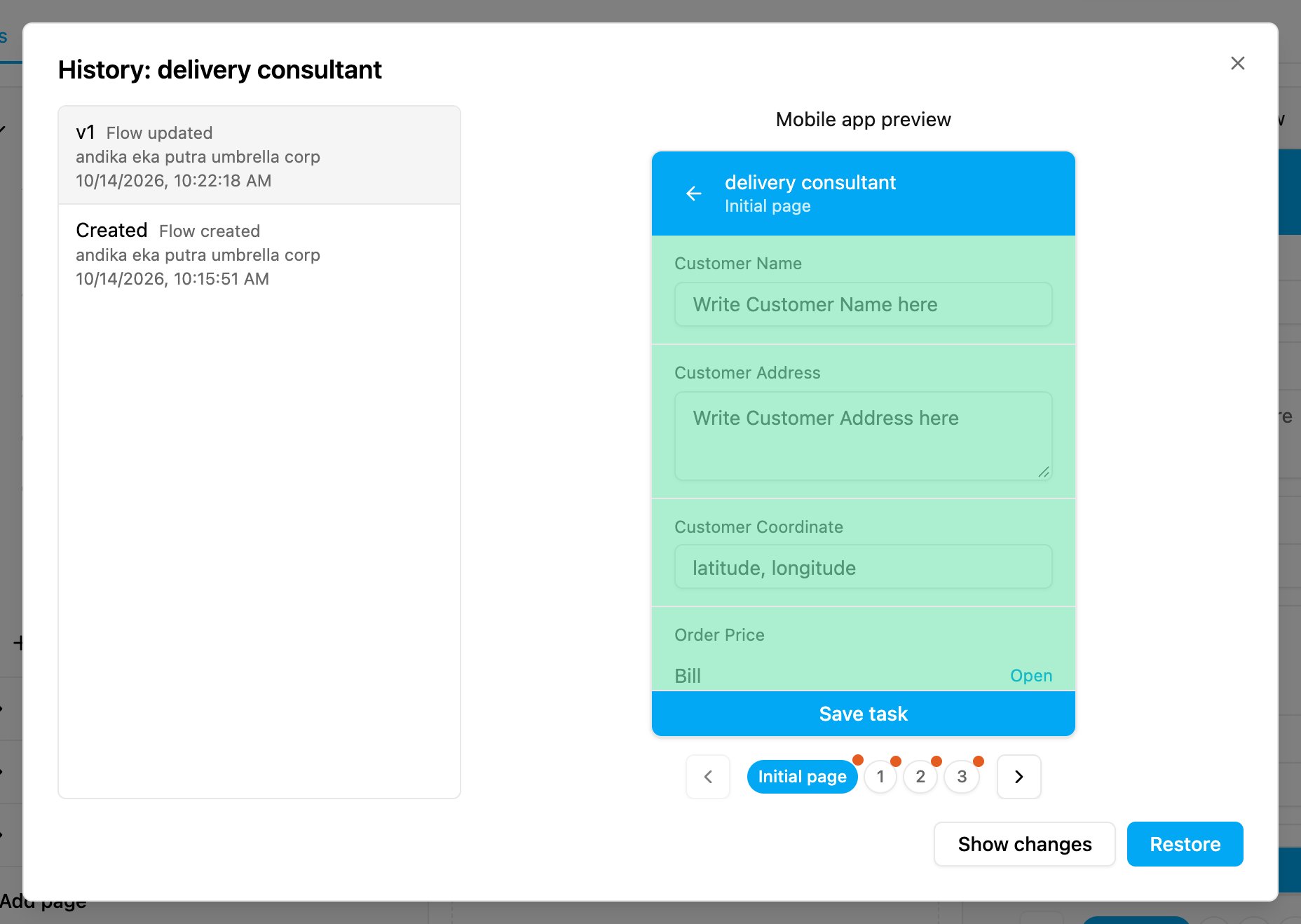
- Components that this version added or changed are tinted green, and components it removed are tinted red.
- Pages with changes have a red dot on their page number, so you can find them quickly.
- Show changes goes back to the list of changes.
Restore a version
- Click History and pick the version to go back to.
- Optionally click Preview version to check it.
- Click Restore and confirm.