Required permission:
- View user
The user list
The list shows the users of the hub selected in the top bar.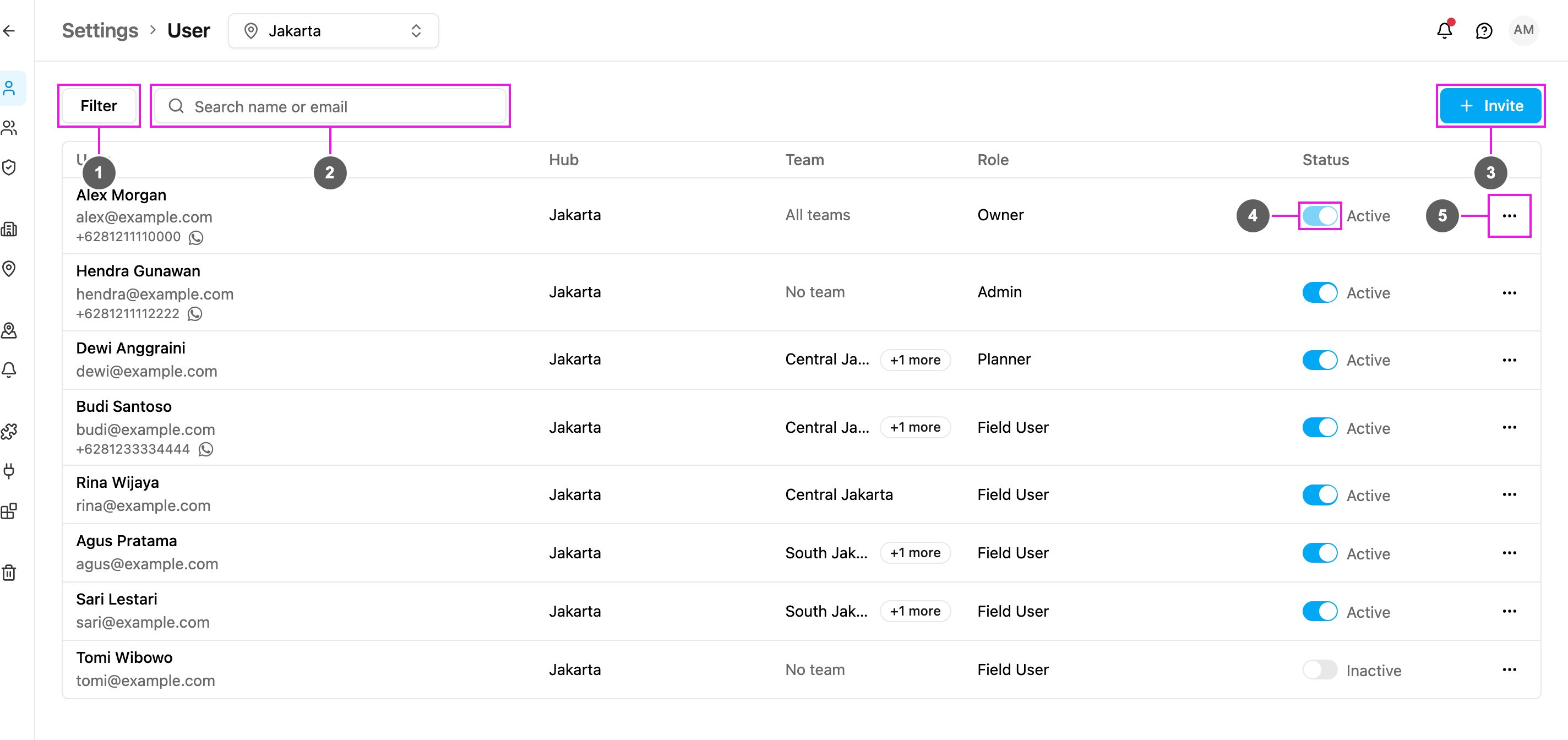
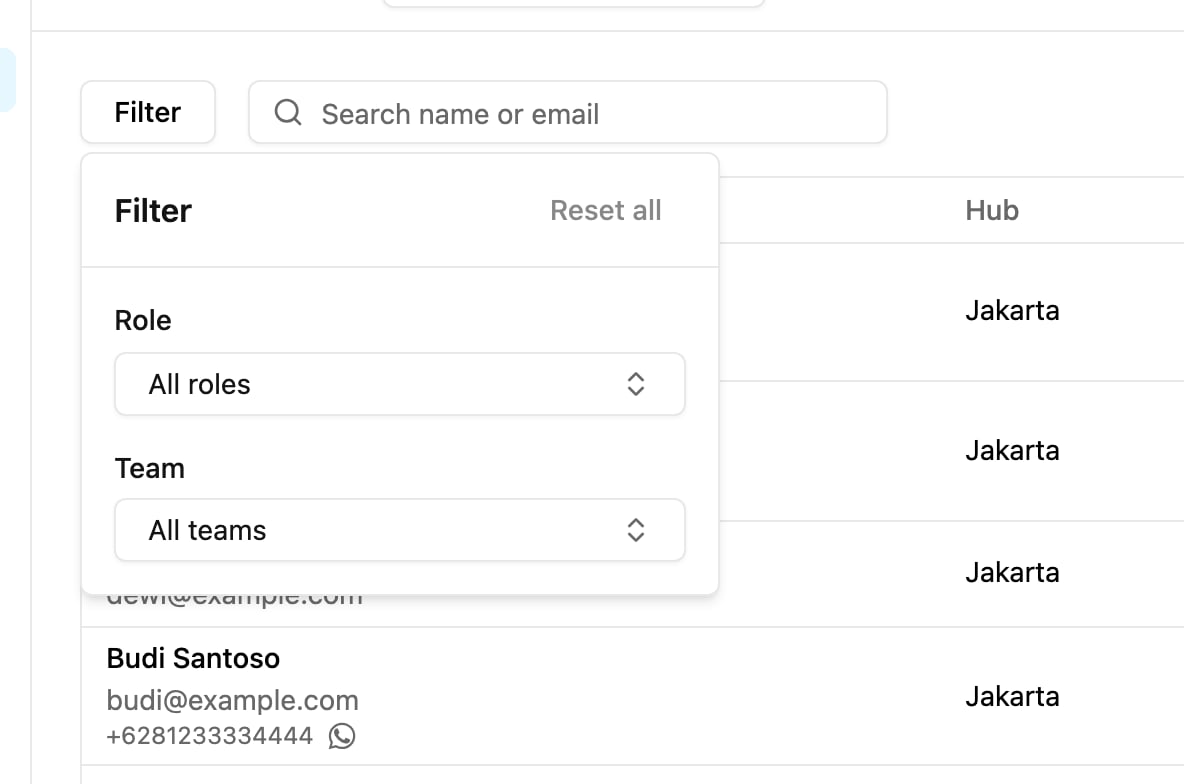
- Filter: show only users with a given role or in a given team.
- Search name or email: find a user by part of their name or email.
- Invite: add people to the organization. See Inviting Users.
- Status: turn a user’s access on or off. See Managing Users.
- More actions: edit, reset password, reset cloud authenticator, unlock or delete the user. See Managing Users.
Filter and search
Click Filter and choose a Role, a Team, or both. Click Reset all to clear them.