

The wizard checks two permissions the add-on reads: View flow and View task.
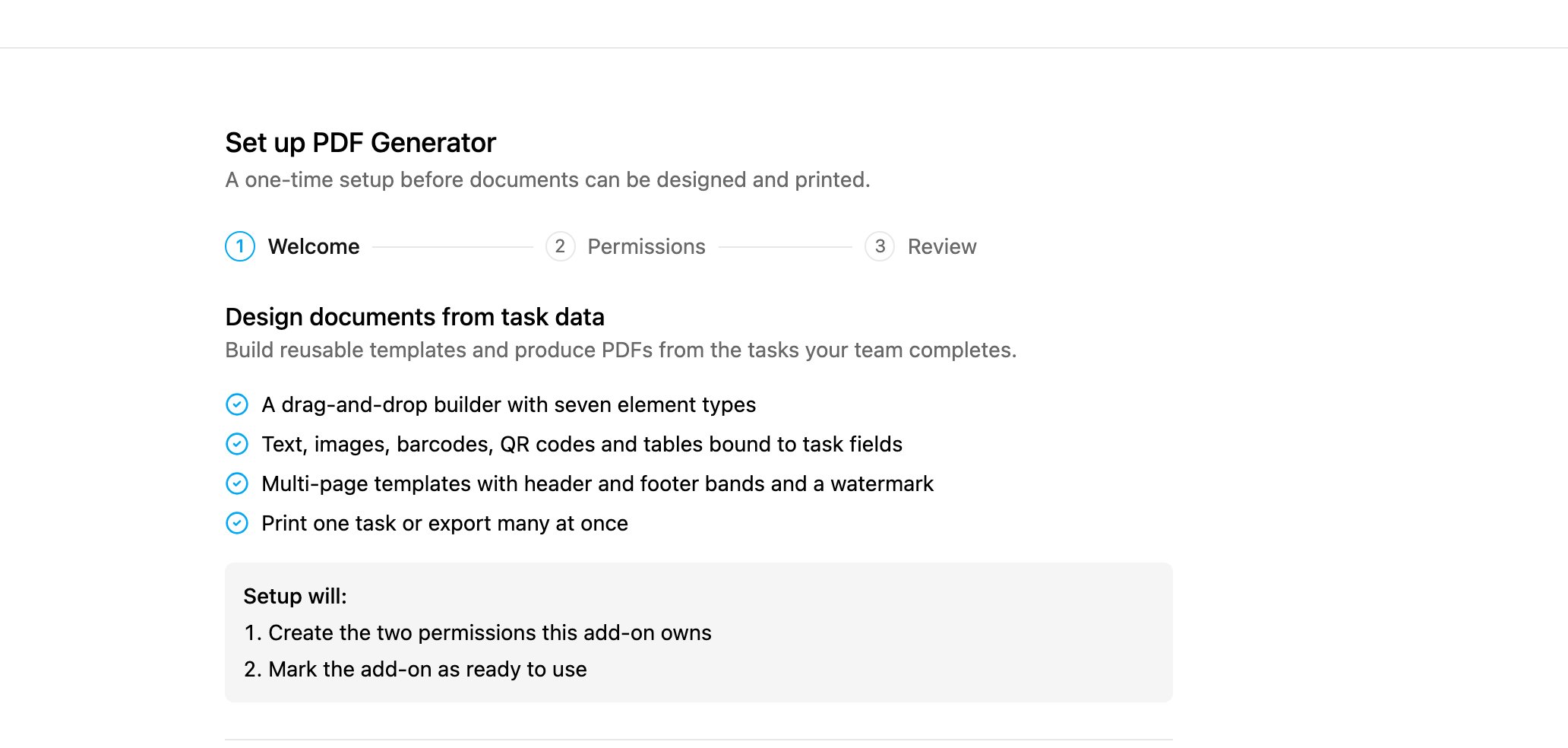
Step 1: Welcome
The first step lists what the add-on does and what setup will do:- A drag-and-drop builder with seven element types.
- Text, images, barcodes, QR codes and tables bound to task fields.
- Multi-page templates with header and footer bands and a watermark.
- Print one task, or export many at once.
Step 2: Permissions
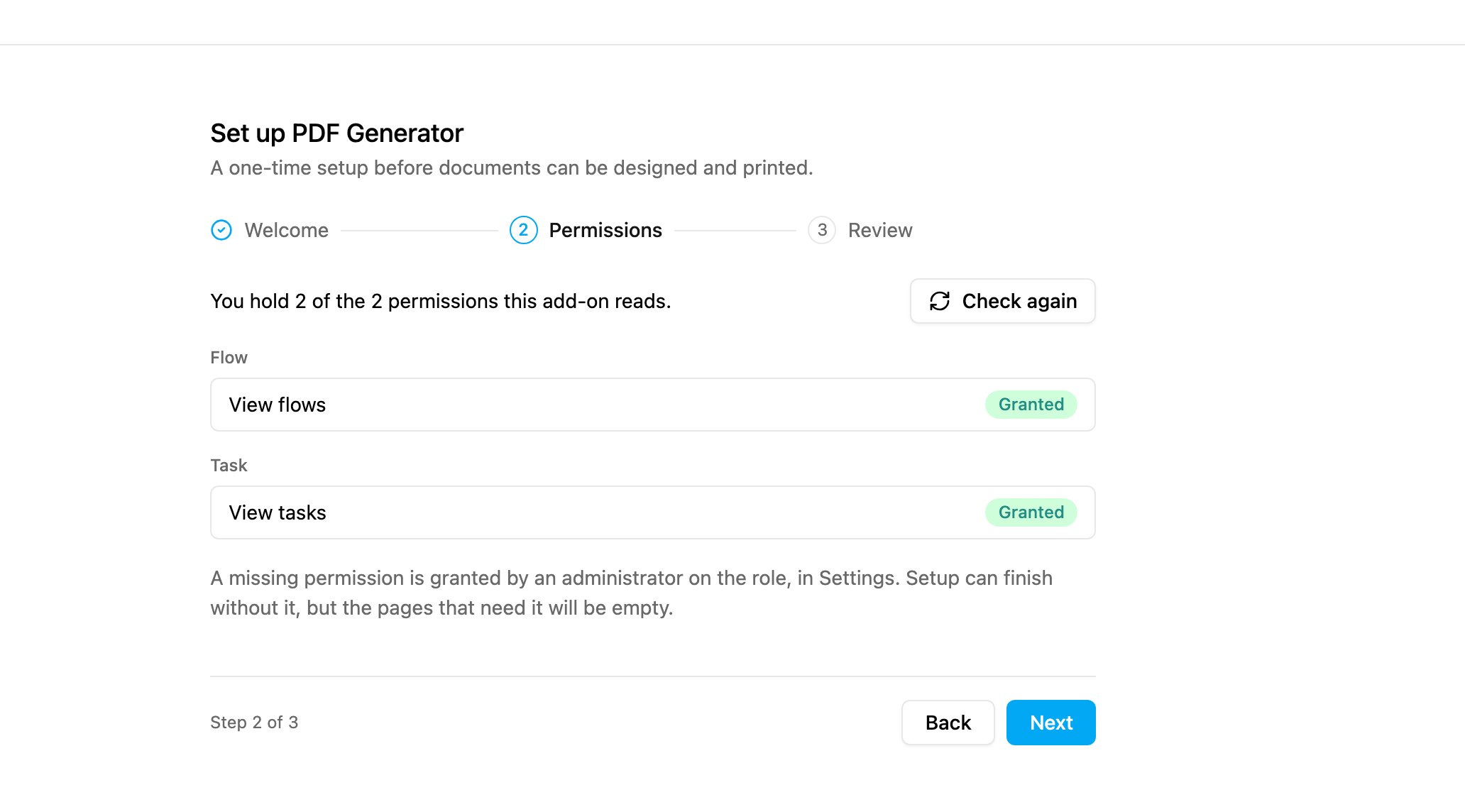
The summary says how many of the two you hold. If one is missing, an administrator grants it on your role in Permission, then click Check again. Setup can finish without it, but the pages that need it stay empty. Click Next.
Step 3: Review
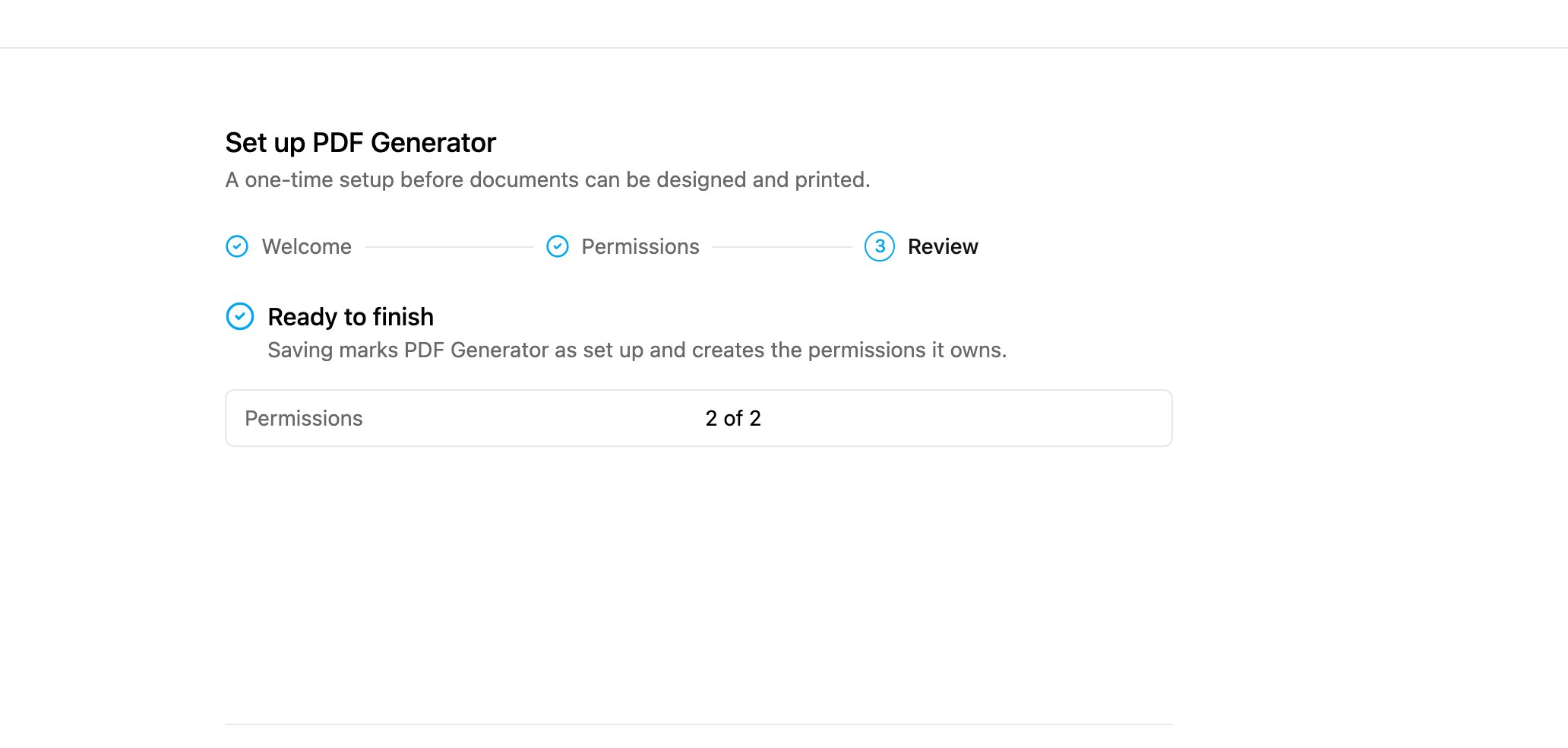
Page permissions
Setup creates one permission per page and gives both to your own role:
Give them to other roles in Settings › Permission. Someone without them sees “You do not have access to the Builder” or “You do not have access to this page”.