Open an order type from Workflow › Order Type to edit it. The editor has three tabs, Fields, Statuses and Steps, and one Save button that makes your changes live.
Required permission:
- View Order Type
- Edit Order Type
The editor
- Rename
Changes the order type’s name. See Rename an order type. The name itself is shown once, in the breadcrumb at the top.
- Tabs
Fields, Statuses and Steps. After a save that found problems, a tab shows how many problems it holds, for example 2 problems.
- Test order
Runs the order type on sample values without saving anything. See Test an order type.
- Save
Saves your changes and, when nothing blocks it, makes them live for new orders. See Save and go live.
- Add field
Adds a field to the order type.
- Field row
One field per row, described below.
Fields
Fields are the data every order carries: customer, address, items. Each row has:
Drag a row by its handle to change the order of the fields.
Field types:
Once orders hold a value for a field, its type can no longer be changed and it cannot be removed, only archived. The row says how many orders have a value.
Statuses
- Add status
Adds a status.
- Label
The status name people see, for example Picked up.
- Category
Every status belongs to one category:
- New: where every order starts. Add exactly one status in this category.
- In progress: the order is being worked on.
- Completed: the order is finished. These are marked Final; add at least one. A Finish order step can only end an order in a Completed status.
Drag a row to change the order of the statuses, or use the bin icon to remove one. A status that orders are currently in cannot change category or be removed.
Steps
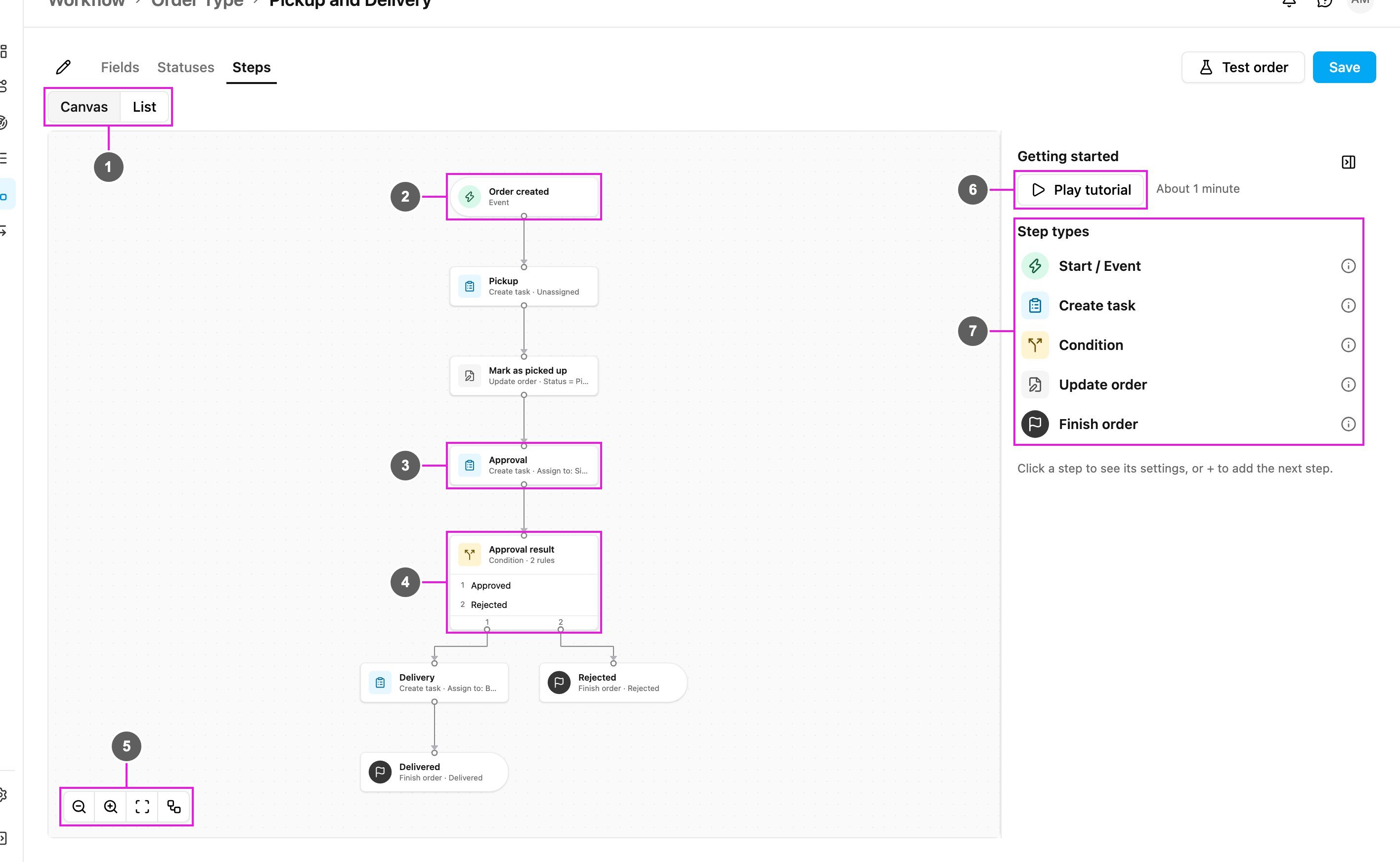
The Steps tab is where you decide what happens to an order. It opens as a canvas, with a guide panel on the right.
- Canvas / List
Switches between the canvas and a list of the steps.
- Trigger
The first step: what starts the order.
- Step card
Each card shows the step’s name and, below it, its type and the most important setting, for example Create task · Assign to: Siti Rahma (Supervisor).
- Condition card
A Condition lists its rules. Each rule is its own exit, with its own path below it.
- Canvas controls
Zoom out, Zoom in, Fit to screen and Auto-layout, which rearranges the steps neatly from top to bottom.
- Play tutorial
Plays a one-minute demo of building an order type. See Getting Started Tutorial.
- Step types
A short description of each step type. Hover the info icon of a type for more.
The canvas is meant for a desktop or tablet. On a narrow screen it says Use a wider screen to drag and connect.
List view
List shows the same steps as a table, which is easier to scan on a large order type.
- Step row
Each row shows the step’s Type, its Name, its Problems and where it Goes to. A Condition lists each rule with its next step, for example Approved: Delivery.
Add the first step
A new order type has an empty canvas with an Add first step tile.
- Add first step
Opens Choose a trigger.
- Order created
Starts when an order is created: from the order form, the API, an import, or a Task finished trigger of another order type. An order that is updated through its duplicate key does not start again.
- Status becomes…
Starts when the order reaches the status you choose. It runs once per order, the first time the order reaches that status.
- Task finished
Creates an order when a task of the chosen task type is done. See Task finished.
An order type has one trigger.
Add the next step
Every card has a + under it. Click it to open What happens next?
- Search steps
Filters the list by name.
- Actions
Adds a new step: Create task, Condition, Update order or Finish order.
- Connect to an existing step
Draws a line to a step that already exists instead, so two paths can join. Steps that cannot be used are greyed out and say why: Would loop or Already connected.
On a desktop you can also drag from a card’s handle to another card to connect them. To remove a line, select it and click its Delete line button, or press Delete.
Read and edit a step
Click a card to open its summary in the side panel.
- Settings
The step’s settings, read-only. Not set means a setting is still empty.
- Next
Where the order goes after this step, and Add parallel step to start a second path from the same exit. For a Create task step the exit is When the task is done.
- Comes from
The steps that lead here. Click one to jump to it.
- Delete
Deletes the step. If other steps can then no longer be reached, the app names them and asks you to confirm with Delete only this.
- Edit
Switches the panel to editing. Change the settings, then click Done.
The step name at the top of the panel can be changed while editing. When no step is selected, the panel shows the guide: Getting started and the Step types.
Step types
Order created and Status becomes
- Add next step
Adds the step that follows the trigger.
- Connect to…
Connects the trigger to a step that already exists.
Order created has no other settings. Status becomes… asks for the status: When the status becomes.
Task finished
A Task finished trigger creates orders from finished tasks, for example one order per finished Pickup task. Its settings:
- Task Type: which task type’s tasks start an order.
- Only if (optional): conditions on the task’s answers. If they do not match, no order is created.
- Task answers → order fields: which task answer fills each order field. A required order field with no value is reported as a problem.
- How many orders: One per task, or One per row of a list in the task, so a task with five rows creates five orders.
Tasks created by an order never start a new order. Later steps can read the triggering task’s answers.
Create task
Creates a task and waits until it is done.
- Task Type
The task type the task is made from.
- Assign to
- Unassigned: the task is created without an assignee, to be assigned later.
- A user: first choose a Role, then pick a user who holds that role. The card then reads Assign to: Siti Rahma (Supervisor).
- How many tasks
One per order, or One per row of a list field of the order, so an order with three line items gets three tasks.
- Task data
Fills fields of the new task, each from an order field, an earlier answer or a fixed value.
- Save answers to the order
Copies answers from the finished task into order fields. Optional: a Condition can read answers without saving them.
- Delete
Deletes the step.
- Done
Leaves editing and shows the summary again.
The task is created in the order’s hub. The order moves on when every task this step created is settled.
Condition
Sends the order down the path whose rule matches.
- Rule name
The name of the rule, which is also the name of its exit on the card, for example Approved.
- Value to check
An order field, an earlier task answer, or the attempt count of a Create task step.
- Operator and value to compare
The operator (equals, does not equal, greater than, at least, less than, at most, contains, is empty) and what to compare with: a Fixed value or another field or answer. For a list, choose whether All rows or Any row must match.
- Add condition (AND)
Adds another condition to the same rule. All of them must match.
- Goes to
The step this rule’s path leads to, with Add next step and Connect to….
Add more rules with Add rule, and use a rule’s ⋯ menu to move it up or down or delete it. Every rule that matches runs. If none matches, the order stops and needs attention, so cover every case, for example with both Approved and Rejected.
Update order
Sets order fields or the status.
- Set fields
Add field sets an order field from an earlier answer, another field or a fixed value.
- Set status
- Don’t change: keeps the status.
- Fixed status: always sets the chosen status.
- From a choice answer: picks the status from an earlier choice answer, using an Answer → status table. An answer not in the table leaves the status unchanged.
Set at least one field or a status. Update order cannot set a Completed status; use Finish order for that.
Finish order
Sets the final status and ends the order.
- Final status
A status in the Completed category.
When a Finish order runs, other paths that are still running stop. A Finish order has no next step.
Problems
The editor checks the order type when you save. Problems appear on the cards, in the step panel under Problems and Warnings, and as a count on each tab. Common ones:
- Add a trigger to start these steps, or An Order Type can have only one trigger.
- Unreachable: no line leads here: a step no path reaches.
- Dead end: every path must end at Finish order.
- This line would make a loop: steps cannot go back to an earlier step.
- … is required: a step setting is still empty, for example Task Type is required.
- No rule covers: …: a Condition leaves some choice answers without a path.
- Add exactly one status in the category New and Add at least one status in the category Completed.
Save and go live
There is one Save. It saves your changes and checks the order type:
- No problems: the changes go live at once and the app says Saved. New orders use it.
- Only warnings: a Check these warnings dialog lists them. Click Save anyway to go live, or go back and fix them.
- Problems: a Fix these to go live dialog lists them. Your changes are saved as a draft. They go live once these are fixed. The list shows the order type as Published · draft changes (or Draft if it was never live) until you fix them and save again.
Orders already running keep the version they started with; new orders use the latest live version.
If someone else saved the same order type while you were editing, the app says This draft changed while you were editing and offers Reload to see their changes or Overwrite to keep yours. Leaving the editor with unsaved changes asks you to Discard changes or Keep editing.