

How a list is set up
A list usually appears twice in a flow:- On the Initial page: where the list is filled when the task is created, and where you define the master items.
- On a field app page: where the field worker works with the list. It reads its items from the Initial page list with Use List from.
Properties on the Initial page
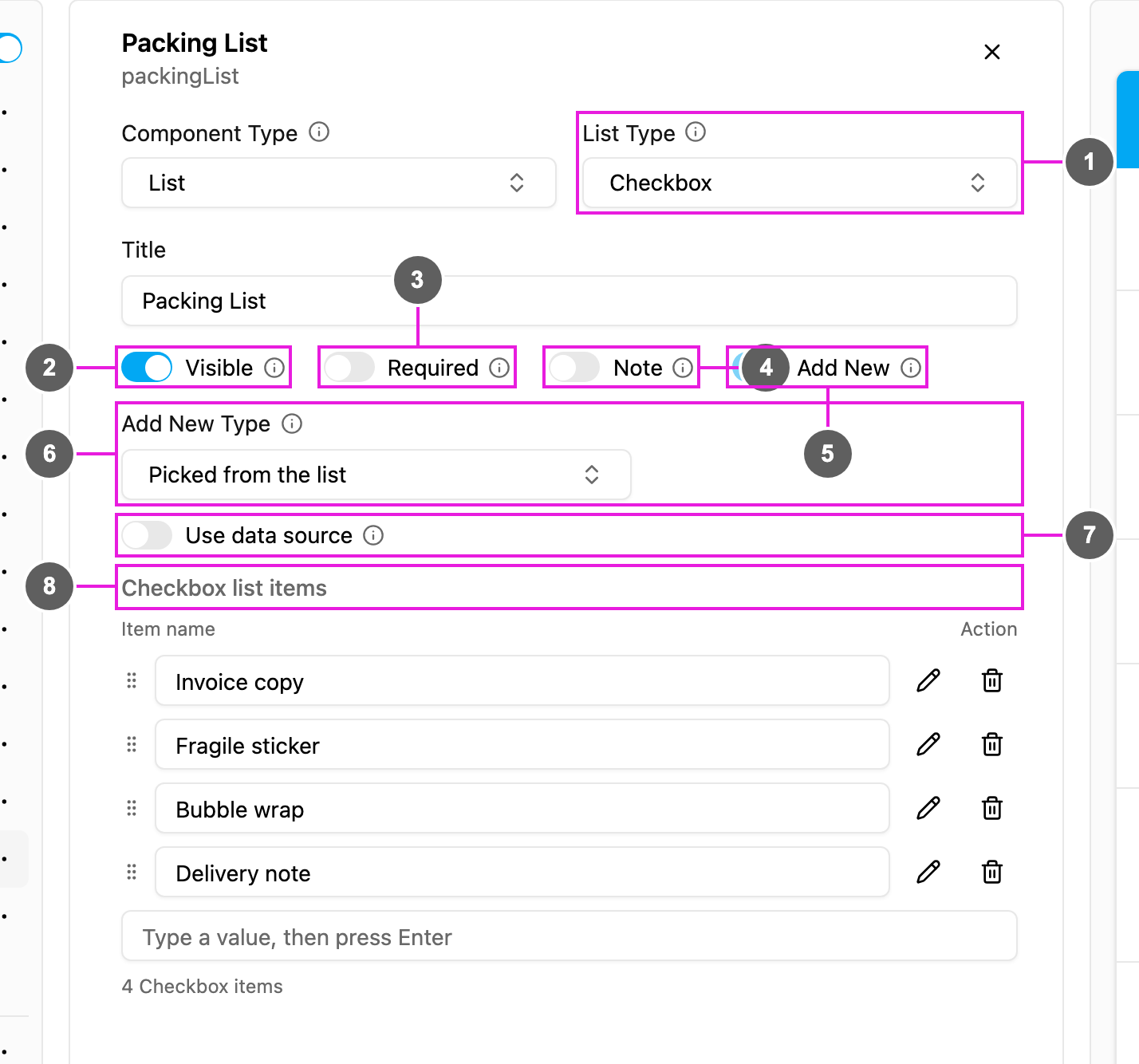
- List Type: how items are shown:
- Text: item names only.
- Checkbox: each item with a box to tick.
- Quantity: each item with a number to fill in.
- Visible: when off, the list is hidden on the web and the field app; its data is still kept and exported.
- Required: the task cannot be saved or finished until the list is filled.
- Note: show a note field on every item, so the field worker can explain a result (for example why an item was not delivered).
- Add New: on the Initial page this is always on.
- Add New Type: how a new item is added:
- Picked from the list: the user picks from the master items below.
- Typed in: the user types the item. A Validation Type then limits what can be typed.
- Use data source: take the items from a data source. You map which data fields hold the item title and quantity; both are needed.
- Checkbox list items (or Text / Quantity list items): the master items, with how many there are. Type a name and click + (or press Enter) to add one; each row can be moved, edited or removed.
Properties on a field app page
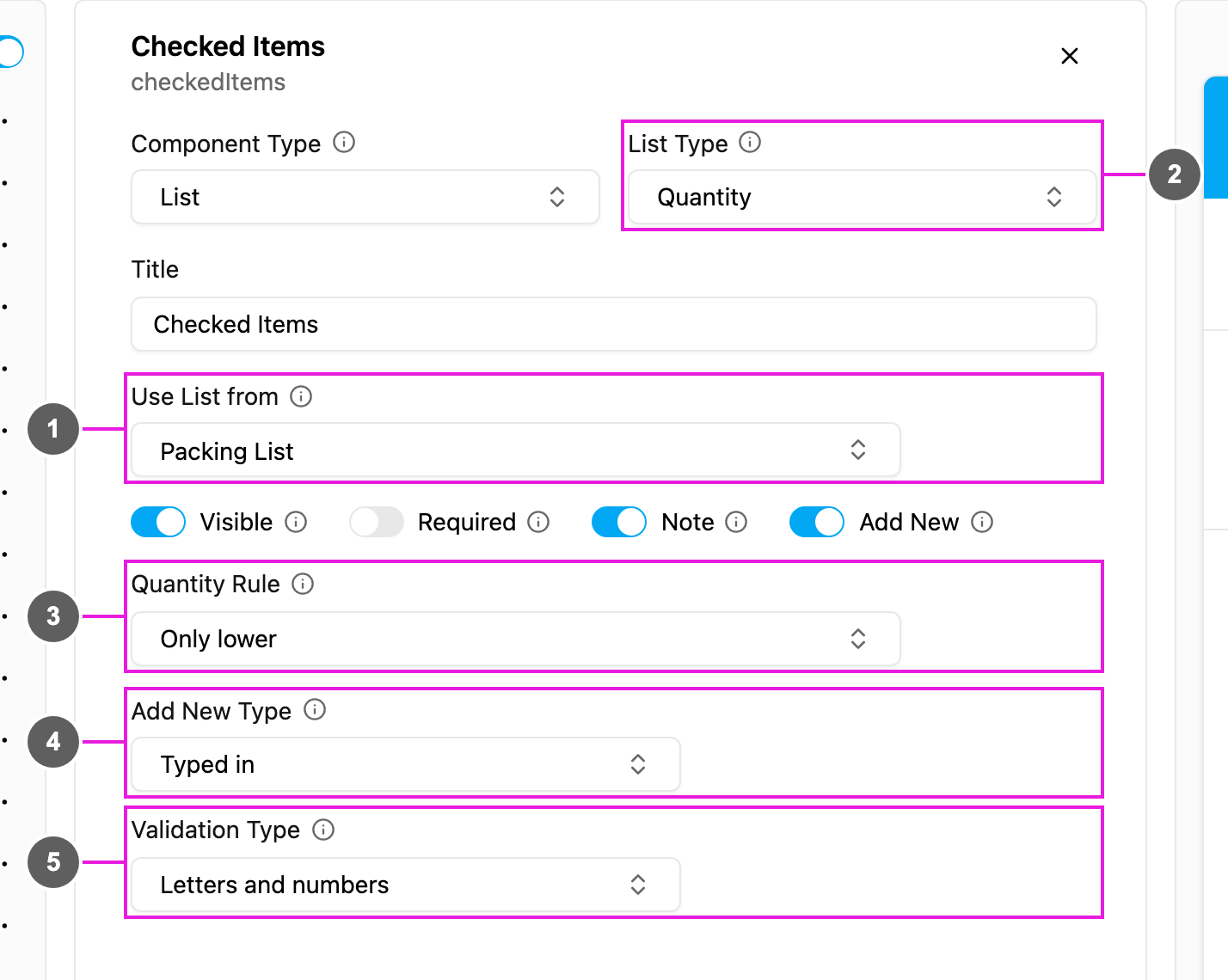
- Use List from: the list this one reads its items from, usually the Initial page list.
- List Type: Text, Checkbox or Quantity.
- Quantity Rule (Quantity lists only): Raise or lower, Only raise or Only lower.
- Add New Type: Picked from the list or Typed in. Add New must be on for the worker to add items.
- Validation Type (Typed in only): what a typed item may contain:
- Anything: no check.
- Letters only
- Numbers only
- Letters and numbers
- Custom: a pattern you write in Custom Validation. Use it only if you know regular expressions.
On the field app
Tap Open on the list. The page header shows the list type and how many items it has.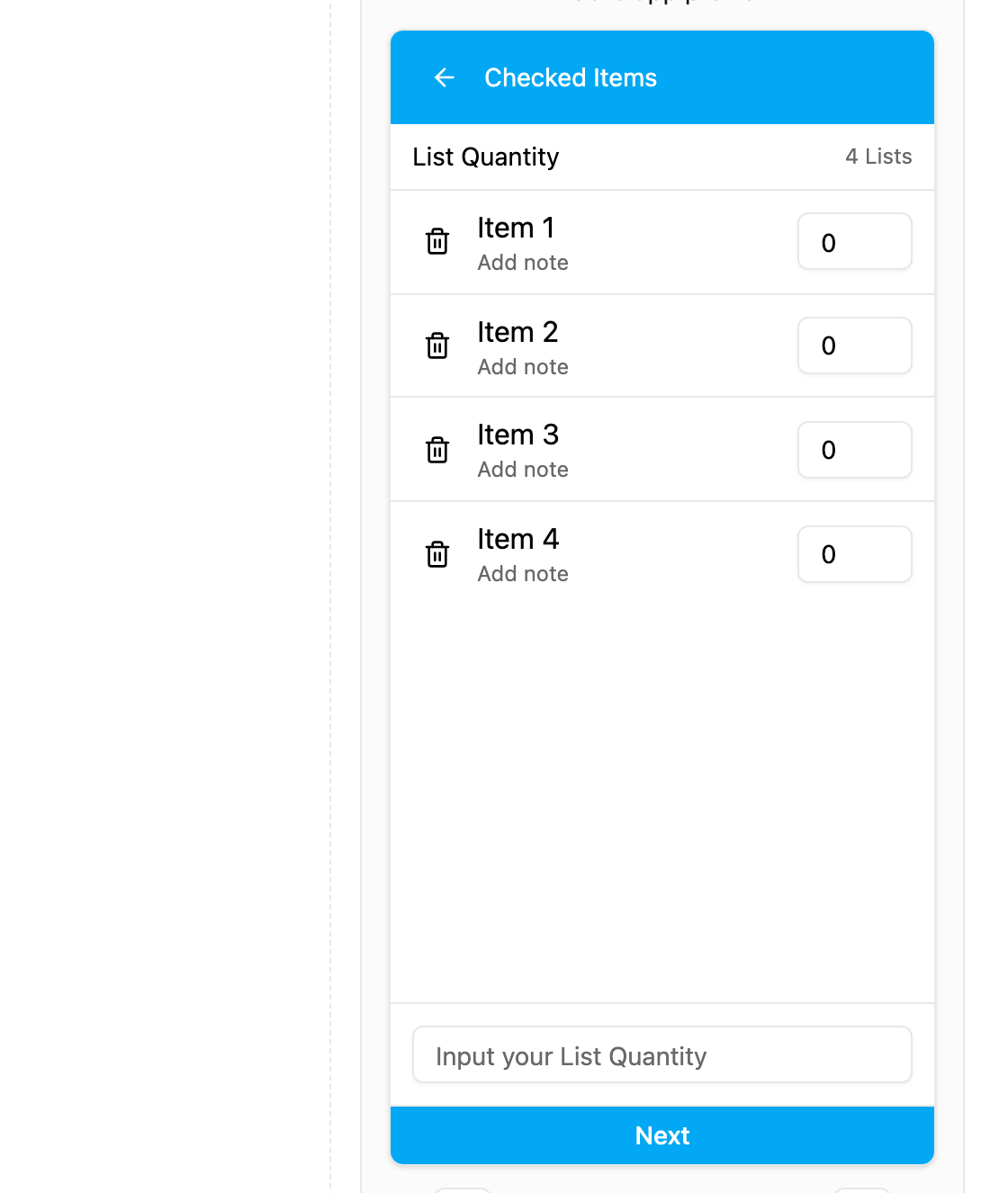
A Quantity list with notes: each item has a quantity box and Add note. The box at the bottom adds a typed item.
With Note on, each item has Add note. With Add New on, the worker adds items by picking from the master list or by typing, depending on Add New Type.