

- keep sensitive information private, for example hiding customer phone numbers from field workers;
- simplify screens by hiding fields that don’t matter to a role;
- meet compliance rules that limit who may see certain data.
Required permission:
- View permission
- Edit permission
Set restricted fields
- Open Settings › Permission and select the role.
- For tasks: in the Task group, under View task, click Configure next to No restricted fields configured. For data sources: do the same under View data source in the Data group.
- In Applies to, choose the task types (or data types) these restrictions apply to.
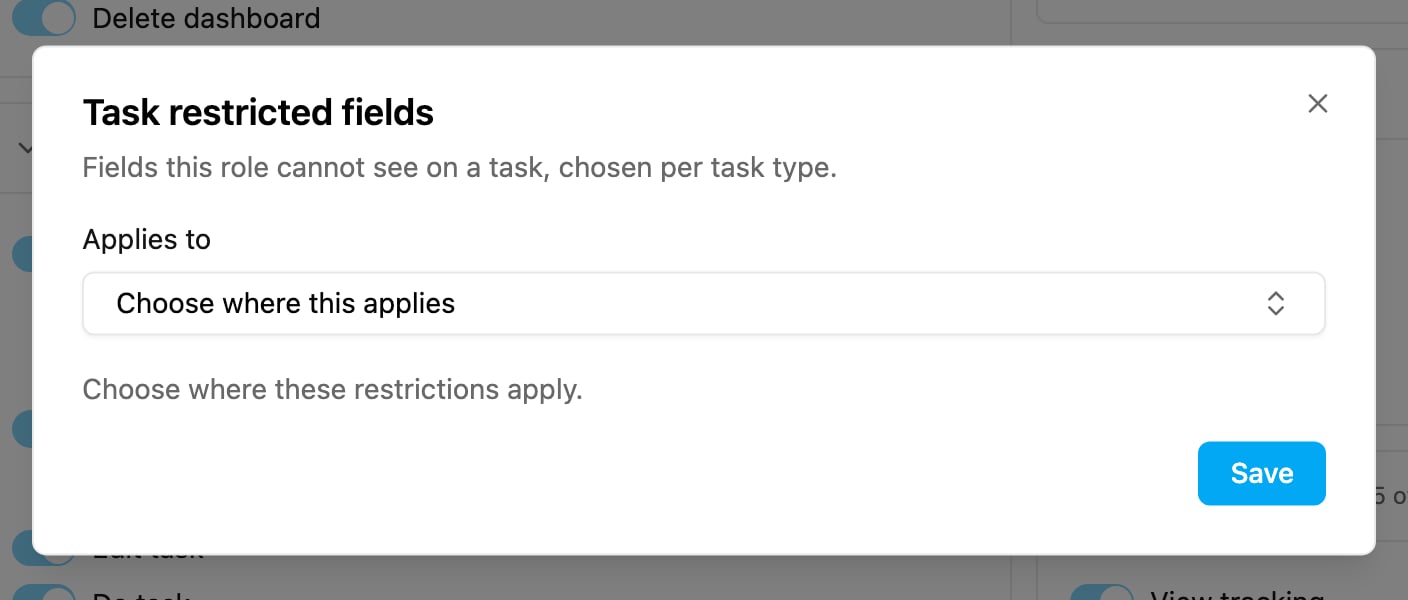
- For each one, choose the fields to hide. The editor shows how many fields are hidden, for example 3 fields hidden. A task type with no fields to restrict says so.
- Click Save in the editor, then Save on the Permission page.
What people with the role see
- Hidden fields don’t appear as columns in the task list or the data source list, and they can’t add them back from Columns.
- Hidden fields don’t appear in the task detail or the record detail.
- The same fields are removed from what the API returns to these users. Asking for a hidden field directly through the API is refused.