

Required permission:
- View Order
- Add Order
Create an order
- Open Activities › Order and click New.
- Choose the Order Type. The form shows that Order Type’s fields.
- Fill in the form and click Create.
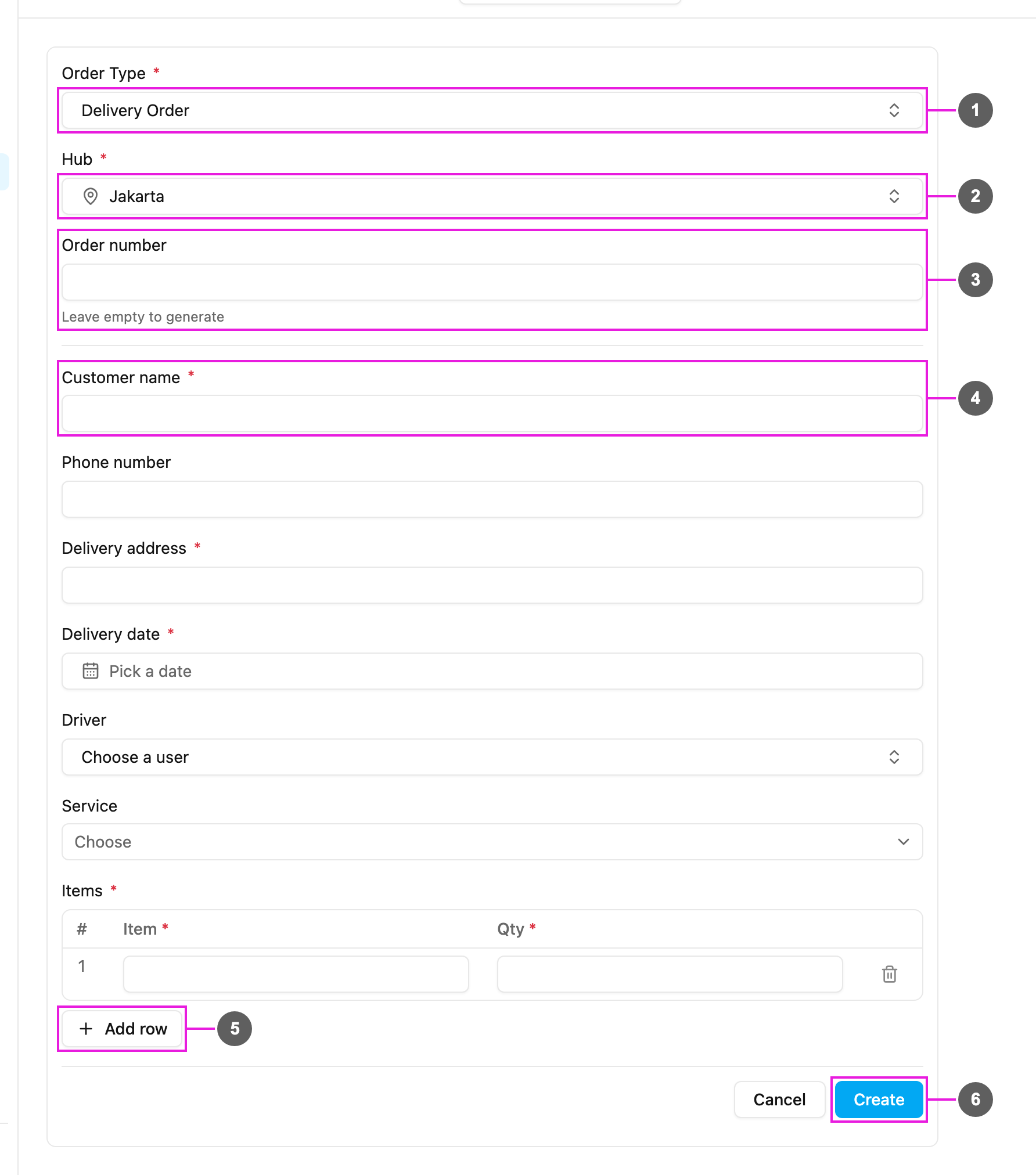
- Order Type
- Hub
- Order number
- Typed in: the field is required; type the order’s number.
- Automatic: the field is hidden; the number is made for you (for example
DO/2026/10/0006). - Automatic if empty: the field is optional, with the hint “Leave empty to generate”. Type a number, or leave it empty to get one made for you.
- Order fields
- Add row
- Create
After you click Create
- You see “Order … created.” and the order opens.
- The Order Type’s steps start. Depending on how it’s built, the order may create its first task right away, wait for a status, or call another system. You can follow it on the order’s page.
If the Order Type matches orders by a unique value (for example an external reference) and an order with the same value already exists, that order is updated instead of a new one being created. You then see “Order … already existed and was updated.” An order that has already finished cannot be updated this way, and the form says so.