

Required permission:
- View schedule (Task)
- View Schedule (Routing Schedule)
Open the calendar
Open Planning › Schedule, pick the Task or Routing tab, and click Calendar beside List.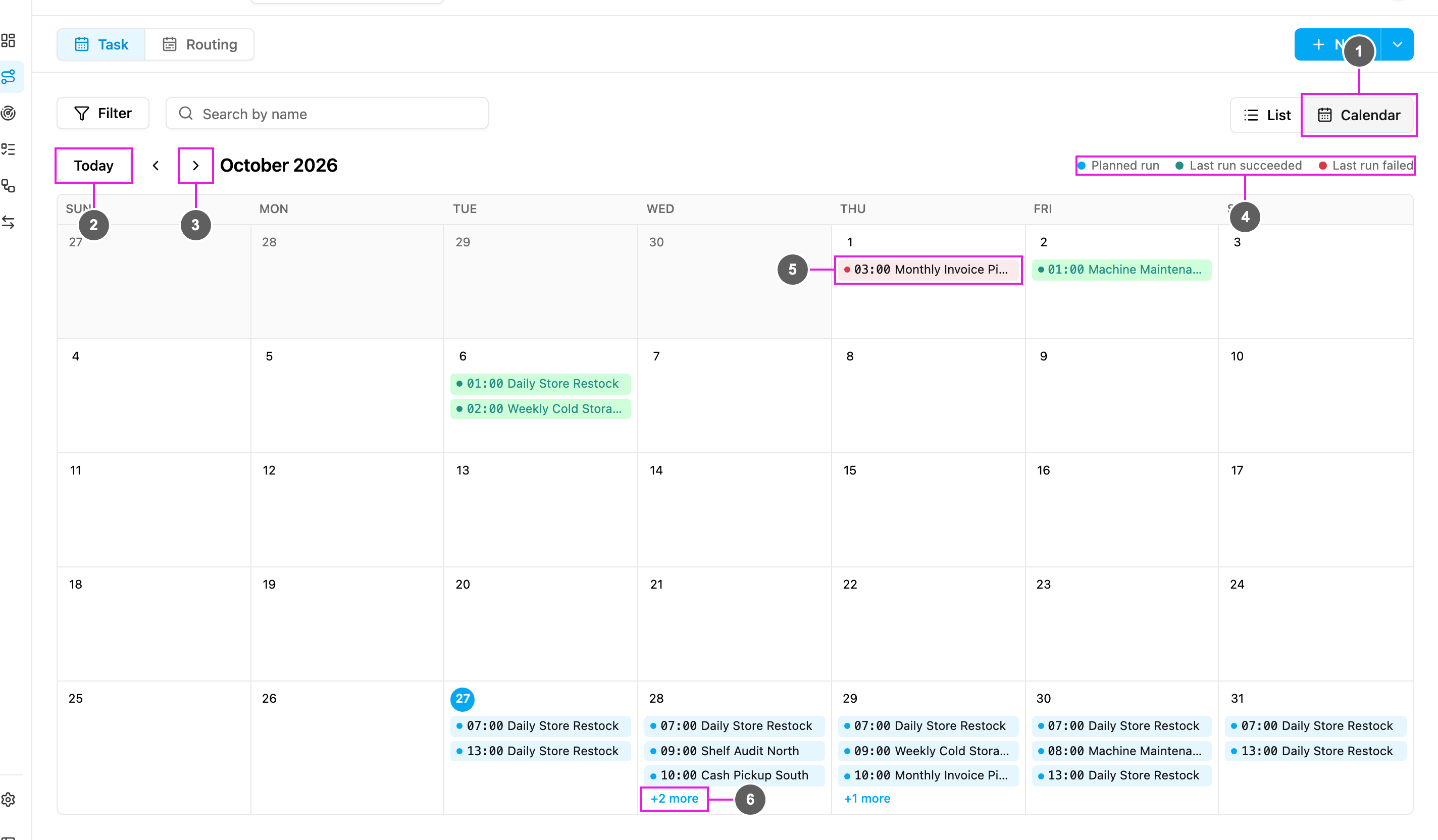
- List / Calendar: switch between the table and the calendar. The view you pick is kept in the page address, so a bookmark or a shared link opens the same view.
- Today: jump back to the current month. Today’s date is marked with a blue circle.
- Previous month / Next month: move one month back or forward.
- Legend: what each colour means. See Run colours.
- A run: the time and the schedule name. Click it to open the schedule’s details.
- +N more: a day shows its first three runs. Click +N more to see every run of that day.
Run colours
Before today, the calendar shows only each schedule’s last run, not its full history. To check older runs, use the list view or the routing schedule’s last execution.
See every run of a busy day
When a day has more than three runs, click +N more. A small window lists every run of that day in time order, with the date and the number of runs at the top.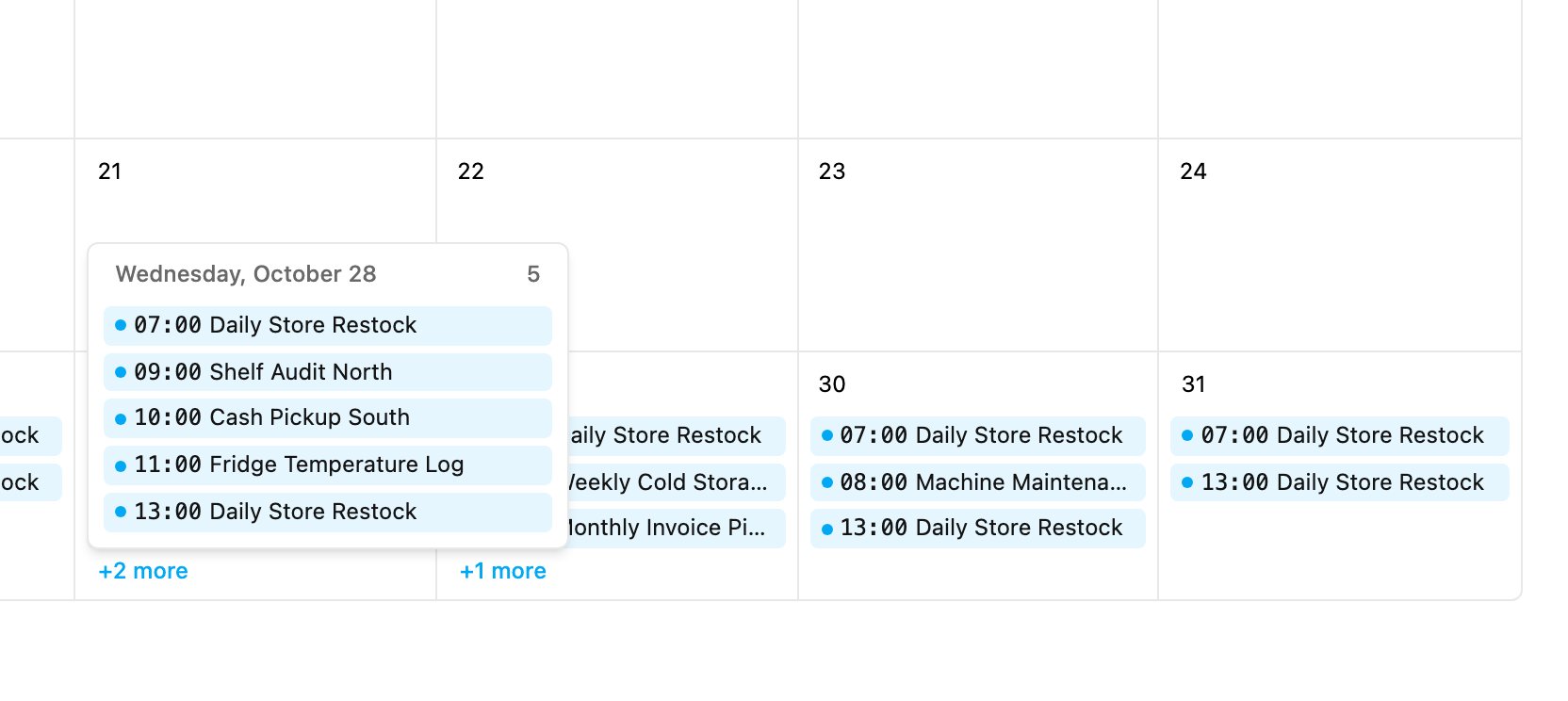
Open a schedule from the calendar
Click a run to open its schedule’s details: what it creates, how it repeats, the times of day, the active period, the assignees and the status of the last run.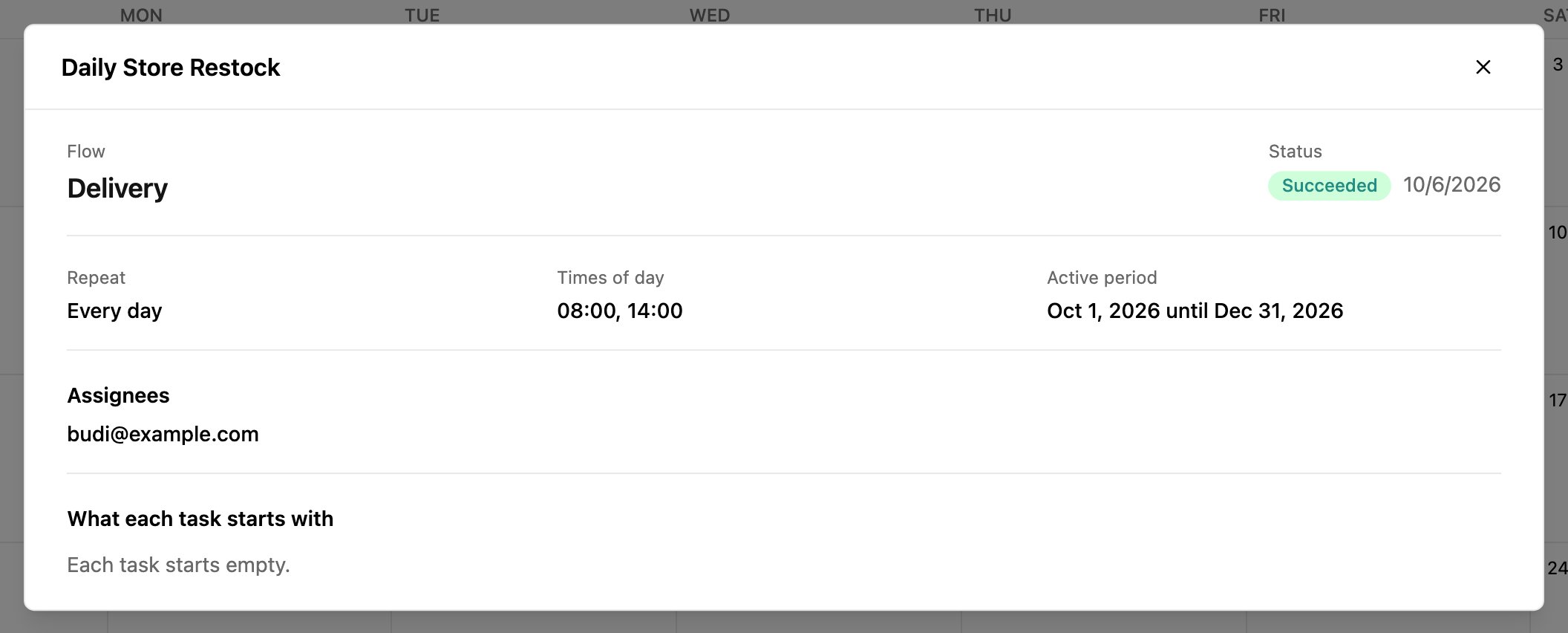
Routing schedules on the calendar
On the Routing tab the calendar works the same way. Each run shows when route optimization runs for that schedule.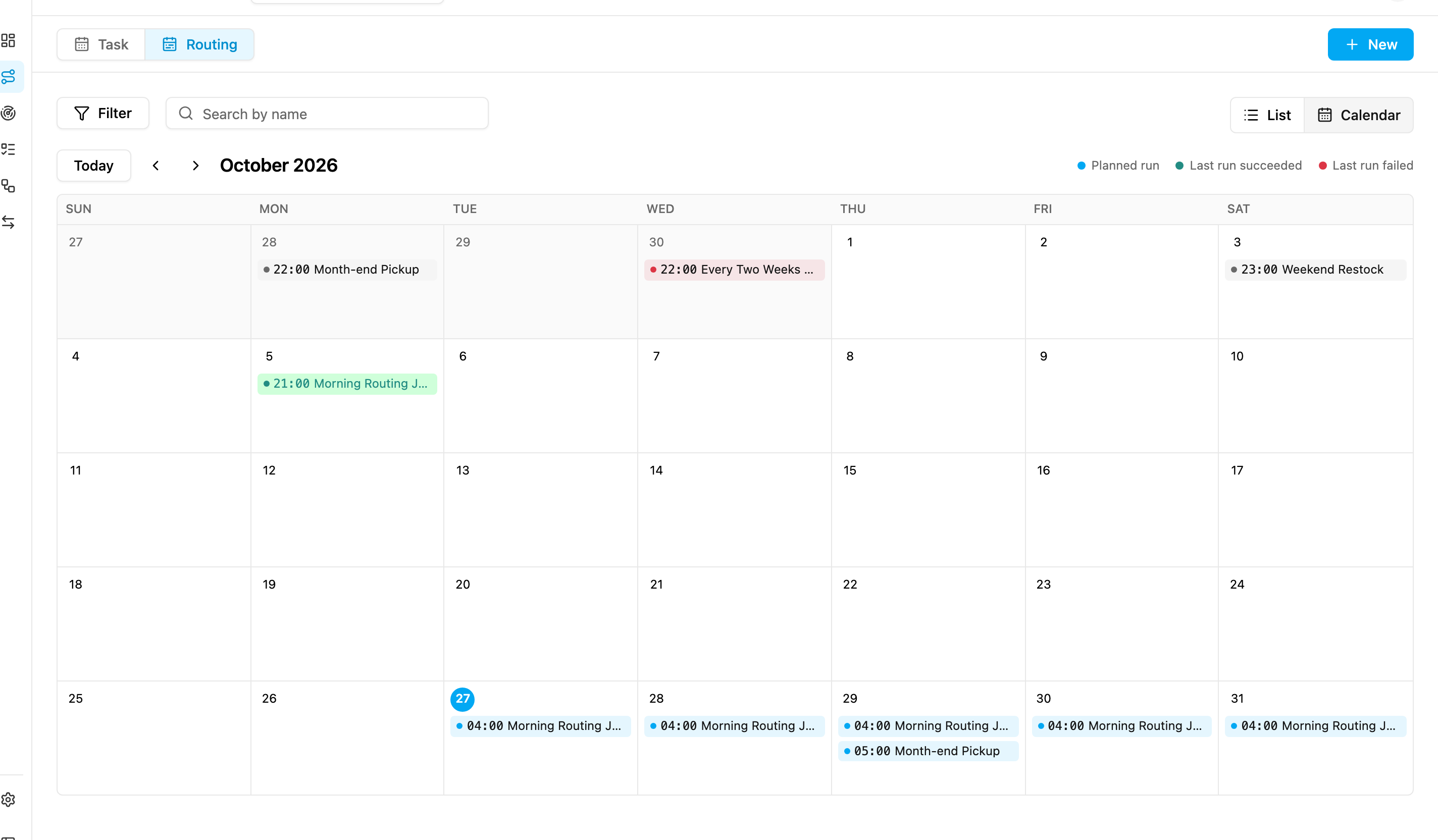
Limits
- The calendar loads up to 1,000 schedules. If you have more, a note appears above the calendar; use Filter or Search by name to narrow it down.
- The calendar is not shown on phones. Use the list instead.