

Required permission:
- Add dashboard (to save a widget as a template, including the template a widget from Create widget becomes)
- Edit dashboard (to edit a template)
- Delete dashboard (to delete a template)
Widgets from Create widget
A widget you build with Create widget is saved as a widget template the moment you click Add to dashboard, before the dashboard is saved. The template belongs to your organization, not to the dashboard: it stays even if you click Discard. The widget on the dashboard is its own copy once you save the dashboard, so changing one never changes the other. Without the Add dashboard permission, Create widget and Save as widget template are still shown; clicking them says You don’t have permission. The same goes for Edit widget template without Edit dashboard and Delete widget template without Delete dashboard.Save a widget as a template
You can save a custom widget: one you built with Create widget, or one you added from a template. Ready-made widgets from the catalog, text and banner widgets cannot be saved as templates. A widget you build with Create widget is already a template the moment you add it. See Custom Widget.- Open the dashboard. You can do this while viewing it or in edit mode.
- Click the widget’s ⋯, then Save as widget template.
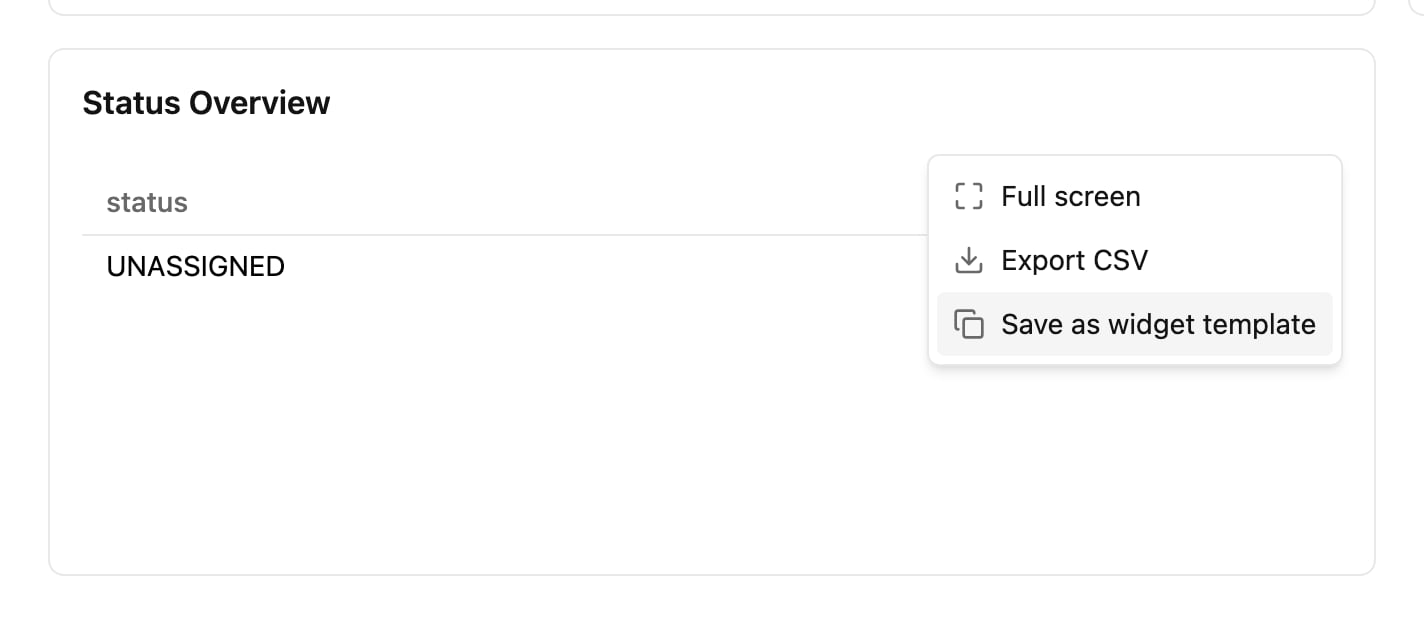
A custom widget’s ⋯ menu while viewing the dashboard, with Save as widget template.
- Check the Template name. It starts as the widget’s name and can be up to 200 characters. Names do not have to be unique.
- Optionally change the Description, up to 500 characters.
- Click Save.
- While viewing, the template copies the widget as it was last saved.
- In edit mode, the template copies the widget as it is now, including a widget you have just added or changed and not saved yet. The dashboard itself stays unsaved: click Save or Discard for it as usual. If a task type in the widget’s Task type filter no longer exists, the template is not saved and the dialog stays open.
Add a template to a dashboard
- Open the dashboard and click Edit.
- Click Add and open the Custom tab. Templates are listed after Create widget. You can also find one by name with Search widgets.
- Click the template. Each template tile shows its visual, plus its task type when the template is filtered to exactly one, for example Table · Delivery. A template with no task type, or with several, shows its visual only, for example Table.
Edit a template
- In the Custom tab of the Add dialog, click the template’s ⋯, then Edit widget template.
- Change the Template name, the description, what the widget counts or its visual, then click Save.
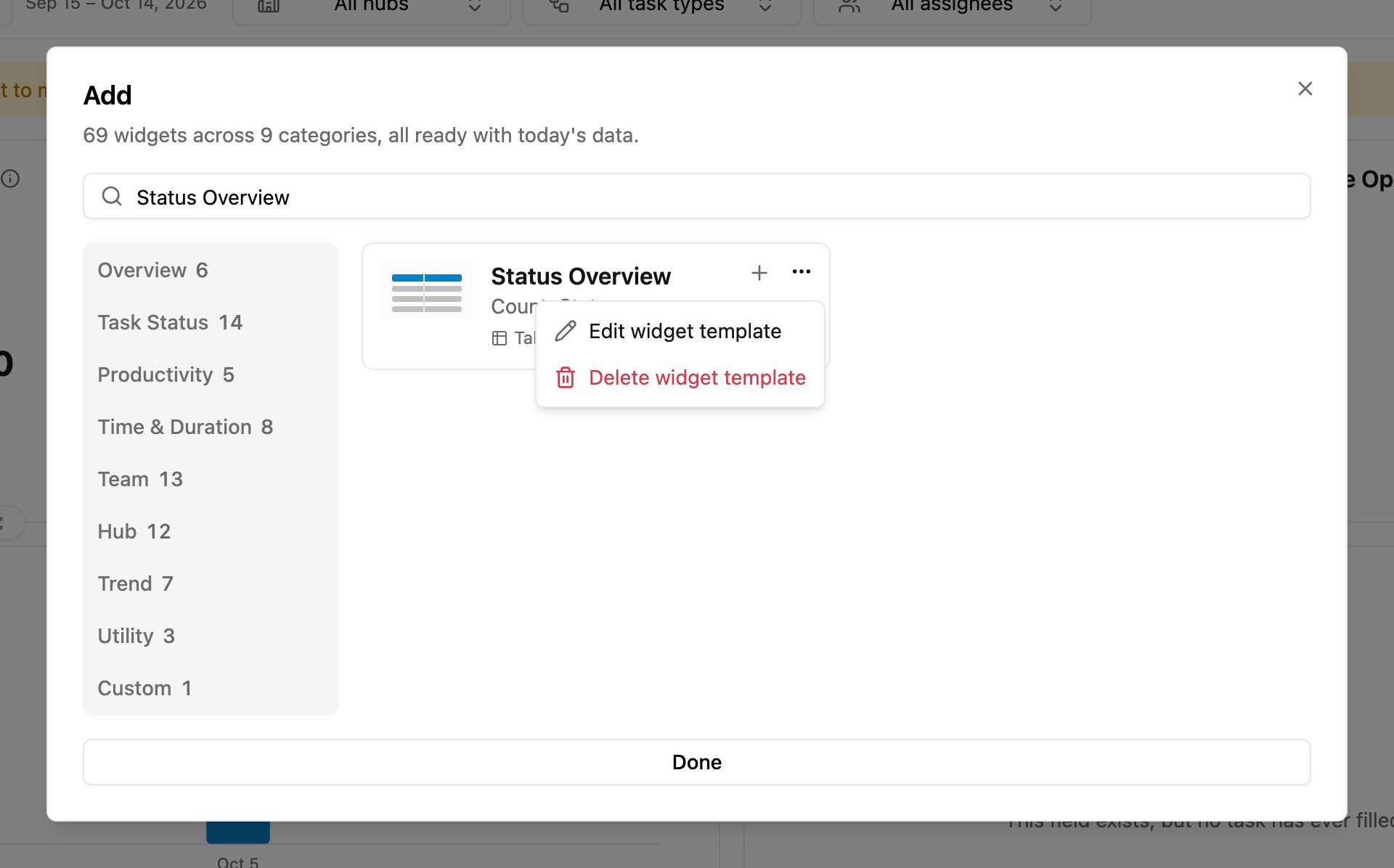
A widget template in the Custom tab, with its ⋯ menu: Edit widget template and Delete widget template.
The dialog opens on the template’s saved visual, and you can change its Task type filter like any other filter. Its preview uses the dashboard date range only, not the filters of the dashboard you have open, because a template is used on many dashboards: Preview uses the dashboard date range only. The change applies to the template only. Widgets already on dashboards keep their own copy. After saving, you return to the Add dialog.Delete a template
- In the Custom tab of the Add dialog, click the template’s ⋯, then Delete widget template.
- Click Delete to confirm.