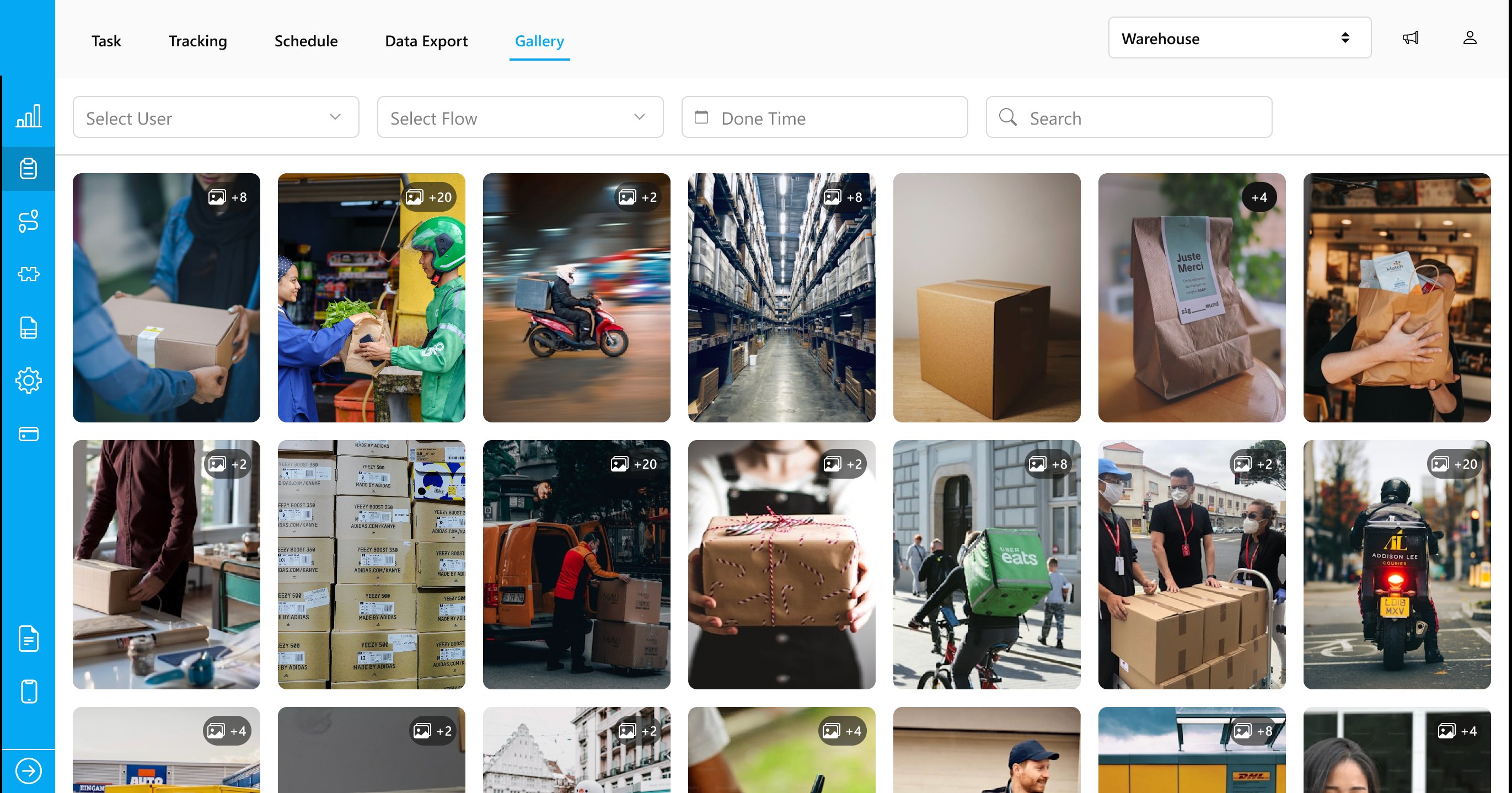
The Gallery menu displays all photos associated with tasks marked as Done. Tasks that are not completed will not appear here.
Required permission:
View gallery
Gallery menu display
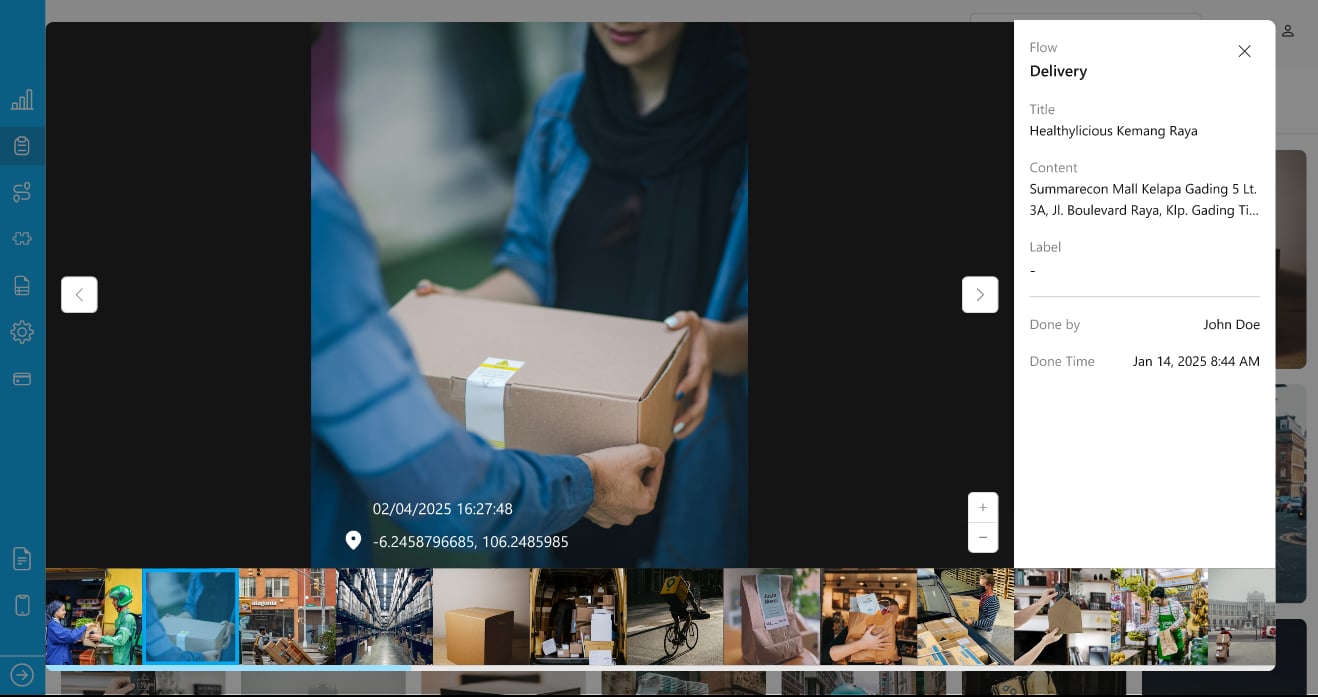
Within the Gallery menu, each card represents a single task. For example, if a task contains 10 photos, all of them will be displayed on one card. You can hover over the card to view details such as the flow name, title, content, label, “done by,” and “done time” for the task or its associated photos.
Gallery menu display
If you want to see a larger view of all photos associated with a task, simply click on any photo within the Gallery menu. A popup will then appear, displaying all photos for that task, allowing you to select one for a closer look.Please note that tasks with non-required photo components will not appear in the Gallery menu. Only tasks that include required photo components will be displayed.
Assistant
Responses are generated using AI and may contain mistakes.