> ## Documentation Index
> Fetch the complete documentation index at: https://docsv4.mile.app/llms.txt
> Use this file to discover all available pages before exploring further.
# View
> Show a value to the field worker without letting them change it.
**View** shows information to the field worker in read-only form. It can show a fixed text, or, more often, the value of another component in the same task type, so something captured earlier (such as the customer name on the Initial page) appears on later pages without retyping.
**Use cases**
* **Context on every page**: the customer name and address while the worker completes the task.
* **Instructions**: a fixed note, such as *Check the receiver's ID before handing over the parcel*.
## Properties
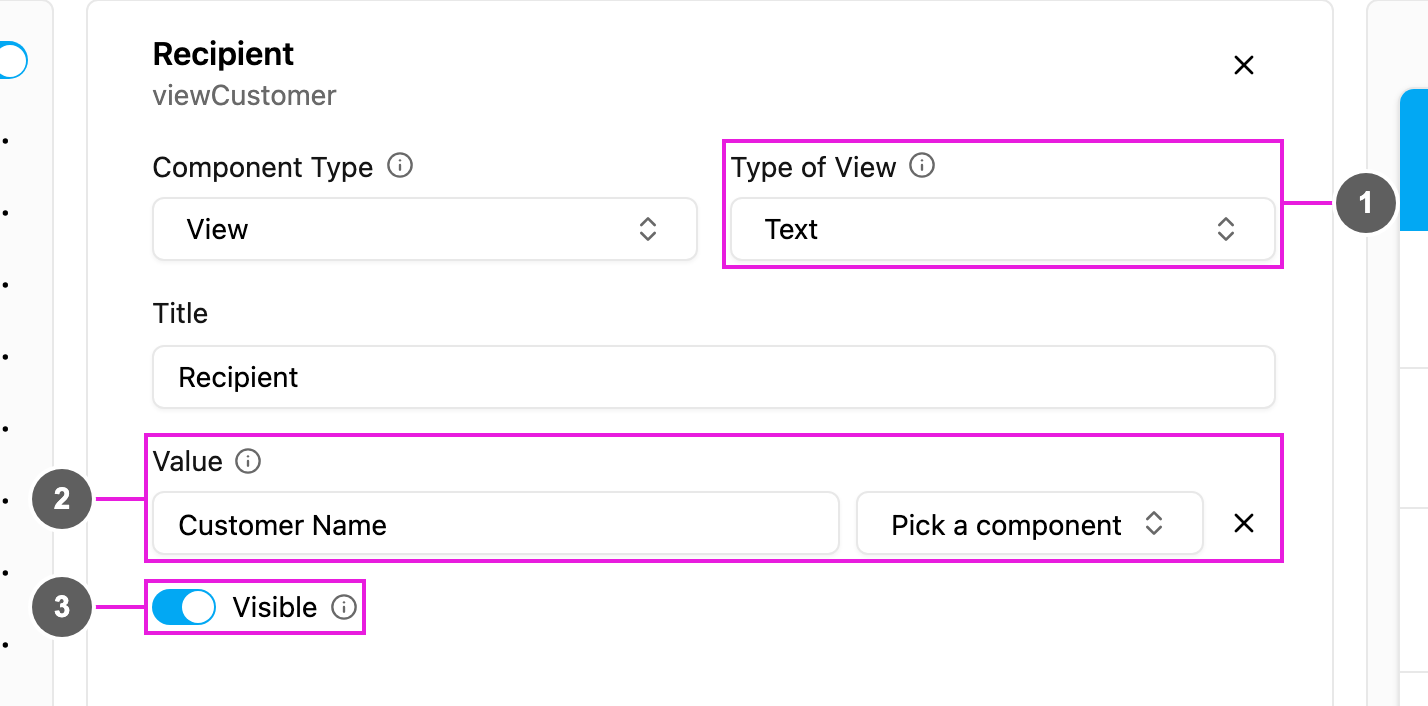
1. **Type of View**: the kind of value shown. Choose the type that matches the component you show; the **Value** list only offers matching components.
2. **Value**: the value shown. Click **Pick a component** to show another component's value, or type a fixed text. A picked component is shown as `$` and its ID.
3. **Visible**: when off, the view is hidden on the web and the field app.
## Types of view
| Type of View | Shows | Usually shows a |
| - | - | - |
| **Text** | Plain text | Text input or Select |
| **Date** | A date in `dd/mm/yyyy` | Date input |
| **Date and time** | A date and a time | Date or Date and time input |
| **Time** | A time in `hh:mm` | Time input |
| **Number** | A number | Number input |
| **Address** | An address | Address or Text input |
| **Coordinate** | A position, tappable to open the map | Coordinate input |
| **Phone number** | A number, tappable to call | Phone number input |
| **Link** | A link, tappable to open, with an optional image, video or PDF preview | Link input |
| **Currency** | An amount formatted as money | Currency input |
| **Photo** | A photo, tappable to enlarge | Photo or Signature |
| **Bill** | A bill, read-only | Bill |
| **List** | A list, read-only | List |
**Bill** and **List** views are not available inside a Subpage.
For a **Link** view on a field app page, **Type of Preview** shows the linked **Image**, **Video** or **PDF** inside the task. For a video, **Skipable** lets the worker skip it; otherwise they must watch it to the end.
## How to set it up
Click **Add component** and choose **View**.
Choose the **Type of View** that matches the value you want to show.
Click **Pick a component** and choose the component to show, or type a fixed text.
Write the **Title** shown above the value.
## On the field app
The view is read-only, so it never stops the worker from finishing a page. Coordinates open the map, phone numbers start a call, links open in the browser and photos open full screen.
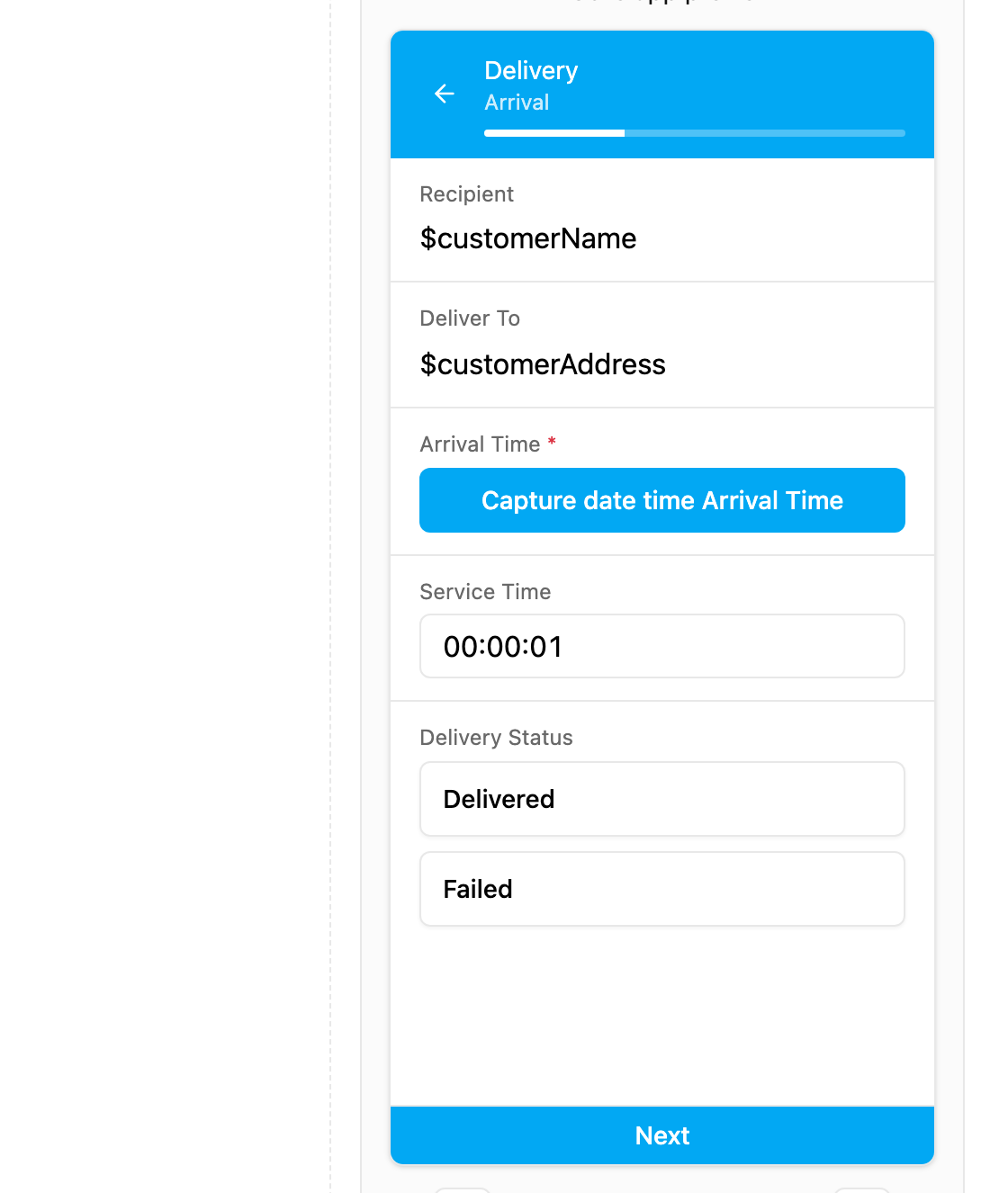
Recipient and Deliver To show the customer name and address from the Initial page. The builder preview shows the reference; the field app shows the value.
This documentation is built and hosted on [Mintlify](https://mintlify.com), a developer documentation platform.