> ## Documentation Index
> Fetch the complete documentation index at: https://docsv4.mile.app/llms.txt
> Use this file to discover all available pages before exploring further.
# Select
> Offer a choice from a list, and show, hide or fill other components depending on the answer.
**Select** lets the user pick one or more options from a list you define. It can be shown as a dropdown, checkboxes or buttons, and each answer can **show**, **hide** or **fill** other components, so the form adapts to what was chosen. Use it for a status, a reason, a to-do checklist or a job with several requirements.
## Properties
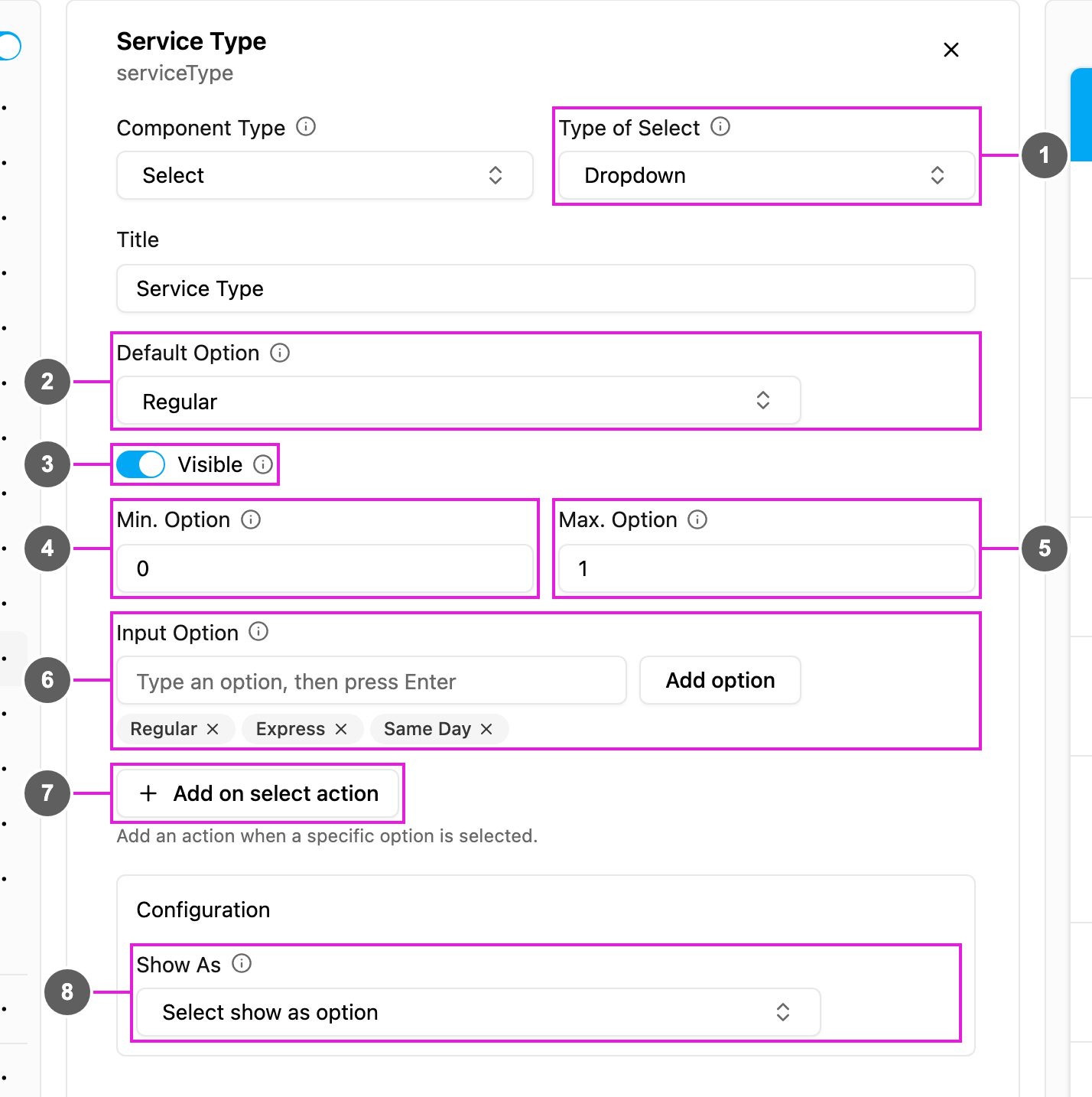
1. **Type of Select**: how the options are shown:
* **Dropdown**: a list that opens when tapped.
* **Checkbox**: every option with a box to tick.
* **Button**: every option as a button.
2. **Default Option**: an option picked in advance for every new task, or **No default**.
3. **Visible**: when off, the component is hidden on the web and the field app; its value is still kept and exported.
4. **Min. Option**: the fewest options that must be picked. **0** makes the component optional; **1** or more makes it mandatory.
5. **Max. Option**: the most options that can be picked, at least 1. Set it above 1 to allow several answers.
6. **Input Option**: the options. Type an option and press Enter, or click **Add option**. Click **×** to remove one. At least one option is needed, and each must be unique.
7. **Add on select action**: add a rule that acts when a given option is picked. See [On select actions](#on-select-actions).
8. **Show As**: show the chosen option in the task list as the task's **Title**, **Content** or **Label**.
Select has no Required switch: set **Min. Option** to 1 or more to make an answer mandatory.
## On select actions
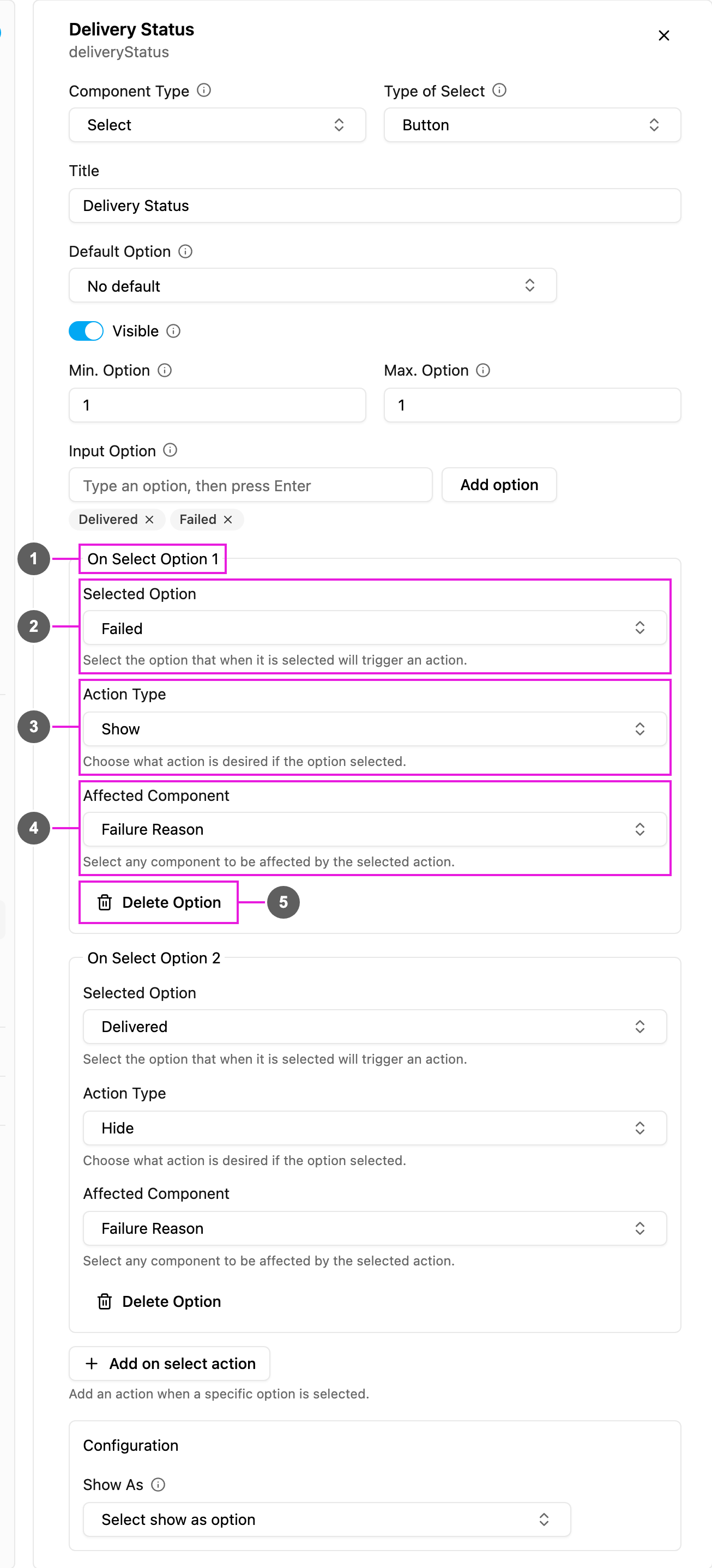
An on select action changes other components when an option is picked. For example: when **Delivery Status** is **Failed**, show the **Failure Reason** question; when it is **Delivered**, hide it.
1. **On Select Option 1**: each rule is numbered. Add as many as you need.
2. **Selected Option**: the option, or several options, that trigger the rule.
3. **Action Type**: what happens:
* **Show**: display the affected components. Their values cannot be changed.
* **Hide**: hide the affected components, so they cannot be seen or changed.
* **Fill**: display the affected components and let the user fill them in.
4. **Affected Component**: the components the action applies to. Pick one or more from any page.
5. **Delete Option**: remove this rule.
Click **Add on select action** at the end of the list to add another rule.
A component that should appear only after a certain answer is set with **Visible** off, and an on select action with **Show** or **Fill** brings it back.
## How to set it up
Click **Add component** and choose **Select**. Pick the **Type of Select**.
Type each option in **Input Option** and press Enter.
Set **Min. Option** and **Max. Option**. For a single required answer use 1 and 1.
Click **Add on select action**, pick the **Selected Option**, the **Action Type** and the **Affected Component**.
## On the field app
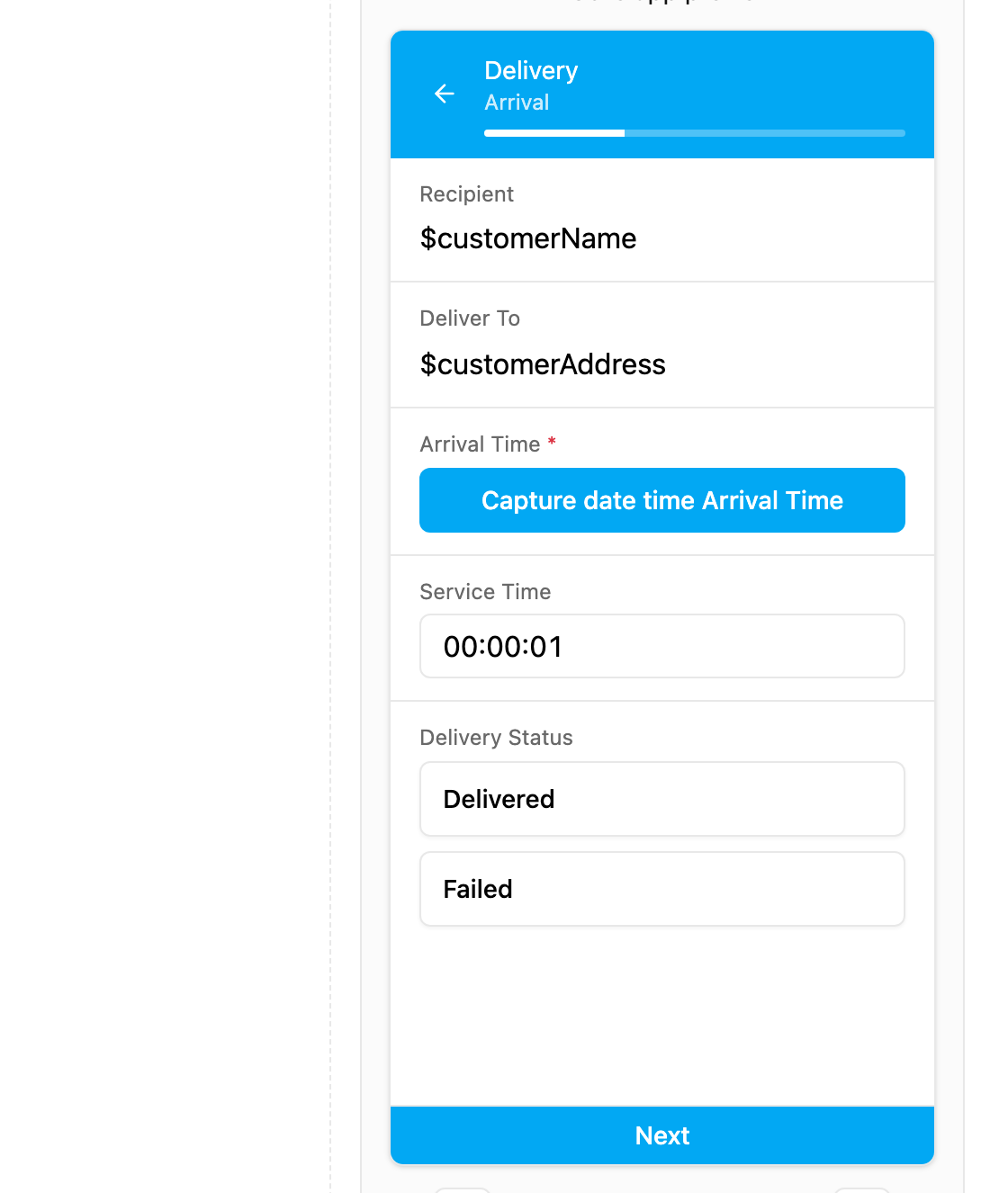
The options appear as a dropdown, checkboxes or buttons. Picking an option runs its actions at once, so hidden questions appear or disappear as the user answers. The task cannot be saved or finished with fewer than **Min. Option** or more than **Max. Option** answers.
Delivery Status as buttons. Failure Reason stays hidden until Failed is picked.
This documentation is built and hosted on [Mintlify](https://mintlify.com), a developer documentation platform.