> ## Documentation Index
> Fetch the complete documentation index at: https://docsv4.mile.app/llms.txt
> Use this file to discover all available pages before exploring further.
# Text
> Capture a single line of free text, such as a name, a note or a reference code.
**Text** captures a single line of free text. It is the most flexible input type: use it whenever the value needs no special format.
**Use cases**
* **Customer name**: the recipient's name on a delivery task.
* **Reference code**: an order number, SKU or other short identifier.
* **Short notes**: a brief observation from the field.
## Properties
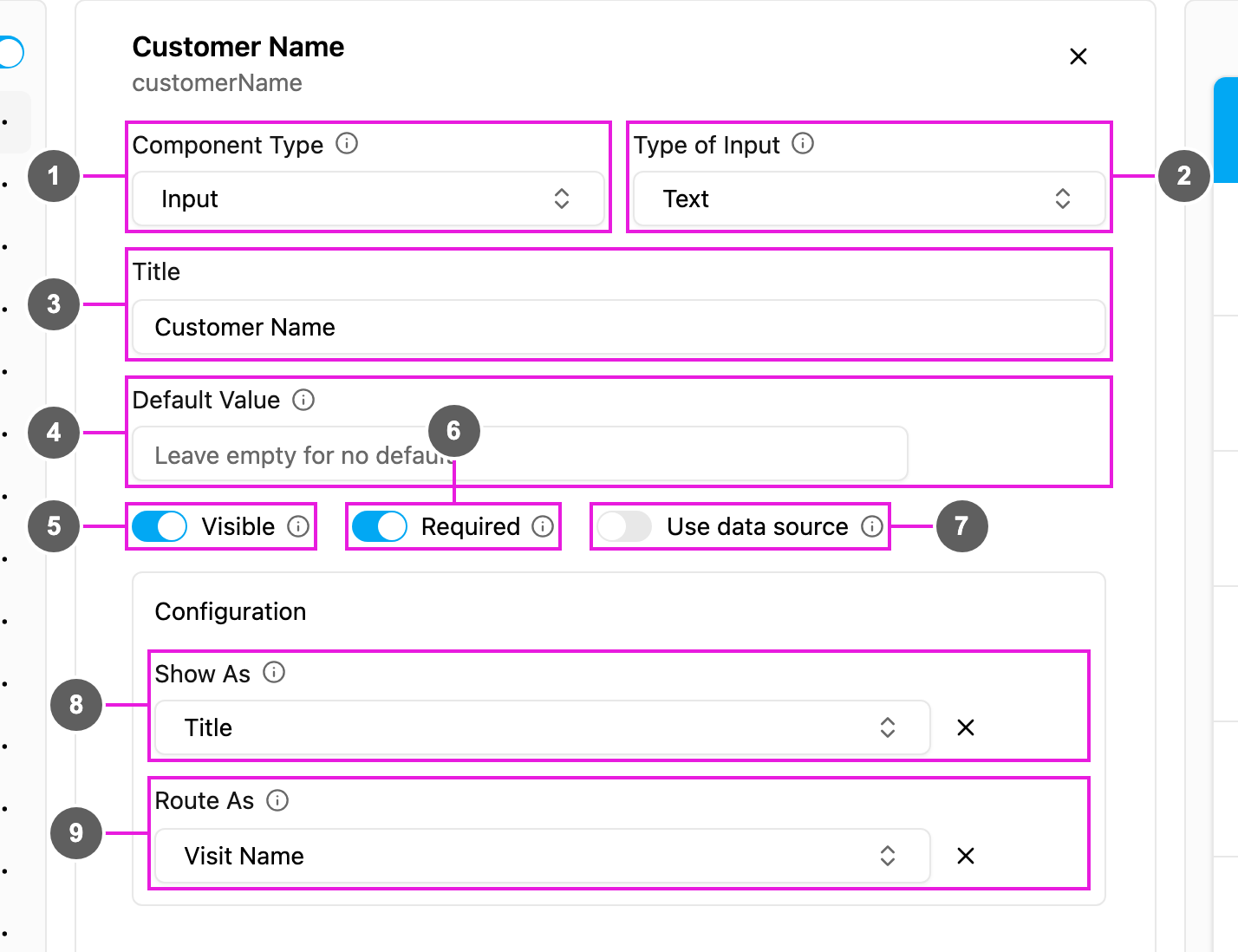
1. **Component Type**: Input.
2. **Type of Input**: Text.
3. **Title**: the label above the field, for example *Customer Name*.
4. **Default Value**: text filled in for every new task. Leave it empty for no default.
5. **Visible**: when off, the field is hidden on the web and the field app; its value is still kept and exported.
6. **Required**: the task cannot be saved or finished until the field is filled in.
7. **Use data source**: fill the field from your [data source](/pages/workflow/data-source/introduction) records. The field becomes a search box over the data type you pick; choosing a record fills this field and any other components you map to it.
8. **Show As**: show the value in the task list as the task's **Title**, **Content** or **Label**.
9. **Route As** (Initial page only): pass the value to route planning as the visit's **Visit Name**, **Address**, **Tag** or **Visit Group**.
## How to set it up
Click **Add component** on the page, choose **Input**, and set **Type of Input** to **Text**.
Write the **Title**. Turn **Required** and **Visible** on or off, and add a **Default Value** if you need one.
Under **Configuration**, set **Show As** to **Title**, **Content** or **Label**.
On the Initial page, set **Route As** to **Visit Name**, **Address**, **Tag** or **Visit Group**. When the task becomes a visit, that visit property is filled from this field.
Turn on **Use data source** to let the user pick a record instead of typing.
## On the field app
The field shows a single-line text box with *Write {Title} here* as the placeholder. The worker types freely, or finds the field already filled from task creation or from the Default Value, and can edit it before finishing the page.
## Related
* [Number](/pages/workflow/task-type/components/input/number): numbers only.
* [Address](/pages/workflow/task-type/components/input/address): a multi-line address.
* [Input overview](/pages/workflow/task-type/components/input/introduction)
This documentation is built and hosted on [Mintlify](https://mintlify.com), a developer documentation platform.