> ## Documentation Index
> Fetch the complete documentation index at: https://docsv4.mile.app/llms.txt
> Use this file to discover all available pages before exploring further.
# Number
> Capture a number, with an optional unit and a minimum and maximum.
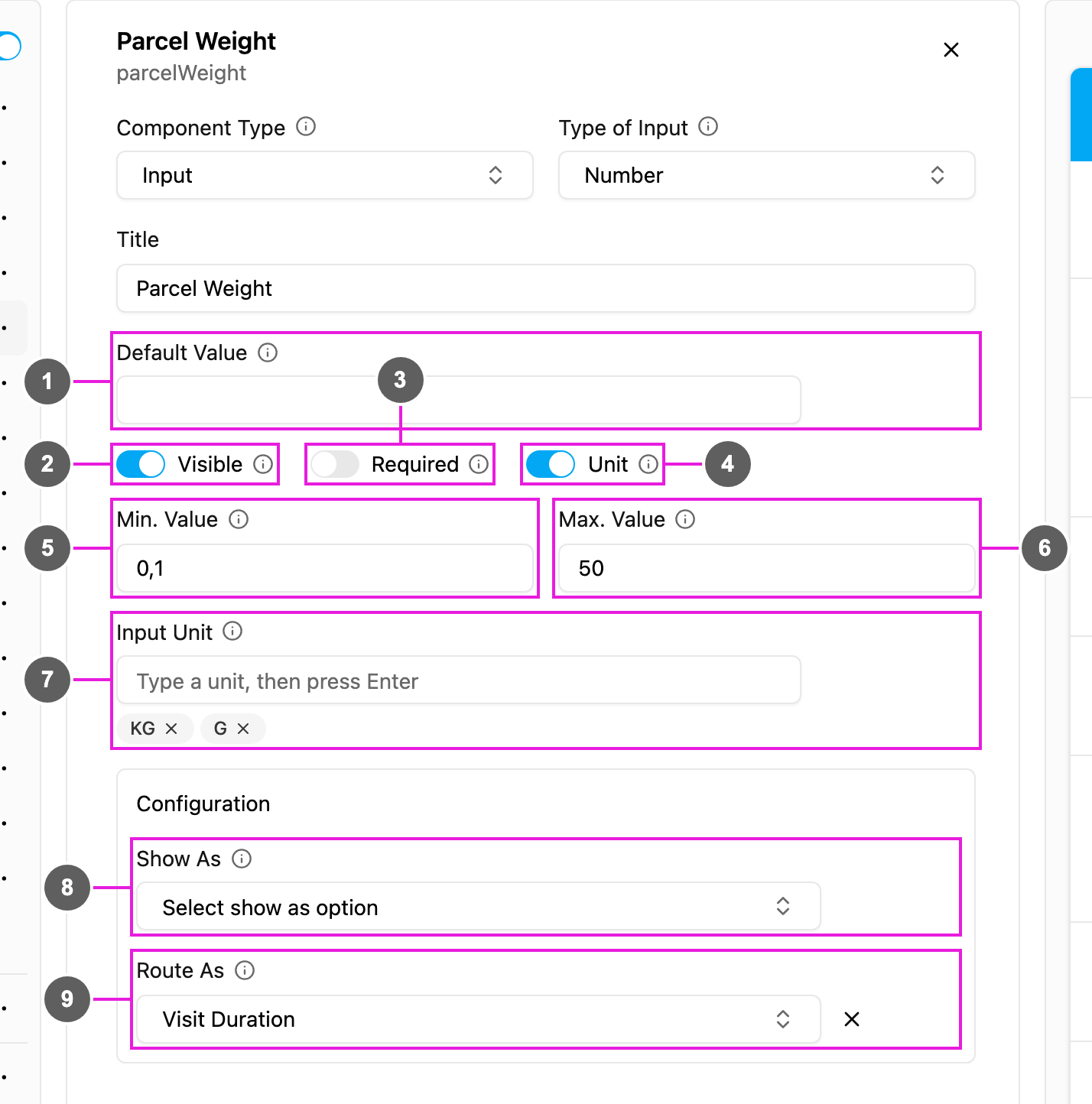
**Number** captures numbers only, such as a quantity, a weight or a count. It can carry a unit and a range.
In the previous version this type was called **Numeric**.
**Use cases**
* **Parcel weight** in KG or G.
* **Quantity** of items collected.
* **Meter reading** on an inspection.
## Properties
1. **Default Value**: a number filled in for every new task.
2. **Visible**: when off, the field is hidden on the web and the field app; its value is still kept and exported.
3. **Required**: the task cannot be saved or finished until a number is entered.
4. **Unit**: when on, the user picks a unit next to the number. Turning it on fills in KG, G, M3 and CBM.
5. **Min. Value**: the lowest number allowed. Leave it empty for no limit.
6. **Max. Value**: the highest number allowed, at least 0.1. Leave it empty for no limit. The minimum cannot be above the maximum.
7. **Input Unit**: the units the user can pick. Type a unit and press Enter to add it; click **×** to remove one. At least one unit is needed while **Unit** is on.
8. **Show As**: show the number in the task list as the task's **Title**, **Content** or **Label**.
9. **Route As** (Initial page only): pass the number to route planning as the visit's **Visit Duration** or **Visit Group Priority**, or as one of your organization's **capacity constraints**, such as weight or volume. See [Capacity constraints](/pages/planning/routing/configuration/introduction).
## How to set it up
Click **Add component**, choose **Input**, and set **Type of Input** to **Number**.
Fill in **Min. Value** and **Max. Value**.
Turn on **Unit** and edit the **Input Unit** list.
Set **Show As**, and on the Initial page **Route As**.
## On the field app
The field shows a number keypad, with the unit picker beside it when **Unit** is on. Values outside **Min. Value** and **Max. Value** are refused. The field can already be filled from task creation or from the Default Value.
This documentation is built and hosted on [Mintlify](https://mintlify.com), a developer documentation platform.